Description
- slideshow with same text over all images + autoscroll
- view demo – password: abc
- buy me a coffee

#1. Install Code
#1.1. First, add a Section > Choose Team > Choose Section with (i) icon

#1.2. Next, hover on top right of section > Click Edit Content
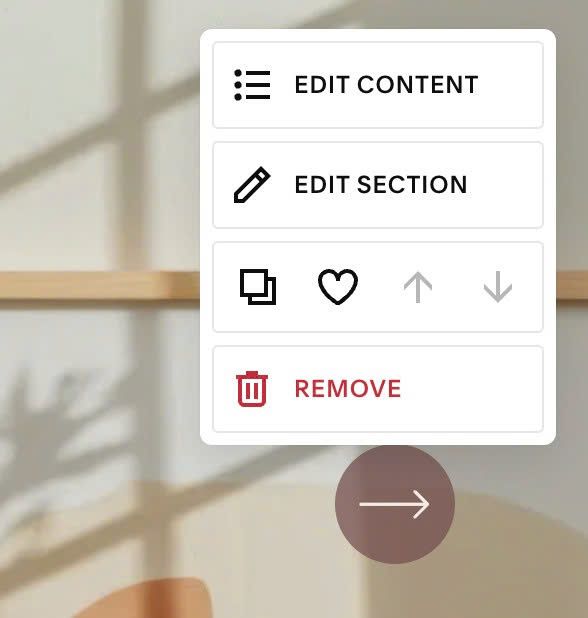
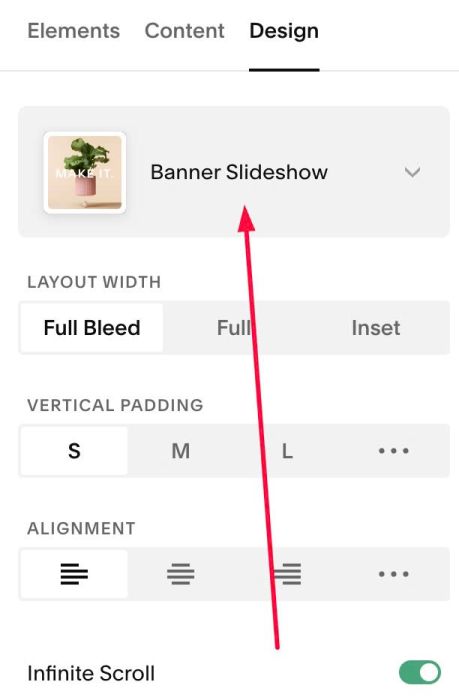
Choose Banner Slideshow
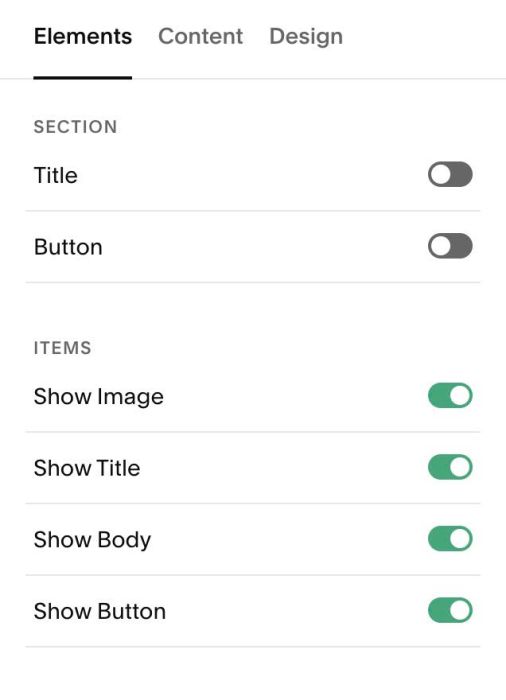
#1.3. At Elements, you can enable element what you want
#1.4. At Content, add your desired image/text
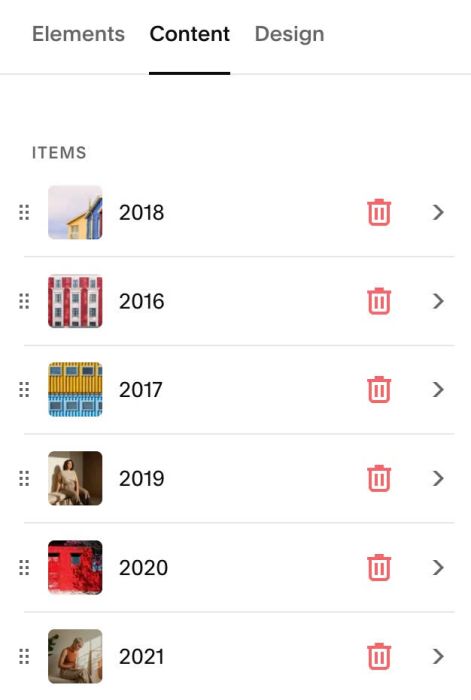
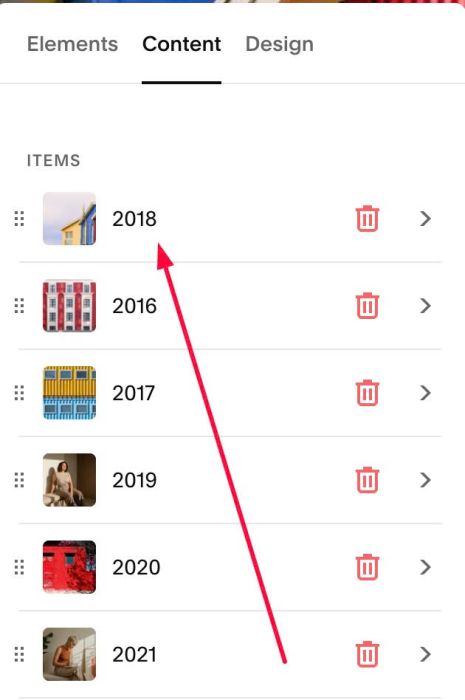
#1.5. Note: add Text/Button to FIRST ITEM only. Code will use this for all slideshow images
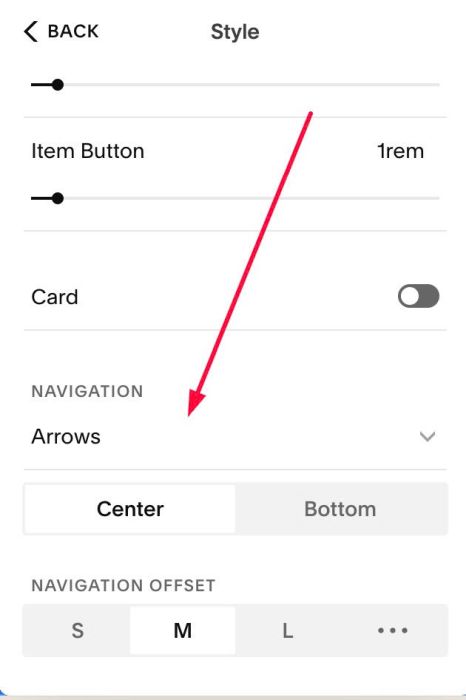
#1.6. Make sure you enabled Arrows (we can disable it with code in #2. Customize, if you want)
#1.7. Hover on top right of slideshow > Click EDIT SECTION
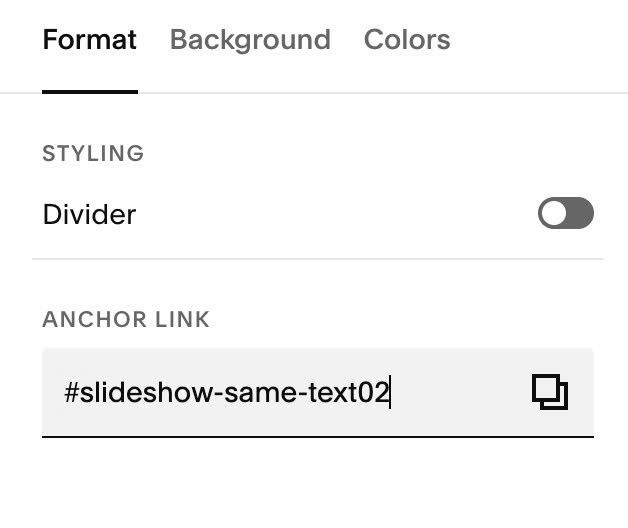
at Format > Anchor Link > enter word: slideshow-same-text
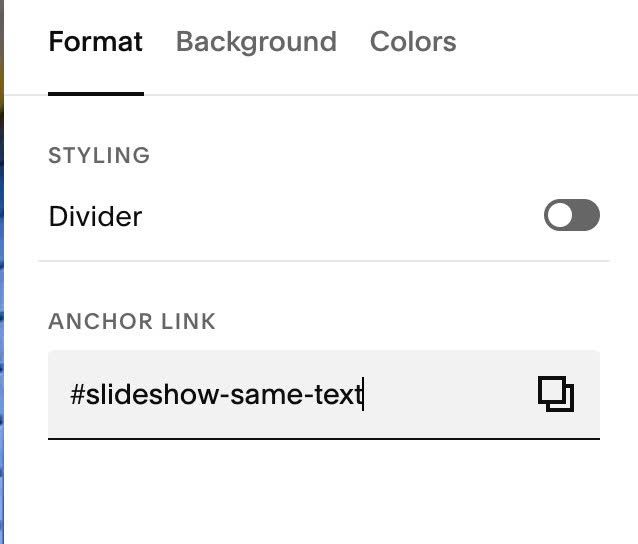
If you have multiple slideshows on same page, just use slideshow-same-text02, slideshow-same-text03…
#1.7. Hover on Page where you use Slideshow > Click Gear icon
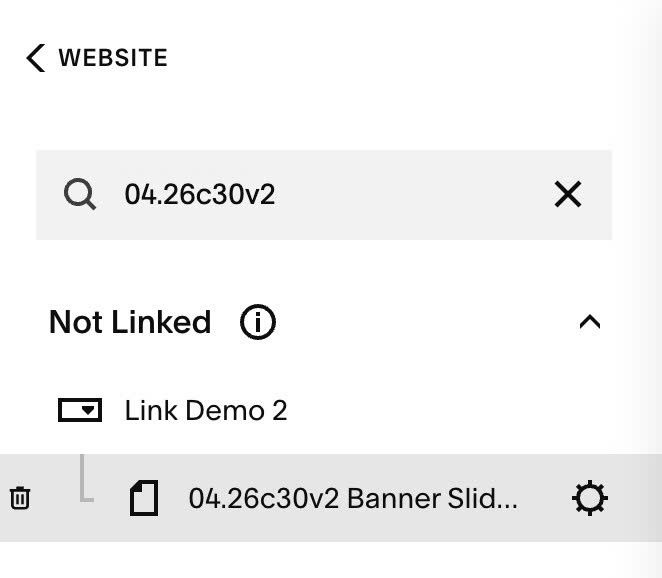
Click Advanced > Paste this code
- If you use Personal Plan/Basic Plan and your plan doesn’t support Injection, see #3.1.
<!-- 04.26c30v2 Slideshow same text - autoscroll -->
<script>
window.SlideshowSameTextConfig = {
  selector: 'section[id*="slideshow-same-text"]',
  moveText: true,
  arrows: true,
  autoScroll: false,
  autoScrollSeconds: 3,
  overlay: false,
  overlayColor: 'rgba(255,255,255,0.5)',
  textBackground: false,
  textBackgroundColor: '',
  textBackgroundPadding: '20px',
  clickable: true,
  imageLink: true,
  hideButton: true
};
</script>
<script src="https://code.beaverhero.com/list/0426c30v2slideshowsametextautoscroll.js"></script>

#2. Customize
#2.1. To enable Autoscroll, you can change Line 07, Line 08
autoScroll: false,
autoScrollSeconds: 3,
to something like this
autoScroll: true,
autoScrollSeconds: 3,
- true = enable
- 3 = 3 seconds
#2.2. To hide Arrows, you can change Line 06
arrows: true,
to
arrows: false,
#2.3. To make Image clickable, you can change Line 14, 15 (keep it as default)
clickable: true,
imageLink: true,
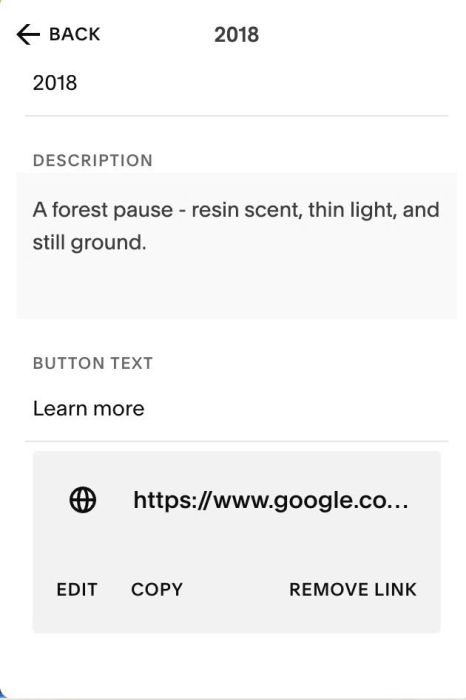
then make sure you added URL to First Item Button
#2.4. To add overlay background color behind text, over image, you can change Line 09, Line 10
overlay: false,
 overlayColor: 'rgba(255,255,255,0.5)',
to something like this
overlay: true,
 overlayColor: 'rgba(255,255,255,0.5)',
#2.5. To add a colored background behind text, you can change Line 11, Line 12, Line 13
textBackground: false,
textBackgroundColor: '',
textBackgroundPadding: '20px',
to something like this
textBackground: true,
textBackgroundColor: '',
textBackgroundPadding: '20px',
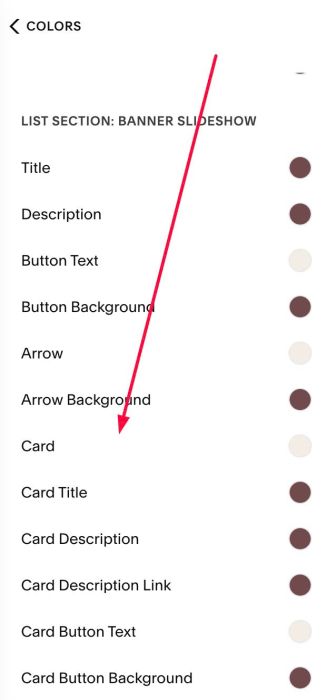
By default, text background will use option from Site Styles
#3. Other
#3.1. If you use Personal/Basic Plan and your plan doesn’t support Injection, you can edit Current page > Add a Block
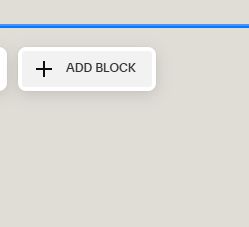
Choose Markdown
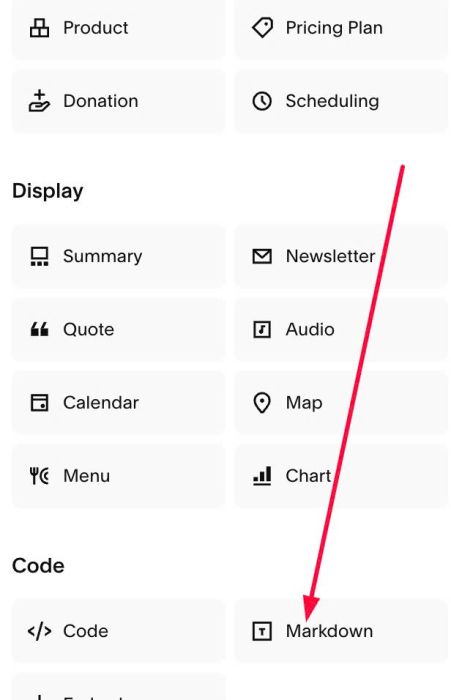
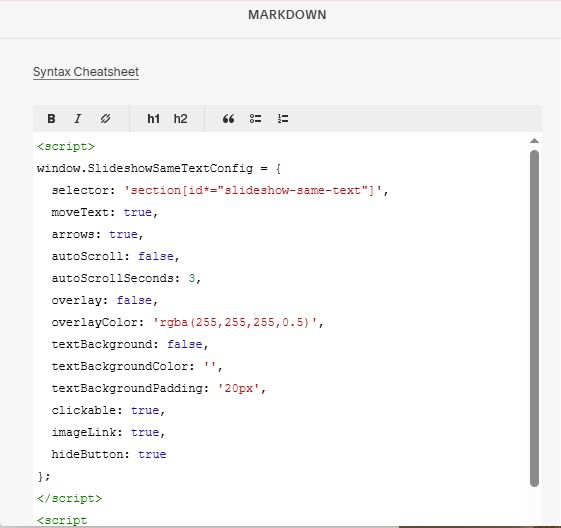
Paste this code into Markdown
<script>
window.SlideshowSameTextConfig = {
  selector: 'section[id*="slideshow-same-text"]',
  moveText: true,
  arrows: true,
  autoScroll: false,
  autoScrollSeconds: 3,
  overlay: false,
  overlayColor: 'rgba(255,255,255,0.5)',
  textBackground: false,
  textBackgroundColor: '',
  textBackgroundPadding: '20px',
  clickable: true,
  imageLink: true,
  hideButton: true
};
</script>
<script src="https://code.beaverhero.com/list/0426c30v2slideshowsametextautoscroll.js"></script>