Description
- adding H1 to Slideshow Full section
- view demo – password: abc
- buy me a coffee

#1. Install Code
#1.1. First make sure you added Slideshow Full section
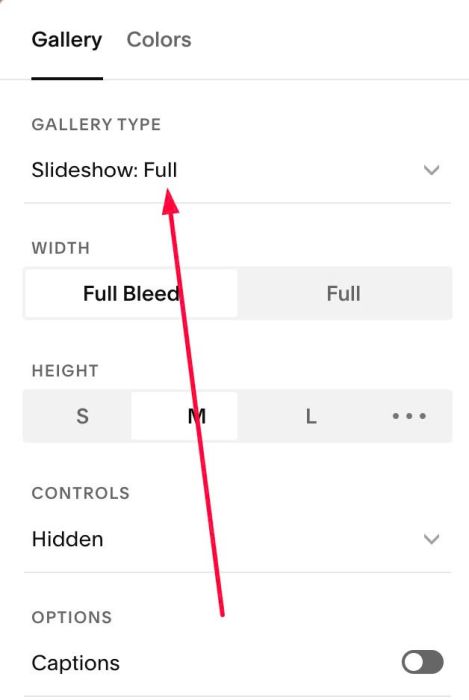
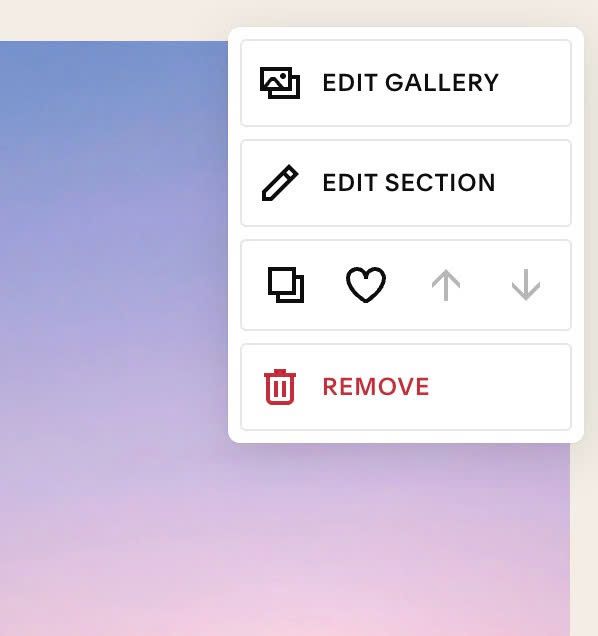
#1.2. Hover on top right of section > Click EDIT SECTION
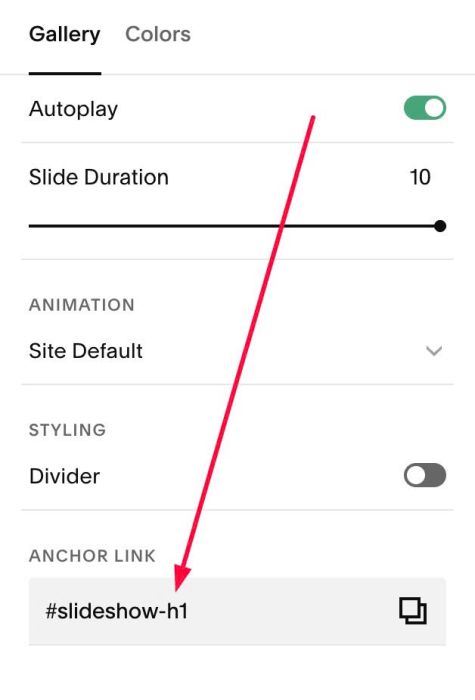
#1.3. at Format > Anchor Link > Enter word: slideshow-h1
#1.4. Hover on page where you use Slideshow > Click Gear icon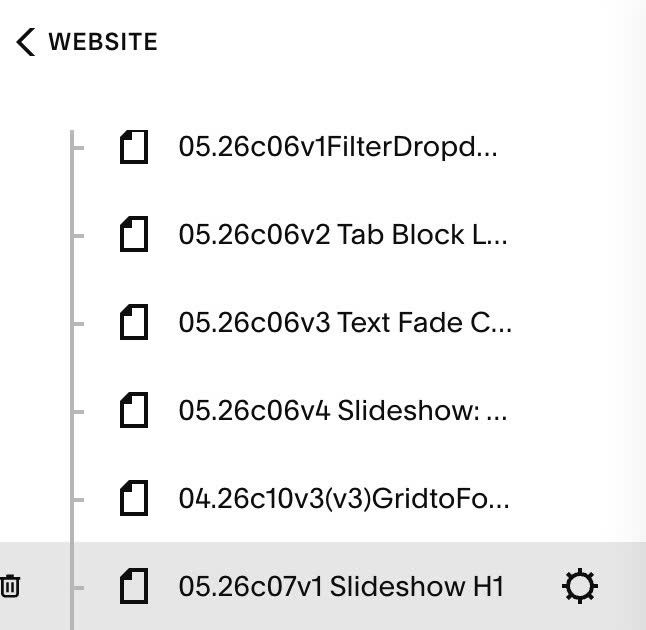
Click Advanced > Paste this code
- If you use Personal/Basic Plan and your plan doesn’t support Injection, see step #3.1.
<!-- 05.26c07v1 Slideshow H1 -->
<script>
  var SLIDESHOW_H1_CONFIG = {
    headingText: 'Your Heading Here',

    desktopFontSize: '100px',
    mobileFontSize: '40px',

    textColor: '#ffffff',

    desktopBottom: '50px',
    desktopLeft: '10px',

    mobileBottom: '50px',
    mobileLeft: '10px'
  };
</script>
<script src="https://code.beaverhero.com/gallerys/0526c07v1slideshowh1.js"></script>
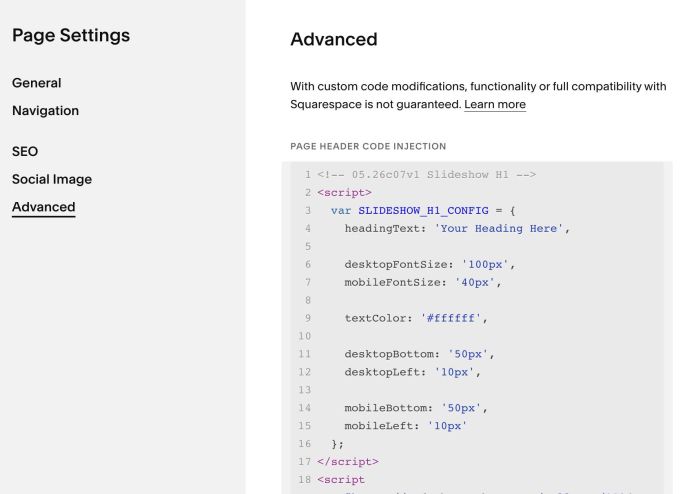
Result: Code will add an <h1> over Slideshow
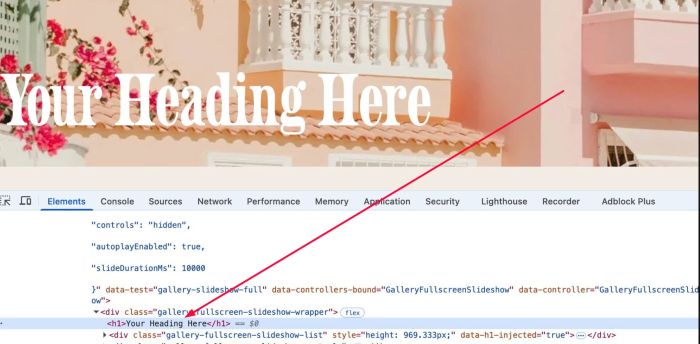
#2. Customize
#2.1. To change text, change this line
headingText: 'Your Heading Here',
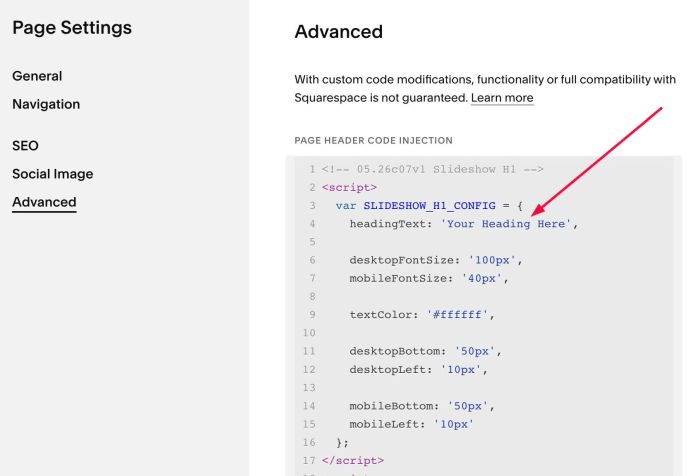
#2.2. To change H1 size on Desktop, Mobile, change these lines (Line 06, Line 07)
desktopFontSize: '100px',
mobileFontSize: '40px',
#2.3. To change H1 color, change line 09
textColor: '#ffffff',
#2.4. To change position of text (text – left of screen, text – bottom of slideshow), change line 11 to line 15
desktopBottom: '50px',
desktopLeft: '10px',

mobileBottom: '50px',
mobileLeft: '10px'
#3. Other
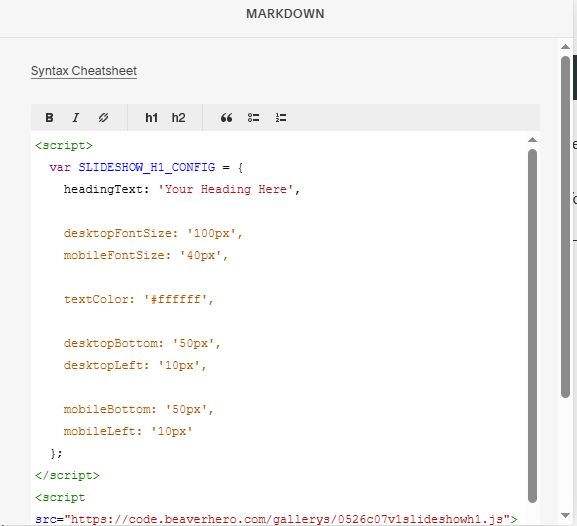
#3.1. If you use Personal/Basic Plan and your plan doesn’t support Injection, you can edit current page (page where you use Slideshow) > Add a Block > Choose Markdown.

Then add this code into Markdown Block.
<script>
  var SLIDESHOW_H1_CONFIG = {
    headingText: 'Your Heading Here',

    desktopFontSize: '100px',
    mobileFontSize: '40px',

    textColor: '#ffffff',

    desktopBottom: '50px',
    desktopLeft: '10px',

    mobileBottom: '50px',
    mobileLeft: '10px'
  };
</script>
<script src="https://code.beaverhero.com/gallerys/0526c07v1slideshowh1.js"></script>