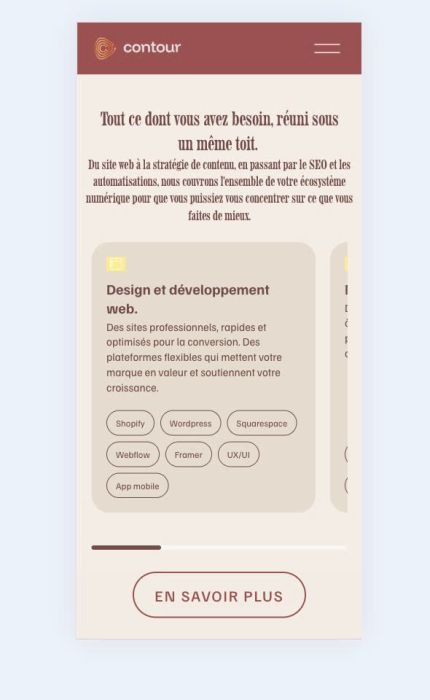
Description
- custom carousel (v3) use Team (List Carousel)
- view demo – password: abc
- buy me a coffee
(desktop)

(mobile)
#1. Install code
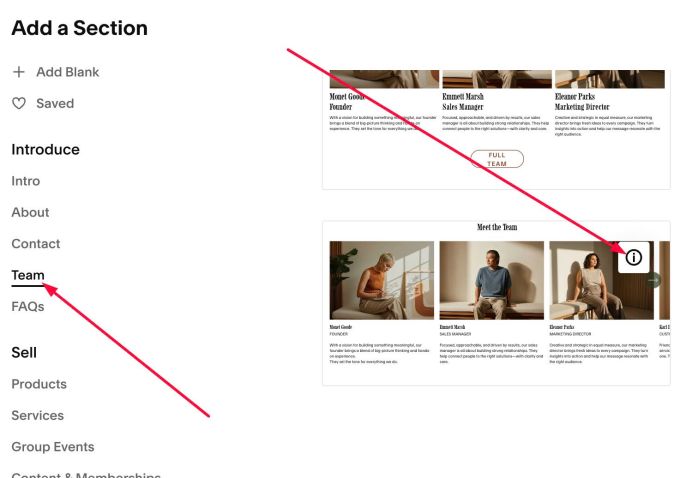
#1.1. First, add a Section > Choose Team > Choose section with (i) icon
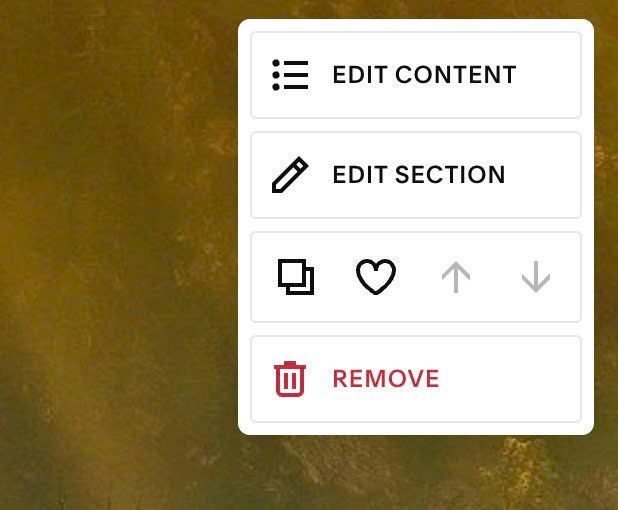
#1.2. Hover on top right of section > Click EDIT CONTENT
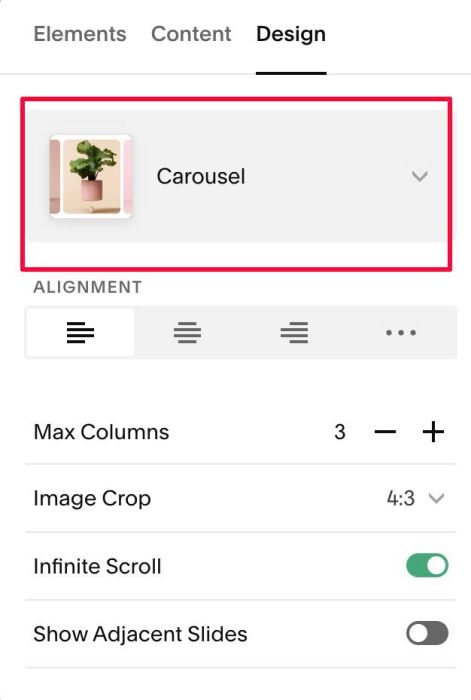
#1.3. At Design, choose Carousel
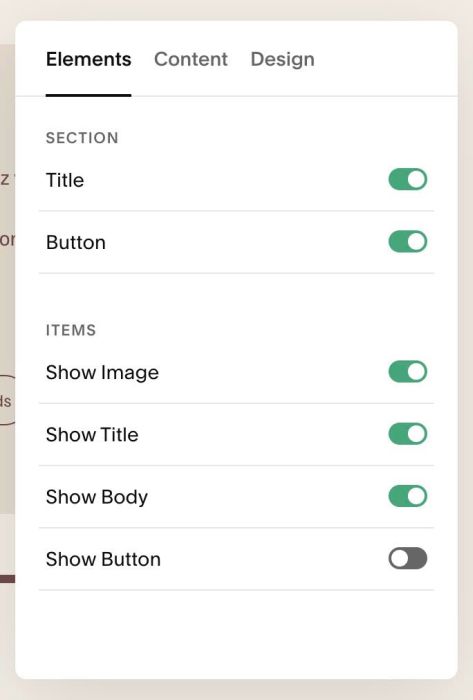
#1.4. at Elements > Enable these options
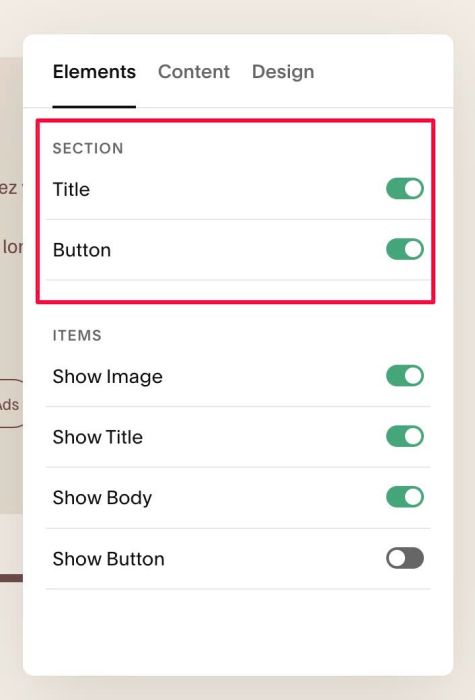
Note: You can disable Section Title, Section button if you don’t need them.
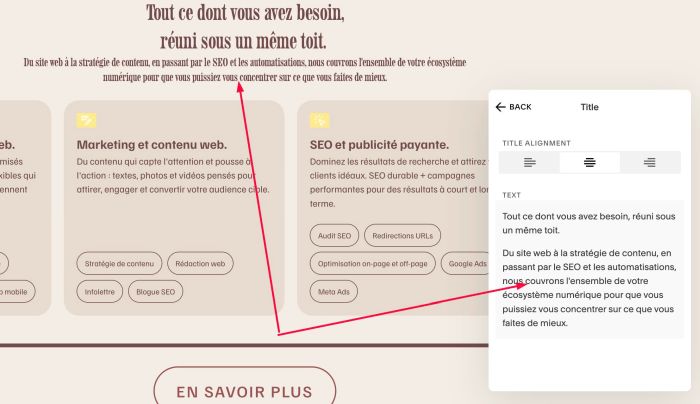
Note 2: To make Title with different style on First – Second Lines, see #2.1.
#1.5. at Content > Add your desired image/text
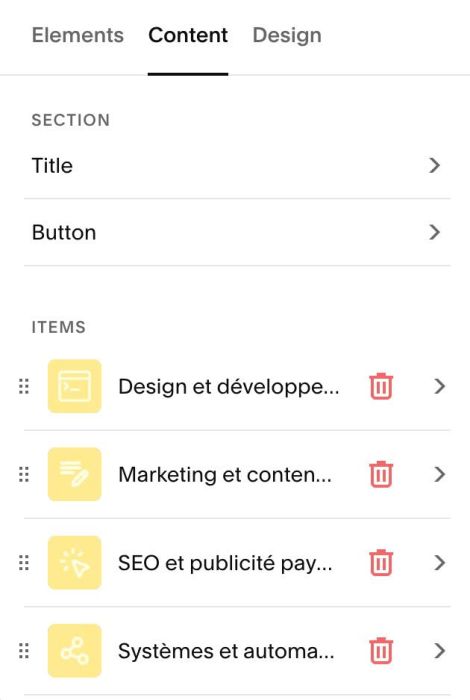
With pill shape button, you can enter text in ALT

#1.6. Hover on top right of section > Click EDIT SECTION
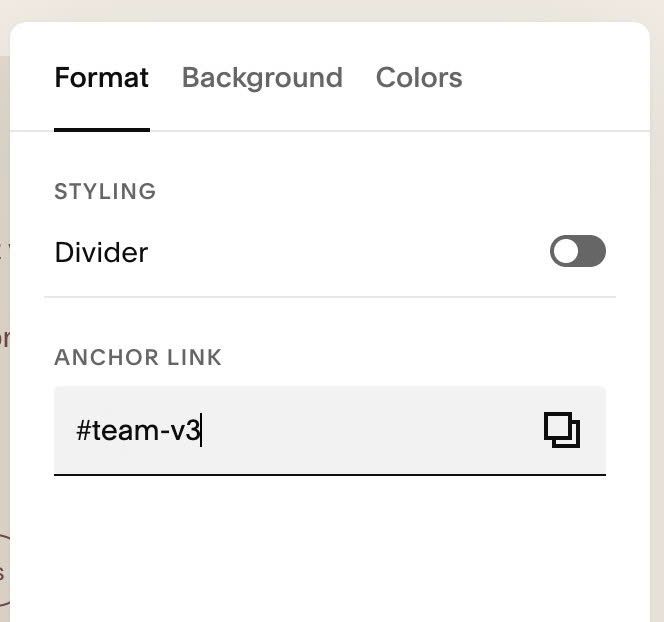
#1.7. at Format > Anchor Link, enter word: team-v3
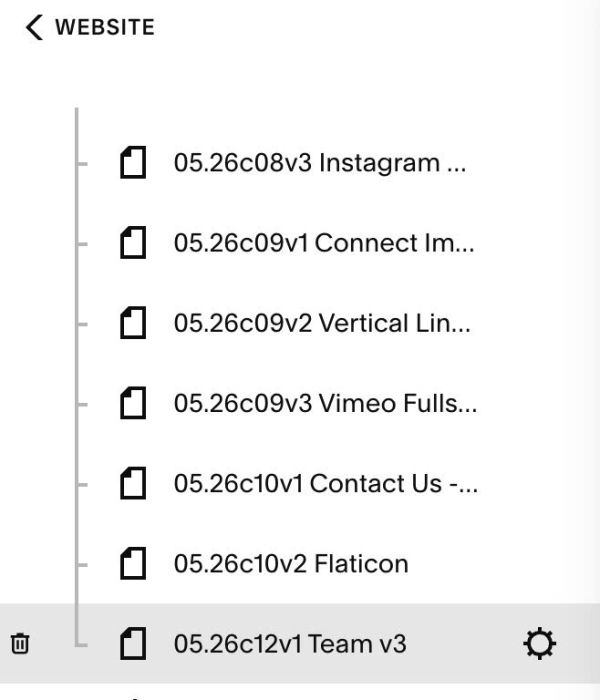
#1.8. Hover on Page where you added Team/List Carousel > click Gear icon.
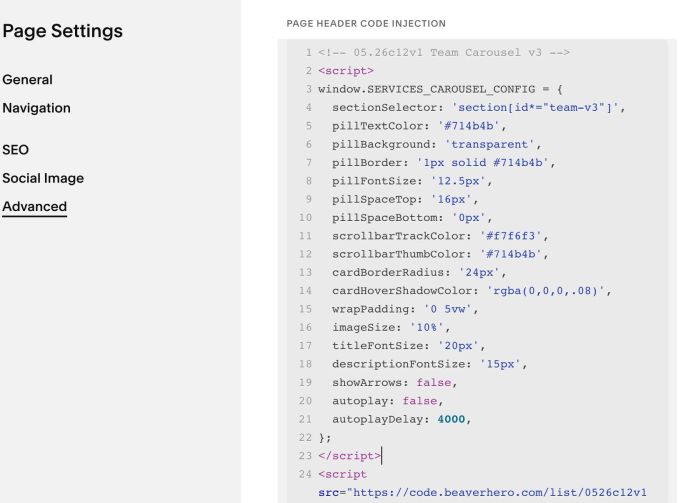
Click Advanced > Paste this code.
- But if you use Personal/Basic Plan and your plan doesn’t support Injection, see step #3.1
<!-- 05.26c12v1 Team Carousel v3 -->
<script>
window.SERVICES_CAROUSEL_CONFIG = {
  sectionSelector: 'section[id*="team-v3"]',
  pillTextColor: '#714b4b',
  pillBackground: 'transparent',
  pillBorder: '1px solid #714b4b',
  pillFontSize: '12.5px',
  pillSpaceTop: '16px',
  pillSpaceBottom: '0px',
  scrollbarTrackColor: '#f7f6f3',
  scrollbarThumbColor: '#714b4b',
  cardBorderRadius: '24px',
  cardHoverShadowColor: 'rgba(0,0,0,.08)',
  wrapPadding: '0 5vw',
  imageSize: '10%',
  titleFontSize: '20px',
  descriptionFontSize: '15px',
  showArrows: false,
  autoplay: false,
  autoplayDelay: 4000,
};
</script>
<script src="https://code.beaverhero.com/list/0526c12v1teamcarouselv3.js"></script>
#2. Customize
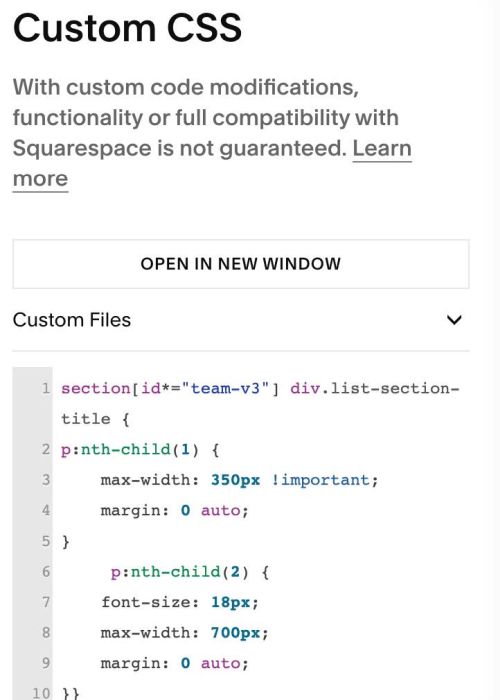
#2.1. To make title with different style, like this.
You can use this code to Custom CSS
section[id*="team-v3"] div.list-section-title {
p:nth-child(1) {
    max-width: 350px !important;
    margin: 0 auto;
}
     p:nth-child(2) {
    font-size: 18px;
    max-width: 700px;
    margin: 0 auto;
}}
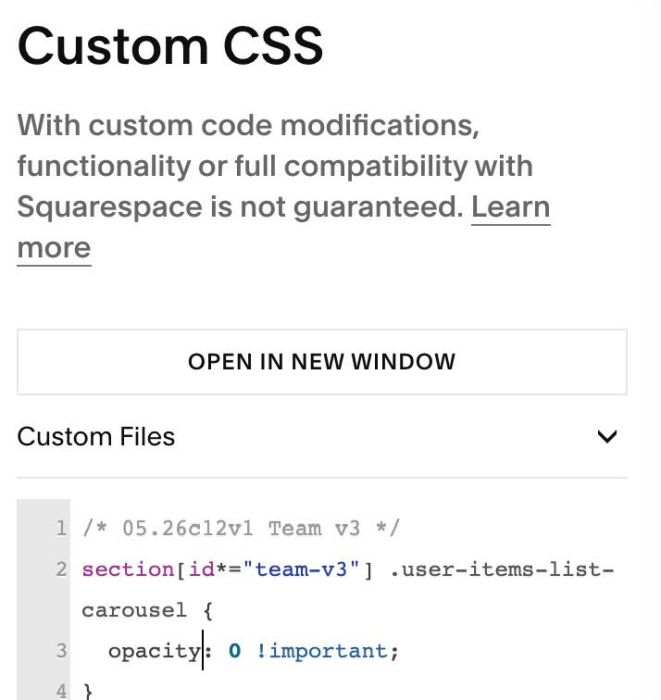
#2.2. If you see Original Carousel appears then disappear after 1 second, you can use this to Custom CSS to fix it
section[id*="team-v3"] .user-items-list-carousel {
  opacity: 0 !important;
}
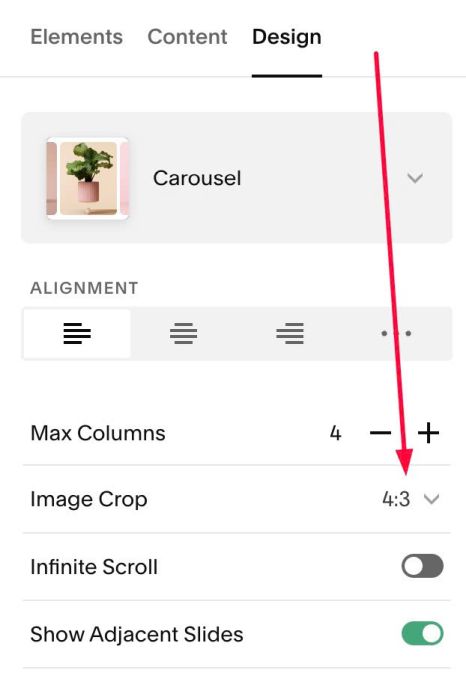
#2.3. To change Image size, you can change this option
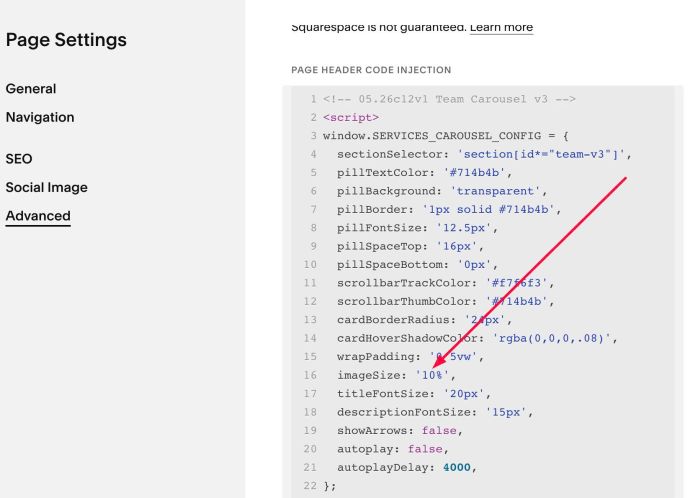
or you can also set this code
imageSize: '10%',
#2.4. To change Title, Description, Button text size, change these lines in top of code
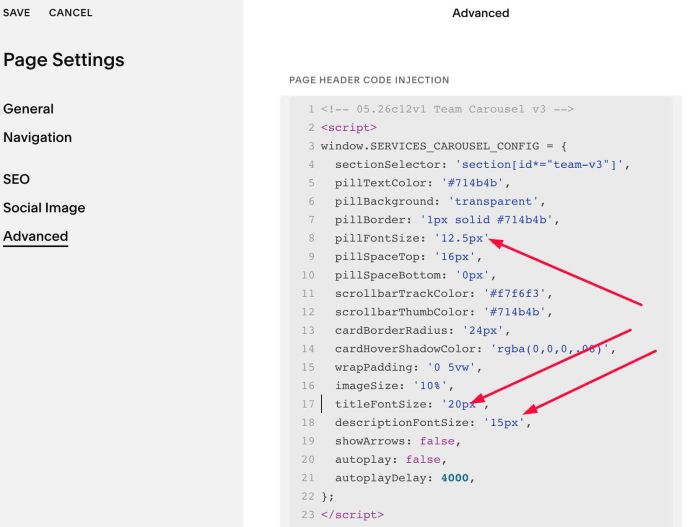
#2.5. To change ALT Button style, change these lines (Line 05 – Line 10)
pillTextColor: '#714b4b',
 pillBackground: 'transparent',
 pillBorder: '1px solid #714b4b',
 pillFontSize: '12.5px',
 pillSpaceTop: '16px',
 pillSpaceBottom: '0px',
#2.6. To change Scroll Bar style, change lines (Line 11 – Line 12)
scrollbarTrackColor: '#f7f6f3',
scrollbarThumbColor: '#714b4b',
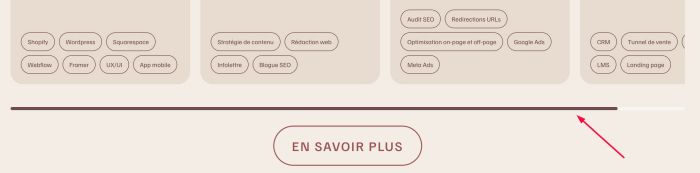
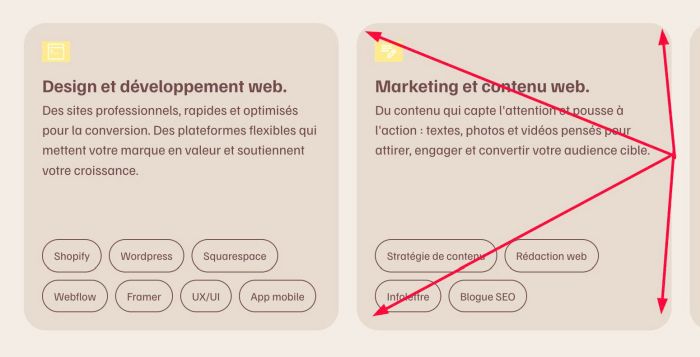
#2.7. If you want to remove round of corners, change this line to 0px (Line 13)
cardBorderRadius: '24px',
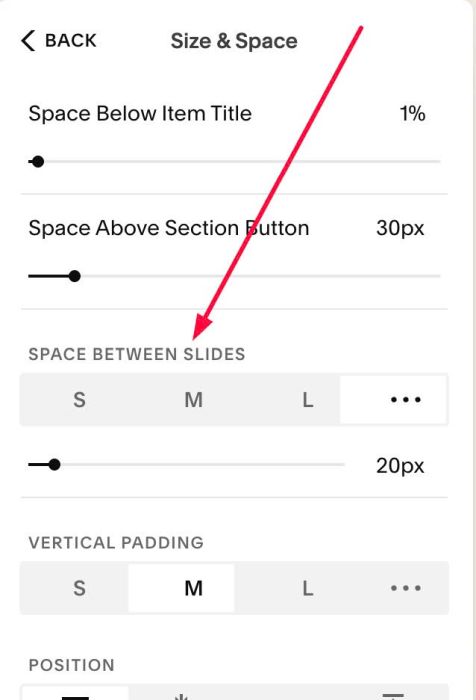
#2.8. If you want to change space between items
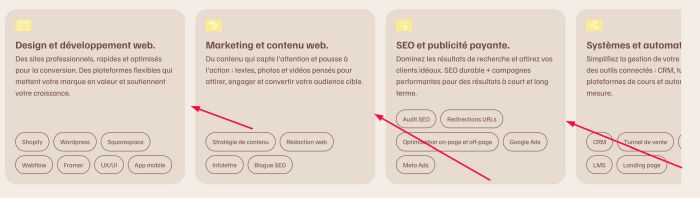
You can change this option.
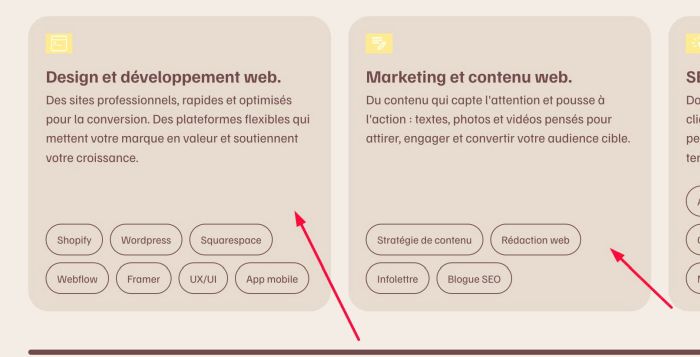
#2.9. To change item background color
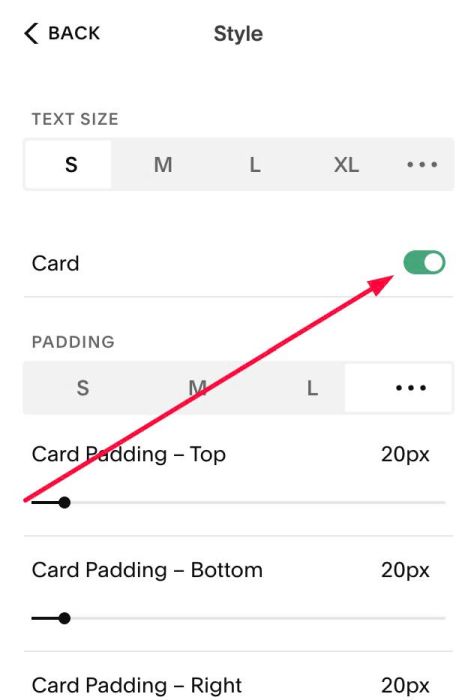
It is inherit style from this Card option
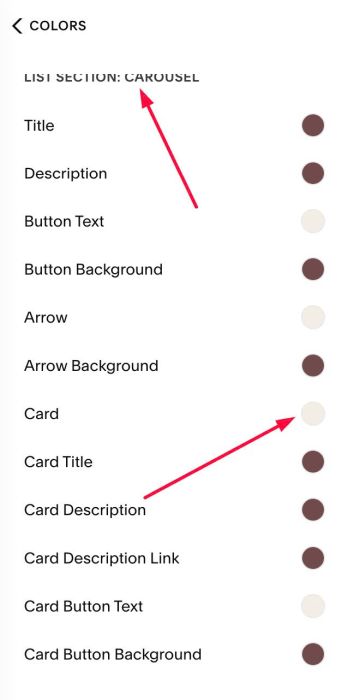
and change it in option Card in Site Styles.
#3. Other
#3.1. Install Code (Personal/Basic Plan)
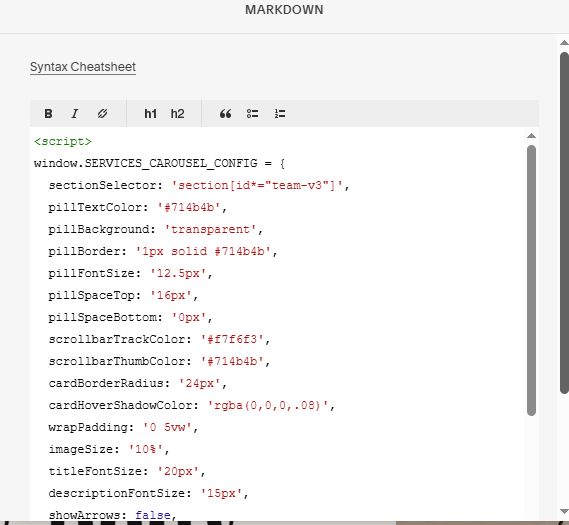
If you use Personal/Basic Plan and your plan doesn’t support injection. You can edit current page > Add a Block > Choose Markdown.

Then add this code into Markdown.
<script>
window.SERVICES_CAROUSEL_CONFIG = {
  sectionSelector: 'section[id*="team-v3"]',
  pillTextColor: '#714b4b',
  pillBackground: 'transparent',
  pillBorder: '1px solid #714b4b',
  pillFontSize: '12.5px',
  pillSpaceTop: '16px',
  pillSpaceBottom: '0px',
  scrollbarTrackColor: '#f7f6f3',
  scrollbarThumbColor: '#714b4b',
  cardBorderRadius: '24px',
  cardHoverShadowColor: 'rgba(0,0,0,.08)',
  wrapPadding: '0 5vw',
  imageSize: '10%',
  titleFontSize: '20px',
  descriptionFontSize: '15px',
  showArrows: false,
  autoplay: false,
  autoplayDelay: 4000,
};
</script>
<script src="https://code.beaverhero.com/list/0526c12v1teamcarouselv3.js"></script>