Description
- adding breadcrumbs to Portfolio Page
- view demo – password: abc
- buy me a coffee
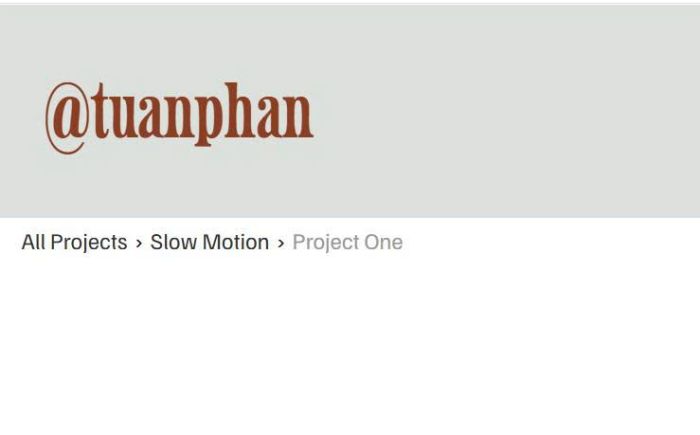
#1. Install Code
#1.1. Click Gear icon on Portfolio Page
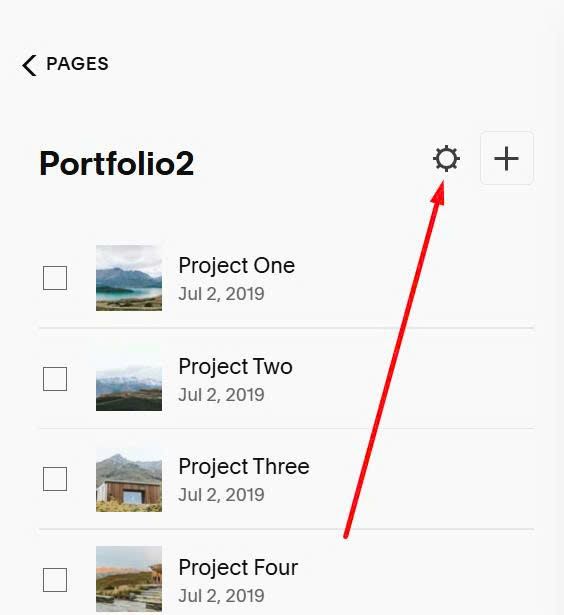
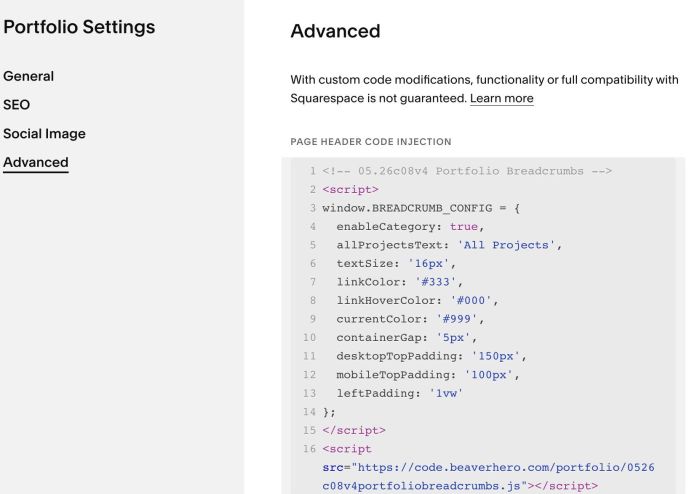
Click Advanced > Paste this code.
If you use Personal/Basic Plan and your plan doesn’t support Injection, you can see #2.1.
<!-- 05.26c08v4 Portfolio Breadcrumbs -->
<script>
window.BREADCRUMB_CONFIG = {
  enableCategory: true,
  allProjectsText: 'All Projects',
  textSize: '16px',
  linkColor: '#333',
  linkHoverColor: '#000',
  currentColor: '#999',
  containerGap: '5px',
  desktopTopPadding: '150px',
  mobileTopPadding: '100px',
  leftPadding: '1vw'
};
</script>
<script src="https://code.beaverhero.com/portfolio/0526c08v4portfoliobreadcrumbs.js"></script>
#2. Customize
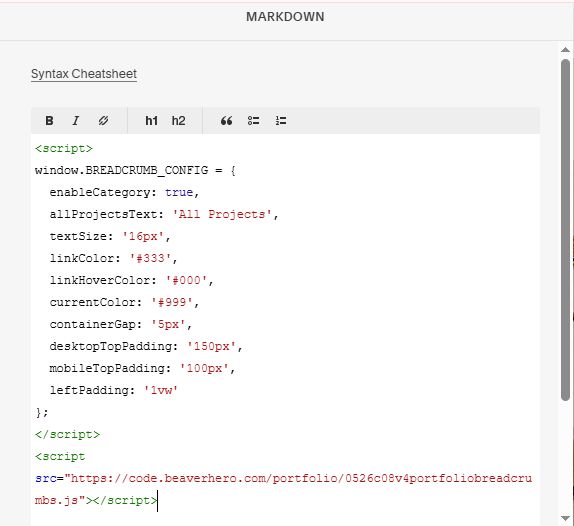
#2.1. If you use Personal/Basic Plan and your plan doesn’t support Injection, you can edit Site Footer > Add a Block > Choose Markdown.

Then add this code into Markdown.
<script>
window.BREADCRUMB_CONFIG = {
  enableCategory: true,
  allProjectsText: 'All Projects',
  textSize: '16px',
  linkColor: '#333',
  linkHoverColor: '#000',
  currentColor: '#999',
  containerGap: '5px',
  desktopTopPadding: '150px',
  mobileTopPadding: '100px',
  leftPadding: '1vw'
};
</script>
<script src="https://code.beaverhero.com/portfolio/0526c08v4portfoliobreadcrumbs.js"></script>
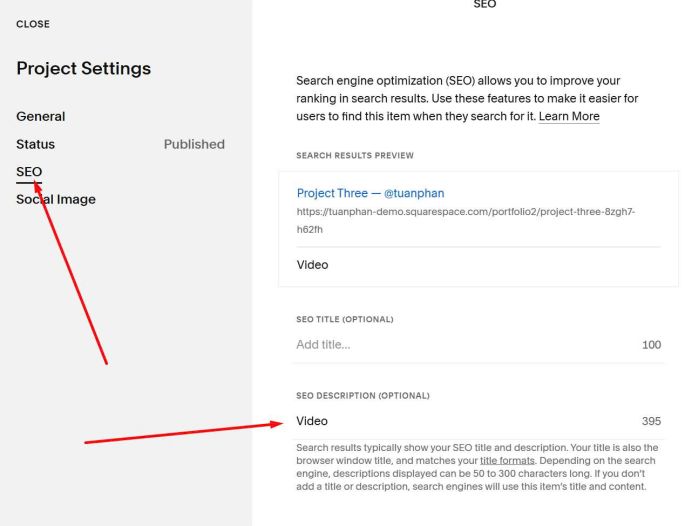
#2.2. To add Category to Breadcrumbs, you need to add Category text to SEO Description
#2.3. All style options here
window.BREADCRUMB_CONFIG = {
  enableCategory: true,
  allProjectsText: 'All Projects',
  textSize: '16px',
  linkColor: '#333',
  linkHoverColor: '#000',
  currentColor: '#999',
  containerGap: '5px',
  desktopTopPadding: '150px',
  mobileTopPadding: '100px',
  leftPadding: '1vw'
};
#2.4. For Developers/or if you are non-tech but you have AI tools and need to customize more (I recommend use this AI tool or use Claude Extension for Chrome)
- window.onBreadcrumbCSSInjected(cfg) — Fires after CSS is injected into <head>. Receives the full config object.
- window.onBreadcrumbDataReady({ category, pageTitle, basePath, data }) — Fires after JSON fetch resolves, before HTML is built. Return { category, pageTitle } to override either value.
- window.onBreadcrumbBeforeInsert(html) — Fires after HTML string is built, before DOM insert. Return a new HTML string to replace it.
- window.onBreadcrumbInserted() — Fires after breadcrumb is inserted into the DOM.
- window.onFilterStart(targetCategory, items) — Fires before category filtering begins on the main page. Receives the target category string and all grid item nodes.
- window.onFilterItemResolved(item, cat, match) — Fires after each grid item’s JSON fetch resolves. Receives the DOM node, its resolved category string, and a boolean indicating whether it matched.
an example
<script>
window.onBreadcrumbDataReady = function(ctx) {
  var rawTitle = ctx.data.item && ctx.data.item.title || '';
  return { pageTitle: rawTitle };
};
</script>