Description
- click Image Blocks open Lightbox
- you can slide to any other images inside lightbox (images in current section or all images in current page)
- view demo – password: abc
- buy me a coffee

#1. Install Code
First hover on page where you want to use Image Blocks > Click Gear icon
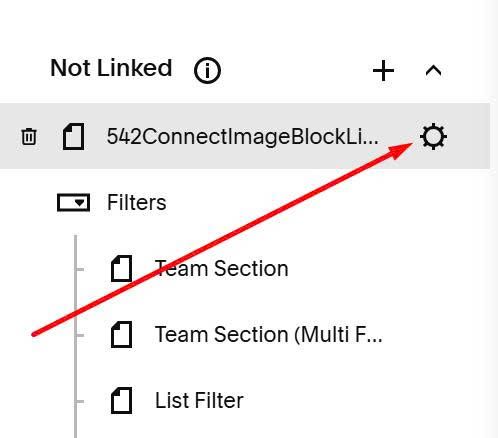
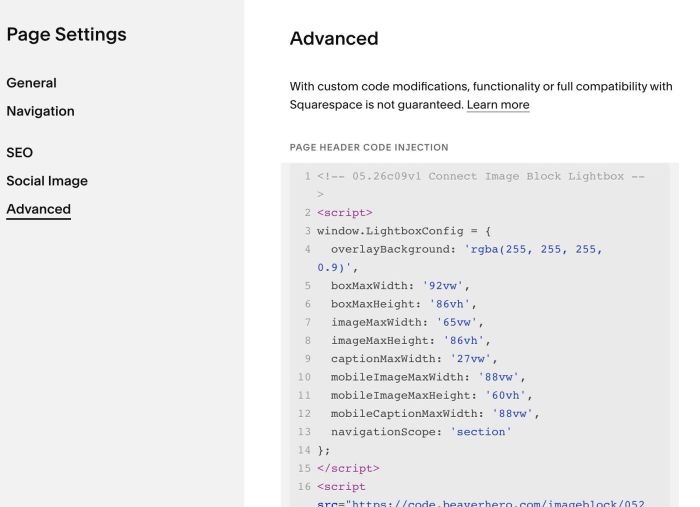
Click Advanced > Paste this code
If you use Personal/Basic Plan and your plan doesn’t support Injection, you can see #2.1.
<!-- 05.26c09v1 Connect Image Block Lightbox -->
<script>
window.LightboxConfig = {
  overlayBackground: 'rgba(255, 255, 255, 0.9)',
  boxMaxWidth: '92vw',
  boxMaxHeight: '86vh',
  imageMaxWidth: '65vw',
  imageMaxHeight: '86vh',
  captionMaxWidth: '27vw',
  mobileImageMaxWidth: '88vw',
  mobileImageMaxHeight: '60vh',
  mobileCaptionMaxWidth: '88vw',
  navigationScope: 'section'
};
</script>
<script src="https://code.beaverhero.com/imageblock/0526c09v1connectimageblocklightbox.js"></script>
#2. Customize
#2.1. If you use Personal/Basic Plan and your plan doesn’t support Injection, you can edit current page (Page where you use Image Blocks) > Add a Block > Choose Markdown.

Then add this code into Markdown.
<script>
window.LightboxConfig = {
  overlayBackground: 'rgba(255, 255, 255, 0.9)',
  boxMaxWidth: '92vw',
  boxMaxHeight: '86vh',
  imageMaxWidth: '65vw',
  imageMaxHeight: '86vh',
  captionMaxWidth: '27vw',
  mobileImageMaxWidth: '88vw',
  mobileImageMaxHeight: '60vh',
  mobileCaptionMaxWidth: '88vw',
  navigationScope: 'section'
};
</script>
<script src="https://code.beaverhero.com/imageblock/0526c09v1connectimageblocklightbox.js"></script>
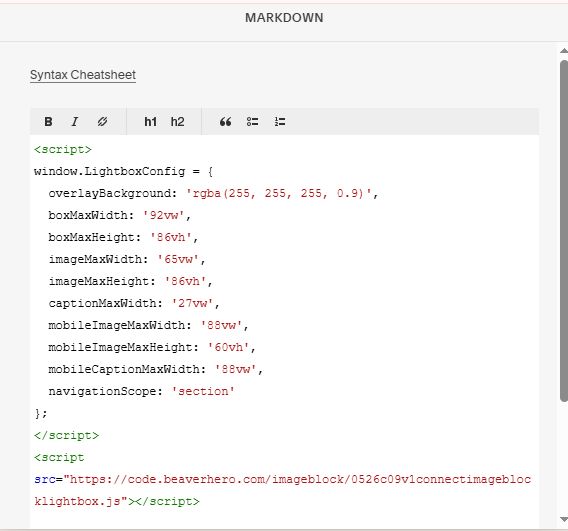
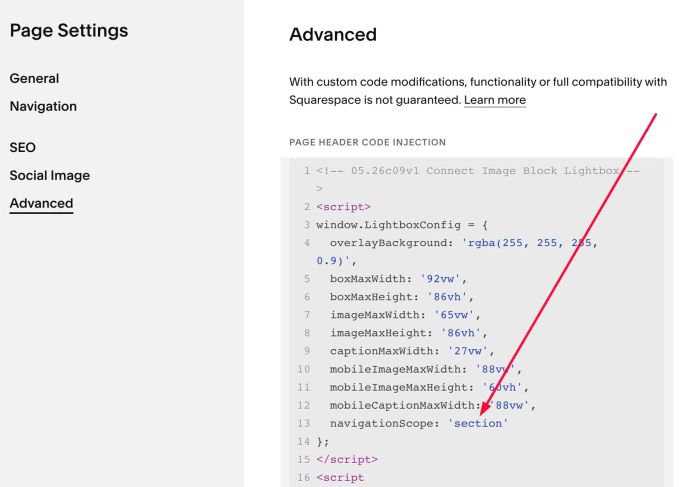
#2.2. If you want to connect all images in current page into lightbox, you can change this line in top of code (Line 13)
navigationScope: 'section'
to this line
navigationScope: 'page'
#2.3. if the order does not appear exactly as you want, you can use this new code
<!-- 05.26c09v1(v2) Connect Image Block Lightbox v2 -->
<script>
window.LightboxConfig = {
  overlayBackground: 'rgba(255, 255, 255, 0.9)',
  boxMaxWidth: '92vw',
  boxMaxHeight: '86vh',
  imageMaxWidth: '65vw',
  imageMaxHeight: '86vh',
  captionMaxWidth: '27vw',
  mobileImageMaxWidth: '88vw',
  mobileImageMaxHeight: '60vh',
  mobileCaptionMaxWidth: '88vw',
  navigationScope: 'section',
  order: 'number'
};
</script>
<script src="https://code.beaverhero.com/imageblock/0526c09v1v2connectimglightboxv2.js"></script>
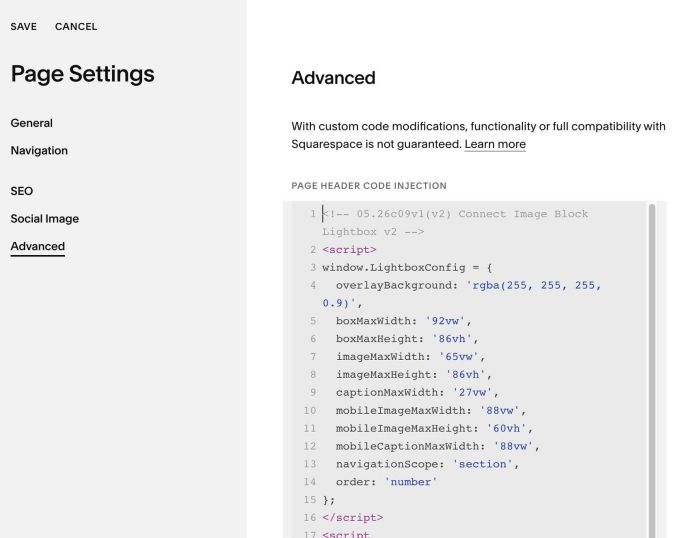
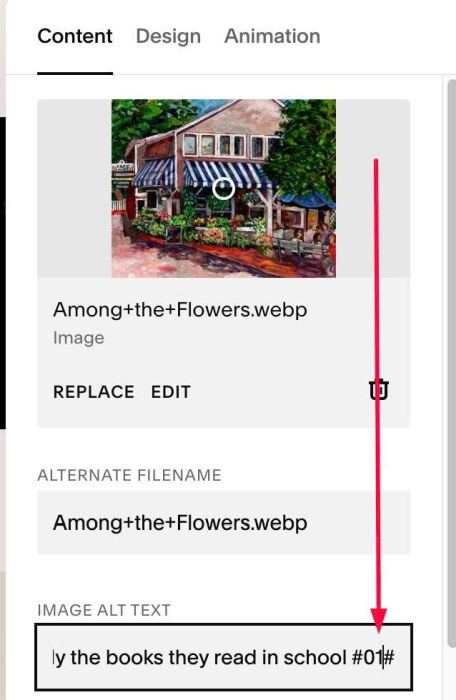
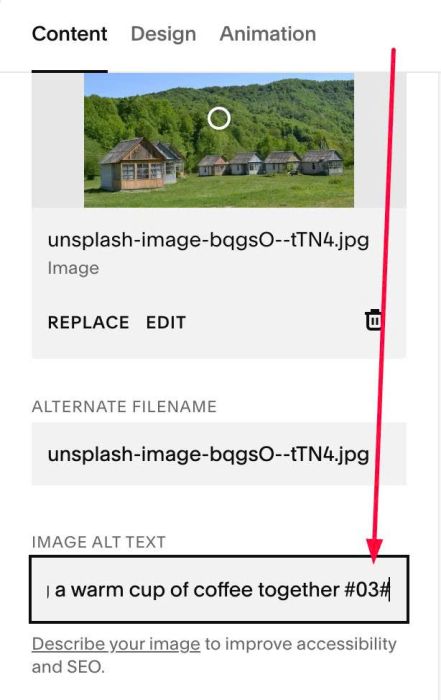
Then add this number into Image ALT: #01#, #02#, #03#…
Like this