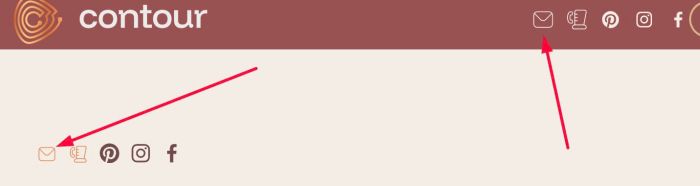
Description
- adding email icon (Flaticon) to Social Icons
- view demo – password: abc
- buy me a coffee
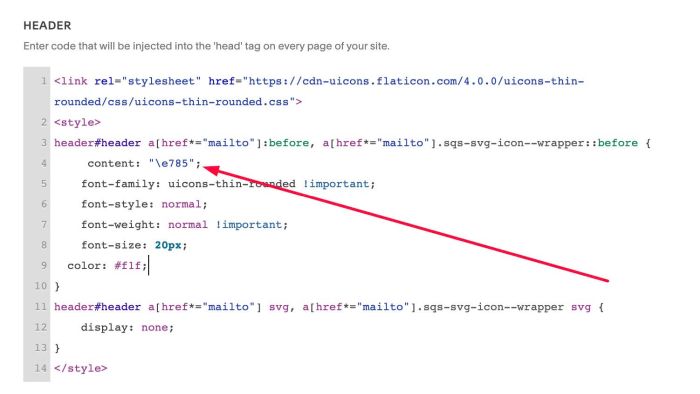
#1. Install Code
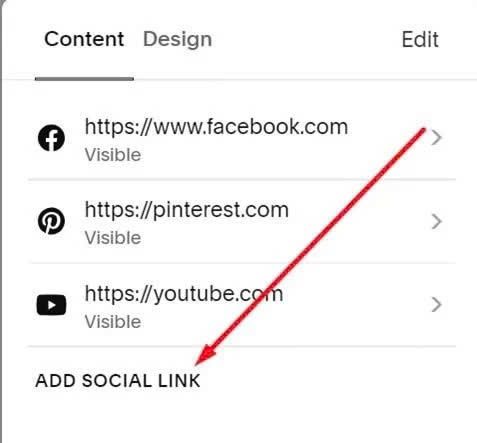
#1.1. First you need to add new Social Link
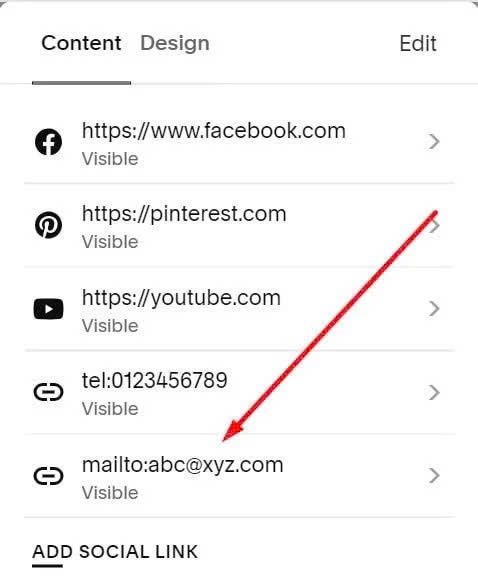
#1.2. Use format like this
mailto:[email protected]
We will have a result like this.
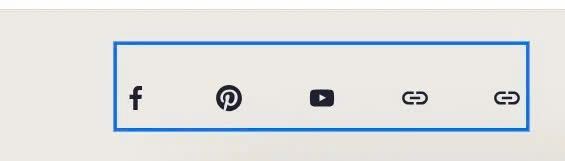
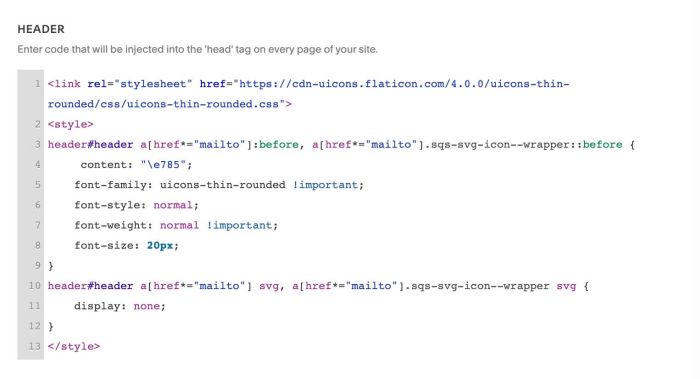
#1.3. Add this line to Code Injection > Footer
If you use Personal/Basic Plan and your plan doesn’t support Injection, see #2.1.
<link rel="stylesheet" href="https://cdn-uicons.flaticon.com/4.0.0/uicons-thin-rounded/css/uicons-thin-rounded.css">
<style>
header#header a[href*="mailto"]:before, a[href*="mailto"].sqs-svg-icon--wrapper::before {
     content: "\e785";
    font-family: uicons-thin-rounded !important;
    font-style: normal;
    font-weight: normal !important;
    font-size: 20px;
}
header#header a[href*="mailto"] svg, a[href*="mailto"].sqs-svg-icon--wrapper svg {
    display: none;
}
</style>
#2. Customize
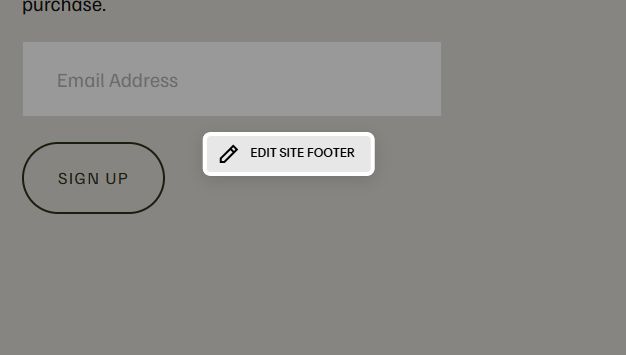
#2.1. If you use Personal/Basic Plan and your plan doesn’t support Injection, you can edit Site Footer.
Add a Block > Choose Code
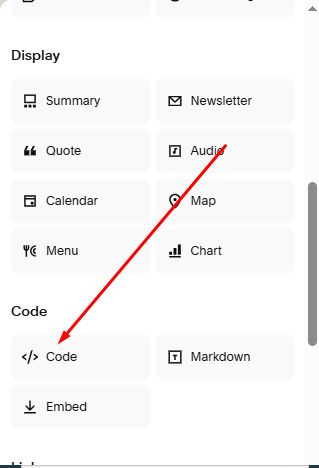
Then paste this code into Code Block
<link rel="stylesheet" href="https://cdn-uicons.flaticon.com/4.0.0/uicons-thin-rounded/css/uicons-thin-rounded.css">
<style>
header#header a[href*="mailto"]:before, a[href*="mailto"].sqs-svg-icon--wrapper::before {
     content: "\e785";
    font-family: uicons-thin-rounded !important;
    font-style: normal;
    font-weight: normal !important;
    font-size: 20px;
}
header#header a[href*="mailto"] svg, a[href*="mailto"].sqs-svg-icon--wrapper svg {
    display: none;
}
</style>
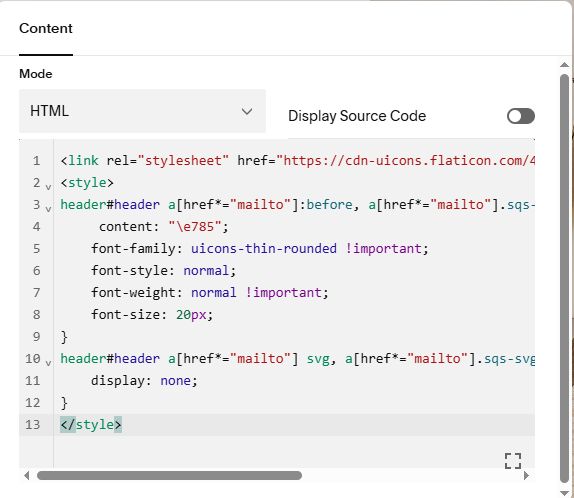
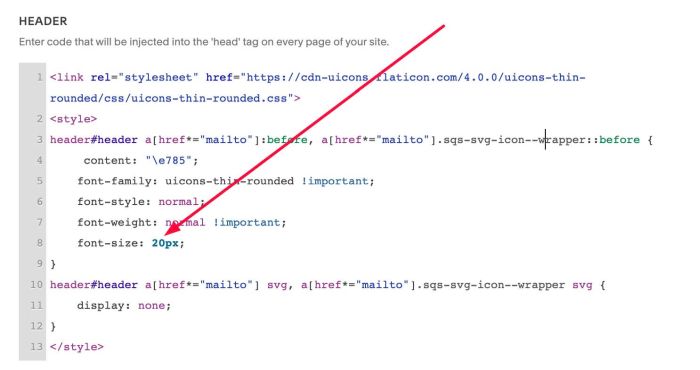
#2.2. To change size of Email icon, you can change this line
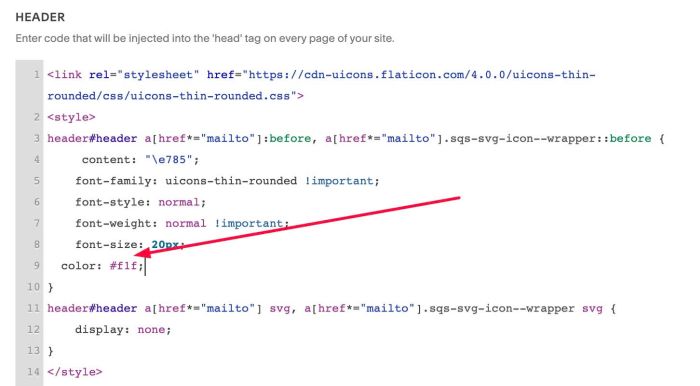
#2.3. To change color of Email, you can add color attribute, like this
#2.4. To change to another style of icon, you can access this list and find content attribute.
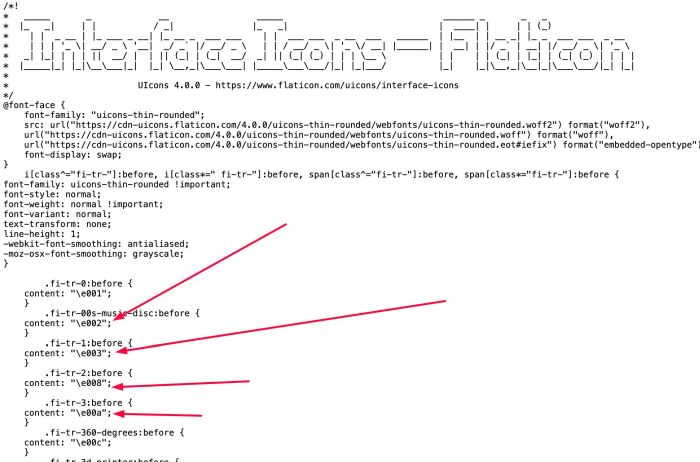
then update this.