Description
- tab file folder carousel slider v2
- view demo – password: abc
- buy me a coffee

#1. Install code
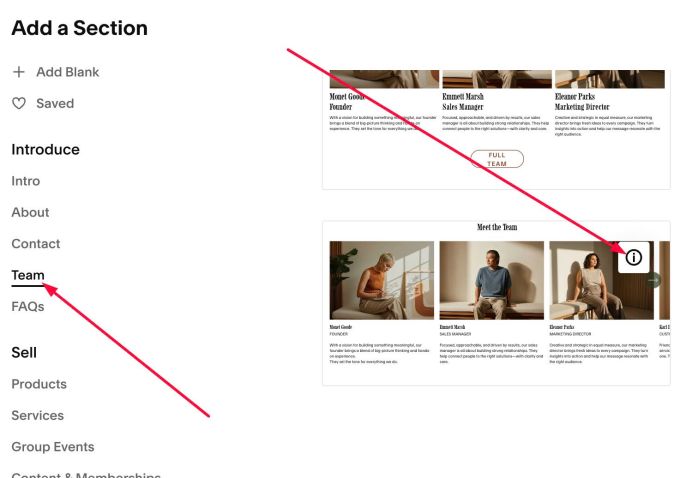
#1.1. First, add a Section > Choose Team > Choose section with (i) icon
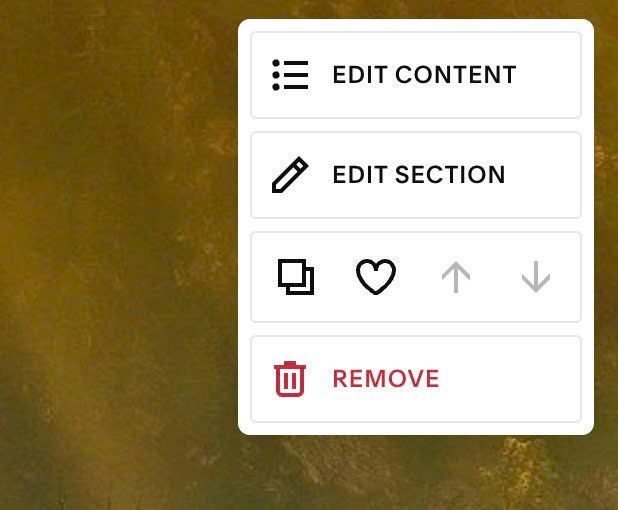
#1.2. Hover on top right of section > Click EDIT CONTENT
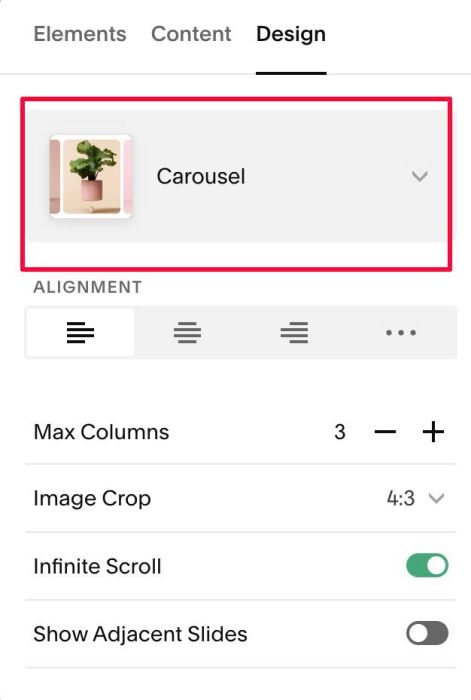
#1.3. At Design, choose Carousel
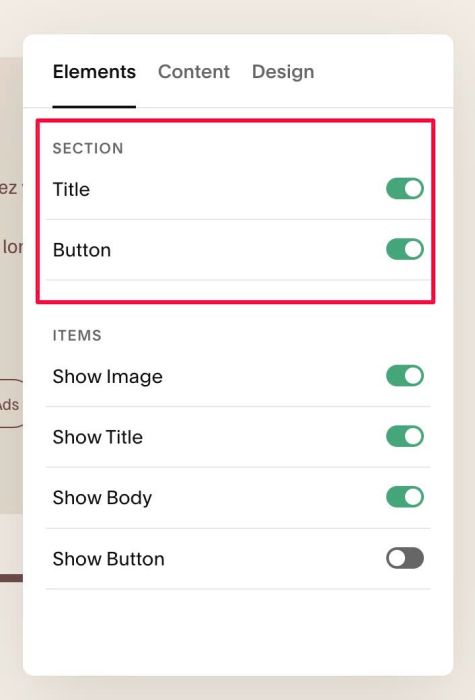
#1.4. at Elements > Enable these options
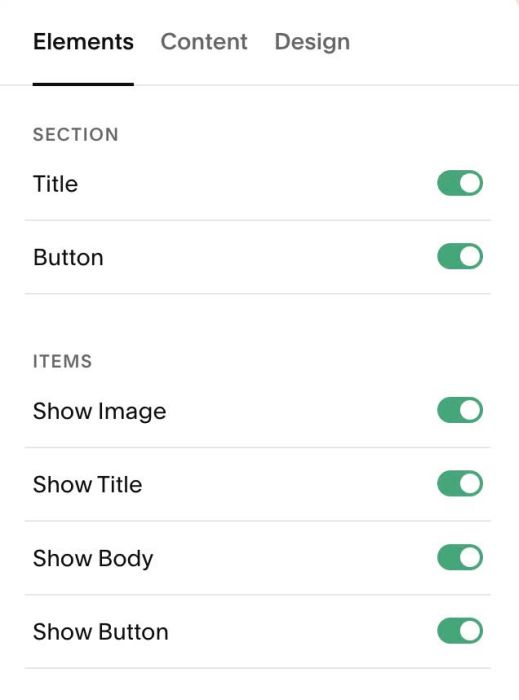
Note: You can disable Section Title, Section button if you don’t need them.
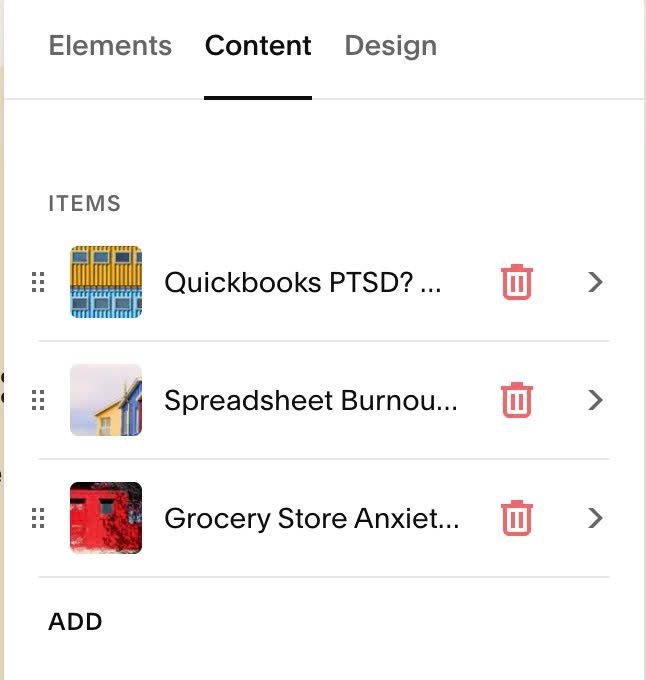
#1.5. at Content > Add your desired image/text
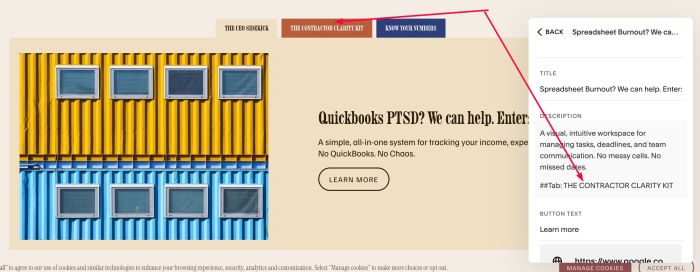
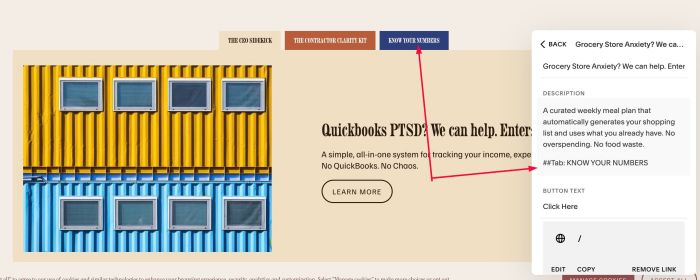
#1.5-2. To add Tab Button, you need to use format: ##Tab: tab name into item Description, something like this.
##Tab: THE CEO SIDEKICK
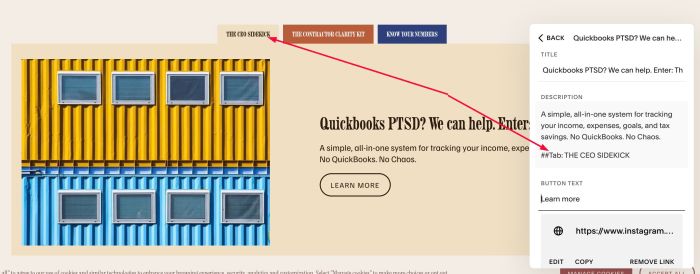
##Tab: THE CONTRACTOR CLARITY KIT
##Tab: KNOW YOUR NUMBERS
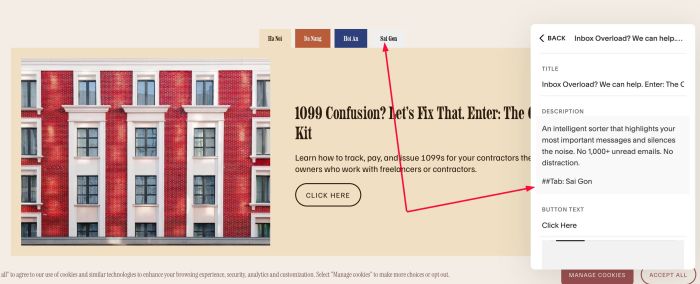
#1.5-3. If you want to add 4 tabs, just add item 4 and use tab like this
#1.6. Hover on top right of section > Click EDIT SECTION
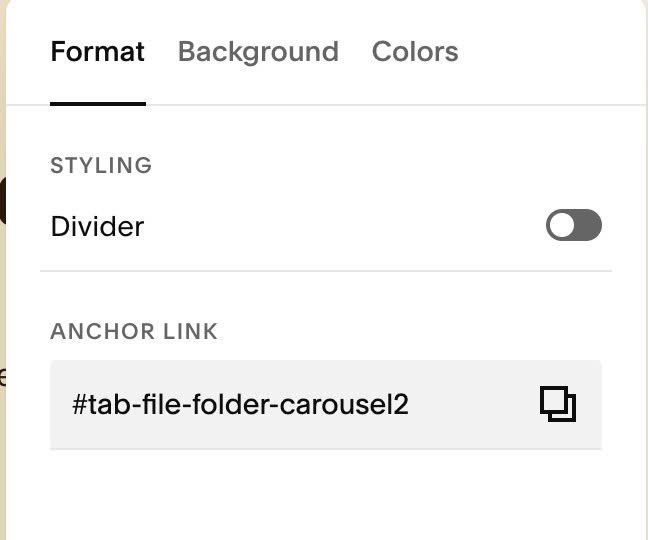
#1.6-2. At Format > Anchor Link, enter word: tab-file-folder-carousel1
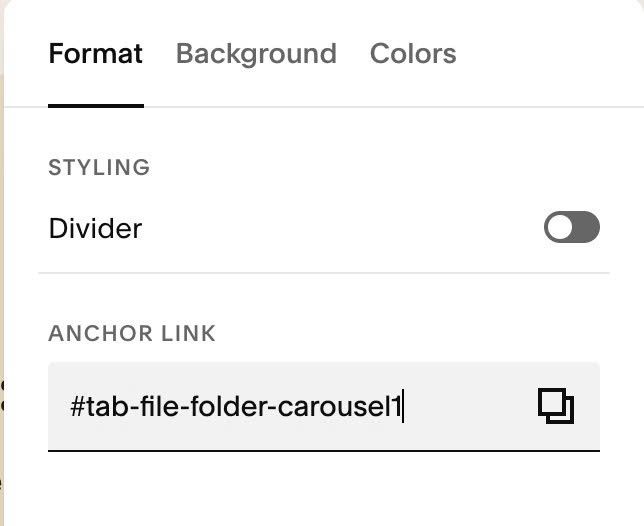
#1.6-3. If you want to apply to multiple sections on same page, just use tab-file-folder-carousel2, tab-file-folder-carousel3, tab-file-folder-carousel4
#1.7. Hover on Page where you added Team/List Carousel > click Gear icon.
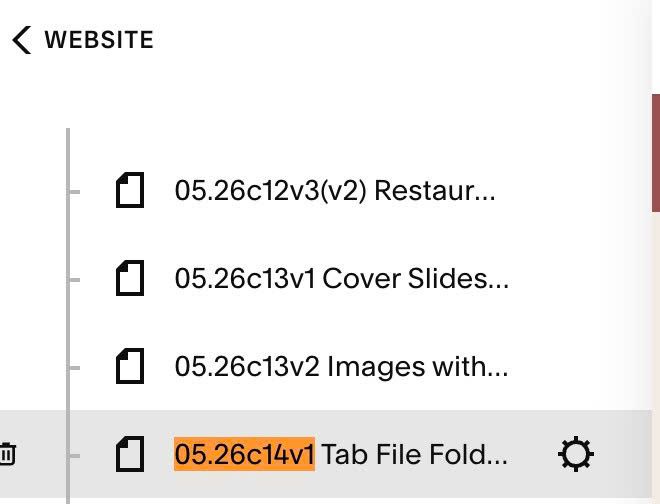
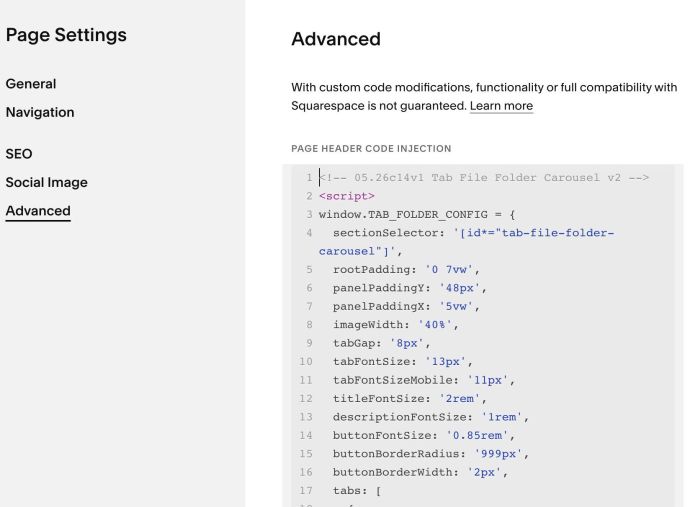
Click Advanced > Paste this code.
- But if you use Personal/Basic Plan and your plan doesn’t support Injection, see step #3.1
<!-- 05.26c14v1 Tab File Folder Carousel v2 -->
<script>
window.TAB_FOLDER_CONFIG = {
  sectionSelector: '[id*="tab-file-folder-carousel"]',
  rootPadding: '0 7vw',
  panelPaddingY: '48px',
  panelPaddingX: '5vw',
  imageWidth: '40%',
  tabGap: '8px',
  tabFontSize: '13px',
  tabFontSizeMobile: '11px',
  titleFontSize: '2rem',
  descriptionFontSize: '1rem',
  buttonFontSize: '0.85rem',
  buttonBorderRadius: '999px',
  buttonBorderWidth: '2px',
  tabs: [
    {
      background: '#f0e0c4',
      tabColor: '#2b1a0e',
      panelTextColor: '#2b1a0e',
    },
    {
      background: '#b85c3a',
      tabColor: '#ffffff',
      panelTextColor: '#fff',
    },
    {
      background: '#2e3f7c',
      tabColor: '#ffffff',
      panelTextColor: '#fff',
    },
    {

    },
    {

    },
  ],
};
</script>
<script src="https://code.beaverhero.com/list/0526c14v1tabfilefoldercarouselv2.js"></script>
#2. Customize
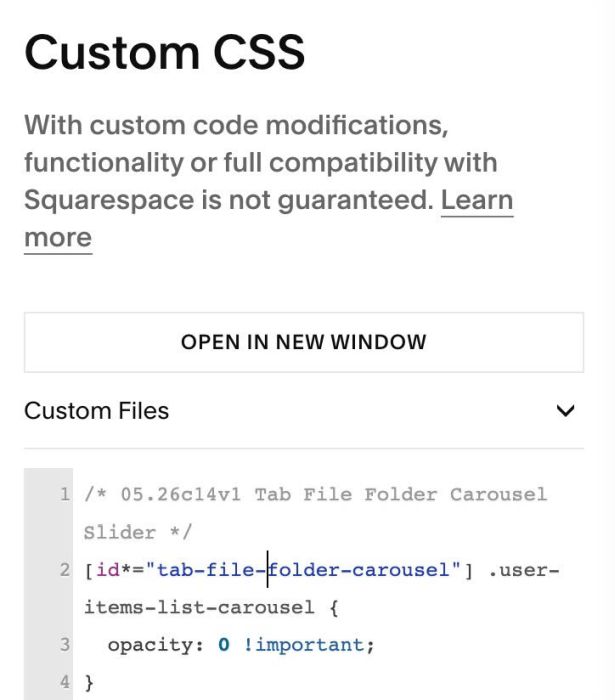
#2.1. If you see some arrows appears then disappear, use this code to Custom CSS
/* 05.26c14v1 Tab File Folder Carousel Slider */
[id*="tab-file-folder-carousel"] .user-items-list-carousel {
  opacity: 0 !important;
}
#2.2. To change Tab Button Text size (Desktop/Mobile), gap between Tab buttons

You can change these lines (Line 09, 10, 11)
tabGap: '8px',
  tabFontSize: '13px',
  tabFontSizeMobile: '11px',
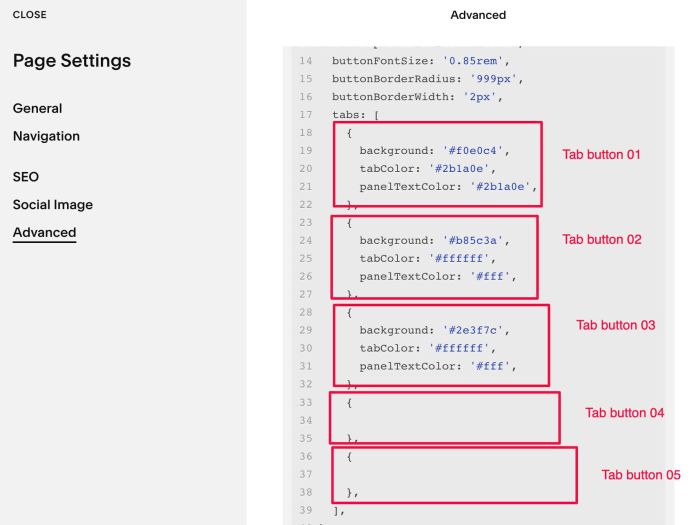
#2.2-2. To change Tab Button Background/Color, you can change Line 17 to Line 39
tabs: [
    {
      background: '#f0e0c4',
      tabColor: '#2b1a0e',
      panelTextColor: '#2b1a0e',
    },
    {
      background: '#b85c3a',
      tabColor: '#ffffff',
      panelTextColor: '#fff',
    },
    {
      background: '#2e3f7c',
      tabColor: '#ffffff',
      panelTextColor: '#fff',
    },
    {

    },
    {

    },
  ],
In my demo, I have 3 tabs only, but I created additional code for tab 04, tab 05, so you can add code easier.
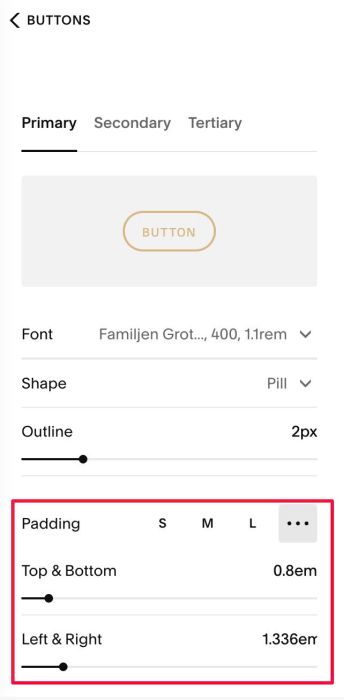
#2.2-3. To change Tab Button size (padding). It inherit primary button padding, so you can adjust it in Site Styles.
Note: tab buttons, item buttons will have same padding
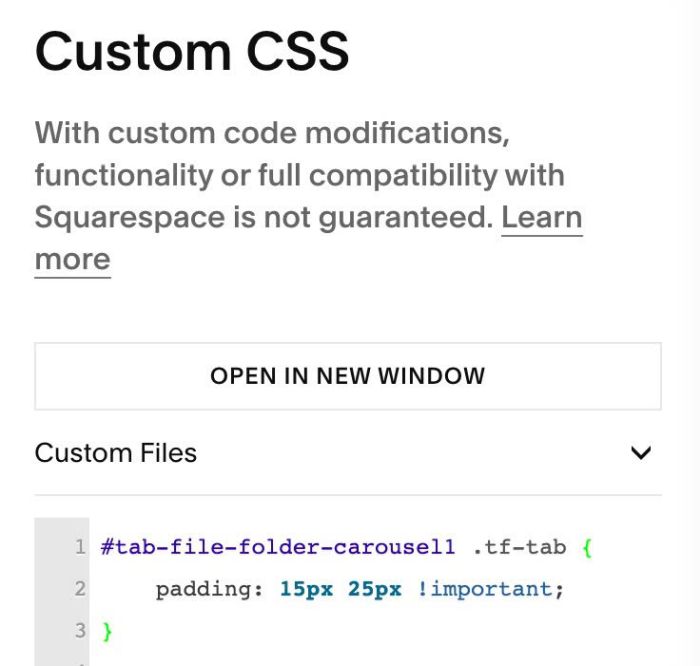
But if you want to set it different, use this code to Custom CSS box
#tab-file-folder-carousel1 .tf-tab {
    padding: 15px 25px !important;
}
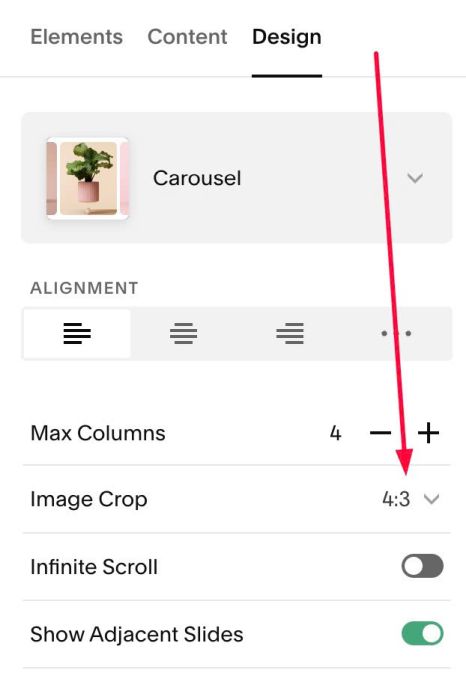
#2.3. To change Image size, you can change this option
However if you want to change Image Container width

Change this code (Line 08)
imageWidth: '40%',
#2.4. To change style (Title, Description).
- Title inherit Heading 2 (H2) style
- Description inherit Paragraph 2 (P2) style
However to adjust Title, Description size, you will need to adjust in the code (Line 12, Line 13)
titleFontSize: '2rem',
  descriptionFontSize: '1rem',
#2.4-2. To adjust Item Button style, it is inhert Primary Button Style, so you can adjust it in Site Styles.
However to adjust Button Text size, you will need to change Line 14
buttonFontSize: '0.85rem',
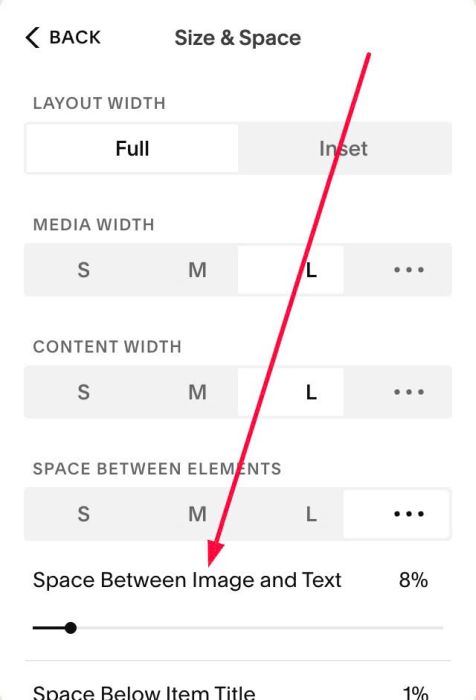
#2.5. To adjust space between Image – Text

You can adjust this option in Size & Space
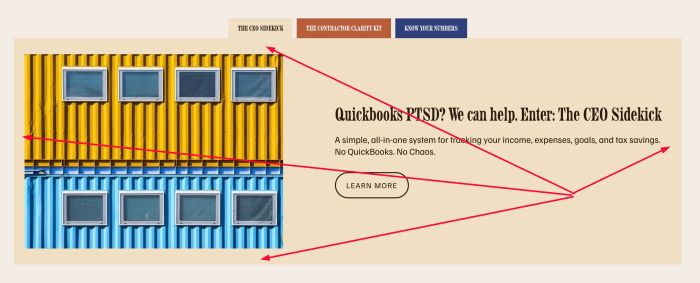
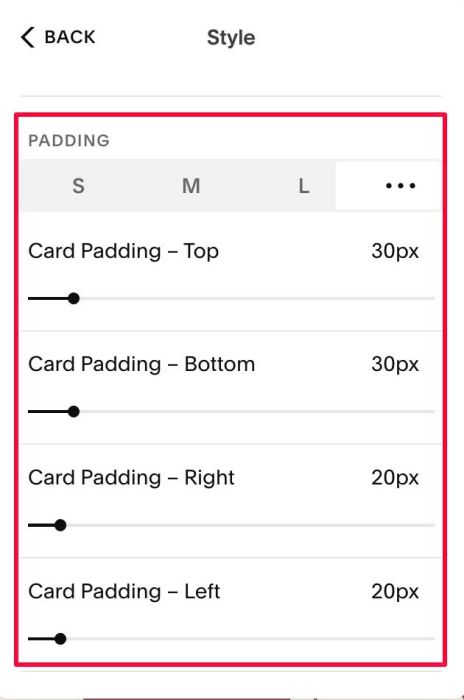
#2.6. To adjust space around image, text
You can adjust this option in Style
#2.7. HTML structure
<section id="tab-file-folder-carousel1">
<div class="tf-root">
<div class="tf-tabs">
<button class="tf-tab active" data-ti="0"></button>
<button class="tf-tab" data-ti="1"></button>
<button class="tf-tab" data-ti="2"></button>
</div>
<div class="tf-panels">
<div class="tf-panel active" data-ti="0">
<div class="tf-img-wrap"><img /></div>
<div class="tf-content">
<h2 class="tf-title"></h2>
<p class="tf-body"></p>
<a class="tf-btn"></a>
</div>
</div>
<div class="tf-panel" data-ti="1">
<div class="tf-img-wrap"><img /></div>
<div class="tf-content">
<h2 class="tf-title"></h2>
<p class="tf-body"></p>
<a class="tf-btn"></a>
</div>
</div>
<div class="tf-panel" data-ti="2">
<div class="tf-img-wrap"><img /></div>
<div class="tf-content">
<h2 class="tf-title"></h2>
<p class="tf-body"></p>
<a class="tf-btn"></a>
</div>
</div>
</div>
</div>
</section>
#3. Other
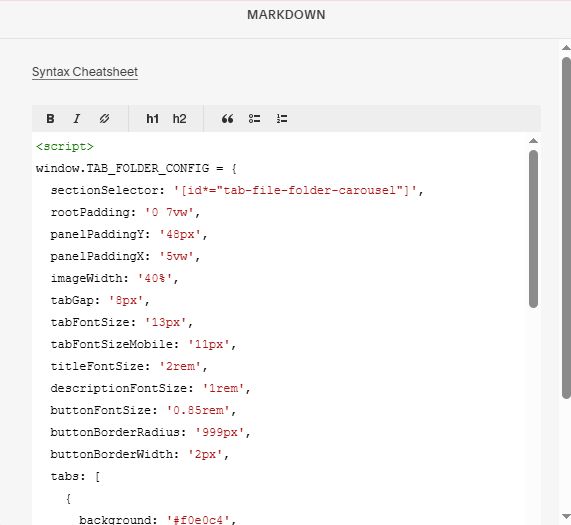
#3.1. if you use Personal/Basic Plan and your plan doesn’t support Injection. You can edit current page > Add a Block > Choose Markdown.

Then add this code into Markdown.
<script>
window.TAB_FOLDER_CONFIG = {
  sectionSelector: '[id*="tab-file-folder-carousel"]',
  rootPadding: '0 7vw',
  panelPaddingY: '48px',
  panelPaddingX: '5vw',
  imageWidth: '40%',
  tabGap: '8px',
  tabFontSize: '13px',
  tabFontSizeMobile: '11px',
  titleFontSize: '2rem',
  descriptionFontSize: '1rem',
  buttonFontSize: '0.85rem',
  buttonBorderRadius: '999px',
  buttonBorderWidth: '2px',
  tabs: [
    {
      background: '#f0e0c4',
      tabColor: '#2b1a0e',
      panelTextColor: '#2b1a0e',
    },
    {
      background: '#b85c3a',
      tabColor: '#ffffff',
      panelTextColor: '#fff',
    },
    {
      background: '#2e3f7c',
      tabColor: '#ffffff',
      panelTextColor: '#fff',
    },
    {

    },
    {

    },
  ],
};
</script>
<script src="https://code.beaverhero.com/list/0526c14v1tabfilefoldercarouselv2.js"></script>
#3.2. How to ask AI to tweak code?
- You can use Claude or Robo-Will (this designed for Squarespace site) to tweak the code
use prompt like this.
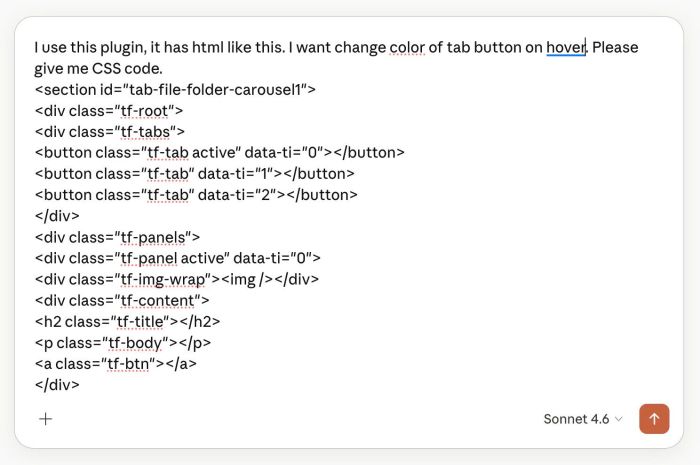
I use this plugin, it has html like this (paste html structure in step #2.7/or take a screenshot of html structure in step #2.7). I want [describe your need here]. Please give me CSS code.