Description
- click menu links open fullscreen menu on desktop
- view demo – password: abc
- buy me a coffee
#1. Install Code
Note:
- this will require Section Loader Plugin
- If you can’t install code or if you use Personal/Basic Plan, you can message me, I will install help you
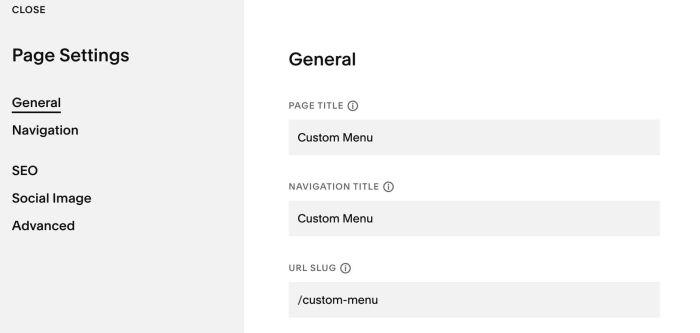
#1.1. First create a Page in Not Linked with Name/URL
- Name: Custom Menu
- URL: /custom-menu
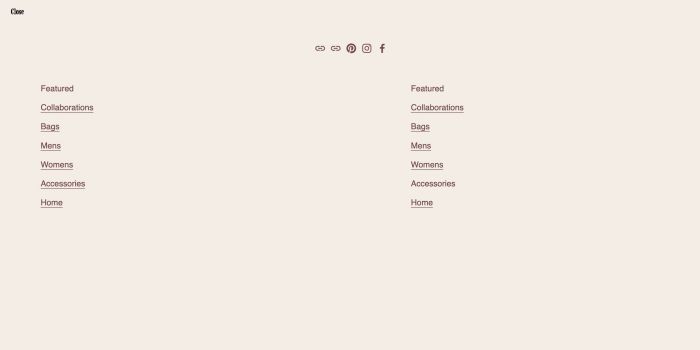
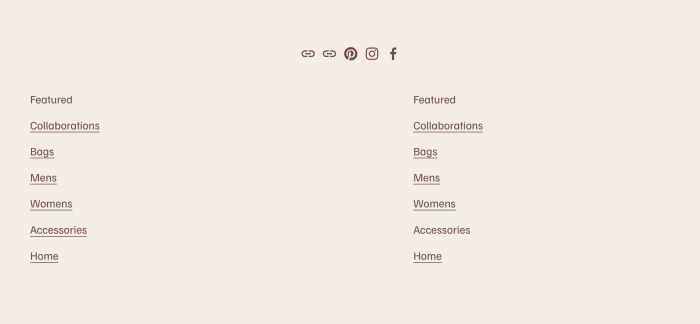
#1.2. Design your desired layout in Custom Menu Page
Here is an example
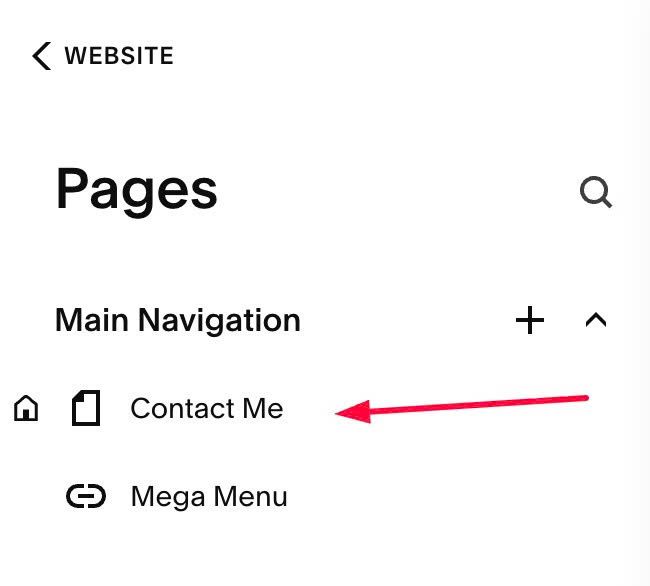
#1.3. Make sure you added an item to Navigation (code will trigger FIRST ITEM in Navigation to open custom menu)
- You can use any name/url
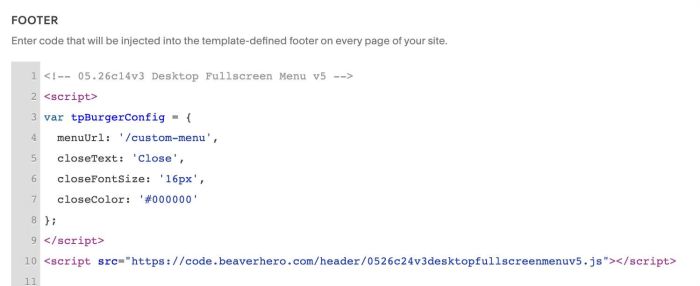
#1.4. Use this code to Code Injection > Footer
- If you use Personal/Basic Plan and your plan doesn’t support Injection, you can see #3.1.
<!-- 05.26c14v3 Desktop Fullscreen Menu v5 -->
<script>
var tpBurgerConfig = {
  menuUrl: '/custom-menu',
  closeText: 'Close',
  closeFontSize: '16px',
  closeColor: '#000000'
};
</script>
<script src="https://code.beaverhero.com/header/0526c24v3desktopfullscreenmenuv5.js"></script>
#1.5. Install Section Loader Plugin
You can add plugin code to Code Injection Header/Footer is enough.
#2. Customize
#2.1. To change text “Close”
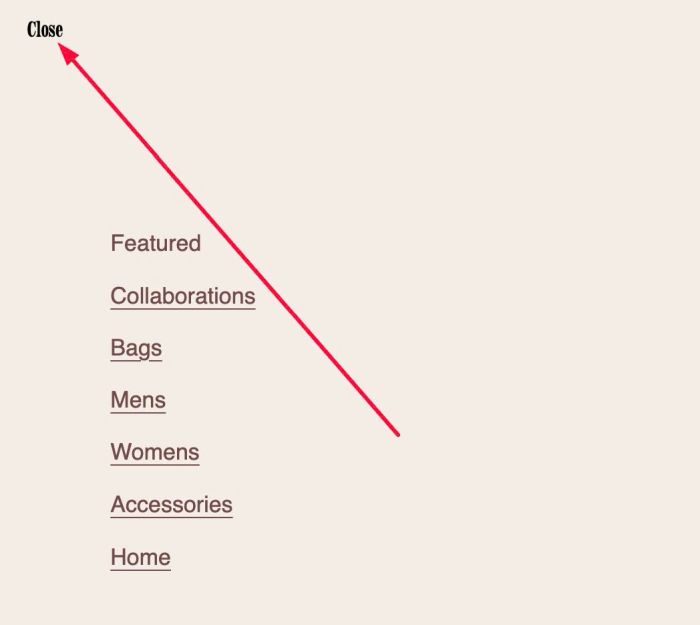
Change this option (Line 05)
closeText: 'Close',
#2.2. To change “Close” text style, you can change line 06, line 07
closeFontSize: '16px',
closeColor: '#000000'
#3. Other
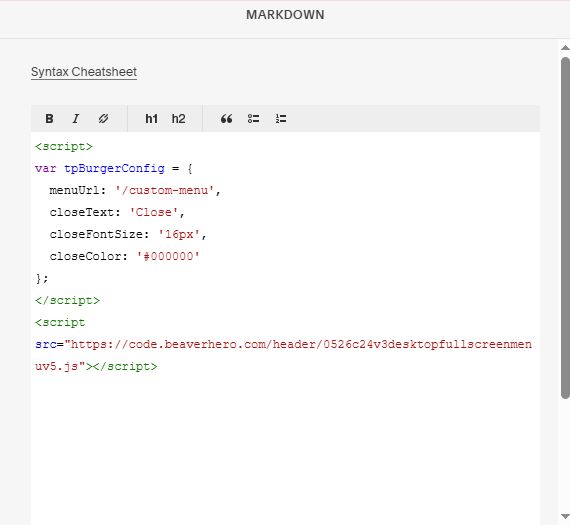
#3.1. If you use Personal/Basic Plan and your plan doesn’t support Injection, you can edit Site Footer.
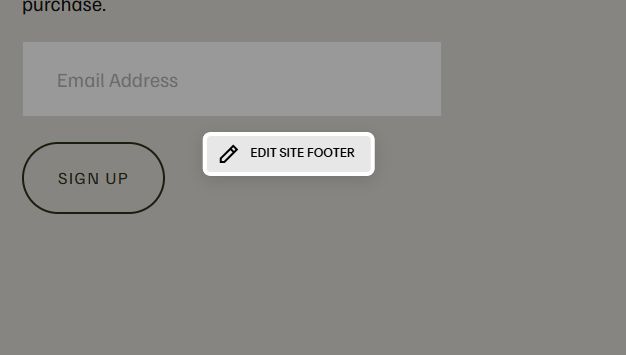
Add a Block > Choose Markdown.

Paste this code into Markdown.
<script>
var tpBurgerConfig = {
  menuUrl: '/custom-menu',
  closeText: 'Close',
  closeFontSize: '16px',
  closeColor: '#000000'
};
</script>
<script src="https://code.beaverhero.com/header/0526c24v3desktopfullscreenmenuv5.js"></script>