Description
- click dropdown title – scroll to top of page
- view demo – password: abc
- buy me a coffee
#1. Install Code
#1.1. First, we need to describe request a bit
- We have a dropdown with title name: Services
- When users are on Services page > Click dropdown title Services > Scroll to top of page
- When user are on other pages > Click dropdown title Services > Open Services page (/services) and scroll to top of page
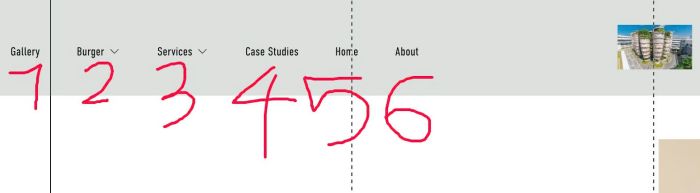
#1.2. First you need to know this. It is the order of navigation items from left to right, increasing from 1.
- In my example, Services dropdown is 3
#1.3. Add this code to Code Injection > Footer
- If you use Personal/Basic Plan and your plan doesn’t support Injection, you can see step #3.1.
<script>
window.SCROLL_TOP_CONFIG = {
  selector: '.header-nav-item:nth-child(3)',
  href: '/services'
};
</script>
<script src="https://code.beaverhero.com/header/0526c15v2clickdropdowntitlescrolltop.js"></script>
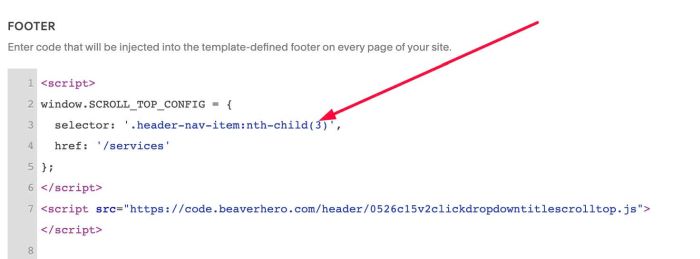
#1.4. Remember to update number 3
selector: '.header-nav-item:nth-child(3)',
#2. Customize
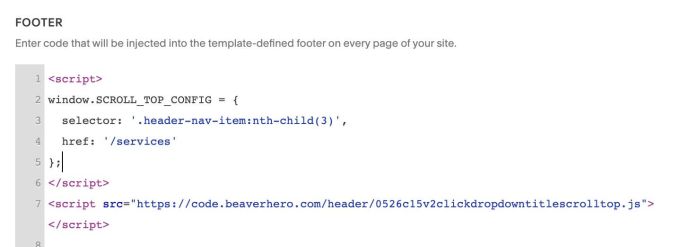
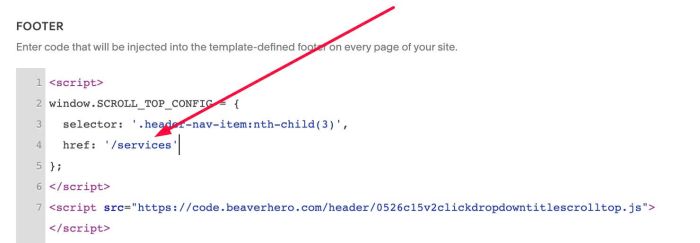
#2.1. If you want to open another page when click dropdown title, you can edit Line 04
href: '/services'
#3. Other
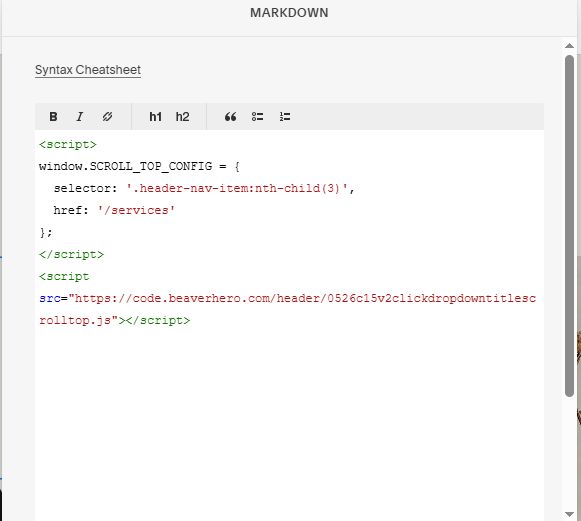
#3.1. If you use Personal/Basic Plan and your plan doesn’t support Injection, you can edit SITE FOOTER
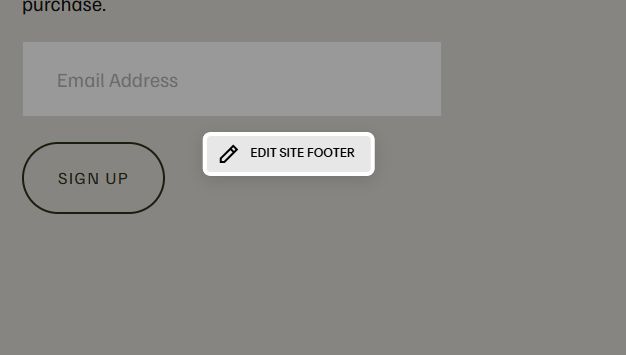
Add a Block > Choose Markdown

Paste this code into Markdown Block
<script>
window.SCROLL_TOP_CONFIG = {
  selector: '.header-nav-item:nth-child(3)',
  href: '/services'
};
</script>
<script src="https://code.beaverhero.com/header/0526c15v2clickdropdowntitlescrolltop.js"></script>