Description
- hover icon box change image
- view demo – password: abc
- buy me a coffee

#1. Install Code
#1.1. First, add a Text Block + some Image Blocks

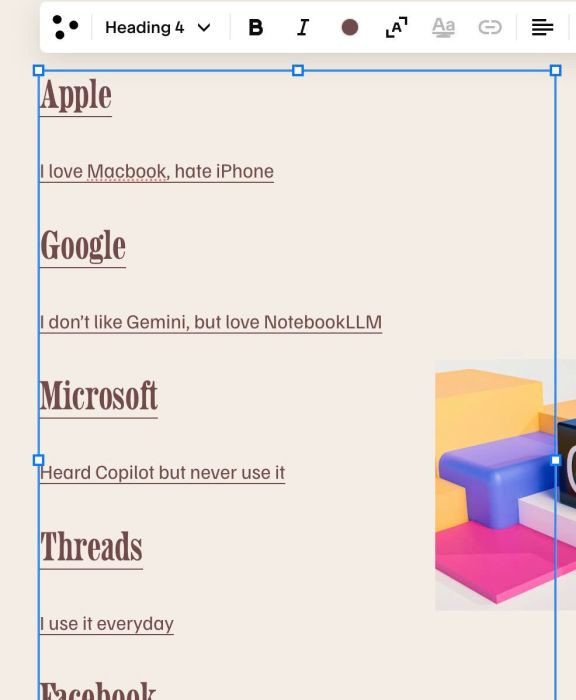
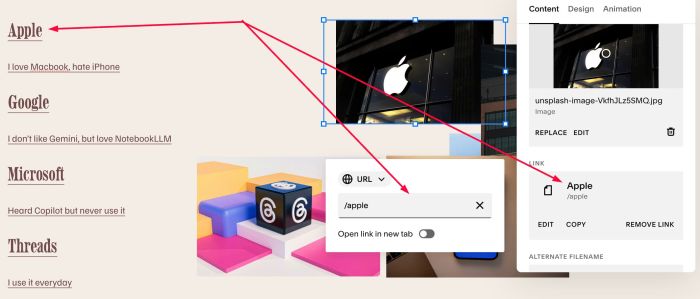
#1.2. Add Heading 4 – Paragraph 2 – Heading 4 – Paragraph 2… like this.
#1.2-2. Highlight Heading 4 > Enter desired url
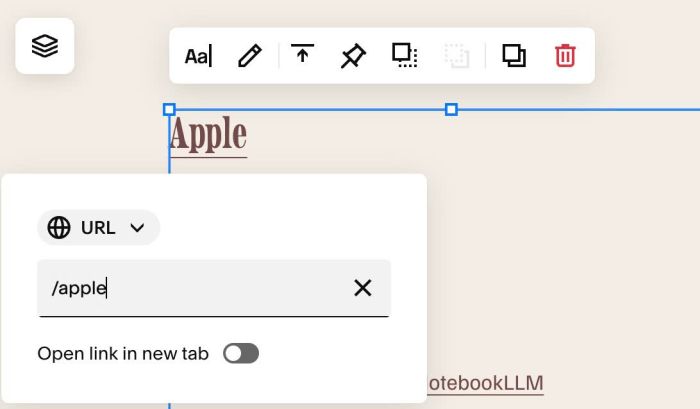
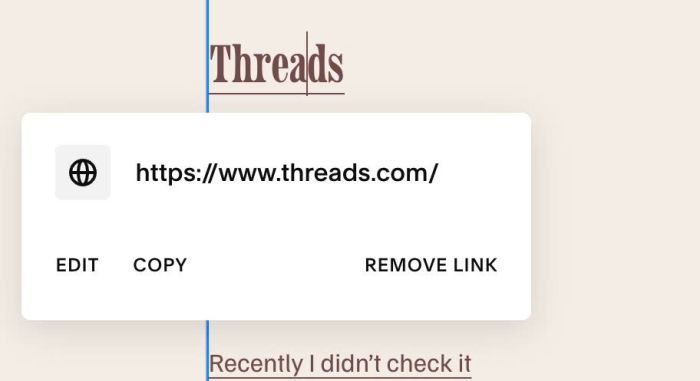
You can also enter external url if you want.
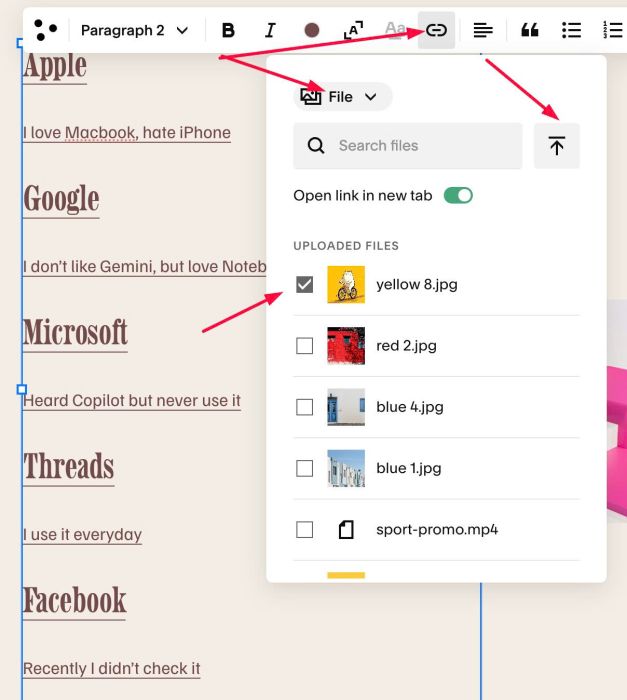
#1.2-3. Highlight paragraph > Click Link icon > File > Upload Icon/Image. Code will convert icon url to icon file and make it float on left of text.
#1.2-4. Add URL to Image Block, same as URL with Heading 4
This is to ensure the code can find the image corresponding to Heading 4 to activate the show-hide code.
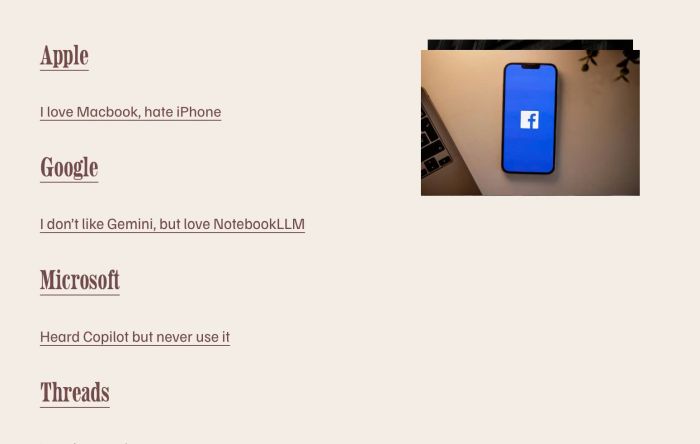
#1.3. Drag all Image Blocks overlap together. You can ignore this step if you don’t want.
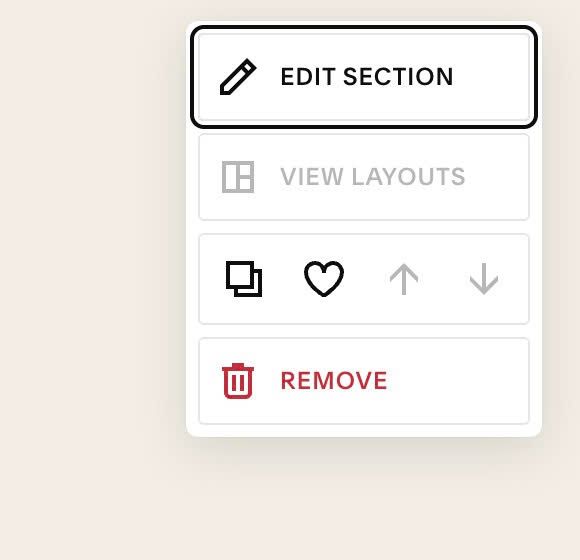
#1.4. Hover on top right of section > Click EDIT SECTION
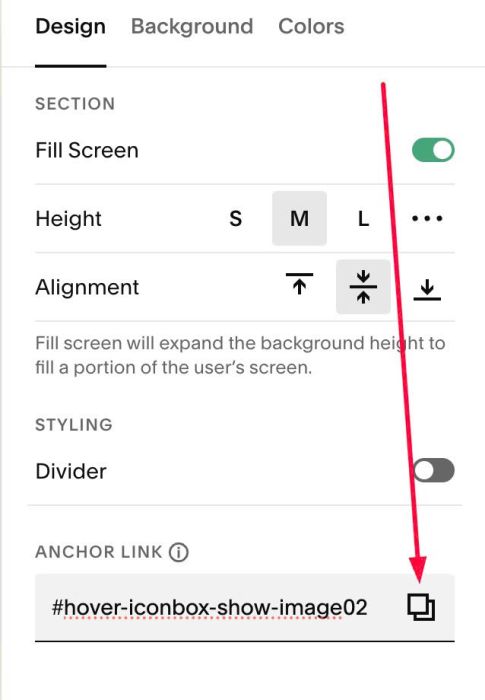
#1.5. at Design > Anchor Link > Enter word: hover-iconbox-show-image
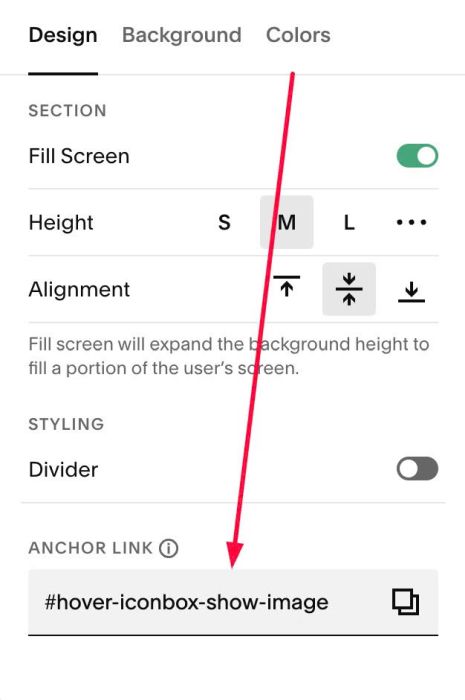
If you use code for multiple sections on same page, you can use: hover-iconbox-show-image02, hover-iconbox-show-image03, hover-iconbox-show-image04….
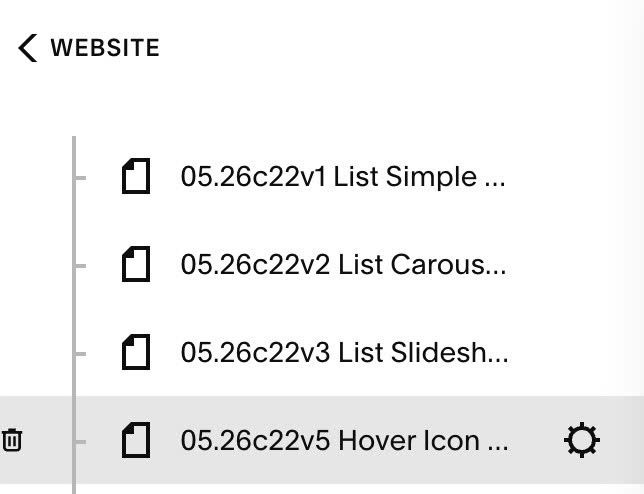
#1.6. Hover on Page where you added Text/Images > Click Gear icon
- If you need to make code work with WM Mega Menu Plugin, you can add code to Code Injection > Footer
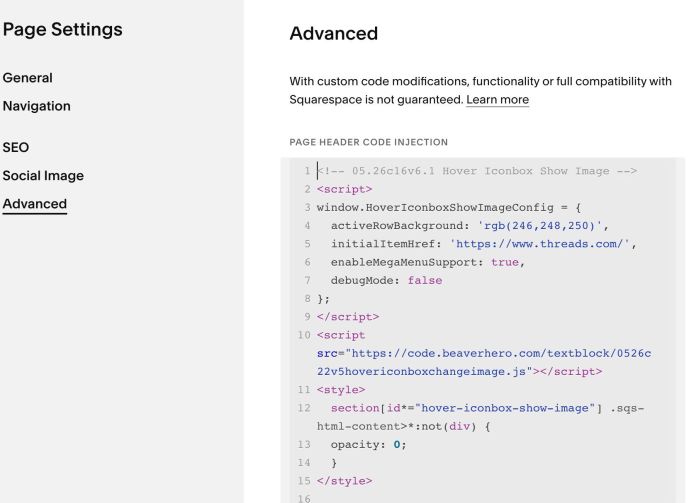
Click Advanced > Paste this code
- If you use Personal/Basic Plan and your plan doesn’t support Injection, you can see #3.1.
<!-- 05.26c16v6.1 Hover Iconbox Show Image -->
<script>
window.HoverIconboxShowImageConfig = {
  activeRowBackground: 'rgb(246,248,250)',
  initialItemHref: 'https://www.threads.com/',
  enableMegaMenuSupport: true,
  debugMode: false
};
</script>
<script src="https://code.beaverhero.com/textblock/0526c22v5hovericonboxchangeimage.js"></script>
<style>
  section[id*="hover-iconbox-show-image"] .sqs-html-content>*:not(div) {
  opacity: 0;
  }
</style>
#2. Customize
#2.1. To make code work with WM Mega Menu Plugin, you need to add #1.6 code to Code Injection > Footer (under Mega Menu Plugin code)
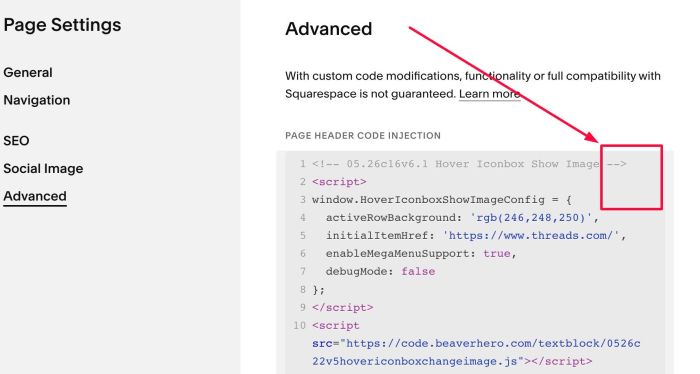
#2.2. To disable code, you can remove this symbol
#2.3. To change active background color, change this line (Line 04)
activeRowBackground: 'rgb(246,248,250)',
#2.4. To set active item initial
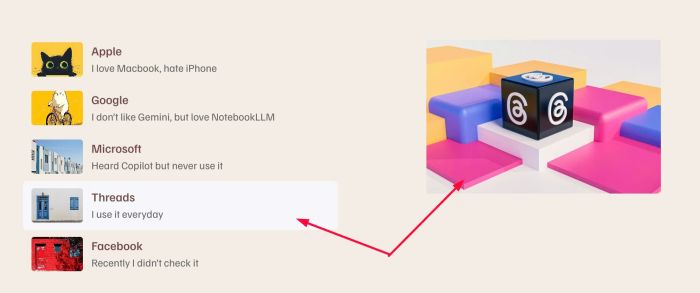
You can set Image URL here (Line 05)
initialItemHref: 'https://www.threads.com/',
#2.5. To change icon size, add this under main code
<style>
img.hisv-thumb {
    width: 40px !important;
    height: 30px !important;
    object-fit: contain !important;
}
</style>
#2.6. To change text style, use this under main code
<style>
div.hisv-text div:first-child {
    font-size: 20px;
    font-family: var(--heading-font-font-family);
    font-style: var(--heading-font-font-style);
    font-weight: var(--heading-font-font-weight);
    line-height: var(--heading-font-line-height);
    letter-spacing: var(--heading-font-letter-spacing);
    text-transform: var(--heading-font-text-transform);
}
div.hisv-text div:nth-child(2) {
    font-size: 14px;
    font-family: var(--body-font-font-family);
    font-style: var(--body-font-font-style);
    font-weight: var(--body-font-font-weight);
    line-height: var(--body-font-line-height);
    letter-spacing: var(--body-font-letter-spacing);
    text-transform: var(--body-font-text-transform);
    -webkit-font-smoothing: antialiased;
}
</style>
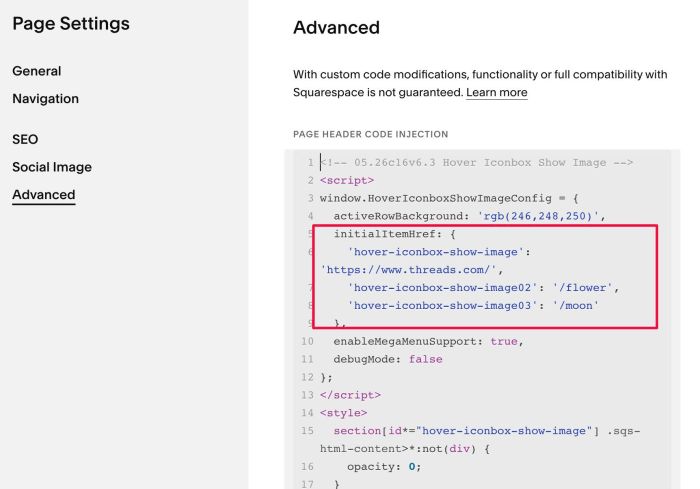
#2.7. If you want to use effect for multiple sections on same page, you can use: hover-iconbox-show-image02, hover-iconbox-show-image03, hover-iconbox-show-image04….
and to set active items, you can use code format like this, but if you leave it at the current default settings, it will always be active first item.
<!-- 05.26c16v6.3 Hover Iconbox Show Image -->
<script>
window.HoverIconboxShowImageConfig = {
  activeRowBackground: 'rgb(246,248,250)',
  initialItemHref: {
    'hover-iconbox-show-image':   'https://www.threads.com/',
    'hover-iconbox-show-image02': '/flower',
    'hover-iconbox-show-image03': '/moon'
  },
  enableMegaMenuSupport: true,
  debugMode: false
};
</script>
<script src="https://code.beaverhero.com/textblock/0526c22v5hovericonboxchangeimage.js"></script>
<style>
  section[id*="hover-iconbox-show-image"] .sqs-html-content>*:not(div) {
    opacity: 0;
  }
</style>
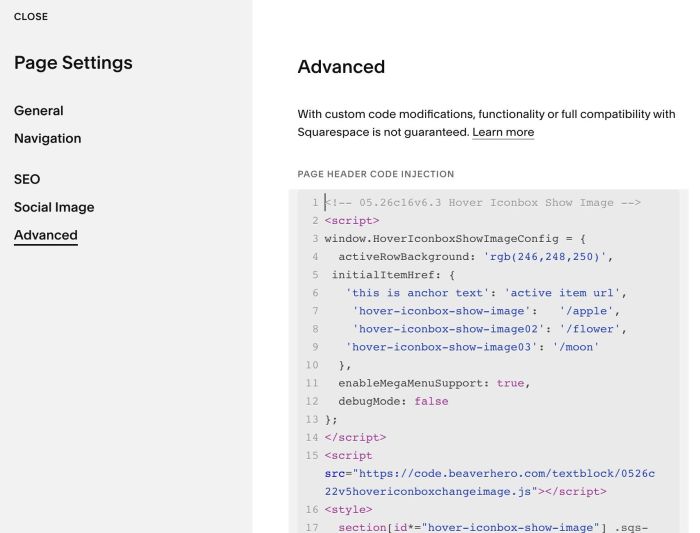
#2.8. If you want to add 2 or 3 text blocks, something like this

You will need to set active items for all sections
initialItemHref: {
  'this is anchor text': 'active item url',
   'hover-iconbox-show-image':   '/apple',
   'hover-iconbox-show-image02': '/flower',
  'hover-iconbox-show-image03': '/moon'
 },
so full code something like this
<!-- 05.26c16v6.3 Hover Iconbox Show Image -->
<script>
window.HoverIconboxShowImageConfig = {
  activeRowBackground: 'rgb(246,248,250)',
 initialItemHref: {
   'this is anchor text': 'active item url',
    'hover-iconbox-show-image':   '/apple',
    'hover-iconbox-show-image02': '/flower',
   'hover-iconbox-show-image03': '/moon'
  },
  enableMegaMenuSupport: true,
  debugMode: false
};
</script>
<script src="https://code.beaverhero.com/textblock/0526c22v5hovericonboxchangeimage.js"></script>
<style>
  section[id*="hover-iconbox-show-image"] .sqs-html-content>*:not(div) {
    opacity: 0;
  }
</style>
#2.9. To fix problem: users need double tap on mobile to open link, you can use this code under main code
<!-- Fix double tap on mobile -->
<script>
(function () {
  var SCOPE = 'section[id*="hover-iconbox-show-image"]';
  if (window.__hisvMobileTapBound) return;
  window.__hisvMobileTapBound = true;

  function isMobile() {
    return window.matchMedia('(hover: none)').matches;
  }

  document.addEventListener('click', function (e) {
    if (!isMobile()) return;
    if (!e.target.closest(SCOPE)) return;
    var row = e.target.closest('.hisv-row');
    if (!row) return;
    var href = row.dataset.navHref;
    if (!href) return;
    e.stopPropagation();
    window.location.href = href;
  }, true);
})();
</script>
#3. Other
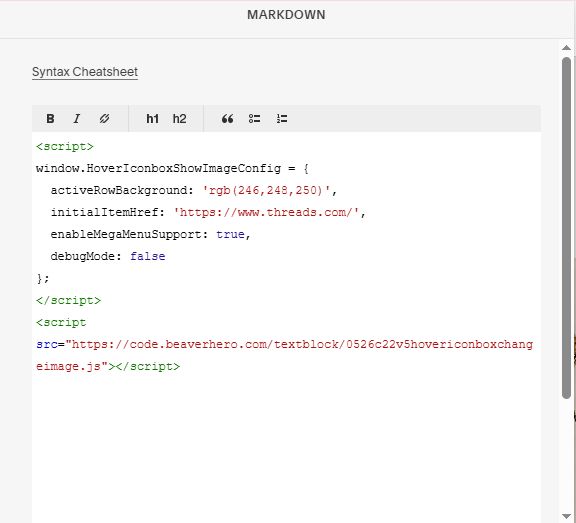
#3.1. If you use Personal/Basic Plan and your plan doesn’t support Injection, you can add a block under Text Block

Choose Markdown

Paste this code into Markdown
<script>
window.HoverIconboxShowImageConfig = {
  activeRowBackground: 'rgb(246,248,250)',
  initialItemHref: 'https://www.threads.com/',
  enableMegaMenuSupport: true,
  debugMode: false
};
</script>
<script src="https://code.beaverhero.com/textblock/0526c22v5hovericonboxchangeimage.js"></script>
#3.2. How to tweak code?
You can message/email me or use Robo-Will Chatbot.