Description
- click Image Block – open Vimeo in Lightbox Popup
- view demo – password: abc
- buy me a coffee
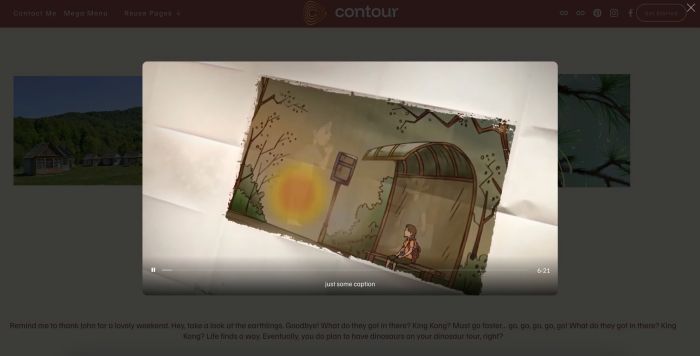
#1. Install Code
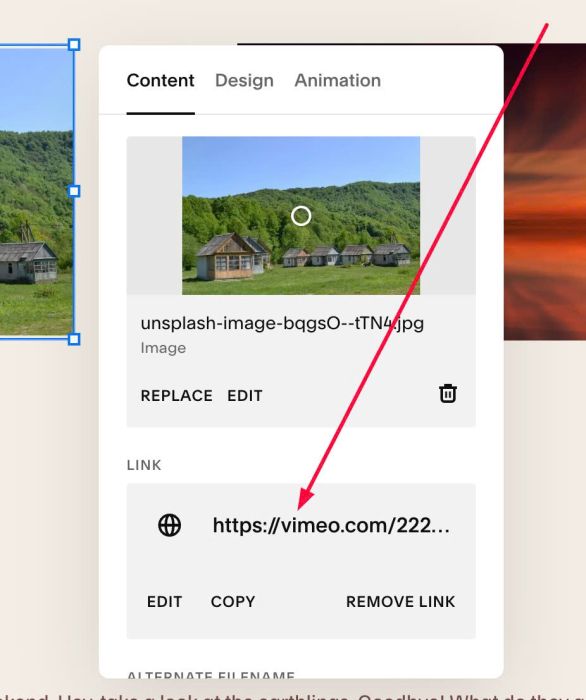
#1.1. First, you can add Vimeo Link to Image Blocks
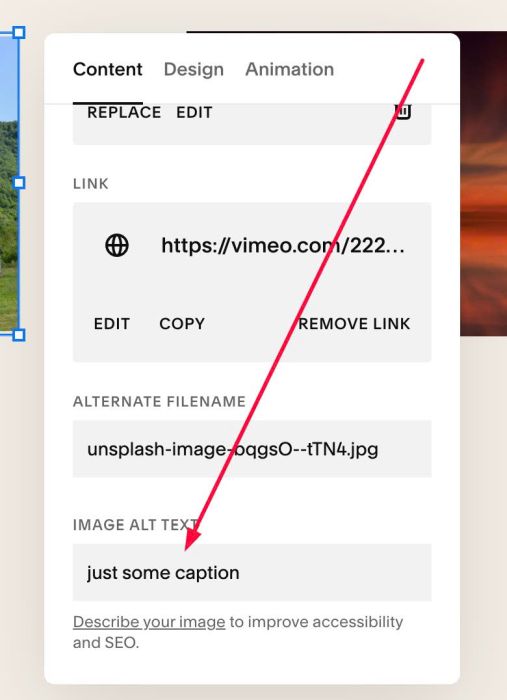
#1.2. You can add your desired text to ALT (text will appear under video). You can skip this step if you don’t want to add any text.
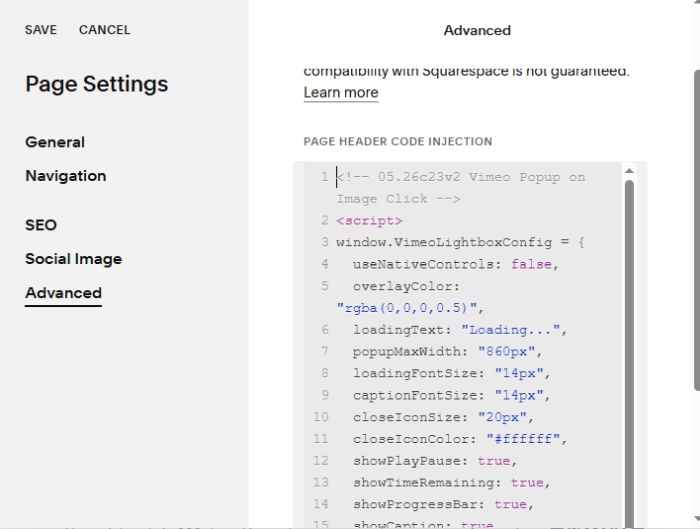
#1.3. Hover on Page where you use Image Blocks > Click Gear icon
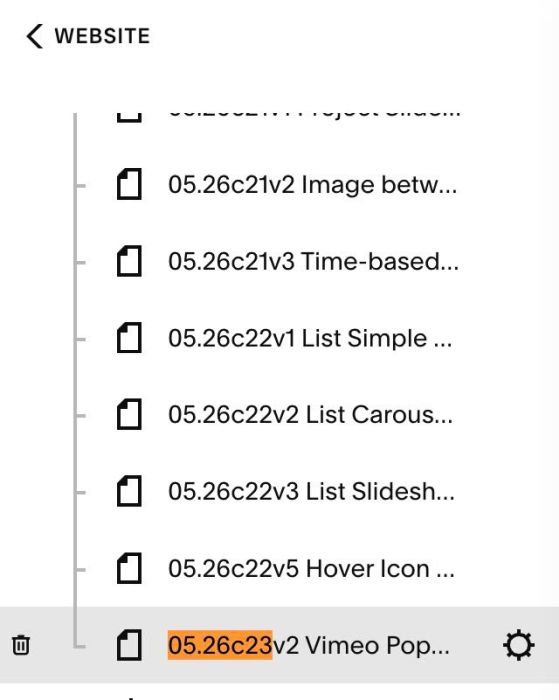
Click Advanced > Paste this code
- If you use Personal/Basic Plan and your plan doesn’t support Injection, you can see #3.1.
<!-- 05.26c23v2 Vimeo Popup on Image Click -->
<script>
window.VimeoLightboxConfig = {
  useNativeControls: false,
  overlayColor: "rgba(0,0,0,0.5)",
  loadingText: "Loading...",
  popupMaxWidth: "860px",
  loadingFontSize: "14px",
  captionFontSize: "14px",
  closeIconSize: "20px",
  closeIconColor: "#ffffff",
  showPlayPause: true,
  showTimeRemaining: true,
  showProgressBar: true,
  showCaption: true
};
</script>
<script src="https://code.beaverhero.com/imageblock/0526c23v2vimeopopupimageclick.js"></script>
#2. Customize
#2.1. To adjust Video Popup Size, you can adjust this line 07
popupMaxWidth: "860px",
#2.2. To adjust Overlay Background Color, change line 05
overlayColor: "rgba(0,0,0,0.75)",
#2.3. To change text “Loading…” to another text, you can change line 06
loadingText: "Loading...",
#2.4. To change font size of text “Loading…” and caption text under video, change line 08, line 09
loadingFontSize: "14px",
captionFontSize: "14px",
#2.5. To disable Time Remaining, Play Pause icon, Time Bar, Caption…you can adjust these lines. Change true to false
showPlayPause: true,
showTimeRemaining: true,
showProgressBar: true,
showCaption: true
#2.6. To disable custom video controls and enable default Vimeo Controls, you can change this line 04
useNativeControls: false,
to this
useNativeControls: true,
#3. Other
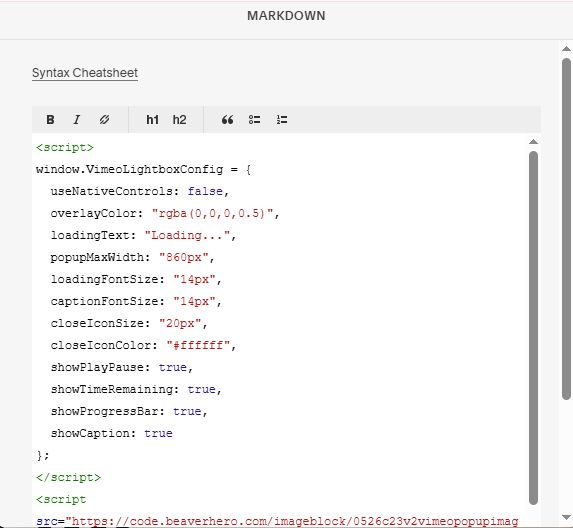
#3.1. If you use Personal/Basic Plan and your plan doesn’t support Injection, you can add Block under Image Block.

Then choose Markdown

Next, add this code into Markdown
<script>
window.VimeoLightboxConfig = {
  useNativeControls: false,
  overlayColor: "rgba(0,0,0,0.5)",
  loadingText: "Loading...",
  popupMaxWidth: "860px",
  loadingFontSize: "14px",
  captionFontSize: "14px",
  closeIconSize: "20px",
  closeIconColor: "#ffffff",
  showPlayPause: true,
  showTimeRemaining: true,
  showProgressBar: true,
  showCaption: true
};
</script>
<script src="https://code.beaverhero.com/imageblock/0526c23v2vimeopopupimageclick.js"></script>
#3.2. To tweak the code, you can message me/comment on Forum or use Claude AI or use Robo-Will Chatbot.