Description
- adding button (non-clickable) to Portfolio items
- buy me a coffee
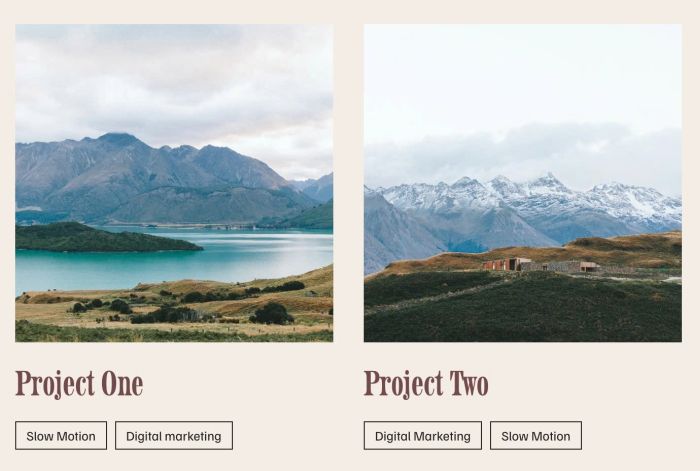
#1. Install Code
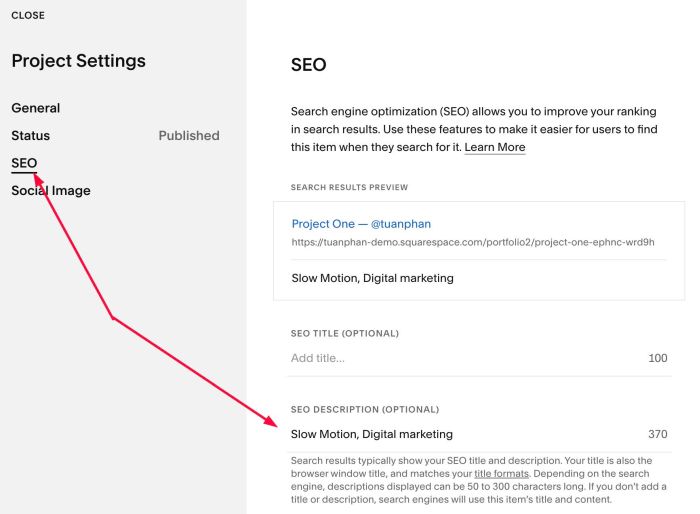
#1.1. First, you need to add text to SEO Description
Click on a Portfolio item > 3 dots > Settings
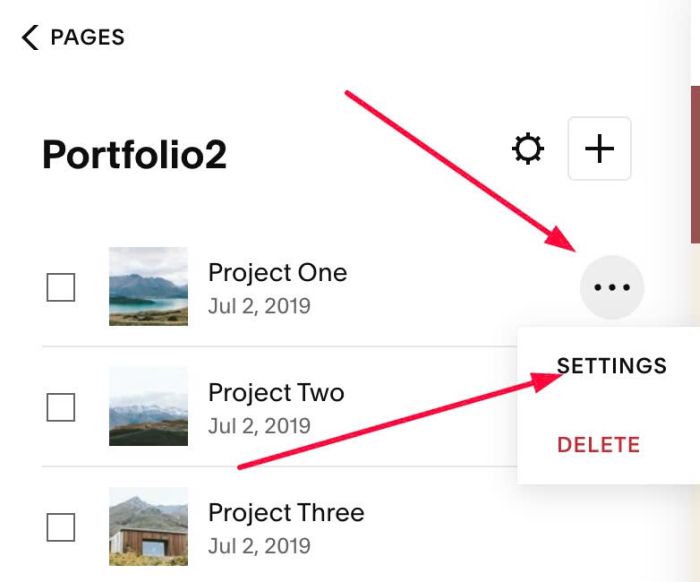
Click SEO > enter text like this:
#1.2. Click Gear icon on Portfolio Page
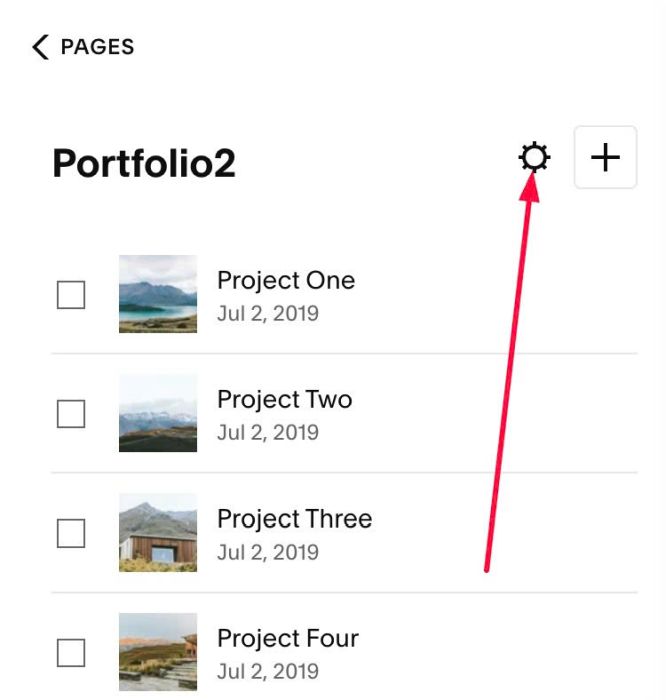
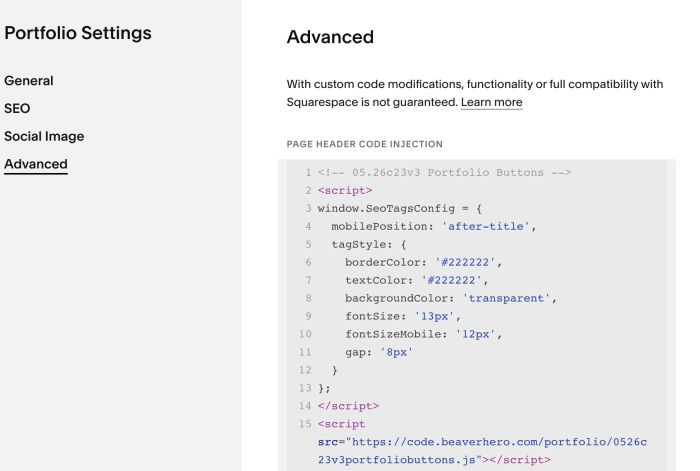
Click Advanced > Paste this code
- If you use Personal/Basic Plan and your plan doesn’t support Injection, see #3.1.
<!-- 05.26c23v3 Portfolio Buttons -->
<script>
window.SeoTagsConfig = {
  mobilePosition: 'after-title',
  tagStyle: {
    borderColor: '#222222',
    textColor: '#222222',
    backgroundColor: 'transparent',
    fontSize: '13px',
    fontSizeMobile: '12px',
    gap: '8px'
  }
};
</script>
<script src="https://code.beaverhero.com/portfolio/0526c23v3portfoliobuttons.js"></script>
#2. Customize
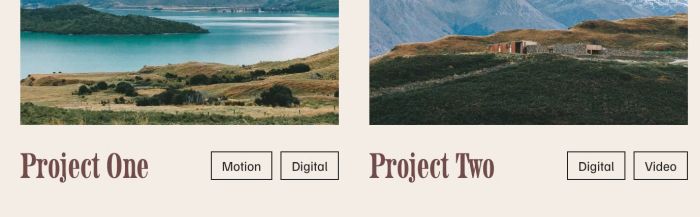
#2.1. To make button on right of Title, like this
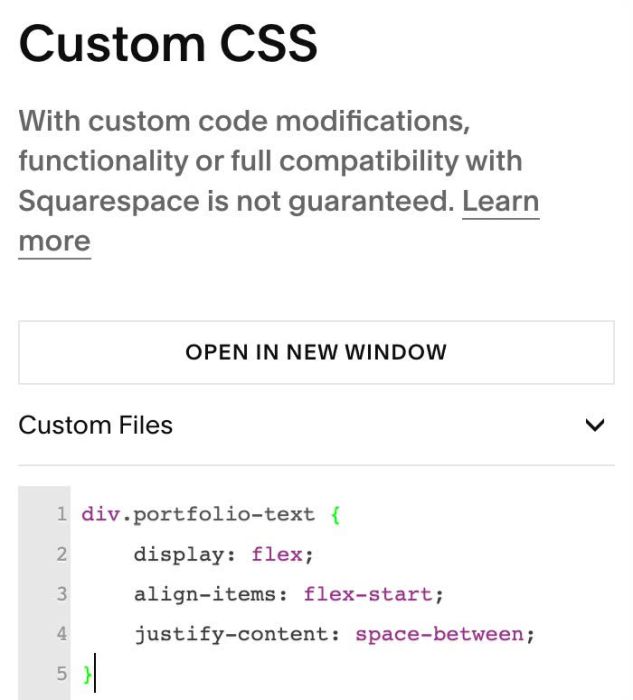
use this code to Custom CSS
div.portfolio-text {
    display: flex;
    align-items: flex-start;
    justify-content: space-between;
}
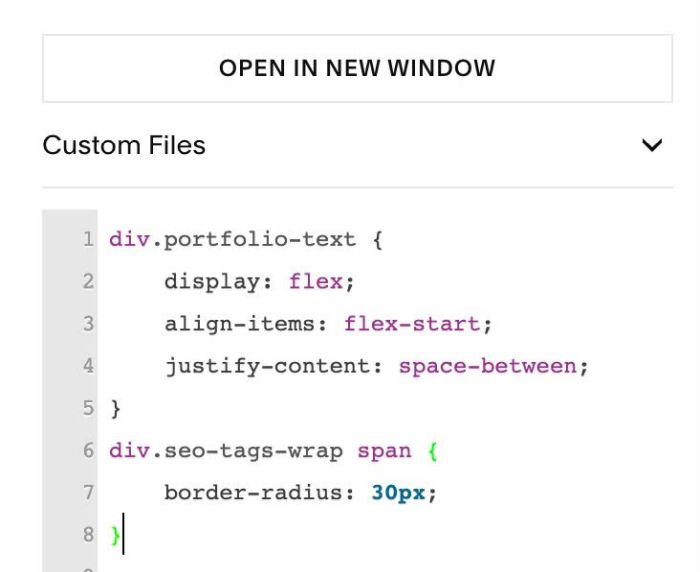
#2.2. To add round corners of buttons
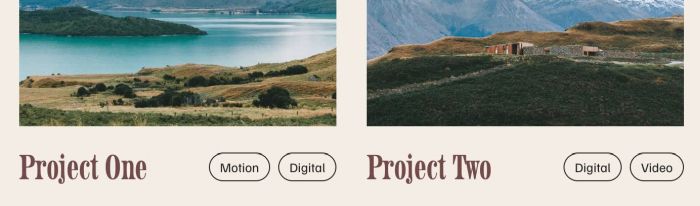
use this to Custom CSS
div.seo-tags-wrap span {
    border-radius: 30px;
}
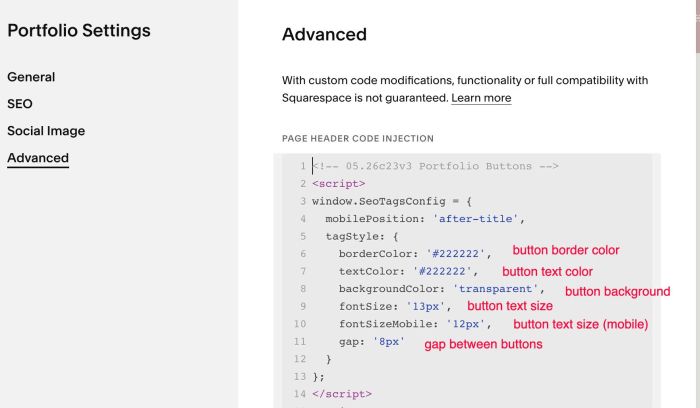
#2.3. To change style of button text, change these lines (Line 05 to Line 12)
tagStyle: {
  borderColor: '#222222',
  textColor: '#222222',
  backgroundColor: 'transparent',
  fontSize: '13px',
  fontSizeMobile: '12px',
  gap: '8px'
}
#2.4. To move title above image on mobile, like this
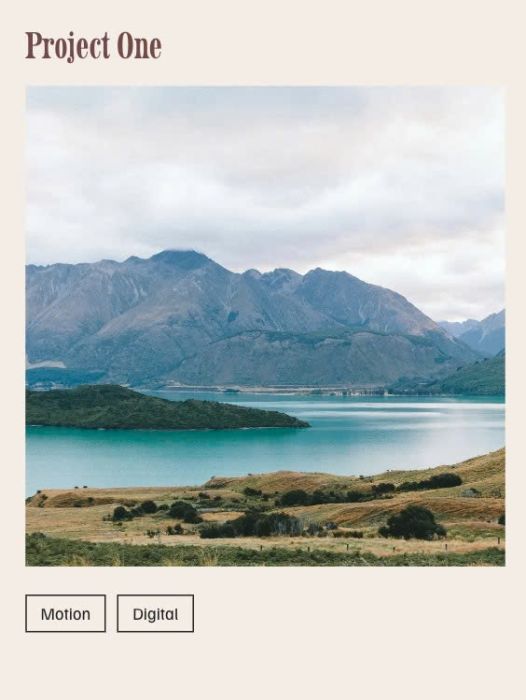
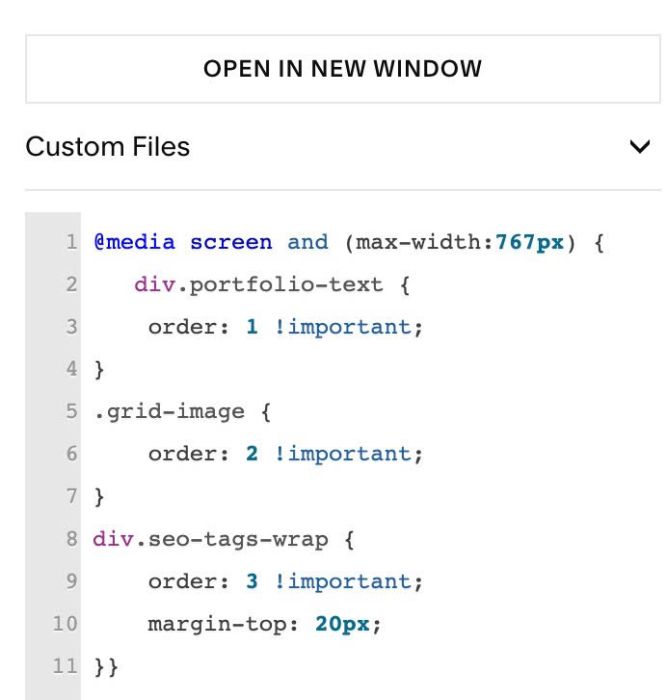
First, use this code to Custom CSS
@media screen and (max-width:767px) {
   div.portfolio-text {
    order: 1 !important;
}
.grid-image {
    order: 2 !important;
}
div.seo-tags-wrap {
    order: 3 !important;
    margin-top: 20px;
}}
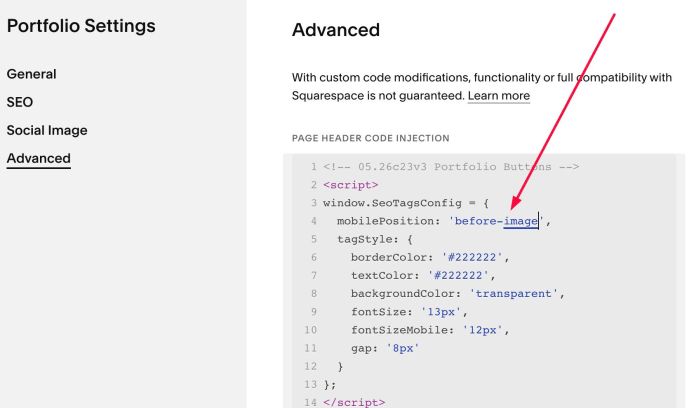
Next, change this line (Line 04)
mobilePosition: 'after-title',
to this line
mobilePosition: 'before-image',
#3. Other
#3.1. If you use Personal/Basic Plan and your plan doesn’t support Injection, you can edit Site Footer
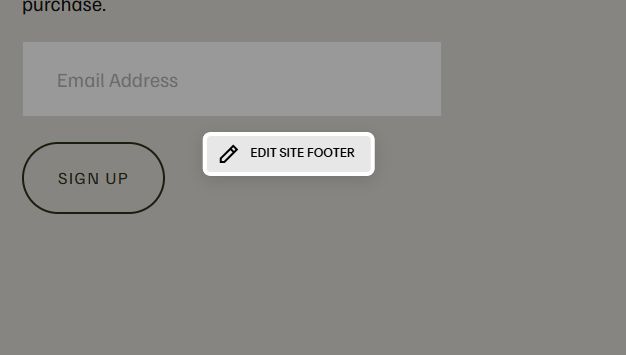
Add a Block

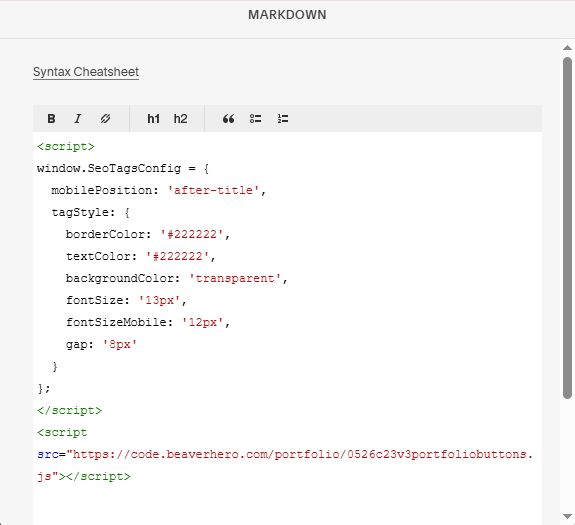
Choose Markdown

Paste this code into Markdown
<script>
window.SeoTagsConfig = {
  mobilePosition: 'after-title',
  tagStyle: {
    borderColor: '#222222',
    textColor: '#222222',
    backgroundColor: 'transparent',
    fontSize: '13px',
    fontSizeMobile: '12px',
    gap: '8px'
  }
};
</script>
<script src="https://code.beaverhero.com/portfolio/0526c23v3portfoliobuttons.js"></script>
#3.2. Tweak code with AI
You can use Claude AI (free) or Robo-Will (paid) (I recommend this) to customize the code