Description
- turn Gallery Block Title/Caption to 2 lines
- view demo – password: abc
- buy me a coffee

#1. Install Code
#1.1. Make sure you use Grid + enabled Title

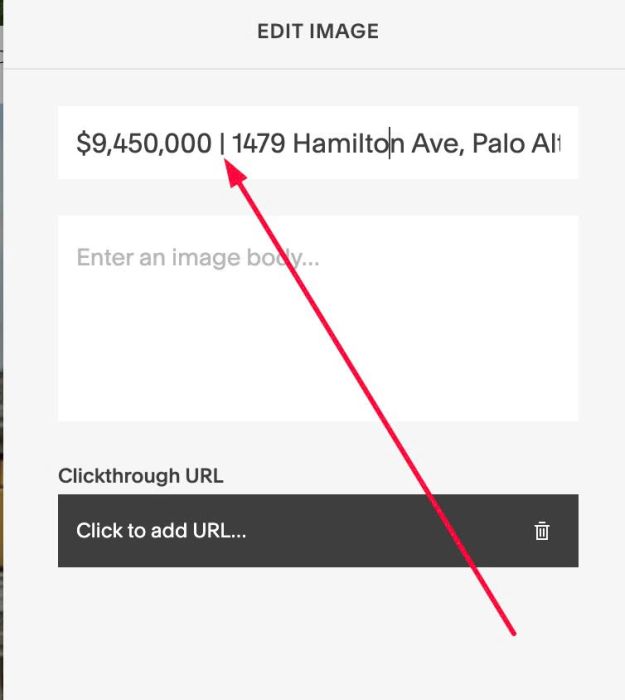
#1.2. Make sure you use symbol: | between 2 texts
|

like this
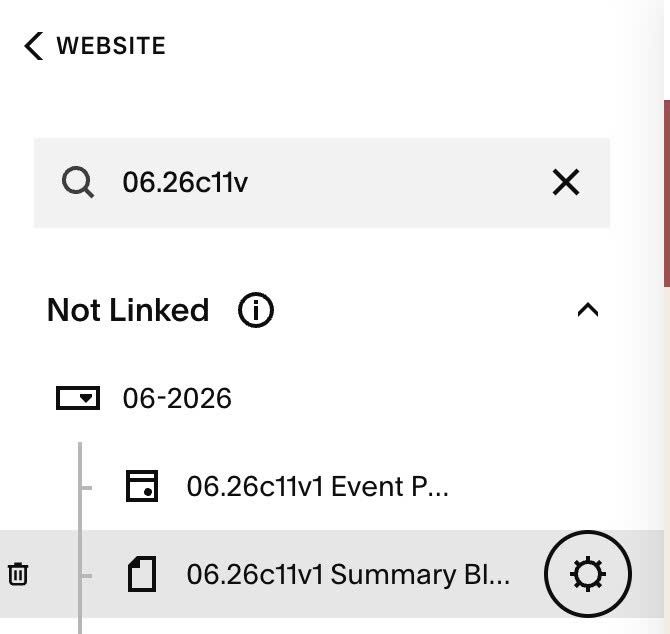
#1.3. Hover on Page where you use Gallery Block > Click Gear icon
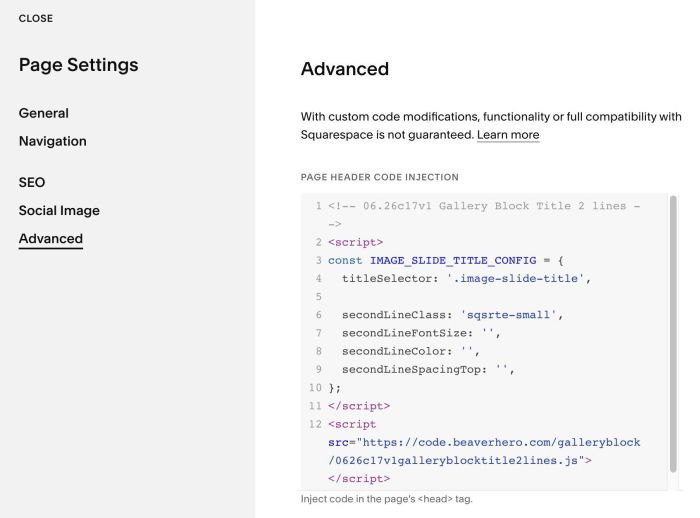
#1.4. Click Advanced > Paste this code to right box
- If you use Personal/Basic Plan and your plan doesn’t support Injection, see #3.1
<!-- 06.26c17v1 Gallery Block Title 2 lines -->
<script>
const IMAGE_SLIDE_TITLE_CONFIG = {
  titleSelector: '.image-slide-title',

  secondLineClass: 'sqsrte-small',
  secondLineFontSize: '',
  secondLineColor: '',
  secondLineSpacingTop: '',
};
</script>
<script src="https://code.beaverhero.com/galleryblock/0626c17v1galleryblocktitle2lines.js"></script>
#2. Customize
#2.1. To change Second Line color, you can change Line 08
secondLineColor: '',
to something like this
secondLineColor: '#f1f',
#2.2. To change Second Line color, change Line 07
secondLineFontSize: '',
to something like this
secondLineFontSize: '15px',
#3. Other
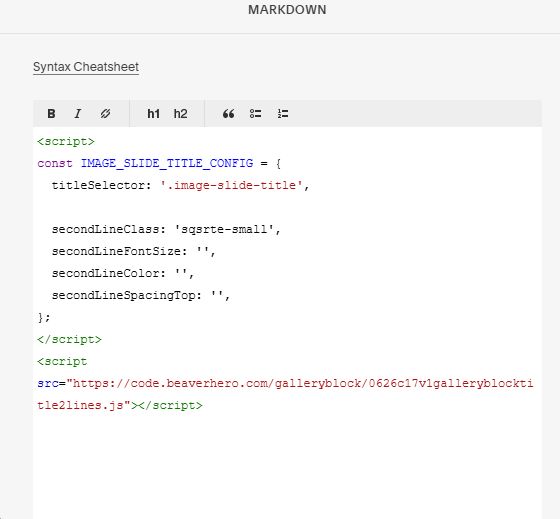
#3.1. If you use Personal/Basic Plan and your plan doesn’t support Injection, you can add a Block under Gallery Block

Choose Markdown

Add this code into Markdown
<script>
const IMAGE_SLIDE_TITLE_CONFIG = {
  titleSelector: '.image-slide-title',

  secondLineClass: 'sqsrte-small',
  secondLineFontSize: '',
  secondLineColor: '',
  secondLineSpacingTop: '',
};
</script>
<script src="https://code.beaverhero.com/galleryblock/0626c17v1galleryblocktitle2lines.js"></script>