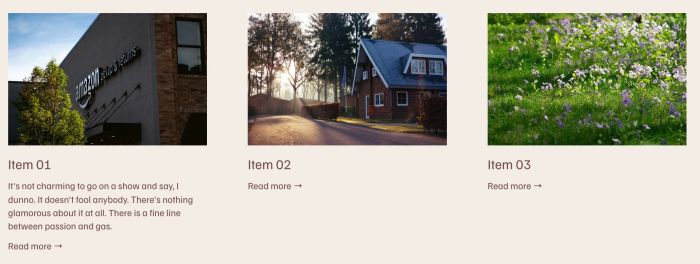
Description
- adding support Regular Pages for Summary Block
- view demo – password: abc
- buy me a coffee
#1. Install Code
Note:
- Summary Block (in this case) will support Grid, List & Carousel layouts only. It won’t work properly with Wall layout.
- The idea behind this plugin is that you create a dropdown with several regular pages, move them into the Main Navigation (the plugin will hide them, of course), and Summary Block will read dropdown items from the Main Navigation to connect them.
#1.1. Make sure you added a Dropdown with URL: /sm-pages
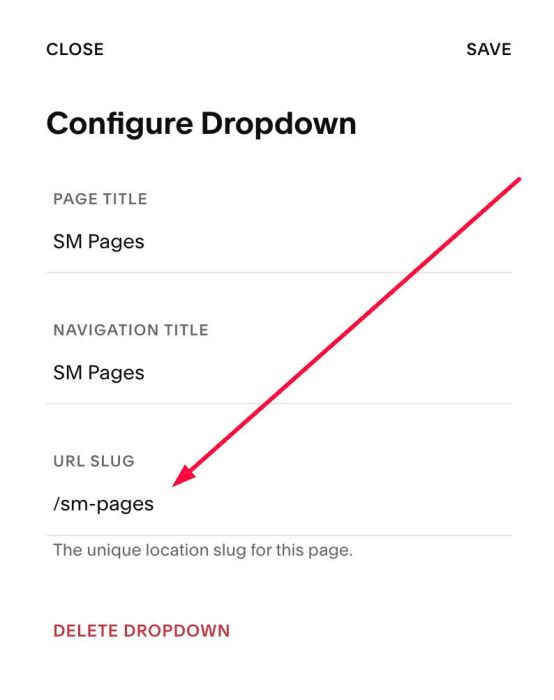
#1.1-2. Make sure you added some regular pages to SM Pages dropdown

#1.1-3. To add Summary Image, you can hover on each regular page > Click Gear icon

Click Social Image > Add your image here. Plugin will get it as Summary Block Image.
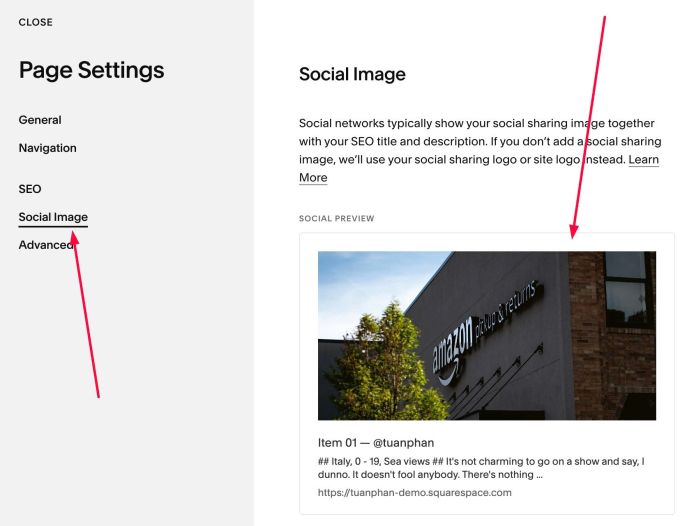
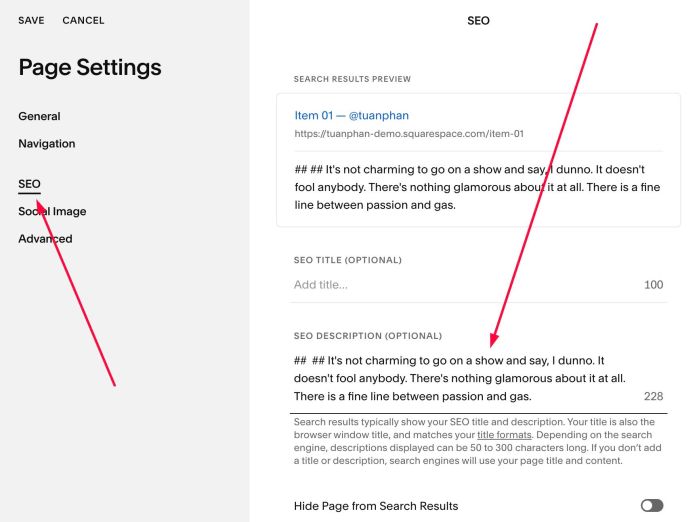
#1.1-4. If you want to add Excerpt to Summary, you can click SEO > Enter text in SEO Description, use format like this
## ## enter your description text here
#1.2. Next, edit Summary Block > Connect it with a Blog Page (you can connect it with any pages, it doesn’t matter at all)
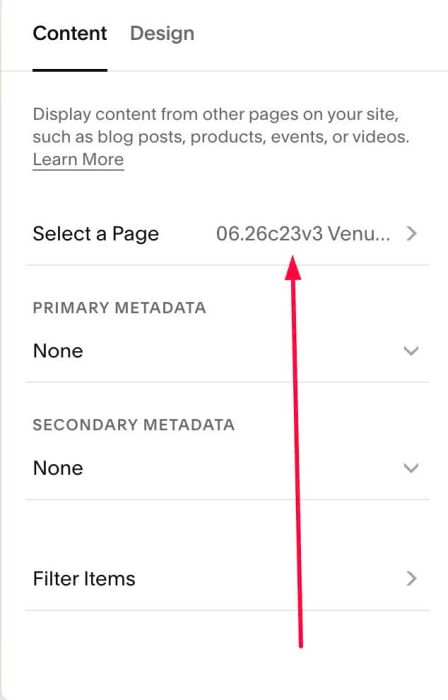
#1.2-2. You can adjust option in Design. Note: choose Grid, List or Carousel layout only. It won’t work properly with Wall.

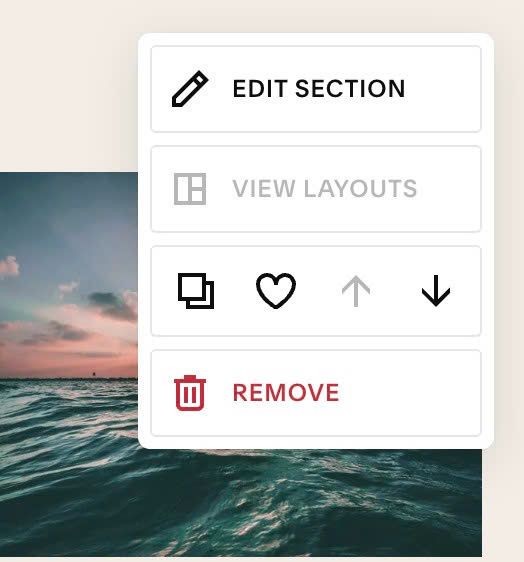
#1.2-3. Hover on section where you use Summary Block > Click EDIT SECTION
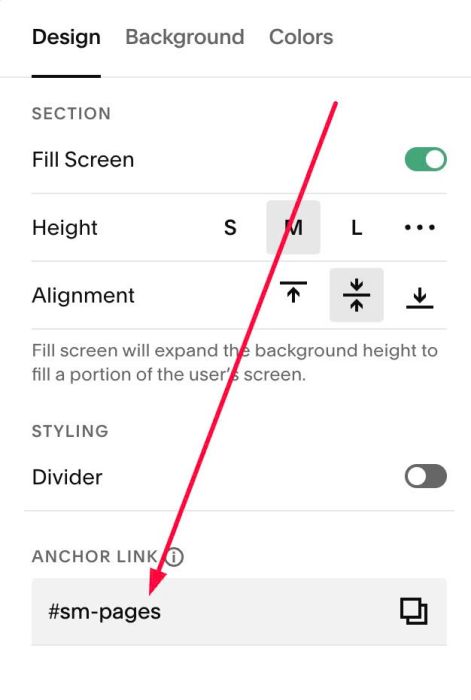
#1.2-4. at Design > Anchor Link > enter word, use format: dropdownurlslug (you created in step #1.1)
In our case, it is: sm-pages
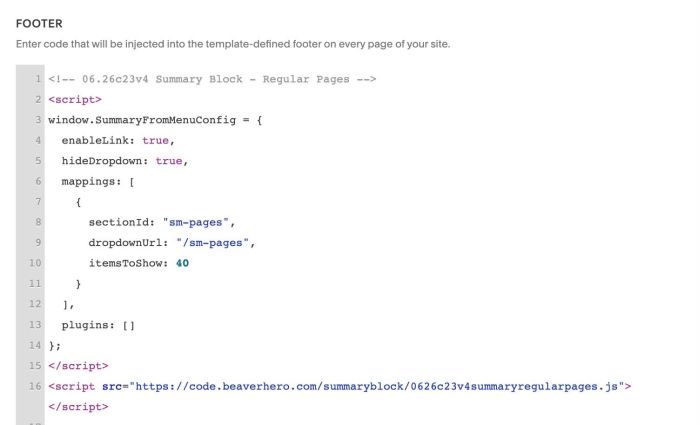
#1.3. Next, use this code to Code Injection > Footer
- If you use Personal/Basic Plan and your plan doesn’t support Injection, see #3.1
<!-- 06.26c23v4 Summary Block - Regular Pages -->
<script>
window.SummaryFromMenuConfig = {
  enableLink: true,
  hideDropdown: true,
  mappings: [
    {
      sectionId: "sm-pages",
      dropdownUrl: "/sm-pages",
      itemsToShow: 40
    }
  ],
  plugins: []
};
</script>
<script src="https://code.beaverhero.com/summaryblock/0626c23v4summaryregularpages.js"></script>
#2. Customize
#2.1. To set number of items, you can change Line 10
itemsToShow: 40
#2.2. To change other settings (number of columns, gap between items, image ratio…) you can change in Summary Block
#2.3. If you have multiple Summary Blocks and want to apply this, you can add extra Dropdown with Regular Pages, ex: you have dropdown: Digital Marketing (url: /digital-marketing), Branding (url: /branding)
Next, you can change anchor link of section to this: #digital-marketing, #branding
Next, change Line 06 – Line 12
mappings: [
  {
    sectionId: "sm-pages",
    dropdownUrl: "/sm-pages",
    itemsToShow: 40
  }
]
to something like this
mappings: [
   {
     sectionId: "sm-pages",
     dropdownUrl: "/sm-pages",
     itemsToShow: 40
   },
   {
     sectionId: "digital-marketing",
     dropdownUrl: "/digital-marketing",
     itemsToShow: 32
   },
   {
     sectionId: "branding",
     dropdownUrl: "/branding",
     itemsToShow: 100
   }
 ]
#3. Other
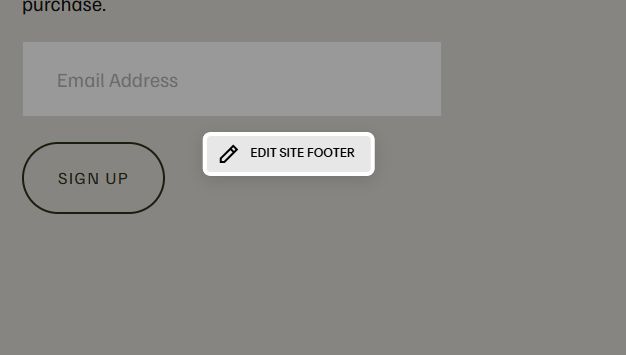
#3.1. If you use Personal/Basic Plan and your plan doesn’t support Injection, you can edit Site Footer
Add a Block

Choose Markdown

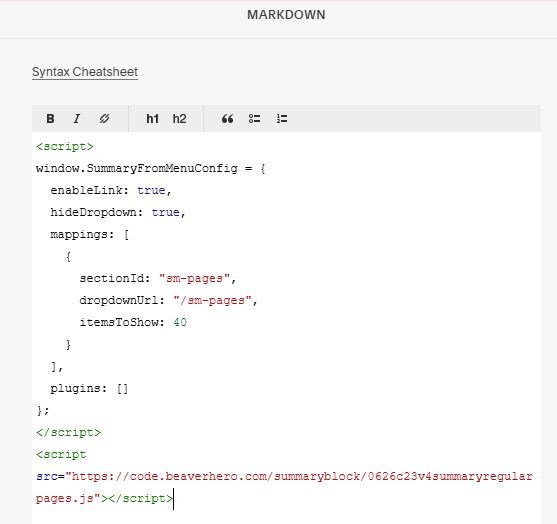
Add this code into Markdown
<script>
window.SummaryFromMenuConfig = {
  enableLink: true,
  hideDropdown: true,
  mappings: [
    {
      sectionId: "sm-pages",
      dropdownUrl: "/sm-pages",
      itemsToShow: 40
    }
  ],
  plugins: []
};
</script>
<script src="https://code.beaverhero.com/summaryblock/0626c23v4summaryregularpages.js"></script>