Description
- adding thumbnails to Portfolio Pagination
- view demo – password: abc
- buy me a coffee


#1. Install Code
#1.1. Click Gear icon on Portfolio Page

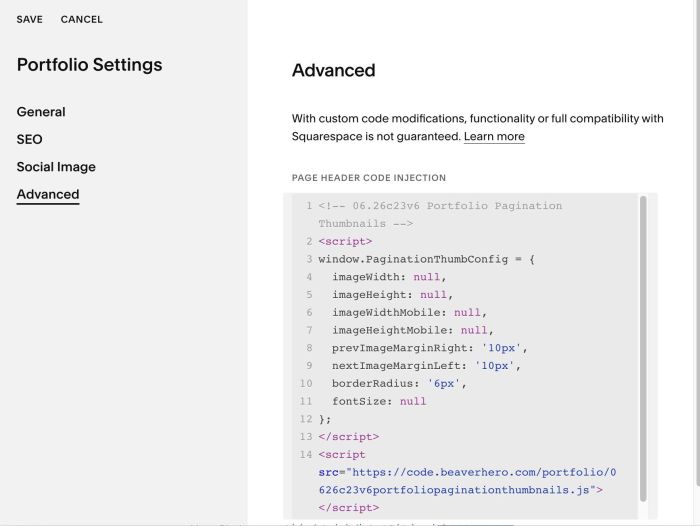
#1.2. Click Advanced > Paste this code
- If you use Personal/Basic Plan and your plan doesn’t support Injection, you can see #3.1
<!-- 06.26c23v6 Portfolio Pagination Thumbnails -->
<script>
window.PaginationThumbConfig = {
  imageWidth: null,
  imageHeight: null,
  imageWidthMobile: null,
  imageHeightMobile: null,
  prevImageMarginRight: '10px',
  nextImageMarginLeft: '10px',
  borderRadius: '6px',
  fontSize: null
};
</script>
<script src="https://code.beaverhero.com/portfolio/0626c23v6portfoliopaginationthumbnails.js"></script>
#2. Customize
#2.1. To change Image size, you can change Line 04 to Line 07
imageWidth: null,
imageHeight: null,
imageWidthMobile: null,
imageHeightMobile: null,
to something like this
imageWidth: 'auto',
imageHeight: '50px',
imageWidthMobile: 'auto',
imageHeightMobile: '30px',
#2.2. To change space between Pagination text – image, you can change Line 08, 09
prevImageMarginRight: '10px',
nextImageMarginLeft: '10px',
#2.3. To change border radius of image, change Line 10
borderRadius: '6px',
#2.4. To move Thumbnails above Pagination text, like this

You can use this code to Custom CSS box
/* tweak pagination */
.pagination-title-wrapper {
    flex-direction: column !important;
    gap: 10px;
    align-items: flex-end !important;
}
a[class*="-prev"] .pagination-title-wrapper {
    align-items: flex-start !important;
}
#3. Other
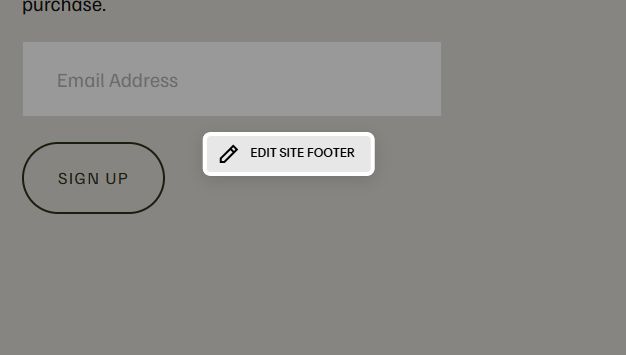
#3.1. If you use Personal/Basic Plan and your plan doesn’t support Injection, you can edit Site Footer
Add a Block

Choose Markdown

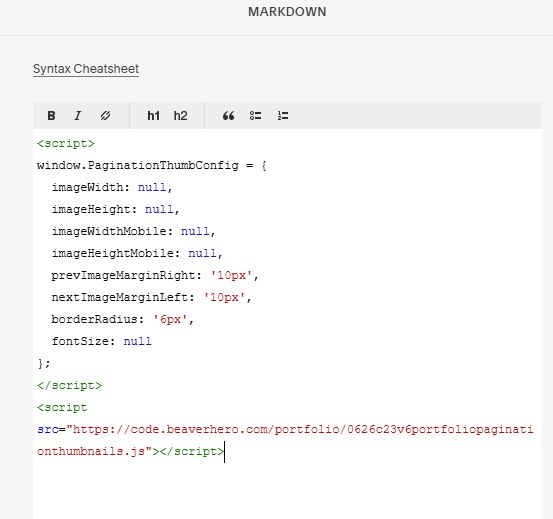
Add this code into Markdown
<script>
window.PaginationThumbConfig = {
  imageWidth: null,
  imageHeight: null,
  imageWidthMobile: null,
  imageHeightMobile: null,
  prevImageMarginRight: '10px',
  nextImageMarginLeft: '10px',
  borderRadius: '6px',
  fontSize: null
};
</script>
<script src="https://code.beaverhero.com/portfolio/0626c23v6portfoliopaginationthumbnails.js"></script>