Description
- adding third level dropdown menu
- view demo – password: abc
- buy me a coffee
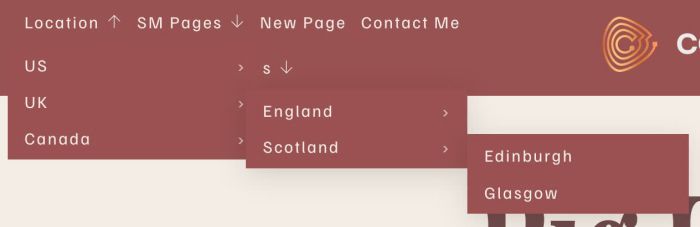
#1. Install Code
First, I will describe dropdown menu a bit
Level 1
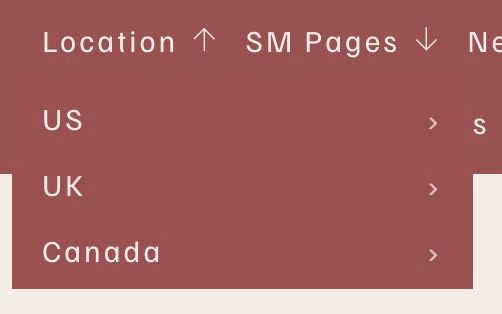
Level 2
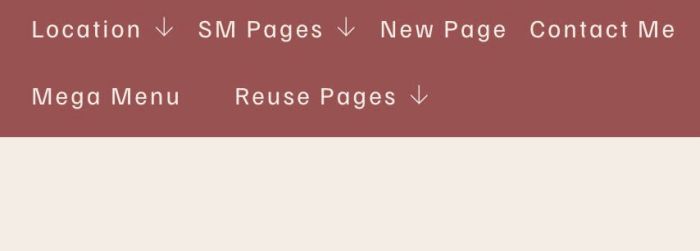
Level 3

#1.1. First, you can add a Dropdown Menu, something like this
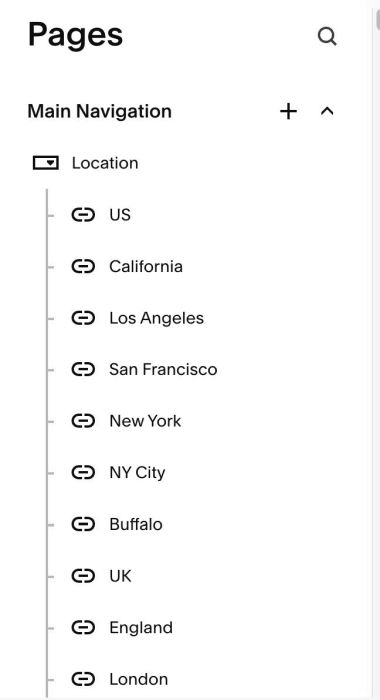
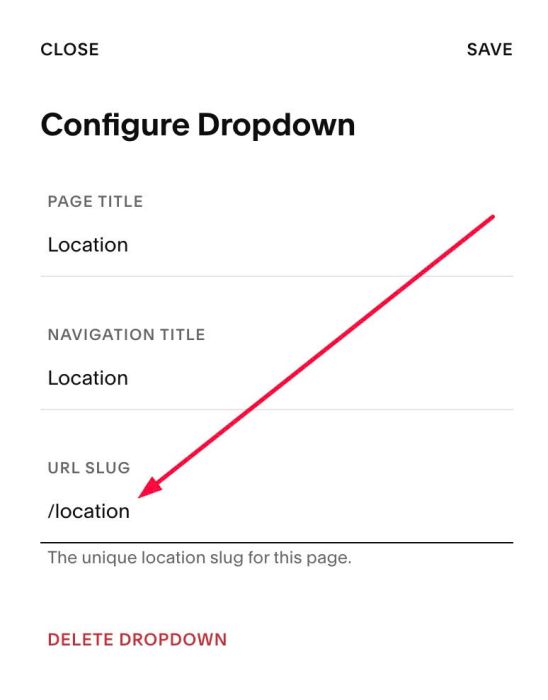
#1.2. Next, hover on dropdown > Click Gear icon

See URL Slug. We will have /location
#1.3. Use this code to Code Injection > Footer
- If you use Personal/Basic Plan and your plan doesn’t support Injection, see #3.1
<!-- 06.26c25v1 (v2) Third Level Dropdown Menu -->
<script>
window.MultiLevelDropdownConfig = {
  enabled: true,
  matchBy: "text",
  dropdowns: [
    {
      folderId: "/location",
      submenuDirection: "right",
      matchBy: "text",
      levels: [
        [
          "US",
          "UK",
          "Canada"
        ],
        [
          "California",
          "New York",
          "England",
          "Scotland",
          "Ontario",
          "Quebec"
        ]
      ]
    },
    {
      folderId: "/sm-pages",
      submenuDirection: "right",
      matchBy: "text",
      parents: [
        "Item 01",
        "Item 10",
        "Item 20",
        "Item 30"
      ]
    },
    {
      folderId: "/reuse-pages-1",
      submenuDirection: "right",
      matchBy: "text",
      parents: [
        "Gallery Form",
        "Custom Menu"
      ]
    }
  ]
};
</script>
<script src="https://code.beaverhero.com/header/0626c25v1v2thirdleveldropdown.js"></script>
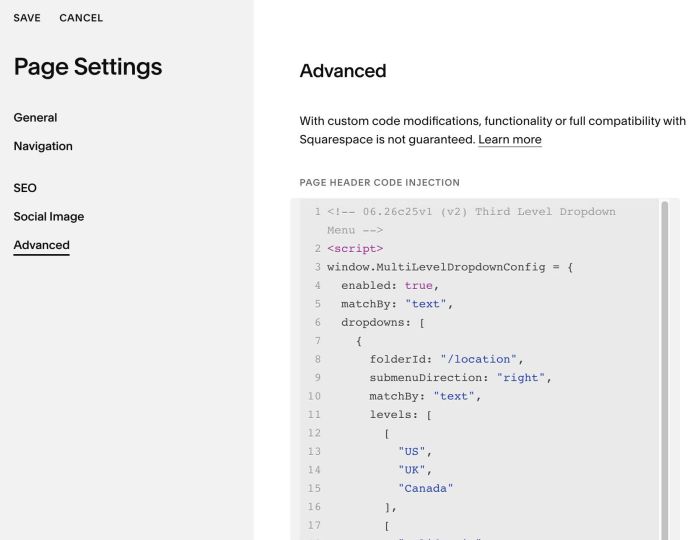
#1.4. Update options in Line 06 to Line 47 (explain below)
dropdowns: [
    {
      folderId: "/location",
      submenuDirection: "right",
      matchBy: "text",
      levels: [
        [
          "US",
          "UK",
          "Canada"
        ],
        [
          "California",
          "New York",
          "England",
          "Scotland",
          "Ontario",
          "Quebec"
        ]
      ]
    },
    {
      folderId: "/sm-pages",
      submenuDirection: "right",
      matchBy: "text",
      parents: [
        "Item 01",
        "Item 10",
        "Item 20",
        "Item 30"
      ]
    },
    {
      folderId: "/reuse-pages-1",
      submenuDirection: "right",
      matchBy: "text",
      parents: [
        "Gallery Form",
        "Custom Menu"
      ]
    }
  ]
- Line 27 to Line 46: just some examples for second level dropdown menu, you can ignore it
- Line 08: change /location with url slug you got in step #1.2
folderId: "/location",
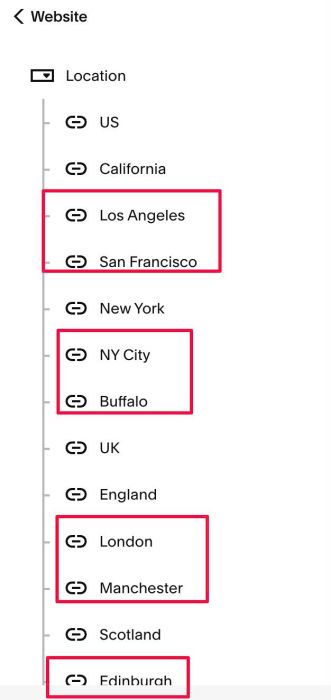
- Line 11 to Line 26: Update title text to match with text on your site
- US, UK, Canada: titles in first level dropdown
- California, New York, England, Scotland, Ontario, Quebec: titles in second level dropdown
levels: [
       [
         "US",
         "UK",
         "Canada"
       ],
       [
         "California",
         "New York",
         "England",
         "Scotland",
         "Ontario",
         "Quebec"
       ]
     ]
   },
- options under California, New York, England, Ontario, Quebec will appears in third level dropdown
#2. Customize
nothing now
#3. Other
#3.1. If you use Personal/Basic Plan and your plan doesn’t support Injection, you can edit Site Footer
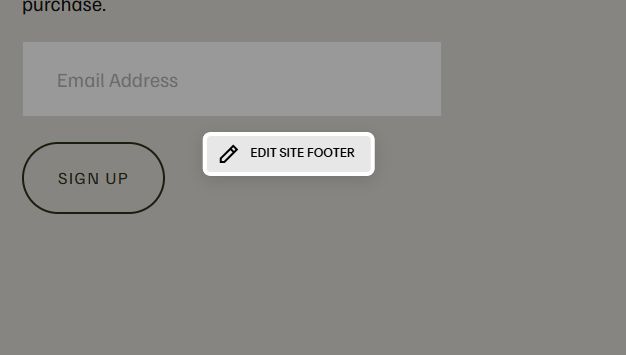
Add a Block

Choose Markdown

Add this code into Markdown
<script>
window.MultiLevelDropdownConfig = {
  enabled: true,
  matchBy: "text",
  dropdowns: [
    {
      folderId: "/location",
      submenuDirection: "right",
      matchBy: "text",
      levels: [
        [
          "US",
          "UK",
          "Canada"
        ],
        [
          "California",
          "New York",
          "England",
          "Scotland",
          "Ontario",
          "Quebec"
        ]
      ]
    },
    {
      folderId: "/sm-pages",
      submenuDirection: "right",
      matchBy: "text",
      parents: [
        "Item 01",
        "Item 10",
        "Item 20",
        "Item 30"
      ]
    },
    {
      folderId: "/reuse-pages-1",
      submenuDirection: "right",
      matchBy: "text",
      parents: [
        "Gallery Form",
        "Custom Menu"
      ]
    }
  ]
};
</script>
<script src="https://code.beaverhero.com/header/0626c25v1v2thirdleveldropdown.js"></script>
