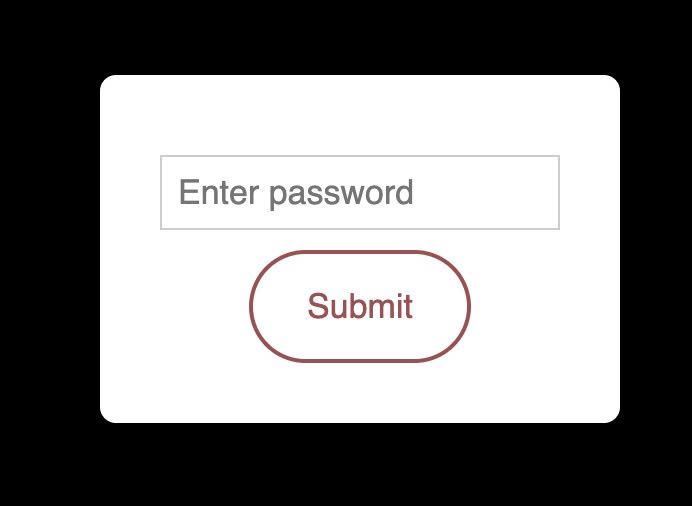
Description
- adding password to specific portfolio item
- view demo – password: abc
- buy me a coffee
#1. Install Code
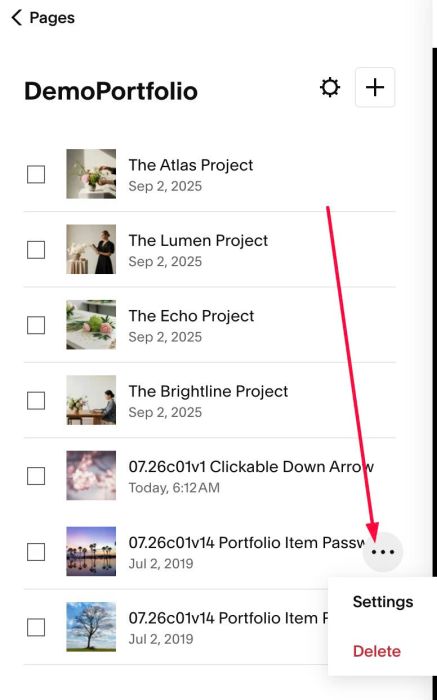
#1.1. First click on Portfolio item > click 3 dots > click Settings
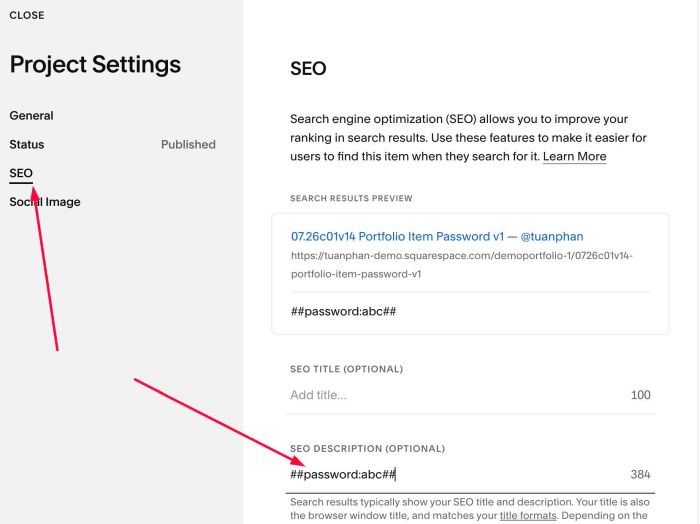
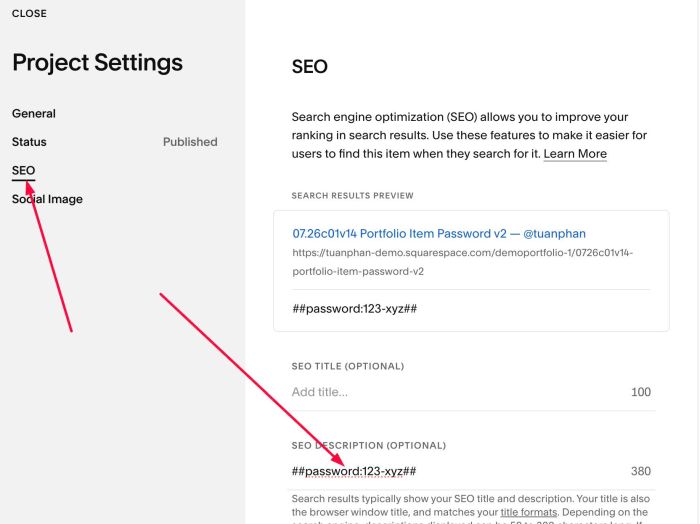
#1.2. Next, click SEO > Enter syntax like this into SEO Description
##password:abc##
or something like this
##password:123-xyz##
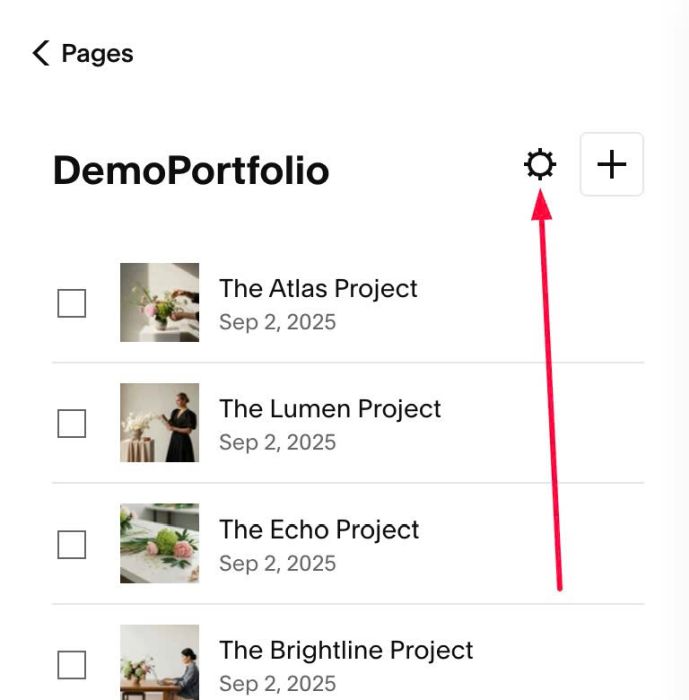
#1.3. Click Gear icon on Portfolio Page
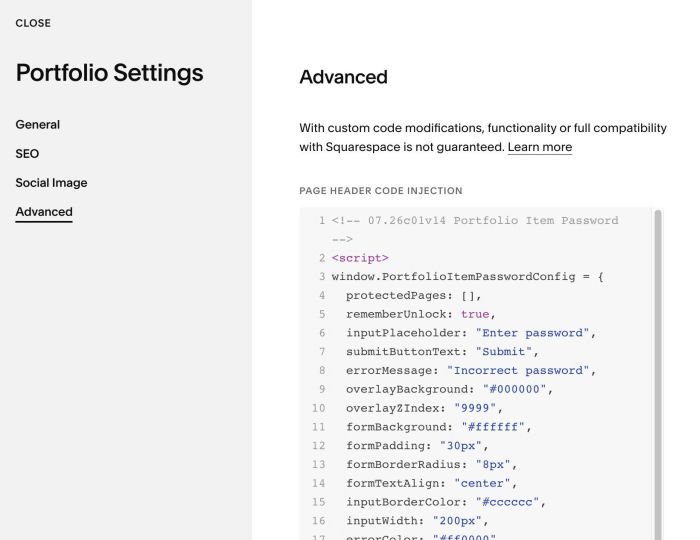
#1.4. Click Advanced > Paste this code
- If you use Personal/Basic Plan and your plan doesn’t support Injection, see #3.1
<!-- 07.26c01v14 Portfolio Item Password -->
<script>
window.PortfolioItemPasswordConfig = {
  protectedPages: [],
  rememberUnlock: true,
  inputPlaceholder: "Enter password",
  submitButtonText: "Submit",
  errorMessage: "Incorrect password",
  overlayBackground: "#000000",
  overlayZIndex: "9999",
  formBackground: "#ffffff",
  formPadding: "30px",
  formBorderRadius: "8px",
  formTextAlign: "center",
  inputBorderColor: "#cccccc",
  inputWidth: "200px",
  errorColor: "#ff0000",
  buttonBackground: "",
  buttonTextColor: "",
  buttonTextSize: "",
  errorTextSize: ""
};
</script>
<script src="https://code.beaverhero.com/portfolio/0726c01v14portfolioitempassword.js"></script>
#2. Customize
#2.1. To change error text, button text, search input text, change Line 06 – Line 08
inputPlaceholder: "Enter password",
submitButtonText: "Submit",
errorMessage: "Incorrect password",
#2.2. To change overlay color, change Line 09
overlayBackground: "#000000",
#2.3. To change Form password style, change Line 11 – Line 14
formBackground: "#ffffff",
formPadding: "30px",
formBorderRadius: "8px",
formTextAlign: "center",
#2.4. To change search input style, change Line 15 – Line 16
inputBorderColor: "#cccccc",
  inputWidth: "200px",
#2.5. If you want to change Submit button color, change Line 18 – Line 19
buttonBackground: "",
buttonTextColor: "",
to something like this
buttonBackground: "#f1f",
buttonTextColor: "#fff",
#3. Other
#3.1. If you use Personal/Basic Plan and your plan doesn’t support Injection, you can edit Site Footer
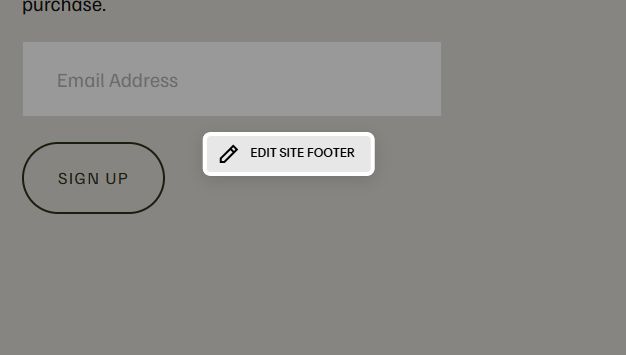
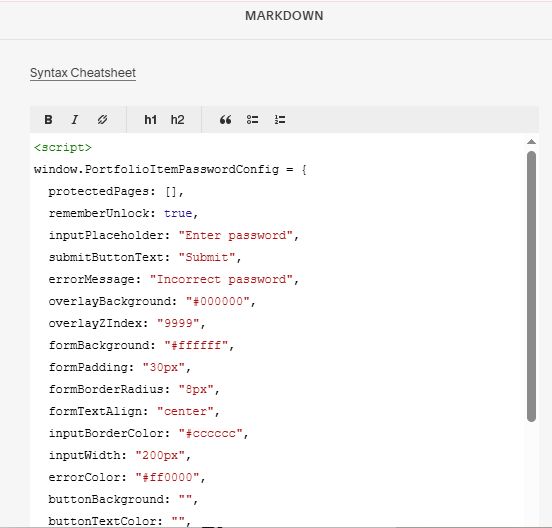
Add a Markdown Block

Add this code into Markdown
<script>
window.PortfolioItemPasswordConfig = {
  protectedPages: [],
  rememberUnlock: true,
  inputPlaceholder: "Enter password",
  submitButtonText: "Submit",
  errorMessage: "Incorrect password",
  overlayBackground: "#000000",
  overlayZIndex: "9999",
  formBackground: "#ffffff",
  formPadding: "30px",
  formBorderRadius: "8px",
  formTextAlign: "center",
  inputBorderColor: "#cccccc",
  inputWidth: "200px",
  errorColor: "#ff0000",
  buttonBackground: "",
  buttonTextColor: "",
  buttonTextSize: "",
  errorTextSize: ""
};
</script>
<script src="https://code.beaverhero.com/portfolio/0726c01v14portfolioitempassword.js"></script>