Description
- click on each variant dropdown option will show variant description
- view demo 01 (variant Color) – pass: abc
- view demo 02 (variant Size) – pass: abc
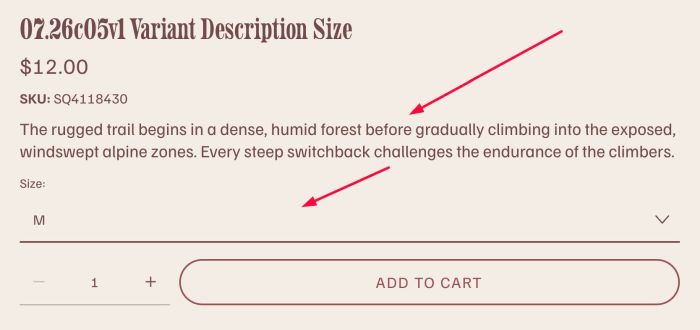

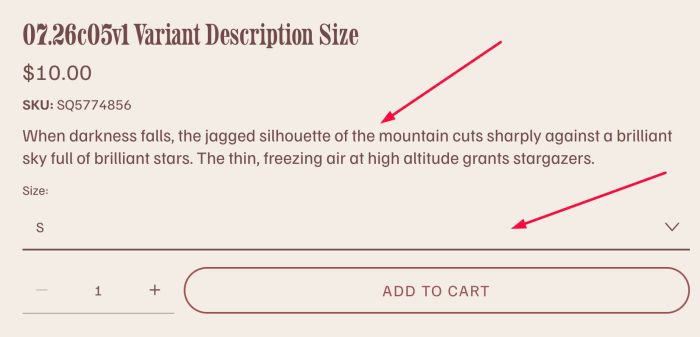
#1. Install Code
- adding Team Section
- adding Title/Description, title match with variant option name
- adding Anchor Link to match with Variant Name
- adding code
#1.1. First, you add a Team Section (choose Team > Choose Section with (i) icon) to Variant Product
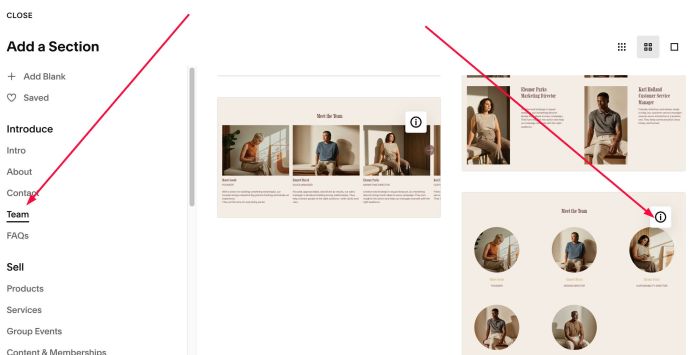
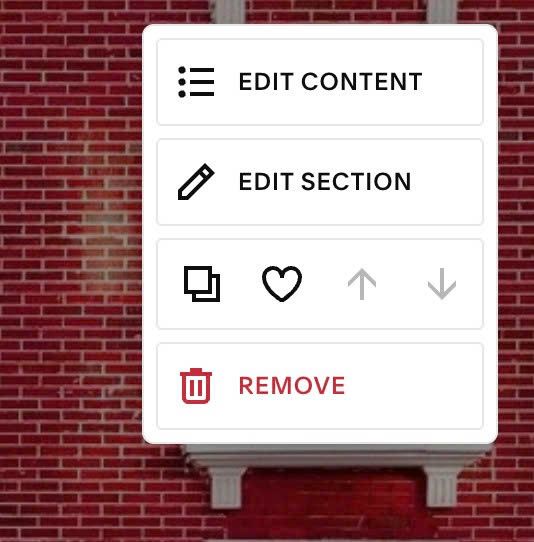
#1.2. Hover on top right of section > Click EDIT CONTENT
#1.3. at Design > Choose Simple List
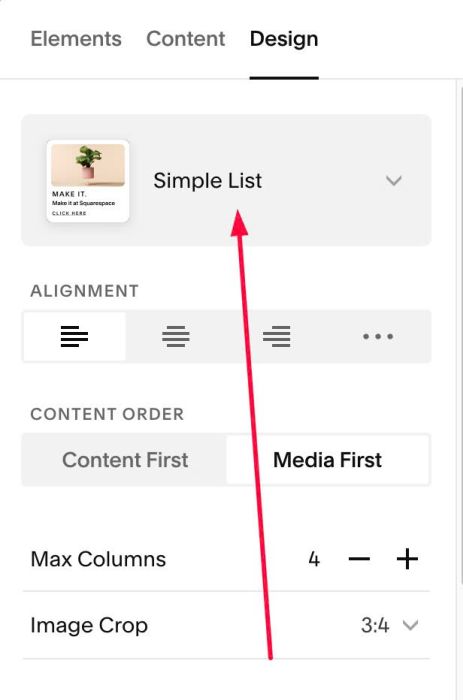
#1.4. at Elements > Enable Title, Body

#1.5. at Content > Add your title/body text.
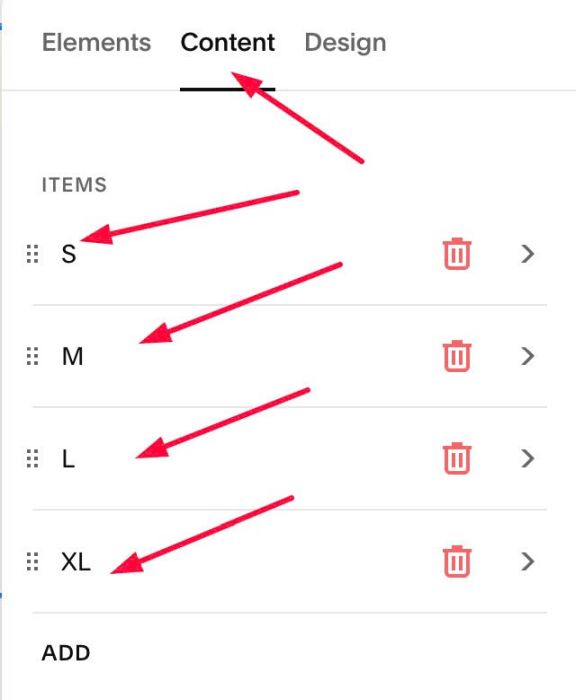
- Note: make sure Title same as Variant Option Name


#1.6. Hover on top right of section > Click EDIT SECTION
at Format > Anchor Link, enter word, use format: variant-description-VARIANTNAMEUSELOWERCASE
ex: in my case, variant name is Size, so we will use: variant-description-size
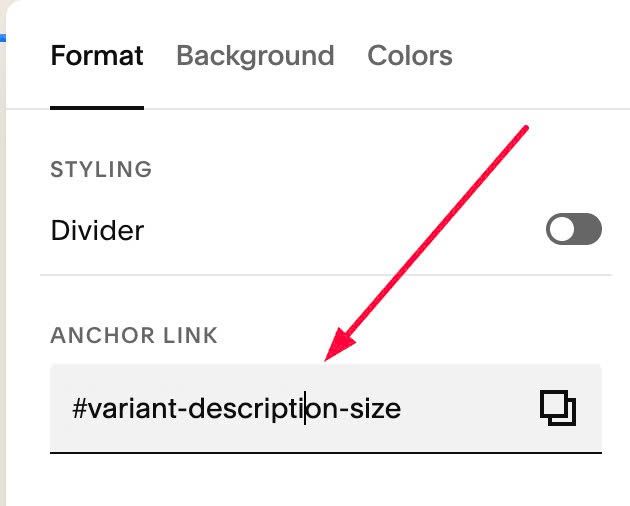
#1.7. Repeat similar #1.1 to #1.6 for other products. Here is an example with variant Color
We have 4 variant options: Blue, Red, Navy, Green
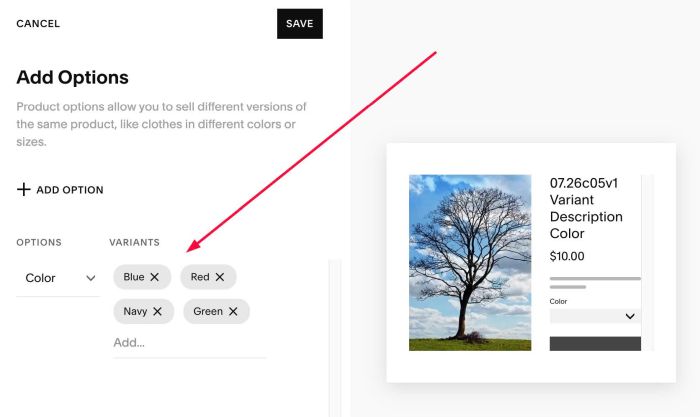
so Team List Section will have these texts
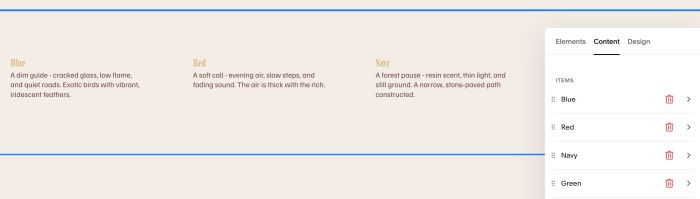
and anchor link will be: variant-description-color

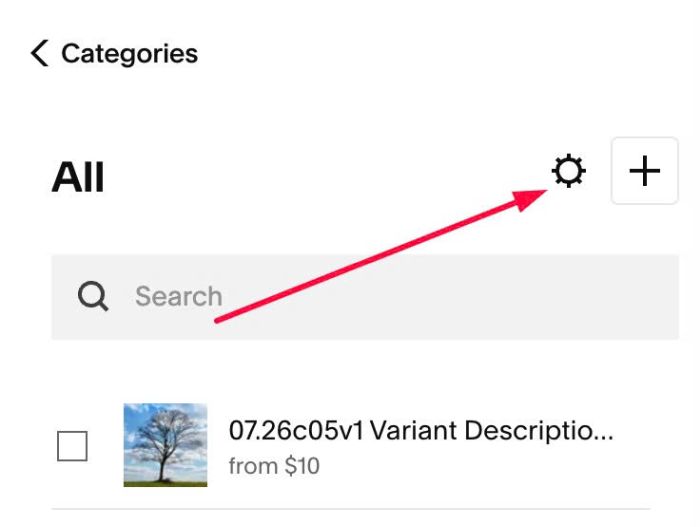
#1.8. Click Gear icon on Store Page
Next, click Advanced > Page Header Code Injection
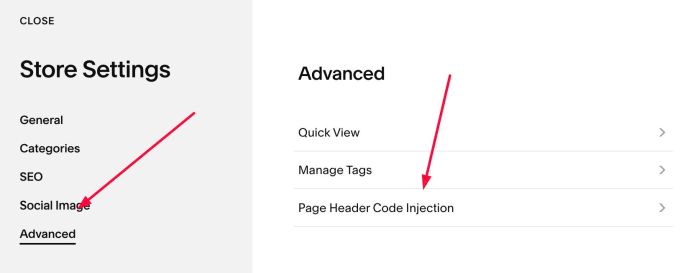
#1.9. Add this code to right box
<!-- 07.26c05v1 Variant Description -->
<script>
  window.VariantDescriptionConfig = {
    sectionIdPrefix: 'variant-description-',
    productDescriptionSelector: '.product-description',
    sourceTitleSelector: '.list-item-content__title',
    sourceDescriptionSelector: '.list-item-content__description'
  };
</script>
<script src="https://code.beaverhero.com/store/0726c05v1variantdescription.js"></script>
<style>body.sqs-edit-mode-active section[id*="variant-description"] {display:block!important;visibility:visible!important;}</style>

#2. Customize
nothing now