Description
- random pair of text/image on page load
- view demo – password: abc
- buy me a coffee
#1. Install Code
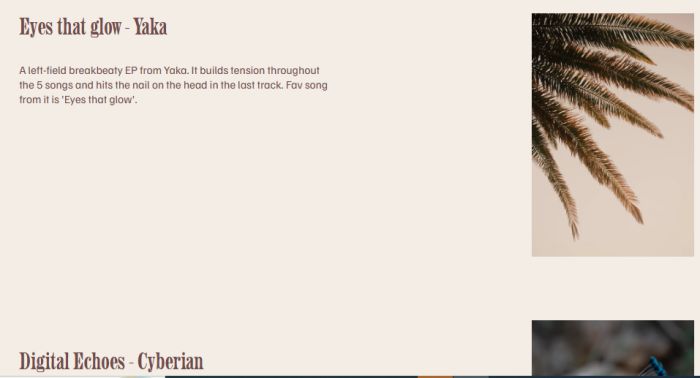
#1.1. You can add some Text Blocks, Image Blocks, like this
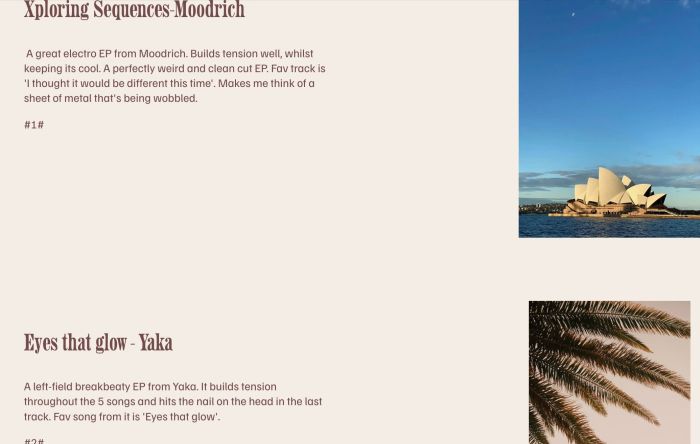
#1.2. Add text #1# to first pair of Text Block – Image Block, like this
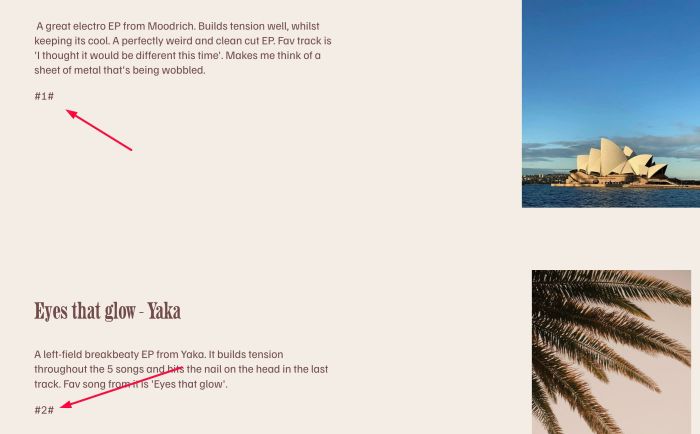
With Images, you will add it to ALT, like this
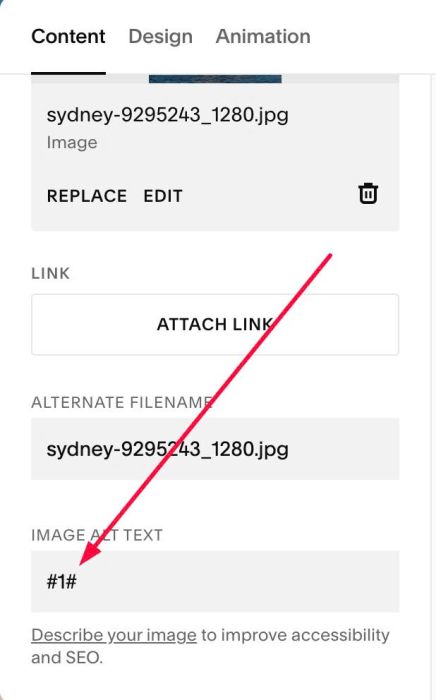
Use #2# to second pair of Text Block – Image Block
Use #3# to third pair of Text Block – Image Block
and so on
Using such symbols ensures the code can identify which text and images should appear together.
#1.3. Hover on Page where you use Text/Image Blocks > Click Gear icon
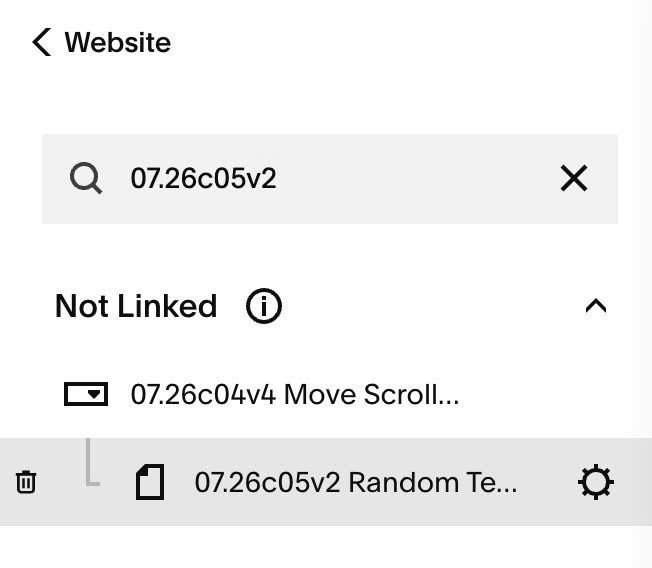
#1.4. Click Advanced > Paste this code
- If you use Personal/Basic Plan and your plan doesn’t support Injection, see #3.1
<!-- 07.26c05v2 Random Text/Image -->
<style>
  #random-textimg { visibility: hidden; }
  #random-textimg.rti-ready { visibility: visible; }
</style>
<script>
  window.RandomTextImgConfig = {
    sectionSelector: '#random-textimg',
    readyClass: 'rti-ready',
    avoidSameOrder: true
  };
</script>
<script src="https://code.beaverhero.com/textblock/0726c05v2randomtextimg.js"></script>

#2. Customize
nothing now
#3. Other
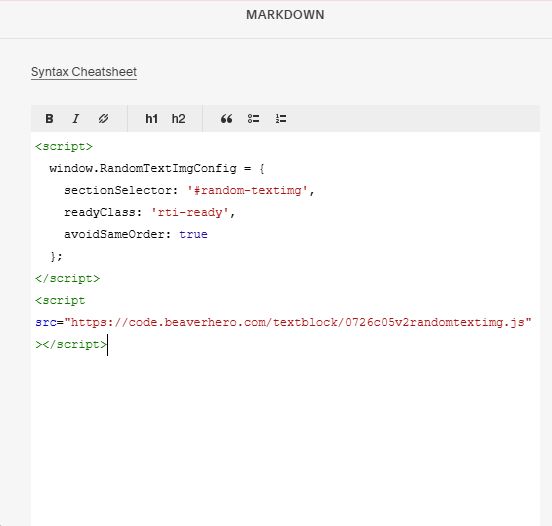
#3.1. If you use Personal/Basic Plan and your plan doesn’t support Injection, you can edit current page (page where you use Text/Image Blocks) > Add a Markdown Block

Add this code into Markdown
<script>
  window.RandomTextImgConfig = {
    sectionSelector: '#random-textimg',
    readyClass: 'rti-ready',
    avoidSameOrder: true
  };
</script>
<script src="https://code.beaverhero.com/textblock/0726c05v2randomtextimg.js"></script>