Description
- automatically adding Shop Categories to Header Dropdown menu
- view demo – password: abc
- buy me a coffee

#1. Install Code
#1.1. First, find Store Page URL
In my example, we will have: /storedemo

#1.2. Create a Dropdown to Main Navigation
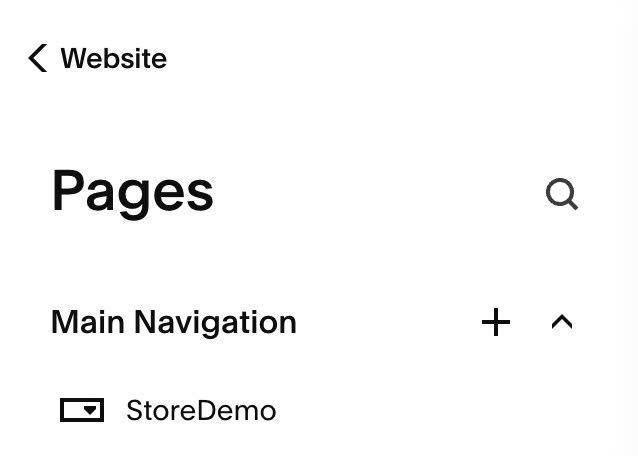
Dropdown will have
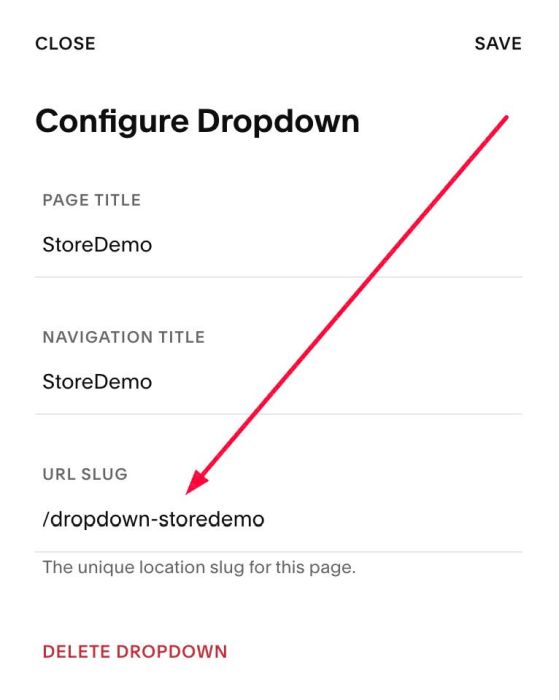
- Name: you can enter anything what you want
- URL Slug: use format: /dropdown-{store page url slug} – In my example, it will be: /dropdown-storedemo
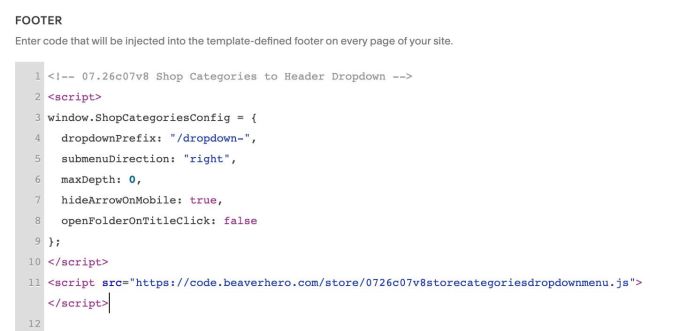
#1.3. Use this code to Code Injection > Footer
- If you use Personal/Basic Plan and your plan doesn’t support Injection, see #3.1
<!-- 07.26c07v8 Shop Categories to Header Dropdown -->
<script>
window.ShopCategoriesConfig = {
  dropdownPrefix: "/dropdown-",
  submenuDirection: "right",
  maxDepth: 0,
  hideArrowOnMobile: true,
  openFolderOnTitleClick: false
};
</script>
<script src="https://code.beaverhero.com/store/0726c07v8storecategoriesdropdownmenu.js"></script>
#2. Customize
#2.1. On mobile, by default, if users click Dropdown Title it will open Store Page Panel with dropdown format like this

But if you want to make it open Store page on click title, you can change Line 08
openFolderOnTitleClick: false
to
openFolderOnTitleClick: true
#2.2. To enable right arrow next to Dropdown Title on Mobile, you can change line 07
hideArrowOnMobile: false,
to
hideArrowOnMobile: true,
#3. Other
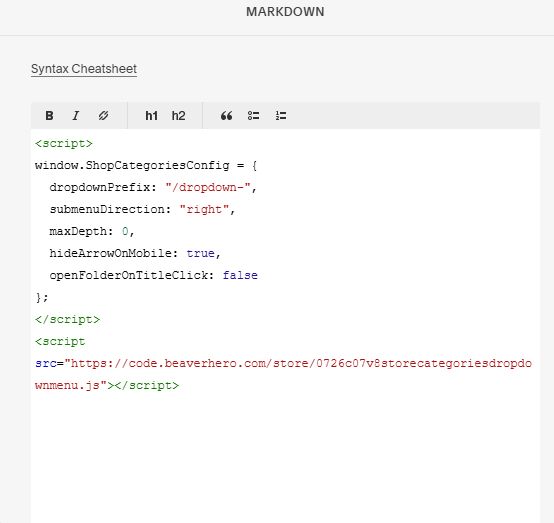
#3.1. If you use Personal/Basic Plan and your plan doesn’t support Injection, you can edit Site Footer
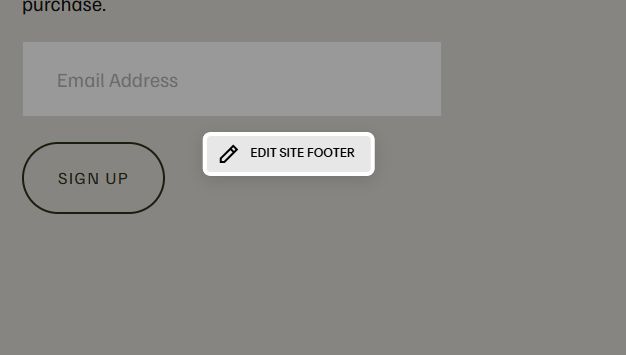
Add a Markdown Block

Add this code into Markdown Block
<script>
window.ShopCategoriesConfig = {
  dropdownPrefix: "/dropdown-",
  submenuDirection: "right",
  maxDepth: 0,
  hideArrowOnMobile: true,
  openFolderOnTitleClick: false
};
</script>
<script src="https://code.beaverhero.com/store/0726c07v8storecategoriesdropdownmenu.js"></script>