Description
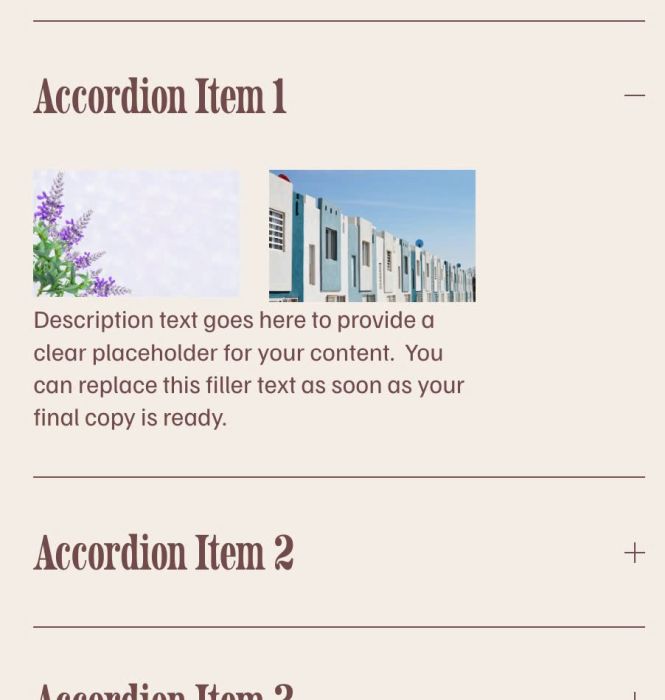
- adding 2 images same row in Accordion Block
- view demo – password: abc
- buy me a coffee
#1. Install Code
#1.1. First add a text with name IMAGE-IMAGE to position where you want to place Images
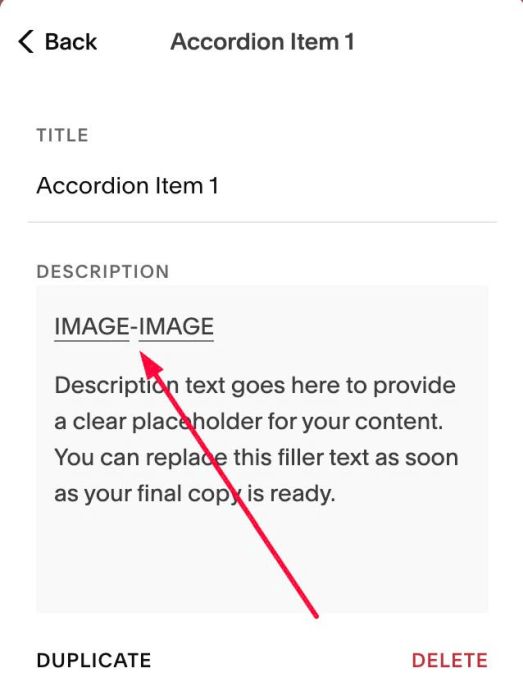
#1.2. Highlight text “IMAGE” > Click Link icon > Enter Image URL
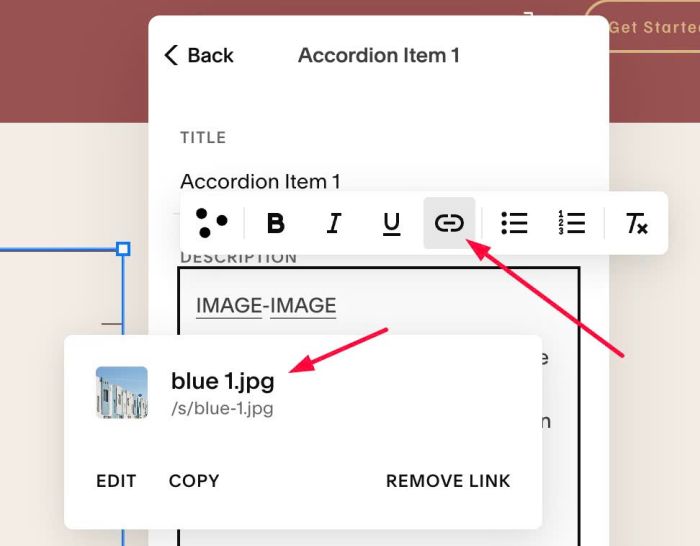
or you can also upload image

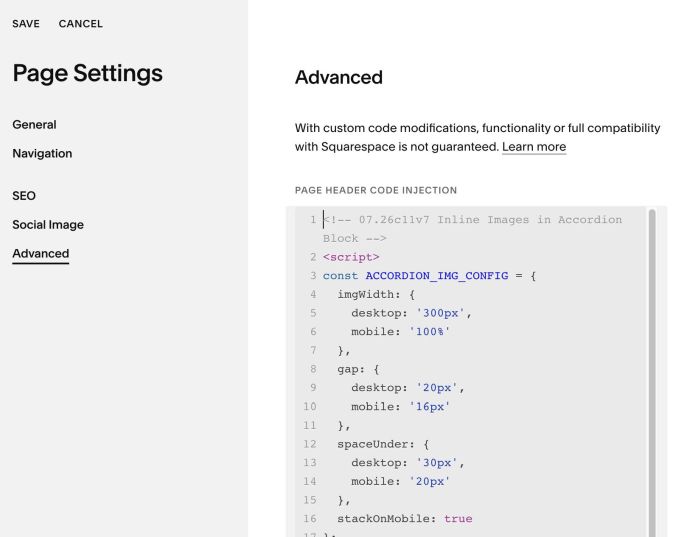
#1.4. Hover on Page where you use Accordion Block > Click Gear icon

Click Advanced > Paste this code
- if you use Personal/Basic Plan and your plan doesn’t support Injection, see #3.1
<!-- 07.26c11v7 Inline Images in Accordion Block -->
<script>
const ACCORDION_IMG_CONFIG = {
  imgWidth: {
    desktop: '300px',
    mobile: '100%'
  },
  gap: {
    desktop: '20px',
    mobile: '16px'
  },
  spaceUnder: {
    desktop: '30px',
    mobile: '20px'
  },
  stackOnMobile: true
};
</script>
<script src="https://code.beaverhero.com/accordion/0726c11v7inlineimagesaccordion.js"></script>
#2. Customize
#2.1. To change Image size, change these lines
imgWidth: {
    desktop: '300px',
    mobile: '100%'
  },
#2.2. To change gap between images, change these
gap: {
    desktop: '20px',
    mobile: '16px'
  },
#2.3. To change space under images, change these
spaceUnder: {
   desktop: '30px',
   mobile: '20px'
 },
#3. Other
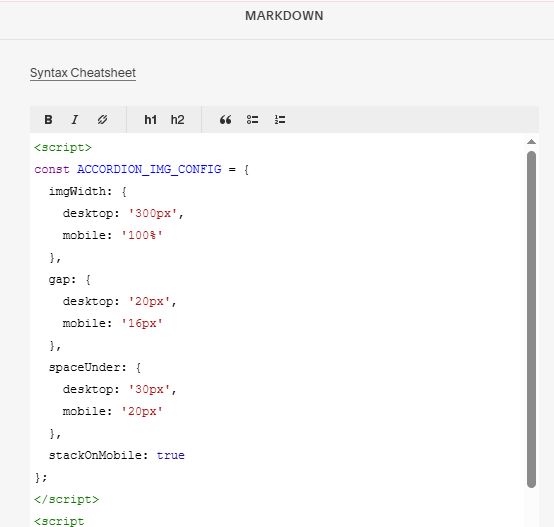
#3.1. If you use Personal/Basic Plan and your plan doesn’t support Injection, you can add a Markdown Block under Accordion Block

Add this code into Markdown
<script>
const ACCORDION_IMG_CONFIG = {
  imgWidth: {
    desktop: '300px',
    mobile: '100%'
  },
  gap: {
    desktop: '20px',
    mobile: '16px'
  },
  spaceUnder: {
    desktop: '30px',
    mobile: '20px'
  },
  stackOnMobile: true
};
</script>
<script src="https://code.beaverhero.com/accordion/0726c11v7inlineimagesaccordion.js"></script>