Description
- make custom banner in top of blog post (style 2) with fullwidth banner image, title, author, tags (or categories)
- view demo – password: abc
- buy me a coffee

#1. Install Code
#1.1. Click Gear icon on Blog Page
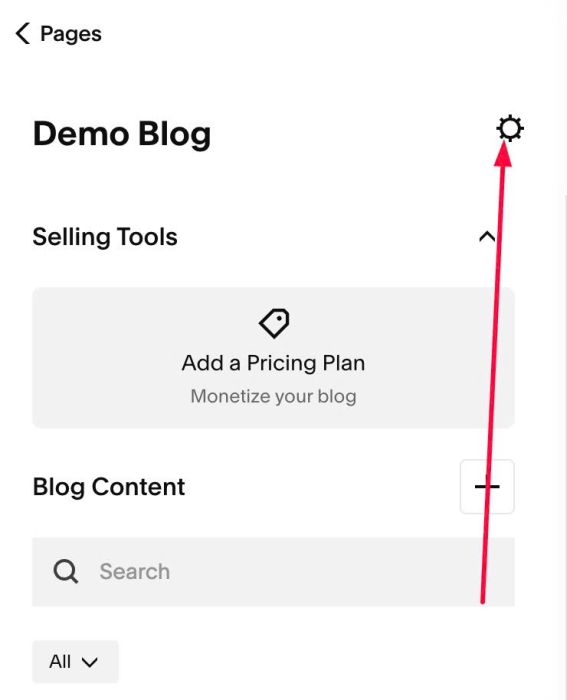
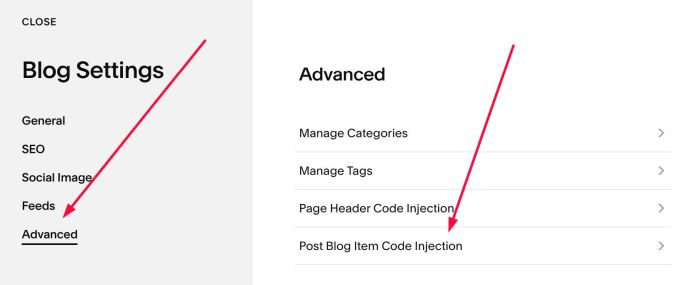
#1.2. Click Advanced > Post Blog Item Code Injection
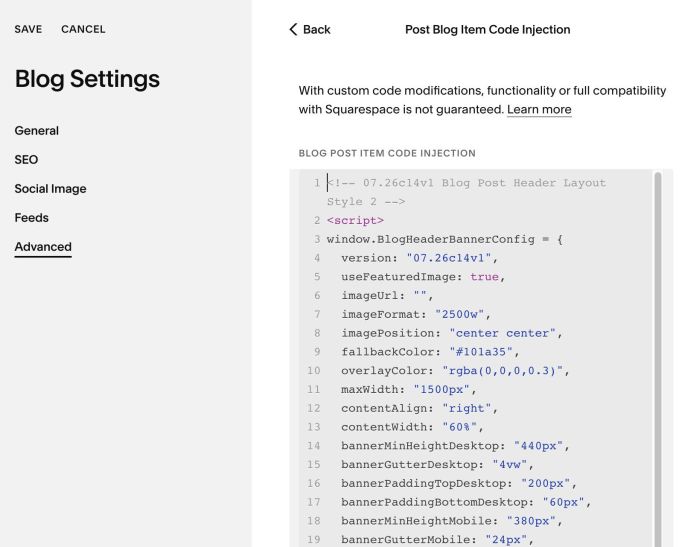
#1.3. Paste this code
- If your site is Personal/Basic Plan and it doesn’t support Injection, see #3.1
<!-- 07.26c14v1 Blog Post Header Layout Style 2 -->
<script>
window.BlogHeaderBannerConfig = {
  version: "07.26c14v1",
  useFeaturedImage: true,
  imageUrl: "",
  imageFormat: "2500w",
  imagePosition: "center center",
  fallbackColor: "#101a35",
  overlayColor: "rgba(0,0,0,0.3)",
  maxWidth: "1500px",
  contentAlign: "right",
  contentWidth: "60%",
  bannerMinHeightDesktop: "440px",
  bannerGutterDesktop: "4vw",
  bannerPaddingTopDesktop: "200px",
  bannerPaddingBottomDesktop: "60px",
  bannerMinHeightMobile: "380px",
  bannerGutterMobile: "24px",
  bannerPaddingTopMobile: "120px",
  bannerPaddingBottomMobile: "40px",
  titleColor: "#ffffff",
  titleFontSizeDesktop: "48px",
  titleFontSizeMobile: "32px",
  titleLineHeight: "1.1",
  showAuthor: true,
  authorPrefix: "/ ",
  authorColor: "#ffffff",
  authorFontSizeDesktop: "30px",
  authorFontSizeMobile: "22px",
  authorFontStyle: "italic",
  authorGapTop: "6px",
  metaSource: "tags",
  metaSeparator: "/ ",
  metaLinkEnabled: true,
  metaWidth: "260px",
  metaColor: "#ffffff",
  metaFontSizeDesktop: "12px",
  metaFontSizeMobile: "11px",
  metaFontWeight: "700",
  metaLetterSpacing: "0.02em",
  metaLineHeight: "1.8",
  metaGapTop: "40px",
  removeSectionPaddingTop: true,
  hideOriginalHeader: true,
  hideOriginalTags: true,
  mobileBreakpoint: "767px"
};
</script>
<script src="https://code.beaverhero.com/blogpost/0726c14v1blogpostheaderlayoustyle2.js"></script>
#2. Customize
#2.1. To change Banner Image Height, change this line 14
bannerMinHeightDesktop: "440px",
and line 18
bannerMinHeightMobile: "380px",
#2.2. To change overlay color over banner image, change line 10
overlayColor: "rgba(0,0,0,0.3)",
#2.3. To change Blog Item Title style (size, color) change line 22, 23, 24, 25
titleColor: "#ffffff",
  titleFontSizeDesktop: "48px",
  titleFontSizeMobile: "32px",
  titleLineHeight: "1.1",
#2.4. To change Author style, change line 27 to line 32
authorPrefix: "/ ",
  authorColor: "#ffffff",
  authorFontSizeDesktop: "30px",
  authorFontSizeMobile: "22px",
  authorFontStyle: "italic",
  authorGapTop: "6px",
#2.5. To change tags style, change line 36 to line 43
metaWidth: "260px",
  metaColor: "#ffffff",
  metaFontSizeDesktop: "12px",
  metaFontSizeMobile: "11px",
  metaFontWeight: "700",
  metaLetterSpacing: "0.02em",
  metaLineHeight: "1.8",
  metaGapTop: "40px",
#2.6. If you want to use custom author text without default author on each blog post, you can edit blog post item > SEO > enter new author text in SEO Description
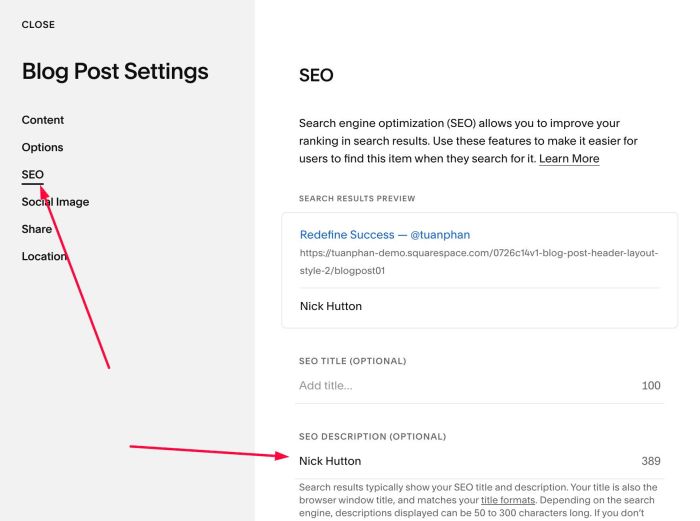
Then change Line 26
showAuthor: true,
to this
showAuthor: true,
authorSource: false,
result

#2.7. If you want to change Tags to custom url
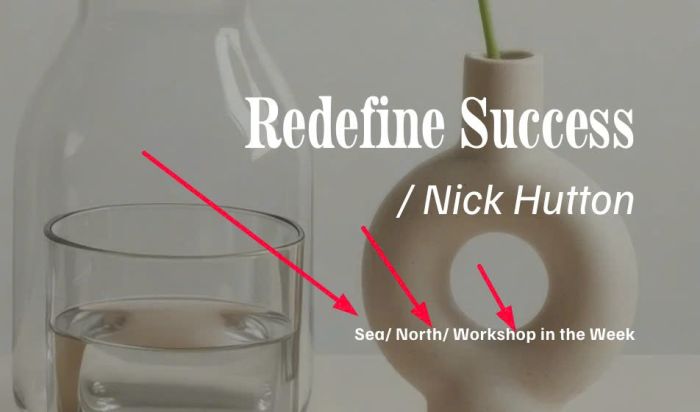
first, change line 33 (or line 34)
metaSource: "tags",
to this
metaSource: "tags",
tagSource: false,
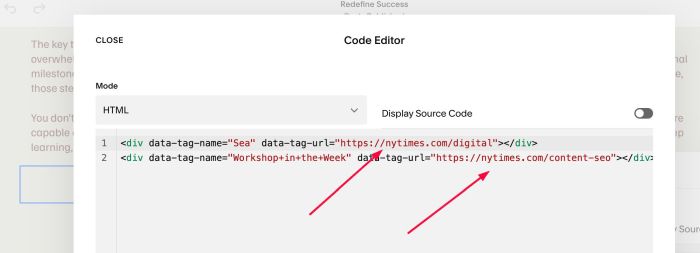
next, add a Code Block to bottom of each blog posts with syntax like this
<div data-tag-name="Sea" data-tag-url="https://nytimes.com/digital"></div>
<div data-tag-name="Workshop+in+the+Week" data-tag-url="https://nytimes.com/content-seo"></div>
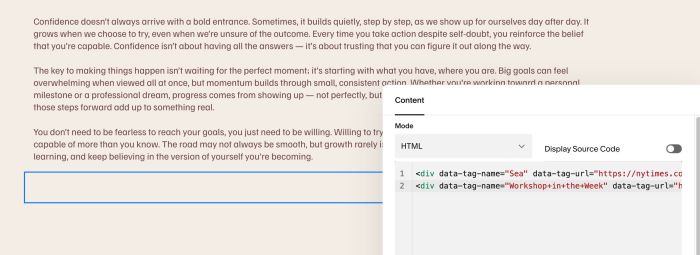
Note: update data-tag-name match with current tag name (you can add plus + icon between text or not)
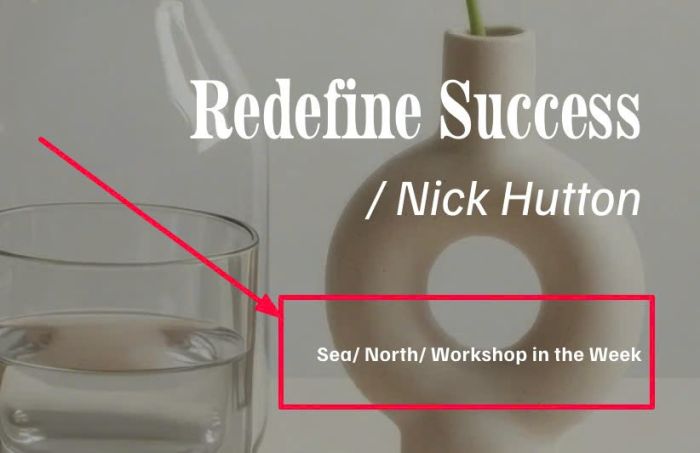
and update new tag URL in data-tag-url
#3. Other
#3.1. If you use Personal/Basic Plan and your plan doesn’t support Injection, you can edit Site Footer
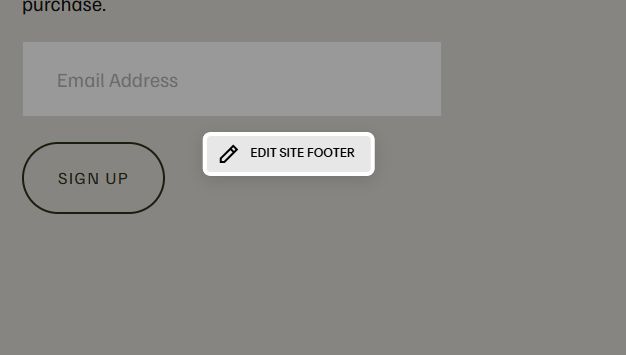
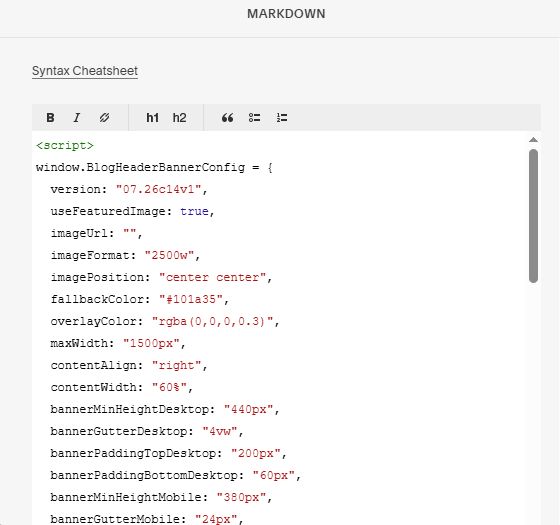
Add a Markdown Block

Add this code into Markdown
<script>
window.BlogHeaderBannerConfig = {
  version: "07.26c14v1",
  useFeaturedImage: true,
  imageUrl: "",
  imageFormat: "2500w",
  imagePosition: "center center",
  fallbackColor: "#101a35",
  overlayColor: "rgba(0,0,0,0.3)",
  maxWidth: "1500px",
  contentAlign: "right",
  contentWidth: "60%",
  bannerMinHeightDesktop: "440px",
  bannerGutterDesktop: "4vw",
  bannerPaddingTopDesktop: "200px",
  bannerPaddingBottomDesktop: "60px",
  bannerMinHeightMobile: "380px",
  bannerGutterMobile: "24px",
  bannerPaddingTopMobile: "120px",
  bannerPaddingBottomMobile: "40px",
  titleColor: "#ffffff",
  titleFontSizeDesktop: "48px",
  titleFontSizeMobile: "32px",
  titleLineHeight: "1.1",
  showAuthor: true,
  authorPrefix: "/ ",
  authorColor: "#ffffff",
  authorFontSizeDesktop: "30px",
  authorFontSizeMobile: "22px",
  authorFontStyle: "italic",
  authorGapTop: "6px",
  metaSource: "tags",
  metaSeparator: "/ ",
  metaLinkEnabled: true,
  metaWidth: "260px",
  metaColor: "#ffffff",
  metaFontSizeDesktop: "12px",
  metaFontSizeMobile: "11px",
  metaFontWeight: "700",
  metaLetterSpacing: "0.02em",
  metaLineHeight: "1.8",
  metaGapTop: "40px",
  removeSectionPaddingTop: true,
  hideOriginalHeader: true,
  hideOriginalTags: true,
  mobileBreakpoint: "767px"
};
</script>
<script src="https://code.beaverhero.com/blogpost/0726c14v1blogpostheaderlayoustyle2.js"></script>