Description
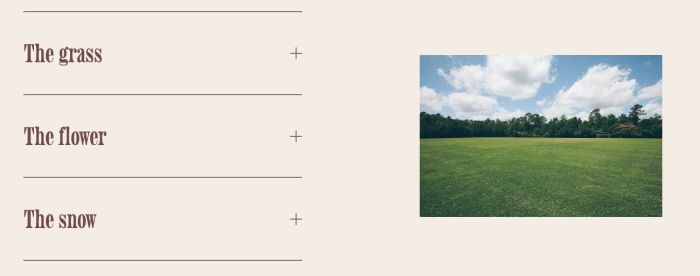
- click on each accordion item will change image
- view demo – password: abc
- buy me a coffee
#1. Install Code
#1.1. First, hover on top right of section (where you use Accordion Block) > Click EDIT SECTION > at Design, enter word: image-accordion-click

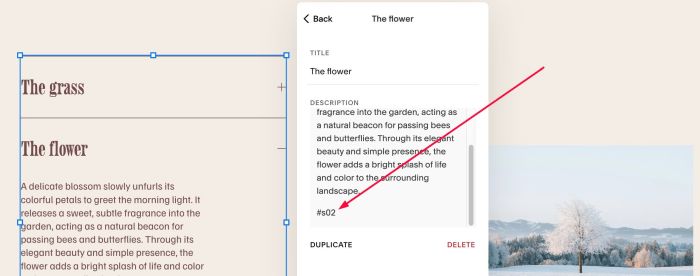
#1.2. Edit Accordion Block. On each item, enter word: #s01, #s02, #s03.
Like this
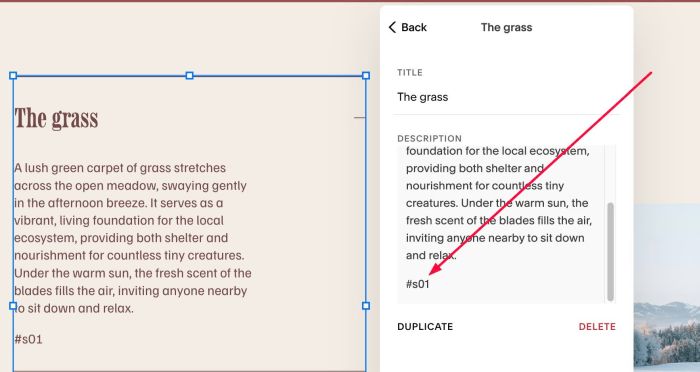
Like this
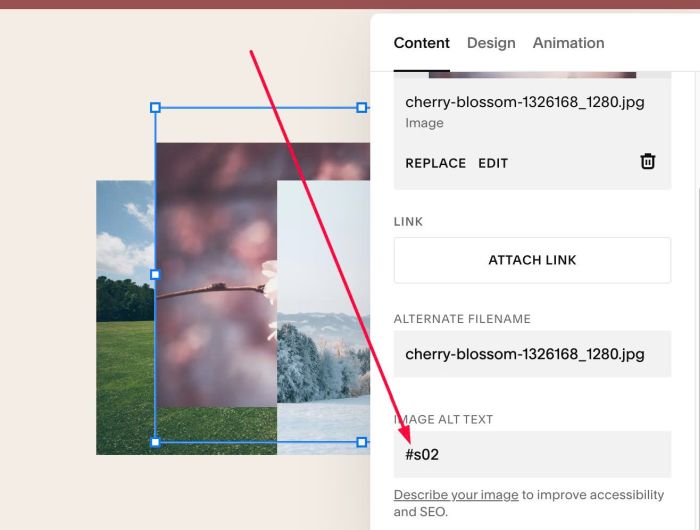
#1.3. Next, edit each Image Block > at ALT, enter word: #s01, #s02, #s03
Like this

Like this
#1.4. Hover on Page where you use Accordion Block > Click Gear icon
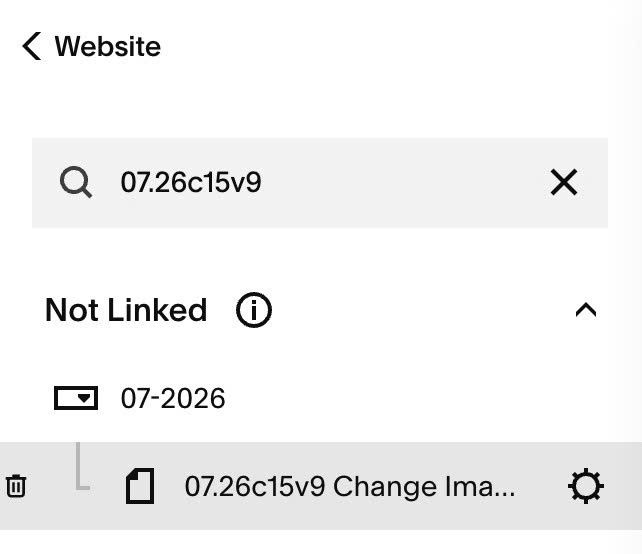
#1.5. Click Advanced > Paste this code
- If you use Personal/Basic Plan and your plan doesn’t support Injection, see #3.1
<!-- 07.26c15v9 Change Image on Accordion Click -->
<script>
window.AccordionImageConfig = {
  sectionSelector: 'section[id*="image-accordion-click"]',
  markerPrefix: '#s',
  hideMarkerInAccordion: true,
  showImageOnLoad: true,
  initialImage: 's01',
  keepImageWhenAllClosed: true,
  fadeDuration: 400
};
</script>
<script src="https://code.beaverhero.com/accordion/0726c15v9clickaccchangeimg.js"></script>

#2. Customize
#2.1. To set active image on initial, change Line 08
initialImage: 's01',
#3. Other
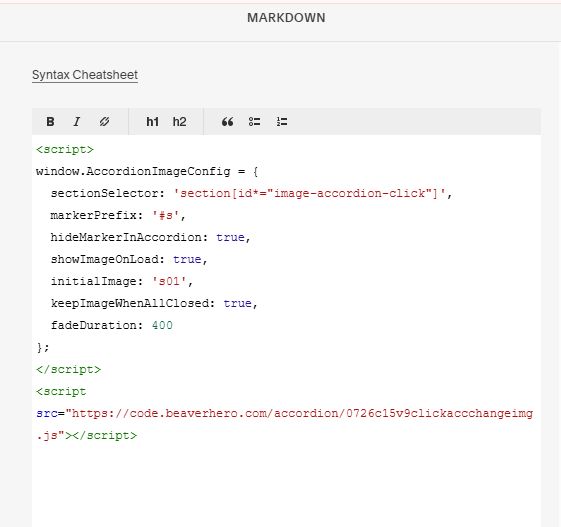
#3.1. If you use Personal/Basic Plan and your plan doesn’t support Injection, you can add a Markdown Block under Accordion Block

Then add this code into Markdown Block
<script>
window.AccordionImageConfig = {
  sectionSelector: 'section[id*="image-accordion-click"]',
  markerPrefix: '#s',
  hideMarkerInAccordion: true,
  showImageOnLoad: true,
  initialImage: 's01',
  keepImageWhenAllClosed: true,
  fadeDuration: 400
};
</script>
<script src="https://code.beaverhero.com/accordion/0726c15v9clickaccchangeimg.js"></script>