Description
- randomize section background image on page load
- view demo – password: abc
- buy me a coffee
#1. Install Code
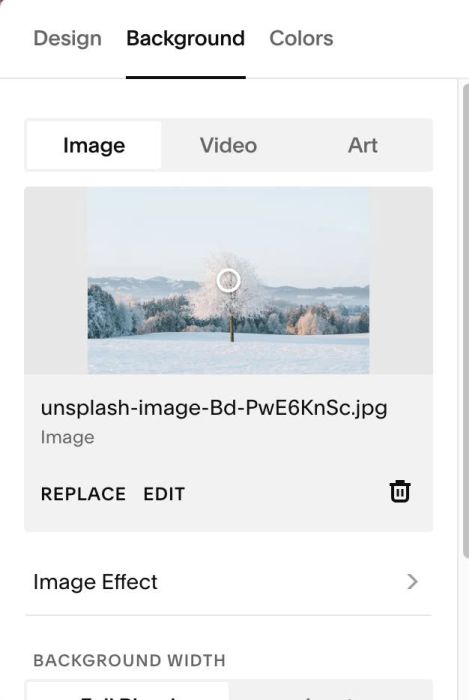
#1.1. First, add a section with a background image, something like this
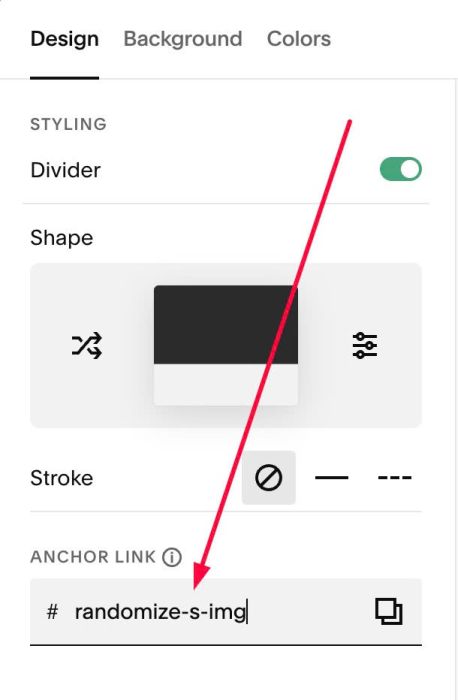
#1.2. Hover on top right of section > Click EDIT SECTION > Design > Anchor Link > enter word: randomize-s-img
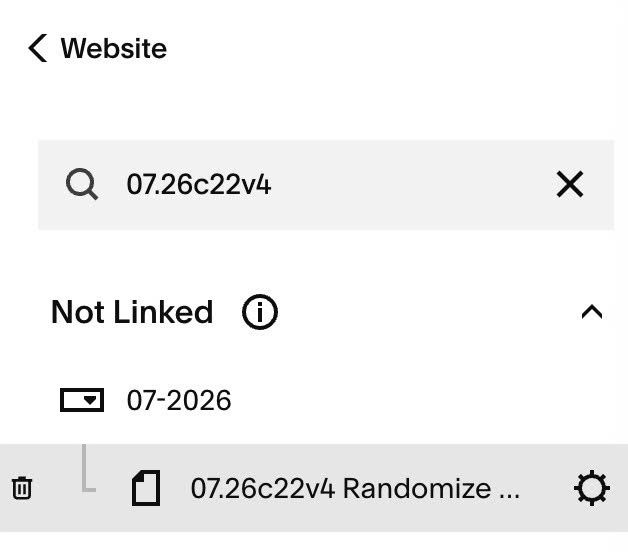
#1.3. Hover on Page where you added section > Click Gear icon
#1.4. Click Advanced > Paste this code
- If you use Personal/Basic Plan and your plan doesn’t support Injection, see #3.1
<!-- 07.26c22v4 Randomize Section Image on Page Load -->
<style>
  #randomize-s-img .section-background img {opacity: 0;animation: rsiReveal 0.01s linear 4s forwards;}#randomize-s-img.rsi-ready .section-background img {opacity: 1;animation: none;transition: opacity 0.4s ease;}@keyframes rsiReveal { to { opacity: 1; } }</style>
<script>
  window.RandomizeSectionImageConfig = {
    sectionSelector: '#randomize-s-img',
    images: [
      'https://images.squarespace-cdn.com/content/v1/67e3b2e4cd573b229af279fd/1784692566893-CNQ4PBR8M4JR99SMVKUL/unsplash-image-Ys85uMksDHc.jpg?format=1000w',
      'https://images.squarespace-cdn.com/content/v1/67e3b2e4cd573b229af279fd/1784692566931-F5RH7MSWOX4CMFBGGD46/unsplash-image-a7IVuJwYjp8.jpg?format=1000w',
      'https://images.squarespace-cdn.com/content/v1/67e3b2e4cd573b229af279fd/1784692566864-4EQ79CPCM3HV9O533NNJ/unsplash-image-EfhCUc_fjrU.jpg?format=1000w',
      'https://images.squarespace-cdn.com/content/v1/67e3b2e4cd573b229af279fd/1756692370685-R6FSNC5Z2WSXDLZ274MA/cherry-blossom-1326168_1280.jpg?format=1500w'
    ],
    revealFailsafeMs: 1500
  };
</script>
<script src="https://code.beaverhero.com/other/0726c22v4randomizsectionimg.js"></script>
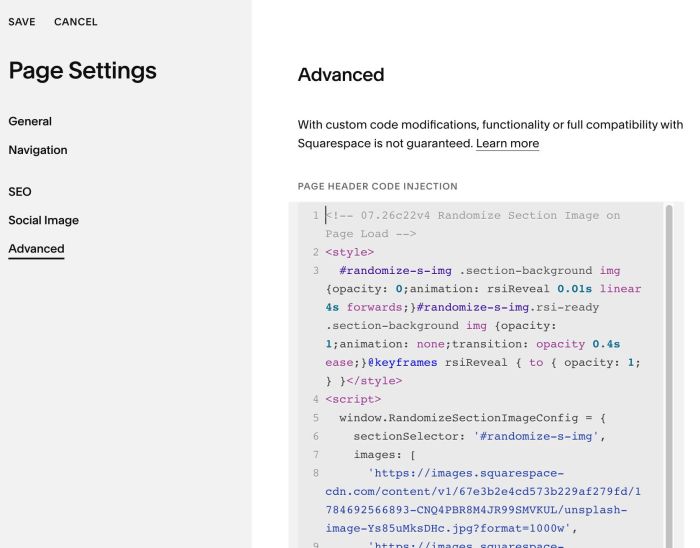
#1.5. Update Image URL in Line 08 to Line 11
- Follow this instruction if you don’t know how to find Image URL
'https://images.squarespace-cdn.com/content/v1/67e3b2e4cd573b229af279fd/1784692566893-CNQ4PBR8M4JR99SMVKUL/unsplash-image-Ys85uMksDHc.jpg?format=1000w',
      'https://images.squarespace-cdn.com/content/v1/67e3b2e4cd573b229af279fd/1784692566931-F5RH7MSWOX4CMFBGGD46/unsplash-image-a7IVuJwYjp8.jpg?format=1000w',
      'https://images.squarespace-cdn.com/content/v1/67e3b2e4cd573b229af279fd/1784692566864-4EQ79CPCM3HV9O533NNJ/unsplash-image-EfhCUc_fjrU.jpg?format=1000w',
      'https://images.squarespace-cdn.com/content/v1/67e3b2e4cd573b229af279fd/1756692370685-R6FSNC5Z2WSXDLZ274MA/cherry-blossom-1326168_1280.jpg?format=1500w'
#2. Customize
nothing now
#3. Other
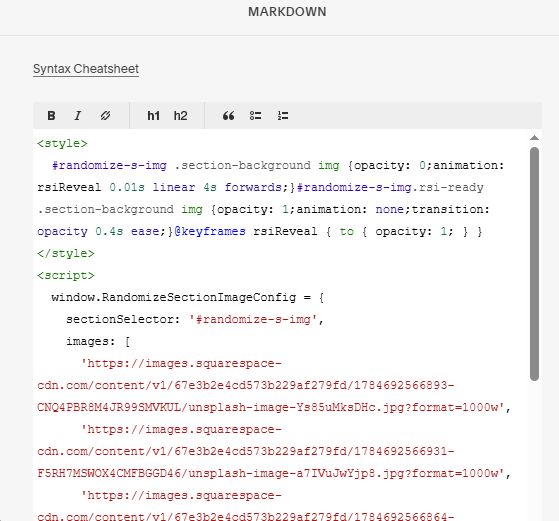
#3.1. If you use Personal/Basic Plan and your plan doesn’t support Injection, you can edit current page (page where you use section background image) > Add a Markdown Block

Then add this code into Markdown Block
<style>
  #randomize-s-img .section-background img {opacity: 0;animation: rsiReveal 0.01s linear 4s forwards;}#randomize-s-img.rsi-ready .section-background img {opacity: 1;animation: none;transition: opacity 0.4s ease;}@keyframes rsiReveal { to { opacity: 1; } }</style>
<script>
  window.RandomizeSectionImageConfig = {
    sectionSelector: '#randomize-s-img',
    images: [
      'https://images.squarespace-cdn.com/content/v1/67e3b2e4cd573b229af279fd/1784692566893-CNQ4PBR8M4JR99SMVKUL/unsplash-image-Ys85uMksDHc.jpg?format=1000w',
      'https://images.squarespace-cdn.com/content/v1/67e3b2e4cd573b229af279fd/1784692566931-F5RH7MSWOX4CMFBGGD46/unsplash-image-a7IVuJwYjp8.jpg?format=1000w',
      'https://images.squarespace-cdn.com/content/v1/67e3b2e4cd573b229af279fd/1784692566864-4EQ79CPCM3HV9O533NNJ/unsplash-image-EfhCUc_fjrU.jpg?format=1000w',
      'https://images.squarespace-cdn.com/content/v1/67e3b2e4cd573b229af279fd/1756692370685-R6FSNC5Z2WSXDLZ274MA/cherry-blossom-1326168_1280.jpg?format=1500w'
    ],
    revealFailsafeMs: 1500
  };
</script>
<script src="https://code.beaverhero.com/other/0726c22v4randomizsectionimg.js"></script>