Description
- adding tagline under Site Title/Logo, you can use custom html on tagline
- view demo – password: abc
- buy me a coffee

#1. Install Code
#1.1. You can use code to Code Injection > Footer
- If you use Personal/Basic Plan and your plan doesn’t support Injection, see #3.1
<!-- 08.26c04v2 Tagline under Site Title/Logo -->
<script>
window.TaglineConfig = {
  targetSelector: "div.header-title a",
  insertPosition: "afterend",
  taglineHTML: '<p class="tagline">tuan <em>phan</em></p>',
  color: "#fff",
  align: "center",
  marginTop: "6px",
  fontSizeDesktop: "14px",
  fontSizeMobile: "12px",
  mobileBreakpoint: "767px"
};
</script>
<script src="https://code.beaverhero.com/header/0826c04v2tagline.js"></script>

#2. Customize
#2.1. To change tagline text, you can change this line
- wrap text between <em> and </em> will make italic text
taglineHTML: '<p class="tagline">tuan <em>phan</em></p>',
#2.2. To change tagline color, change line
color: "#fff",
#2.3. To change tagline size, change line
fontSizeDesktop: "14px",
  fontSizeMobile: "12px",
#2.4. To change alignment and space above tagline, change line
align: "center",
  marginTop: "6px",
#3. Other
#3.1. If you use Personal/Basic Plan and your plan doesn’t support Injection, you can edit Site Footer
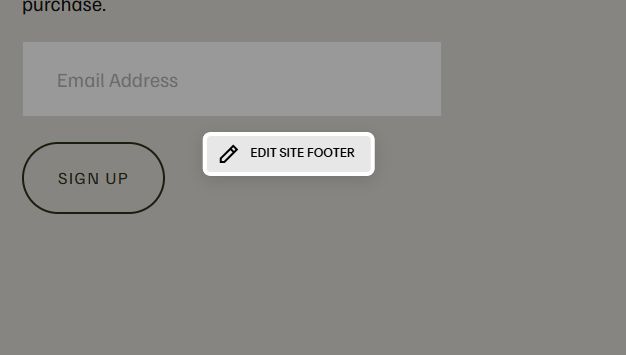
Add a Markdown Block

Enter this code into Markdown
<script>
window.TaglineConfig = {
  targetSelector: "div.header-title a",
  insertPosition: "afterend",
  taglineHTML: '<p class="tagline">tuan <em>phan</em></p>',
  color: "#fff",
  align: "center",
  marginTop: "6px",
  fontSizeDesktop: "14px",
  fontSizeMobile: "12px",
  mobileBreakpoint: "767px"
};
</script>
<script src="https://code.beaverhero.com/header/0826c04v2tagline.js"></script>
