Description
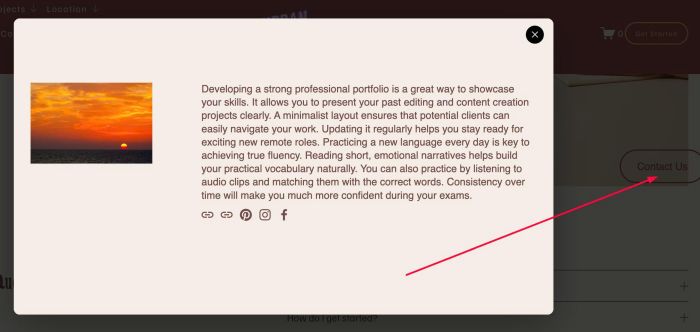
- adding floating side button, click it will open lightbox popup
- view demo – password: abc
- buy me a coffee
#1. Install Code
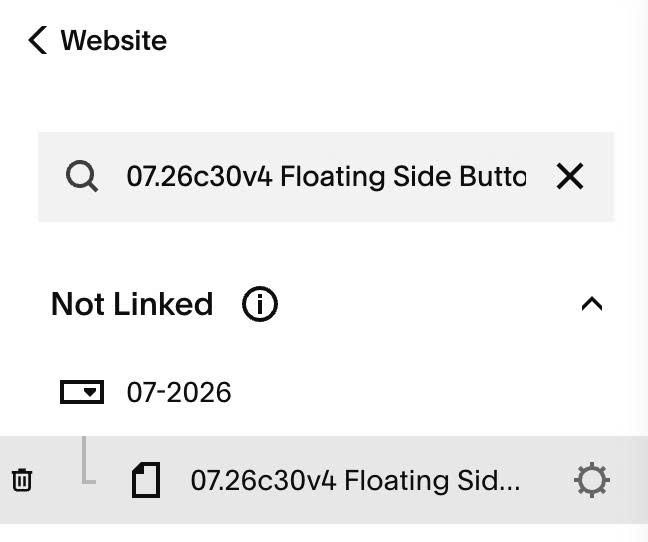
#1.1. First, create a Page in Not Linked with Name/URL like this
- Popup Content 01 – /popup-content01

#1.2. Adding desired content to page

#1.3. Hover on Page where you use Floating Side Button > click Gear icon
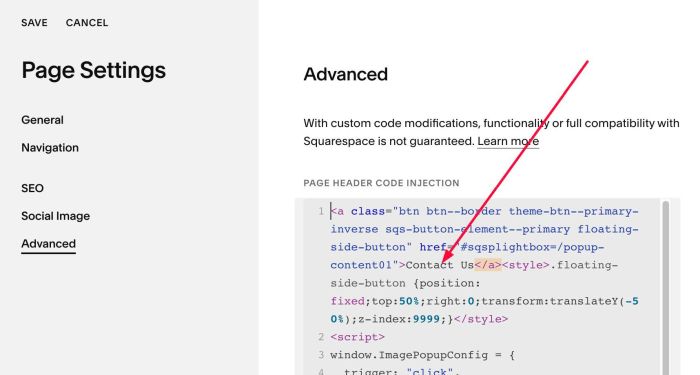
#1.4. Click Advanced > Paste this code
- If you use Personal/Basic Plan and it doesn’t support Injection, you can see #3.1
<a class="btn btn--border theme-btn--primary-inverse sqs-button-element--primary floating-side-button" href="#sqsplightbox=/popup-content01">Contact Us</a><style>.floating-side-button {position: fixed;top:50%;right:0;transform:translateY(-50%);z-index:9999;}</style>
<script>
window.ImagePopupConfig = {
  trigger: "click",
  linkMarker: "#sqsplightbox=",
  linkSelector: "a[href*='#sqsplightbox=']",
  contentSelector: "#page",
  reinitBlocks: true,
  overlayColor: "rgba(0, 0, 0, 0.75)",
  overlayBlur: "0px",
  popupBackground: "#ffffff",
  popupWidth: "90%",
  popupMaxWidth: "900px",
  popupMaxHeight: "85vh",
  popupBorderRadius: "10px",
  popupShadow: "0 20px 60px rgba(0, 0, 0, 0.3)",
  closeButtonColor: "#ffffff",
  closeButtonBackground: "#000000",
  closeButtonSize: "30px",
  animationDuration: "300ms",
  closeOnEscape: true,
  lockScrollOnClick: true
};
</script>
<script src="https://code.beaverhero.com/imageblock/0626c29v7hoverimgshowpopup.js"></script>

#1.5. You can change Button Text here