Description
- change list (team section) image to video on hover image
- view demo – password: abc
- buy me a coffee

#1. Install Code
#1.1. Make sure you used Simple List layout
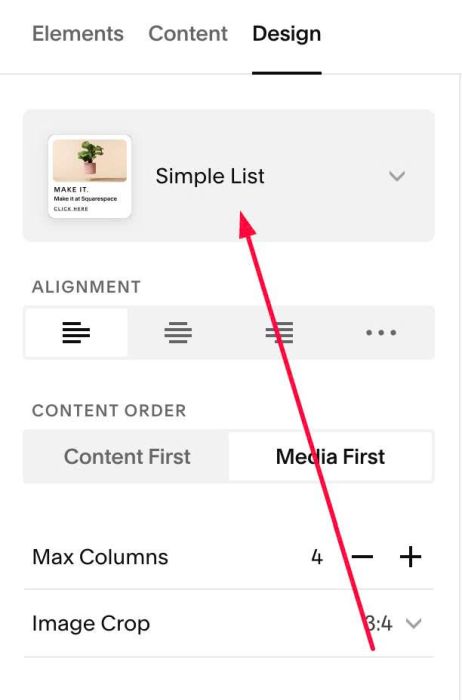
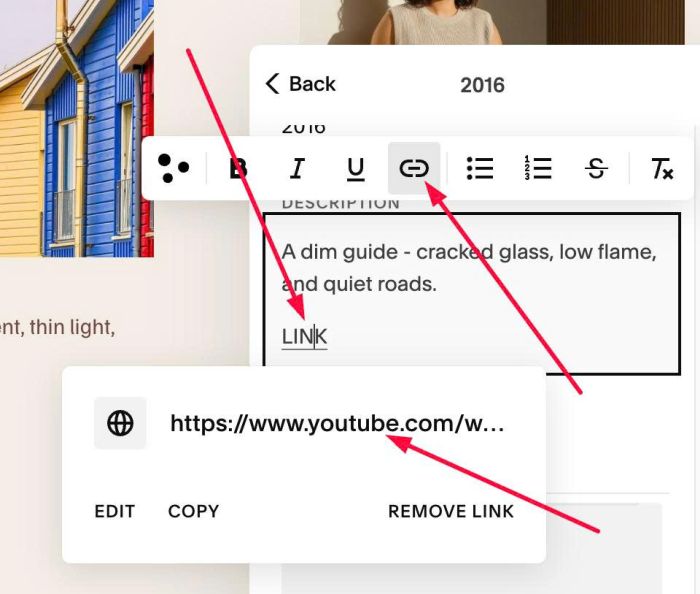
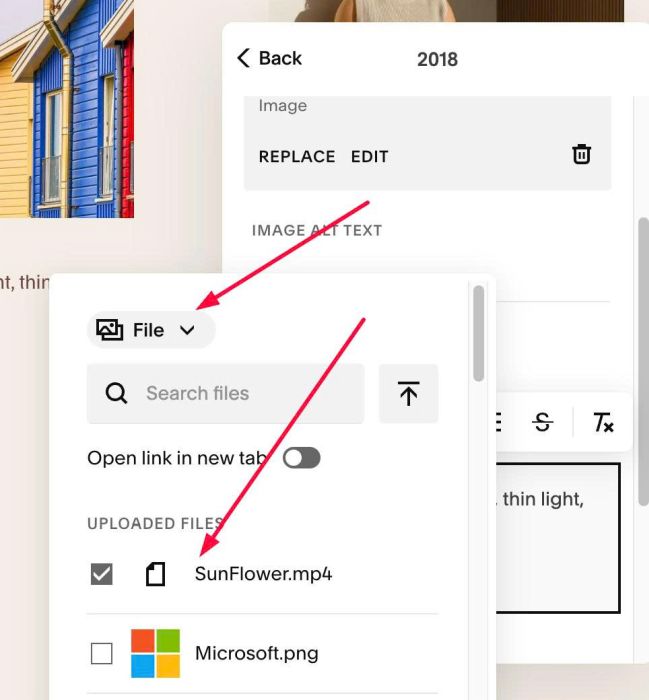
#1.2. In Item Description, enter text: LINK
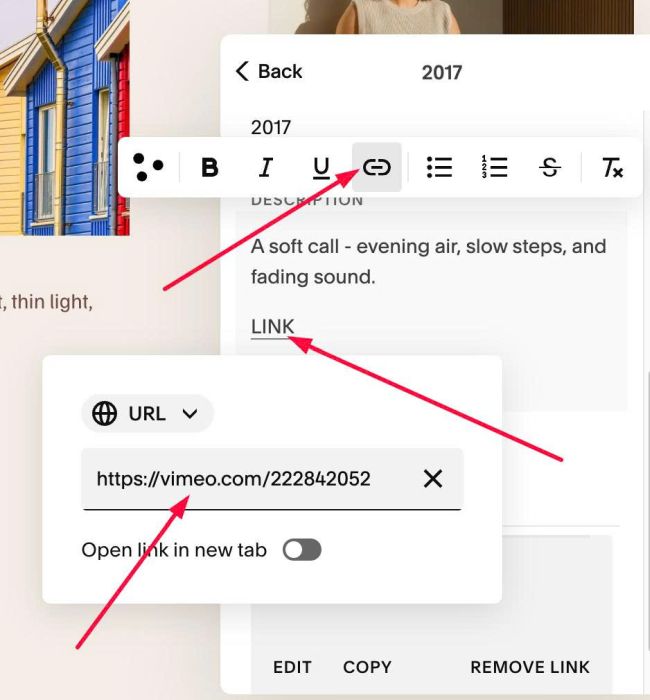
then add Video URL to text LINK
You can use Youtube
or Vimeo
or MP4 (or upload video)
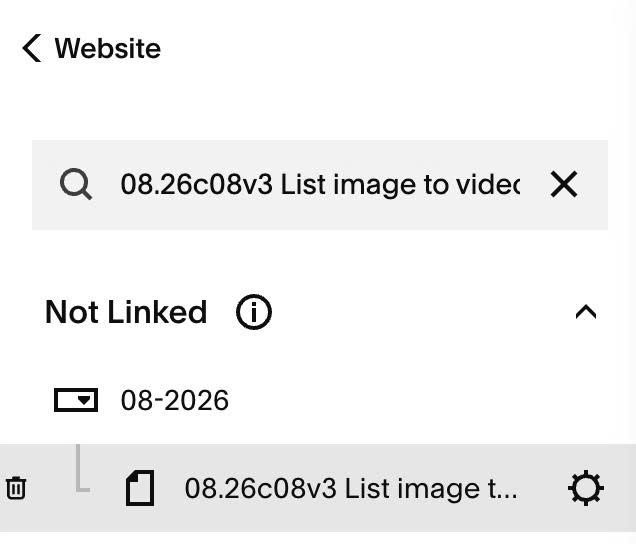
#1.3. Hover on Page where you added List > click Gear icon
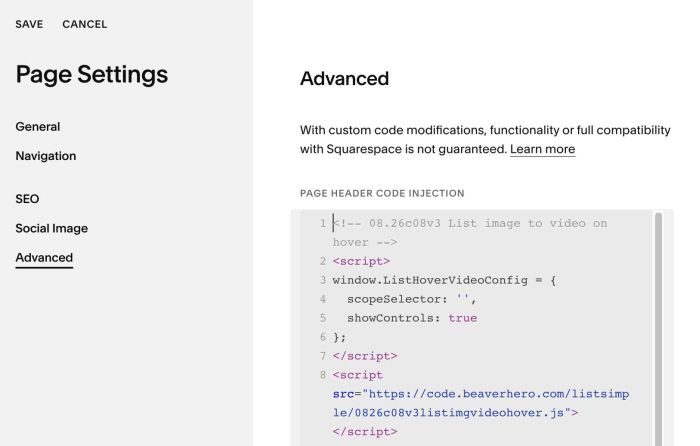
#1.4. Click Advanced > Paste this code.
- But if you use Personal/Basic Plan and your plan doesn’t support Injection, see step #3.1
<!-- 08.26c08v3 List image to video on hover -->
<script>
window.ListHoverVideoConfig = {
  scopeSelector: '',
  showControls: true
};
</script>
<script src="https://code.beaverhero.com/listsimple/0826c08v3listimgvideohover.js"></script>
#2. Customize
#2.1. To enable/disable video controls, you can adjust line 05
- true = enable
- false = disable
showControls: true
#2.2. If you need to tweak more you can use this AI Assistant (designed for Squarespace sites)
#3. Other
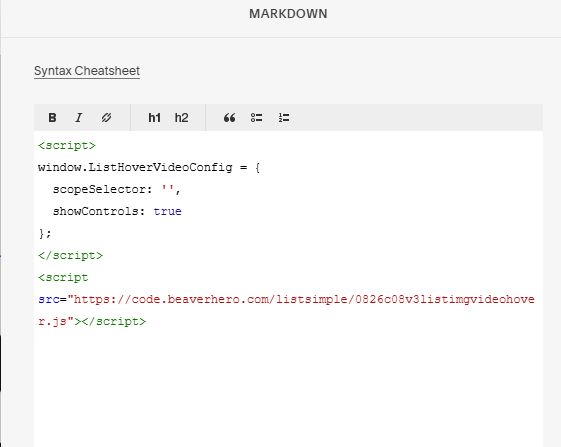
#3.1. if you use Personal/Basic Plan and your plan doesn’t support Injection. You can edit current page > Add a Block > Choose Markdown.

Then add this code into Markdown
<script>
window.ListHoverVideoConfig = {
  scopeSelector: '',
  showControls: true
};
</script>
<script src="https://code.beaverhero.com/listsimple/0826c08v3listimgvideohover.js"></script>