Description
- adding related posts to blog posts, you can set related posts position: above, under pagination, above comment, under blog post content…
- view demo – password: abc
- buy me a coffee

#1. Install Code
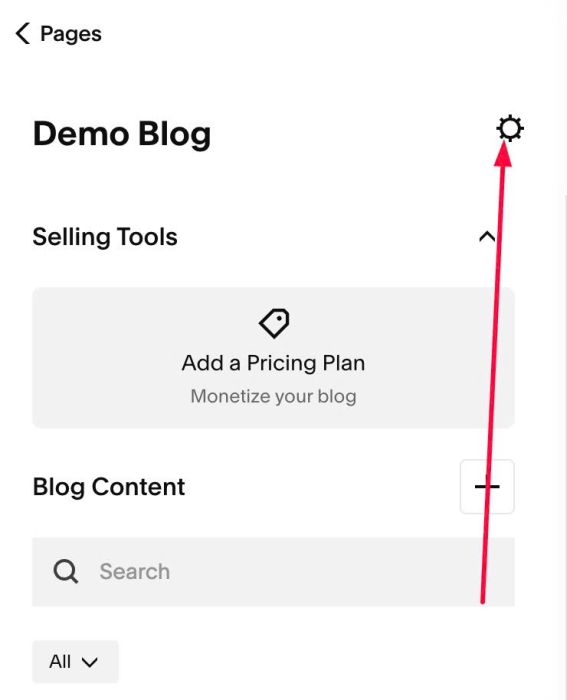
#1.1. Click Gear icon on Blog Page
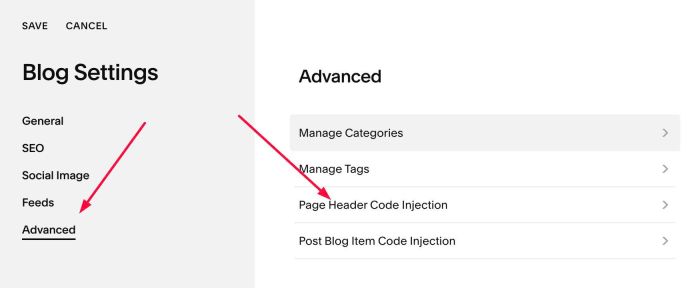
#1.2. Click Advanced > Page Header Code Injection
#1.3. Paste this code
- If your site is Personal/Basic Plan and it doesn’t support Injection, see #3.1
<!-- 08.26c30v18 Blog Related Posts -->
<script>
window.BlogRelatedPostsConfig = {
  position: "above-pagination", // above-pagination | below-pagination | below-post | above-comments | below-comments
  itemCount: 4,
  columnsDesktop: null,
  columnsMobile: null,
  columnGap: null
};
</script>
<script src="https://code.beaverhero.com/blogpost/0826c30v18blogrelatedposts.js"></script>

#2. Customize
#2.1. Code offers some positions
position: "above-pagination", // above-pagination | below-pagination | below-post | above-comments | below-comments
#2.2. To change number of items in related posts, change line 05
itemCount: 4,
#2.3. To change number of columns on desktop, mobile, change line 06, 07
columnsDesktop: null,
 columnsMobile: null,
ex
columnsDesktop: 4,
 columnsMobile: 2,
#2.4. To change gap between items, change line 08
columnGap: null
ex
columnGap: '10px'
#2.5. If you need to tweak more you can use this AI Assistant (designed for Squarespace sites)
#3. Other
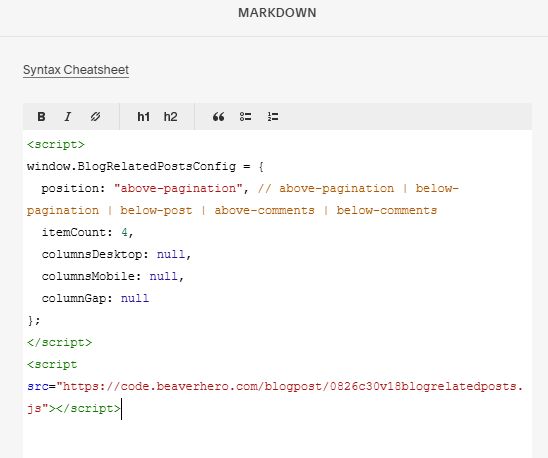
#3.1. If you use Personal/Basic Plan and your plan doesn’t support Injection, you can edit Site Footer > Add a Markdown Block

Add this code into Markdown
<script>
window.BlogRelatedPostsConfig = {
  position: "above-pagination", // above-pagination | below-pagination | below-post | above-comments | below-comments
  itemCount: 4,
  columnsDesktop: null,
  columnsMobile: null,
  columnGap: null
};
</script>
<script src="https://code.beaverhero.com/blogpost/0826c30v18blogrelatedposts.js"></script>