Description
- summary block blog filter with: sort, search, favorites filter, category filter
- view demo – password: abc
- buy me a coffee

#1. Install Code
#1.1. Make sure you use Summary Block – Grid design

#1.2. Make sure you connected with Blog Page + Enabled Category

#1.3. Make sure you enabled Image, Title, Excerpt
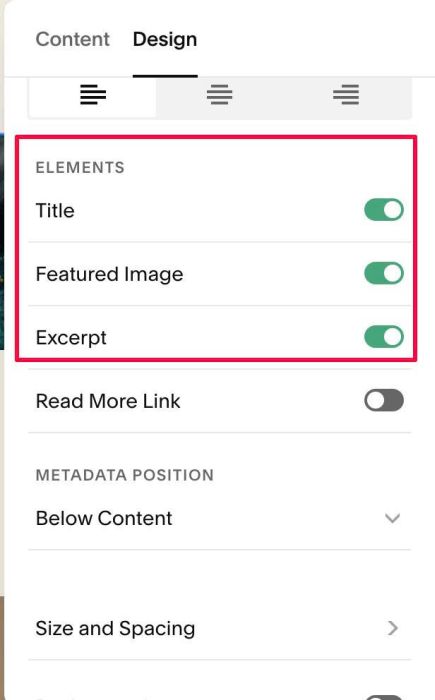
#1.4. Hover on top right of section (where you use Summary Block) > Click EDIT SECTION > at Design > Anchor Link > Enter word: lectures-filter

#1.5. Hover on Page where you use Summary Block > Click Gear icon
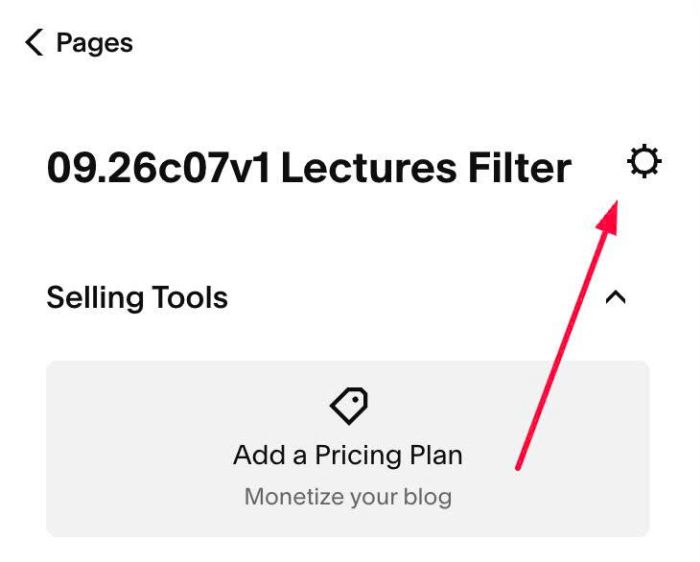
#1.6. Click Advanced > Paste this code
<!-- 09.26c07v1 Lectures Filter -->
<script>
window.LecturesFilterConfig = {
  sectionSelector: 'section[id*="lectures-filter"]',
  allTopicsText: "All topics",
  favoritesText: "Favorites only",
  searchPlaceholder: "Search lectures",
  hideCategories: true,
  categoryOrder: [],
  storageKey: "lectures-favorites",
  sortLabel: "Sort",
  sortAzText: "Title A-Z",
  sortFavText: "Favorites first",
  resultCountText: "{shown} of {total}",
  searchStyle: {
    border: "1px solid #D5D7CF",
    textColor: "#20242C",
    padding: "11px 14px"
  }
};
</script>
<script src="https://code.beaverhero.com/summaryblock/0926c07v1lecturefilter.js"></script>

#2. Customize
#2.1. To change Search text, change line 07
searchPlaceholder: "Search lectures",
#2.2. To change Favorites text, change line 06
favoritesText: "Favorites only",
#2.3. To change text in Sort, change line 11 – 13
sortLabel: "Sort",
sortAzText: "Title A-Z",
sortFavText: "Favorites first",
#2.4. To change text All topics, change line 05
allTopicsText: "All topics",
#2.5. To set custom order, change line 09
categoryOrder: [],