Description
- adding designer directory, with search, category filter and lot of options, use Blog Page
- view demo – password: abc
- buy me a coffee
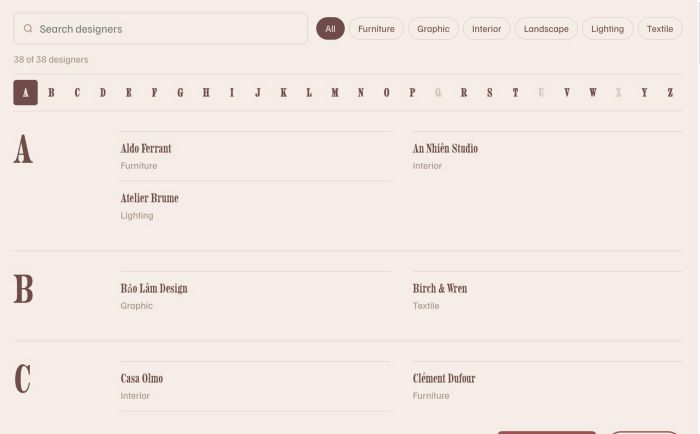
#1. Install Code
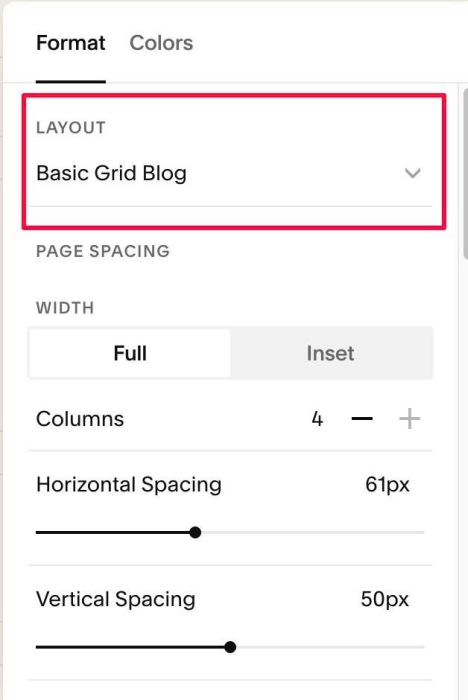
#1.1. First you can add a Blog Page with Basic Grid layout
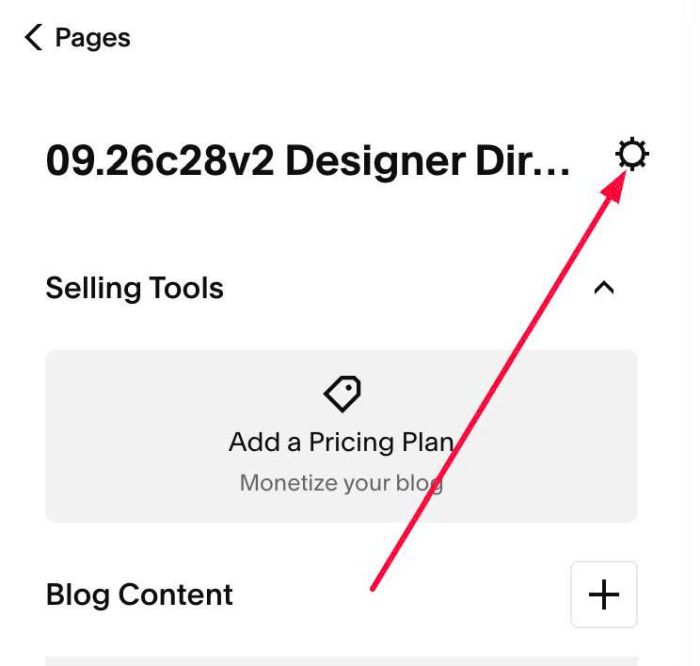
#1.2. Next click Gear icon on Blog Page
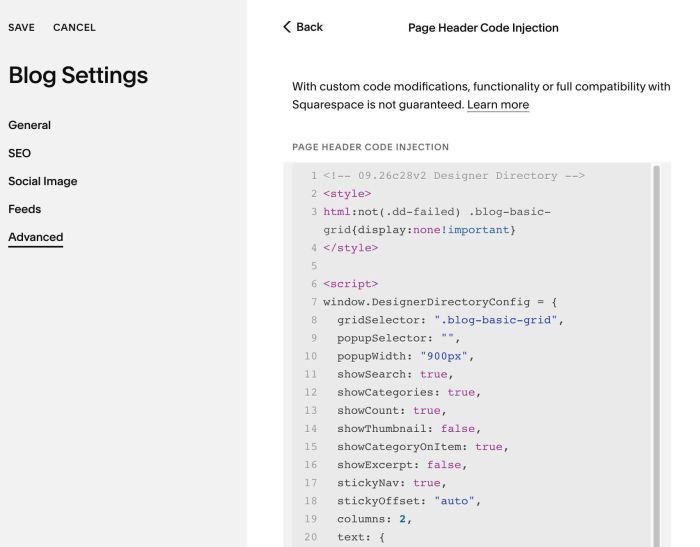
#1.3. Click Advanced > Page Header Code Injection

#1.4. Use this code
- Note: To have Lightbox Popup on Click item, you need to install plugin WM Popup first
<!-- 09.26c28v2 Designer Directory -->
<style>
html:not(.dd-failed) .blog-basic-grid{display:none!important}
</style>

<script>
window.DesignerDirectoryConfig = {
  gridSelector: ".blog-basic-grid",
  popupSelector: "",
  popupWidth: "900px",
  showSearch: true,
  showCategories: true,
  showCount: true,
  showThumbnail: false,
  showCategoryOnItem: true,
  showExcerpt: false,
  stickyNav: true,
  stickyOffset: "auto",
  columns: 2,
  text: {
    searchPlaceholder: "Search designers",
    allLabel: "All",
    count: "{shown} of {total} designers",
    empty: "No designers match your search.",
    loading: "Loading directory…"
  }
};
</script>
<script src="https://code.beaverhero.com/blogpage/0926c28v2designerdirectory.js"></script>
#2. Customize
#2.1. To change some text, you can change line 20 – line 26
text: {
  searchPlaceholder: "Search designers",
  allLabel: "All",
  count: "{shown} of {total} designers",
  empty: "No designers match your search.",
  loading: "Loading directory…"
}
#2.2. Other options you can find in Line 09 – Line 19
popupSelector: "",
popupWidth: "900px",
showSearch: true,
showCategories: true,
showCount: true,
showThumbnail: false,
showCategoryOnItem: true,
showExcerpt: false,
stickyNav: true,
stickyOffset: "auto",
columns: 2,