Description
- video gallery with filter category, click image will open video lightbox
- view demo – password: abc
- buy me a coffee

#1. Install Code
#1.1. First add a Section > Choose Image > Choose section with (gallery) icon
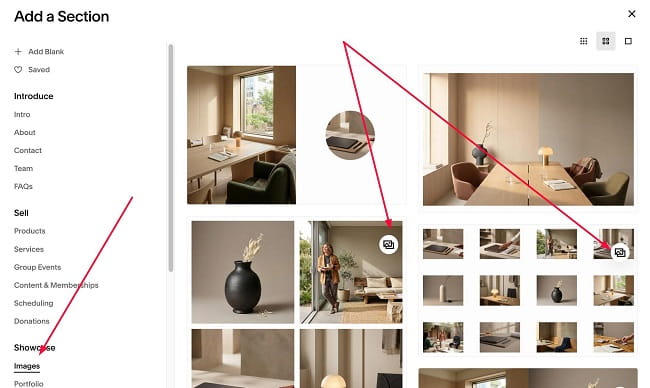
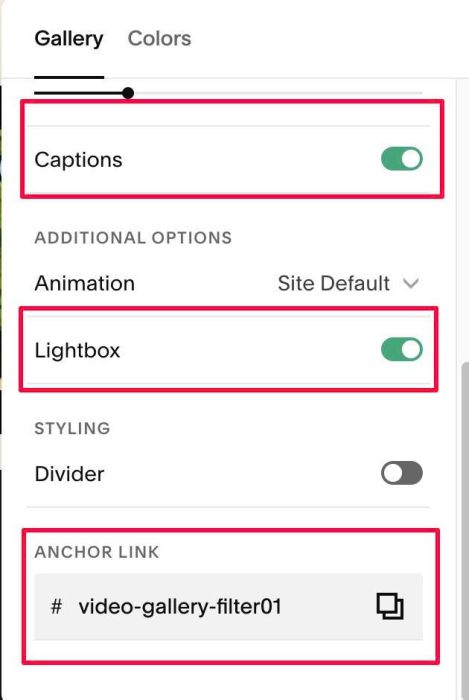
#1.2. Hover on top right of section > Click EDIT SECTION > Enable these options
- Captions
- Lightbox
- at Anchor Link, enter word: video-gallery-filter01 (or video-gallery-filter02 or video-gallery-filter03…)
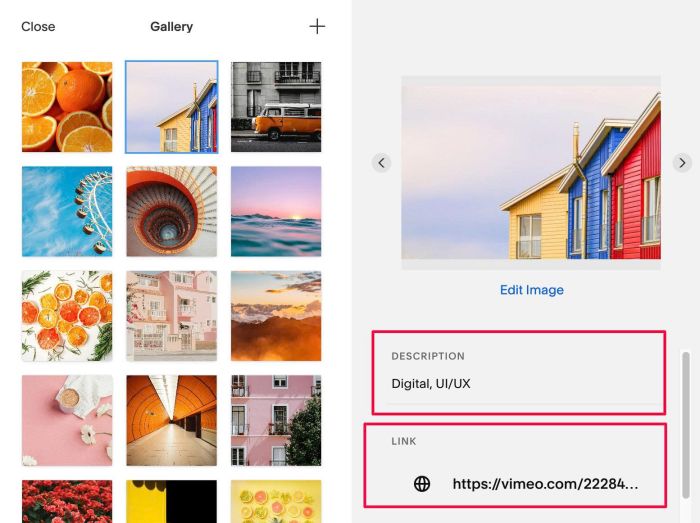
#1.3. Hover on top right of section > Click EDIT GALLERY > Then enter category text + Video URL for all images
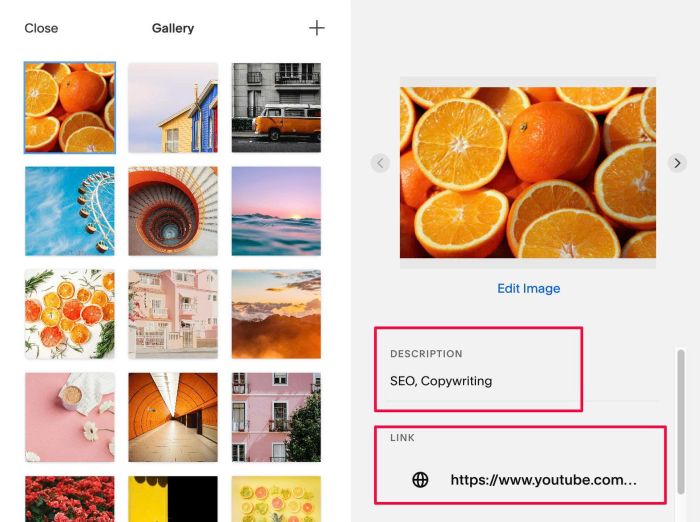
or this
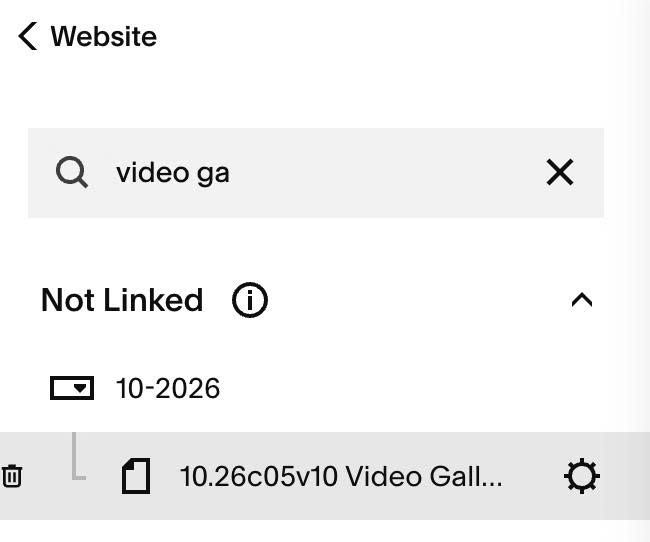
#1.4. Hover on Page where you use Gallery > Click Gear icon
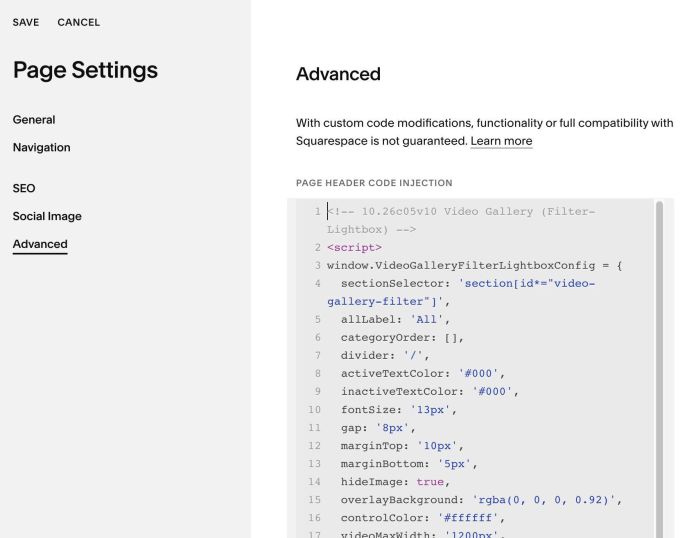
#1.5. Click Advanced > Paste this code
<!-- 10.26c05v10 Video Gallery (Filter-Lightbox) -->
<script>
window.VideoGalleryFilterLightboxConfig = {
  sectionSelector: 'section[id*="video-gallery-filter"]',
  allLabel: 'All',
  categoryOrder: [],
  divider: '/',
  activeTextColor: '#000',
  inactiveTextColor: '#000',
  fontSize: '13px',
  gap: '8px',
  marginTop: '10px',
  marginBottom: '5px',
  hideImage: true,
  overlayBackground: 'rgba(0, 0, 0, 0.92)',
  controlColor: '#ffffff',
  videoMaxWidth: '1200px',
  autoplayVideos: true
};
</script>
<script src="https://code.beaverhero.com/gallerys/1026c05v10videogalleryfilterlightbox.js"></script>
#2. Customize
#2.1. All style options here (line 05 – line 18)
allLabel: 'All',
categoryOrder: [],
divider: '/',
activeTextColor: '#000',
inactiveTextColor: '#000',
fontSize: '13px',
gap: '8px',
marginTop: '10px',
marginBottom: '5px',
hideImage: true,
overlayBackground: 'rgba(0, 0, 0, 0.92)',
controlColor: '#ffffff',
videoMaxWidth: '1200px',
autoplayVideos: true