Description
- side by side images with text over image
- view demo – password: abc

1. Install Code
#1.1. First add Section > Choose Team > Choose Section with auto layout icon

#1.2. Hover on top right of section > Click EDIT CONTENT

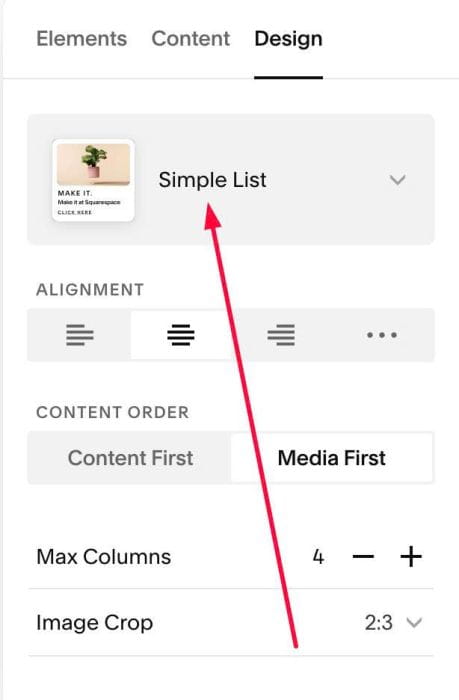
#1.2-2. at Design > Choose Simple List
#1.3. Next, click EDIT SECTION
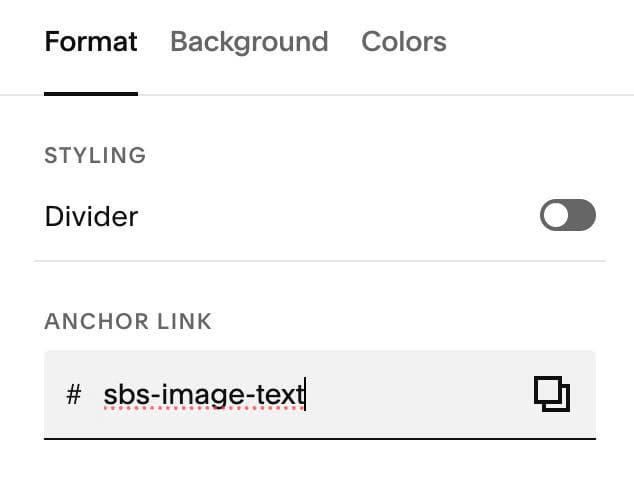
#1.3-2. at Format > Anchor Link > enter word: sbs-image-text
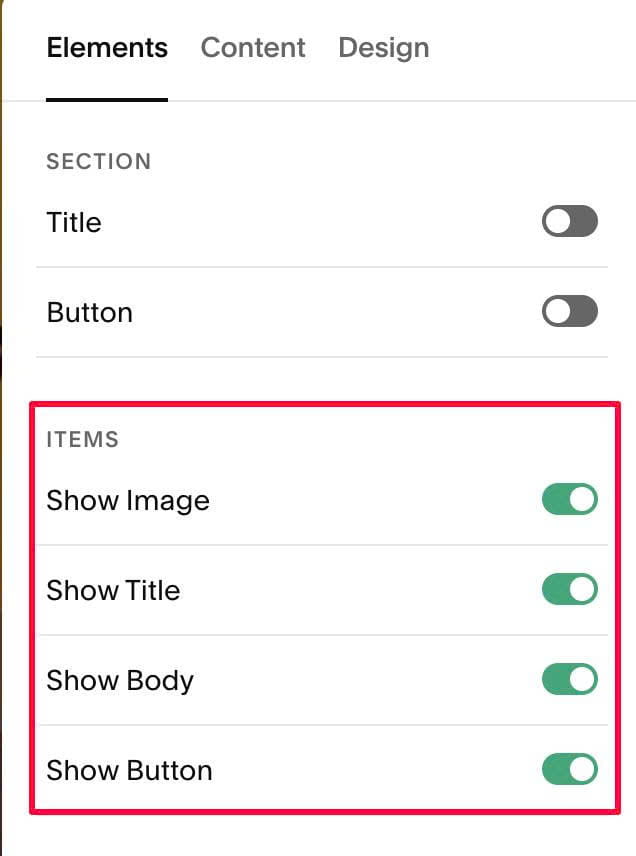
#1.4. at Elements > Enable these
#1.5. at Content, enter your desired image/text

#1.6. at Design, choose Alignment Center + Max Columns: 2
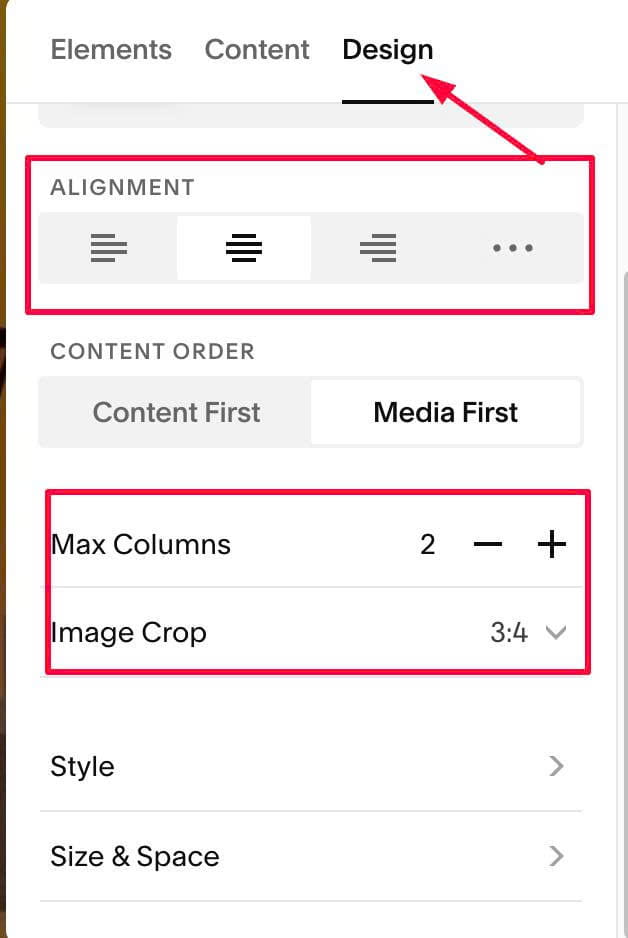
#1.6-1. Next, click Size & Space
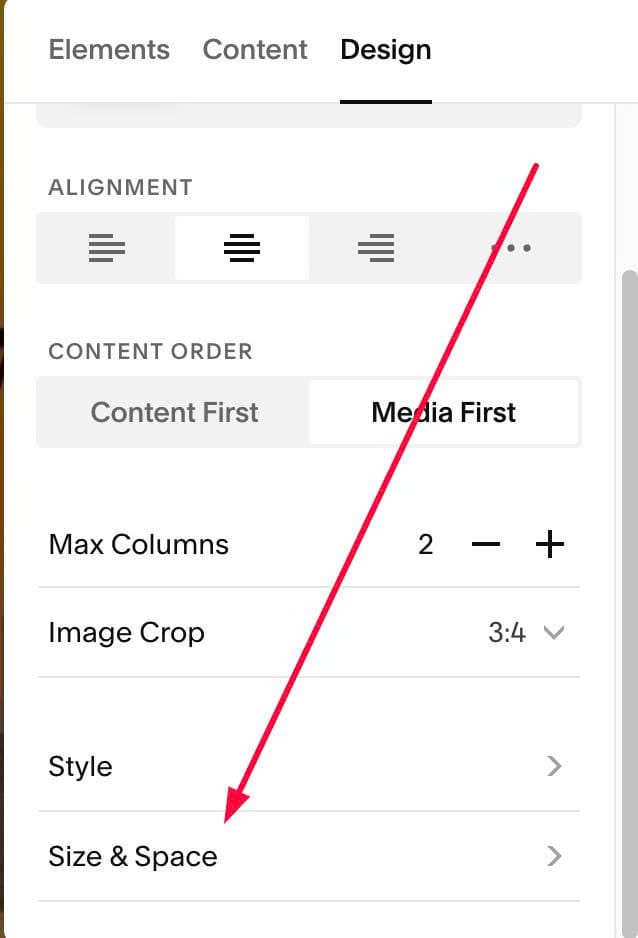
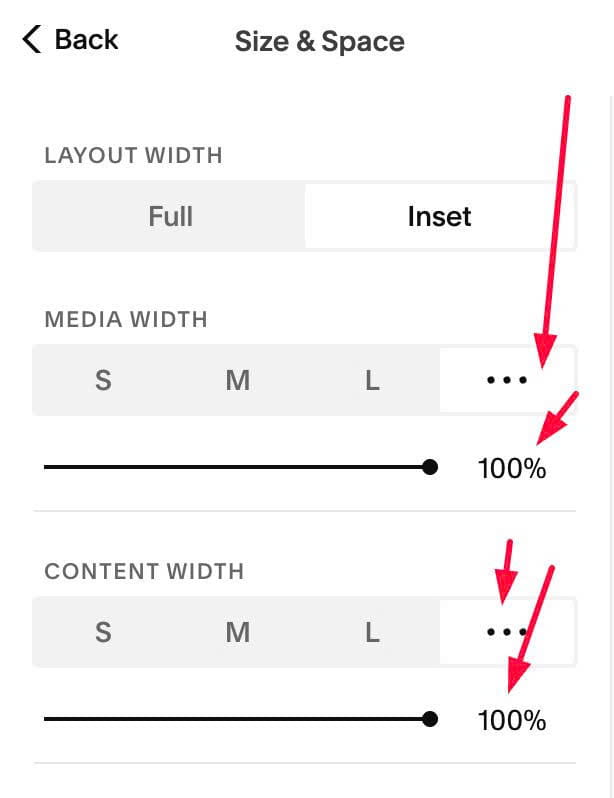
#1.6-2. Set Media Width, Content Width = 100%
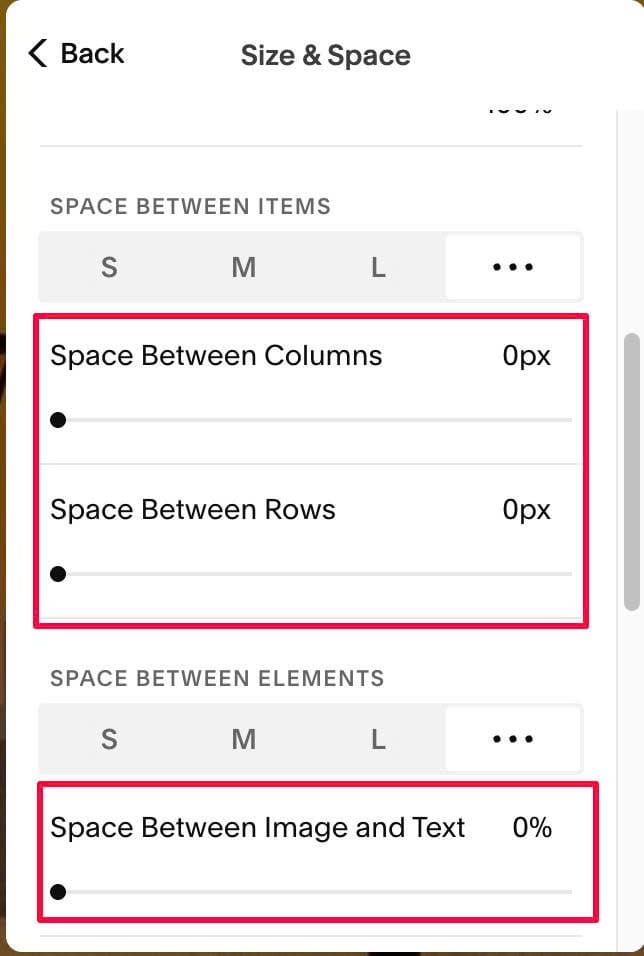
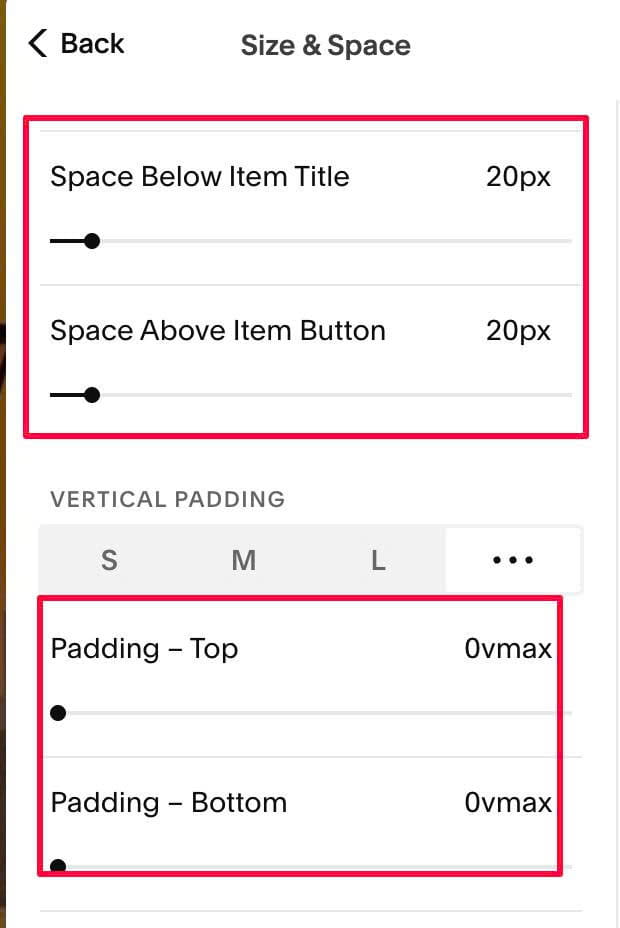
#1.6-3. Set these spaces to 0px or 0%
#1.6-4. Set Padding Top/Padding Bottom = 0
With Space Below Item Title/Space above item button = you can set to your desired value
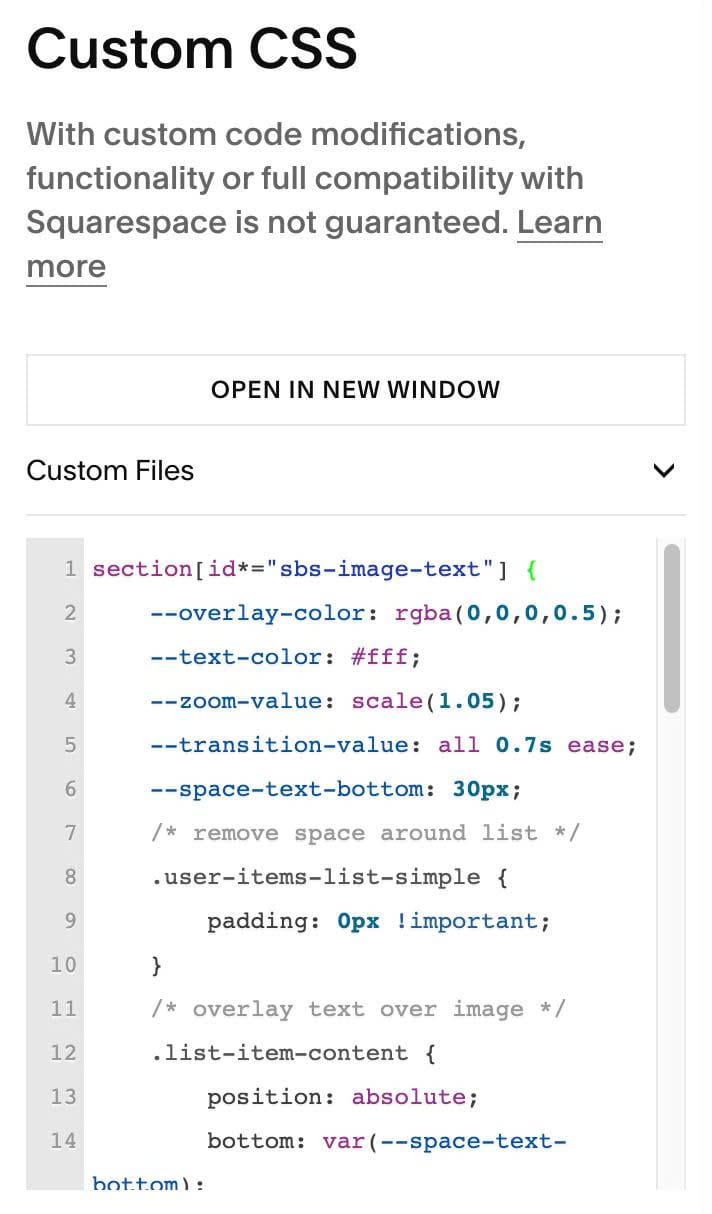
#1.7. Next, use this code to Custom CSS
section[id*="sbs-image-text"] {
    --overlay-color: rgba(0,0,0,0.5);
    --text-color: #fff;
    --zoom-value: scale(1.05);
    --transition-value: all 0.7s ease;
    --space-text-bottom: 30px;
    /* remove space around list */
    .user-items-list-simple {
        padding: 0px !important;
    }
    /* overlay text over image */
    .list-item-content {
        position: absolute;
        bottom: var(--space-text-bottom);
        left: 0;
        width: 100%;
    }
    li.list-item {
   	 position: relative;
    }
    .list-item-media-inner:after {
      content: "";
      background-color: var(--overlay-color);
      position: absolute;
      top: 0;
      left: 0;
      width: 100%;
      height: 100%;
}
  .list-item-content * {
      color: var(--text-color) !important;
  }
  a.list-item-content__button {
      padding: 0px !important;
      border: none !important;
      border-bottom: 1px solid #fff !important;
      border-radius: 0px !important;
      background: none !important;
  }
  img {
      transition: var(--transition-value);
  }
  li.list-item:hover img {
      transform: var(--zoom-value);
      transition: var(--transition-value);
  }
}
Explain
–overlay-color: rgba(0,0,0,0.5)
- change overlay color over 2 images
–text-color: #fff
- change text, button text color, but if you remove this line, you can set it in Site Styles
–space-text-bottom: 30px
- space between button – bottom of image
–zoom-value: scale(1.05)
- zoom ratio when you hover on image
–transition-value: all 0.7s ease
- you can adjust 0.7s
- It will make the image zooming speed faster or slower.
#2. Customize
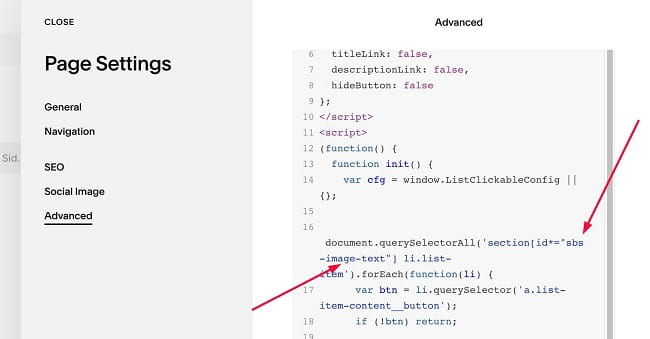
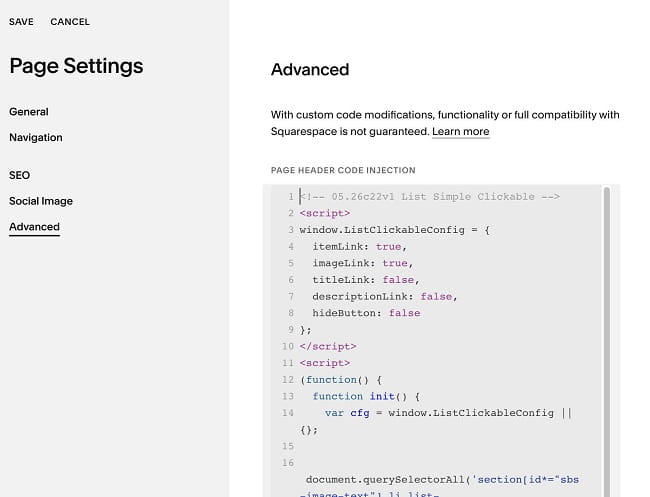
#2.1. To make whole item (image, overlay, text, button) clickable, you can use this code to Page Header Injection (Page where you use List)
<!-- 05.26c22v1 List Simple Clickable -->
<script>
window.ListClickableConfig = {
  itemLink: true,
  imageLink: true,
  titleLink: false,
  descriptionLink: false,
  hideButton: false
};
</script>
<script>
(function() {
  function init() {
    var cfg = window.ListClickableConfig || {};

    document.querySelectorAll('section[id*="sbs-image-text"] li.list-item').forEach(function(li) {
      var btn = li.querySelector('a.list-item-content__button');
      if (!btn) return;

      var href = btn.getAttribute('href');
      var isNewTab = btn.getAttribute('target') === '_blank';

      if (cfg.hideButton) {
        var wrapper = li.querySelector('.list-item-content__button-wrapper');
        if (wrapper) wrapper.style.display = 'none';
      }

      function makeClickable(el) {
        if (!el) return;
        el.style.cursor = 'pointer';
        el.addEventListener('click', function(e) {
          if (e.target.closest('a')) return;
          if (isNewTab) {
            window.open(href, '_blank');
          } else {
            window.location.href = href;
          }
        });
      }

      if (cfg.itemLink) {
        makeClickable(li);
        return;
      }

      if (cfg.imageLink) makeClickable(li.querySelector('.list-item-media'));
      if (cfg.titleLink) makeClickable(li.querySelector('.list-item-content__title'));
      if (cfg.descriptionLink) makeClickable(li.querySelector('.list-item-content__description'));
    });
  }

  window.addEventListener('load', init);
  window.addEventListener('mercury:load', init);
})();
</script>
#2.2. If you want to change anchor link text in step #1.3-2
Then you will need to update same text in Custom CSS
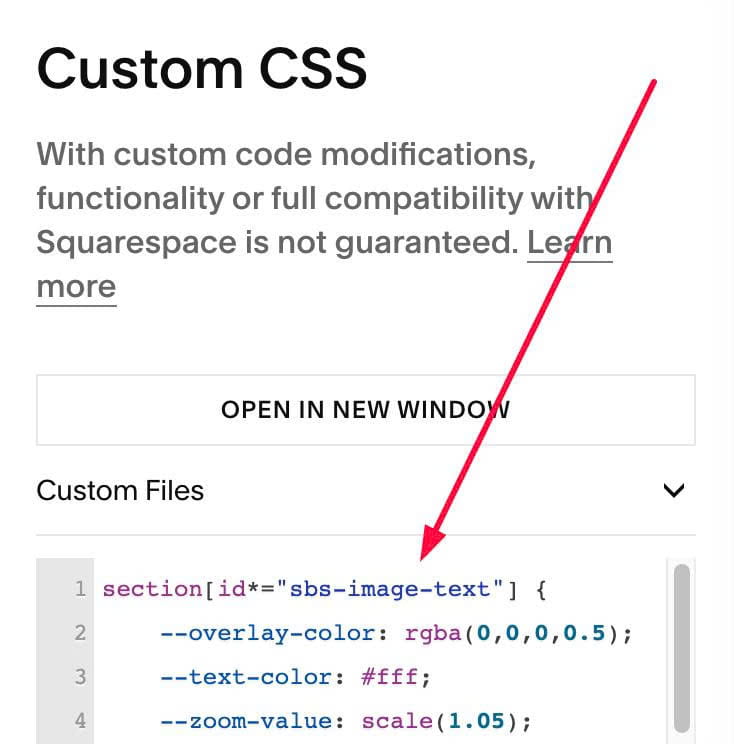
and same text in #2.1