Description
- adding extra text over portfolio image (top left of image)
- view demo – password: abc
- buy me a coffee

#1. Install Code
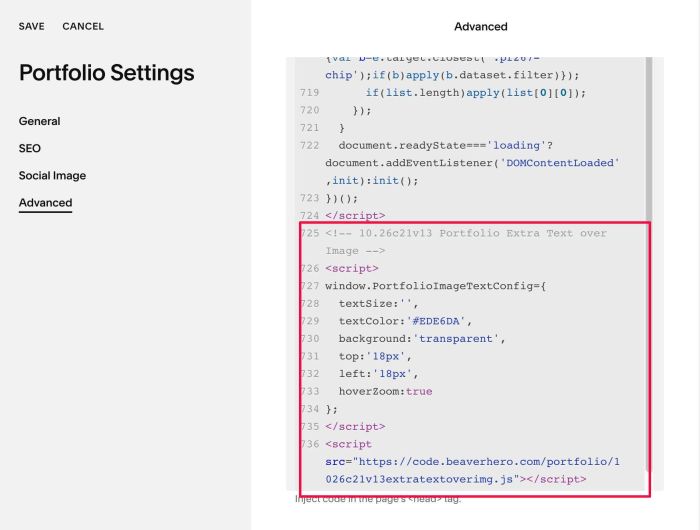
#1.1. First, use this code to Portfolio Page Header Injection
<!-- 10.26c21v13 Portfolio Extra Text over Image -->
<script>
window.PortfolioImageTextConfig={
  textSize:'',
  textColor:'#EDE6DA',
  background:'transparent',
  top:'18px',
  left:'18px',
  hoverZoom:true
};
</script>
<script src="https://code.beaverhero.com/portfolio/1026c21v13extratextoverimg.js"></script>
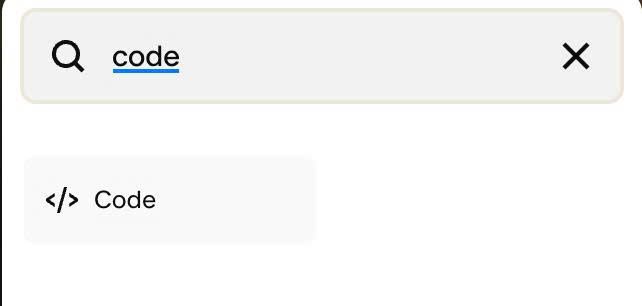
#1.2. Next, edit each Portfolio Item > Add a Code Block
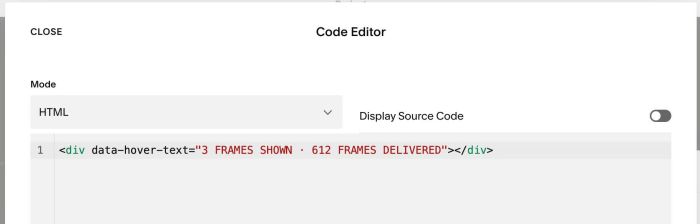
#1.3. Next, add code with format like this into Code Block
<div data-hover-text="3 FRAMES SHOWN · 612 FRAMES DELIVERED"></div>
#2. Customize
#2.1. To change text size/text color, change these lines
textSize:'',
  textColor:'#EDE6DA',
#2.2. To add a background behind text, change this line
background:'transparent',
#2.3. To change space between text – top/left of image, change these
top:'18px',
 left:'18px',