Description
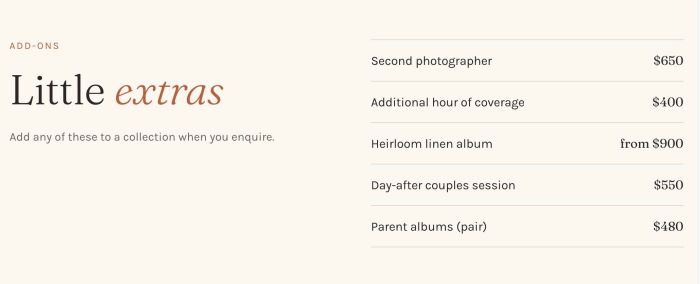
- list simple with section title (left side) – inline list (right side)
- view demo (scroll down to third section) – password: abc
- buy me a coffee
#1. Install Code
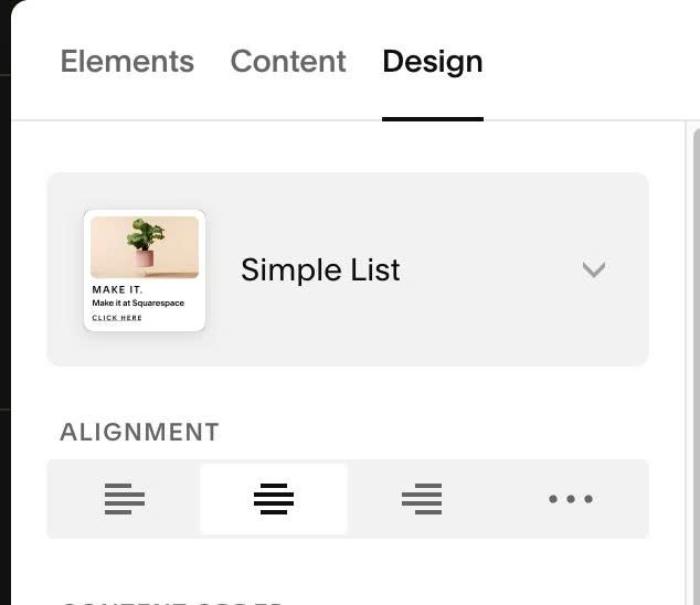
#1.1. First, use List Simple
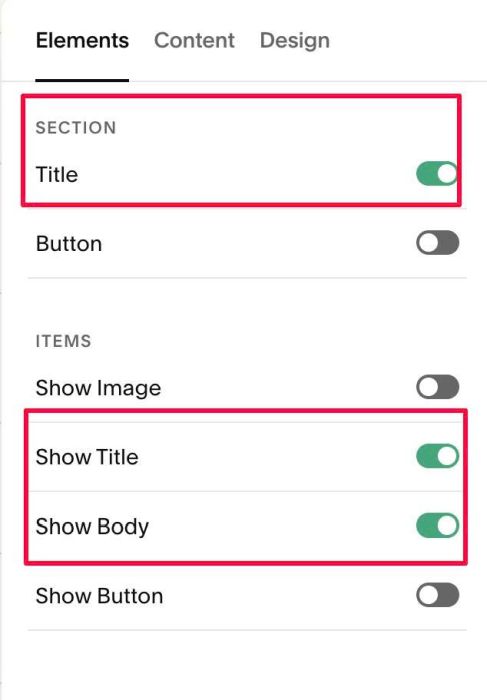
#1.2. Enable these options
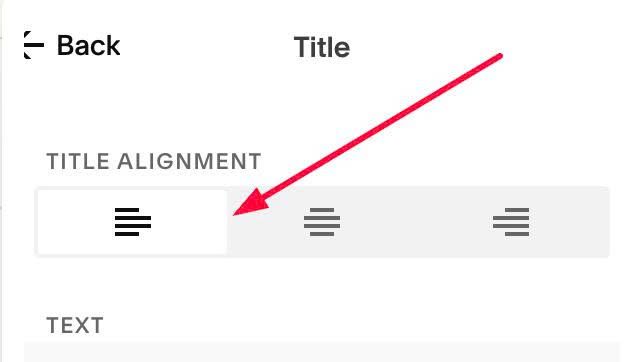
#1.3. Set Align: Left
#1.4. Next, enter text in Section Title (use 3 paragraphs in 3 lines). Italic text = change color
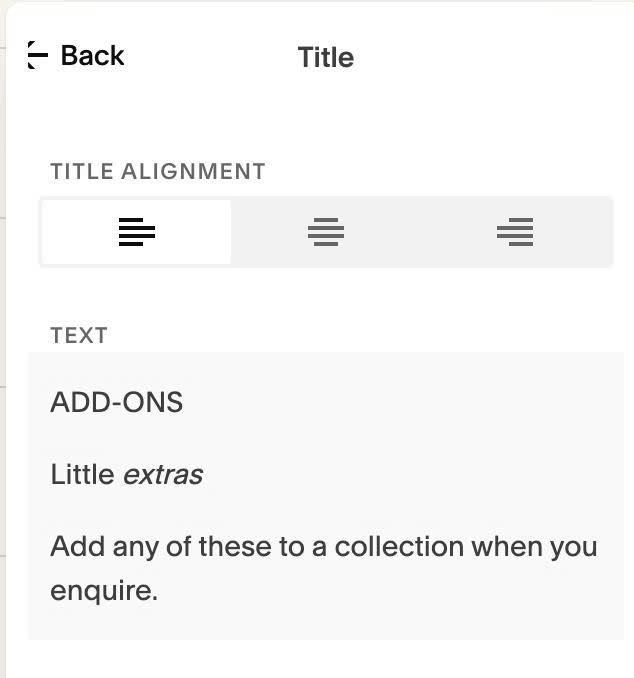
and adding text in each item
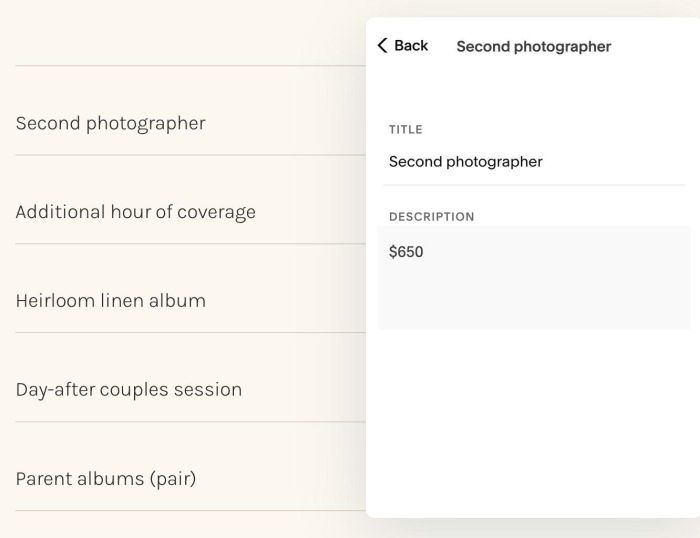
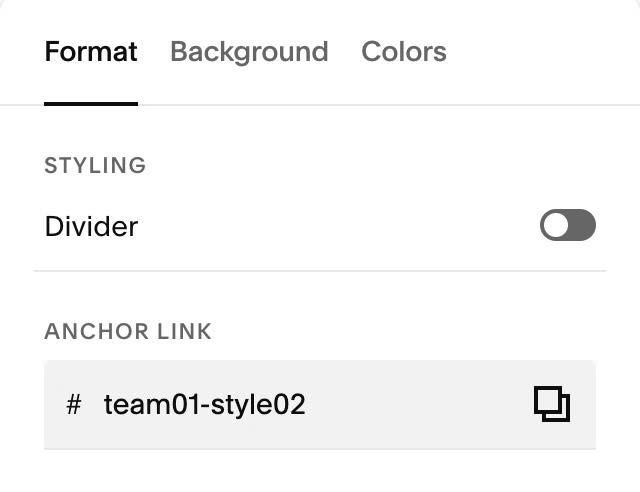
#1.5. Next, hover on top right of section > Click EDIT SECTION > at Format > Anchor Link > enter word: team01-style02
#1.6. Next, use code to Page Header Injection
- if you use Personal/Basic Plan and your plan doesn’t support Injection, see #1.6-2
<!-- 10.26c29v06 Team 01 Style 02: Section Title (Left) - Inline List (Right) -->
<script>
window.Team01Style02Config = {
  sectionSelector: 'section[id*="team01-style02"]',

  titleListGap: '72px',
  mobileBreakpoint: 767,

  titleLine1FontSize: '',
  titleLine1Color: '#B8613B',
  titleLine1SpaceBelow: '18px',

  titleLine2Color: '',
  titleLine2ItalicColor: '#B8613B',
  titleLine2SpaceBelow: '22px',

  titleLine3FontSize: '',
  titleLine3Color: '#6E625A',

  listLineColor: '#E0D3C4',
  listLineThickness: '1px',
  itemTextLineSpace: '18px',
  itemTitleDescriptionGap: '20px'
};
</script>
<script src="https://code.beaverhero.com/listsimple/1026c29v06team01style02titleinlinelist.js"></script>
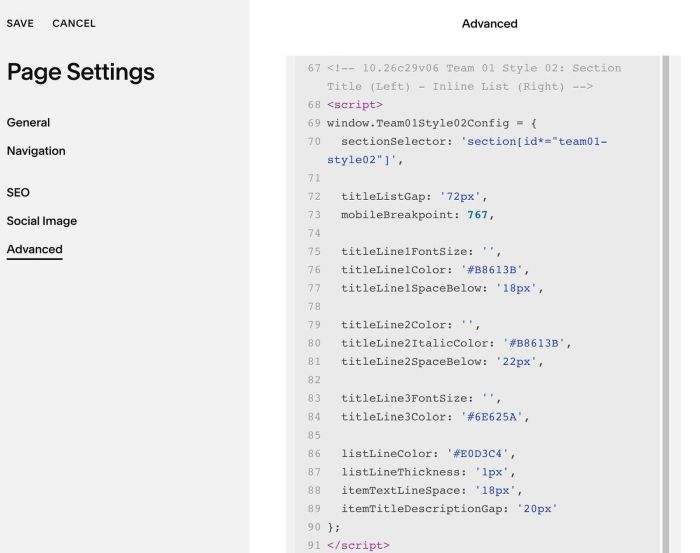
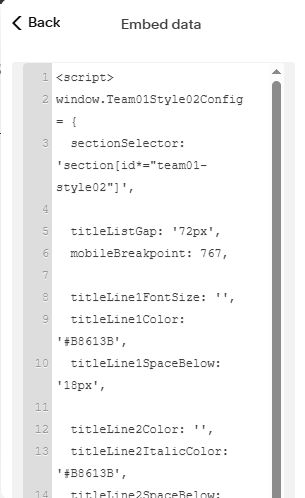
#1.6-2. With Personal/Basic Plan, you can edit current page > Add an Embed Block > Code Snippet > Embed Data > Paste this code
<script>
window.Team01Style02Config = {
  sectionSelector: 'section[id*="team01-style02"]',

  titleListGap: '72px',
  mobileBreakpoint: 767,

  titleLine1FontSize: '',
  titleLine1Color: '#B8613B',
  titleLine1SpaceBelow: '18px',

  titleLine2Color: '',
  titleLine2ItalicColor: '#B8613B',
  titleLine2SpaceBelow: '22px',

  titleLine3FontSize: '',
  titleLine3Color: '#6E625A',

  listLineColor: '#E0D3C4',
  listLineThickness: '1px',
  itemTextLineSpace: '18px',
  itemTitleDescriptionGap: '20px'
};
</script>
<script src="https://code.beaverhero.com/listsimple/1026c29v06team01style02titleinlinelist.js"></script>
#2. Customize
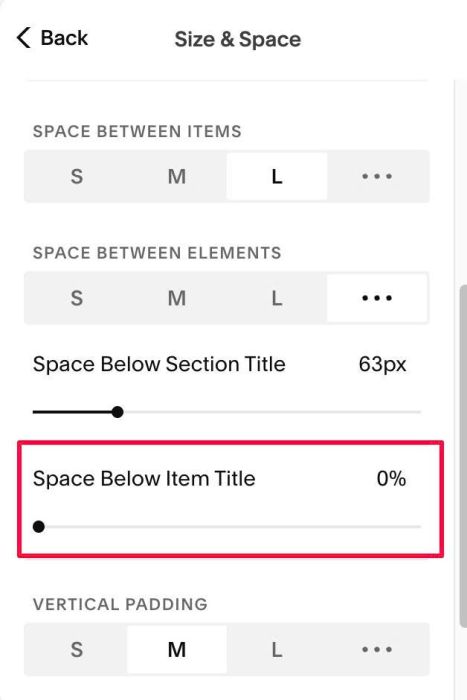
#2.1. If you see different space above/below text on right side, you can adjust this to 0%
#2.2. First Line (Section Title) will use Paragraph 3 Style, but you can change some style here
titleLine1FontSize: '',
 titleLine1Color: '#B8613B',
 titleLine1SpaceBelow: '18px',
#2.3. Second Line (Section Title) will use Section Title & H2 style, but you can change some style here
titleLine2Color: '',
  titleLine2ItalicColor: '#B8613B',
  titleLine2SpaceBelow: '22px',
#2.4. Third Line (Section Title) will use Paragraph 2 style, but you can change some style here
titleLine3FontSize: '',
  titleLine3Color: '#6E625A',
#2.5. Inline Text (Right side) will inherit style from Item title + Item Description. With Lines, you can change here
listLineColor: '#E0D3C4',
  listLineThickness: '1px',
  itemTextLineSpace: '18px',
  itemTitleDescriptionGap: '20px'