Description
- adding section with text, button with list simple, button has hover effect
- view demo (section above footer) – password: abc
- buy me a coffee

#1. Install Code
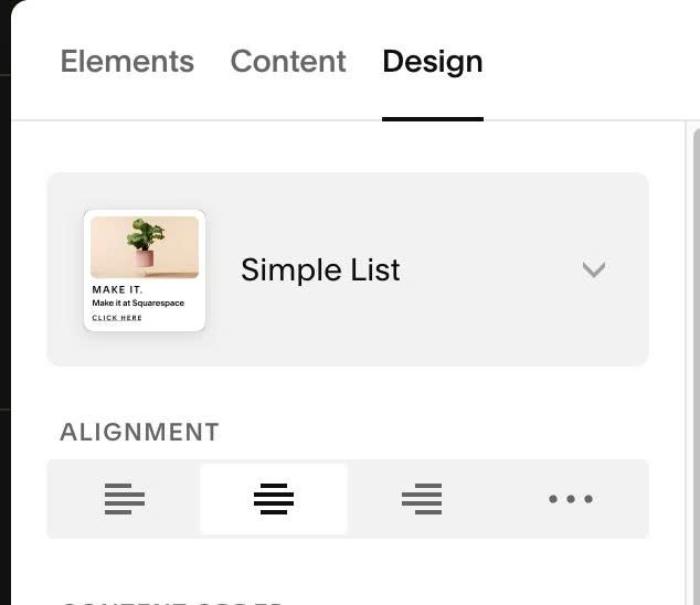
#1.1. First, use Simple List
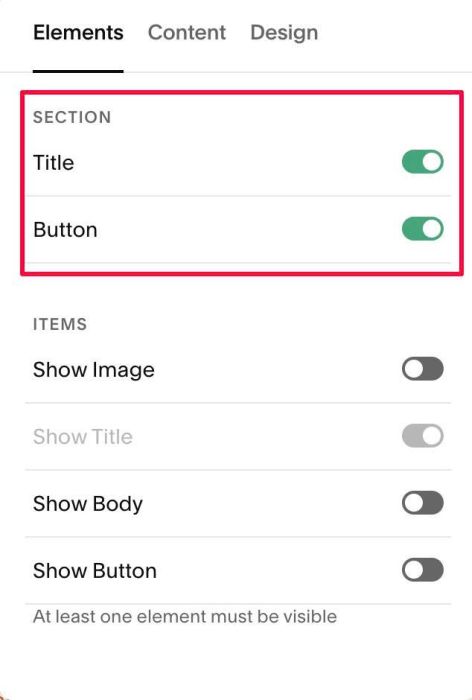
#1.2. Enable Section Title + Button only
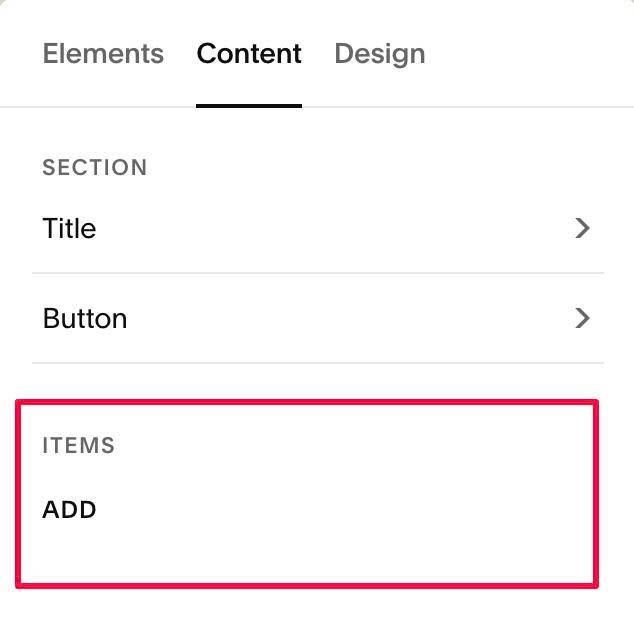
#1.3. Remove All Items
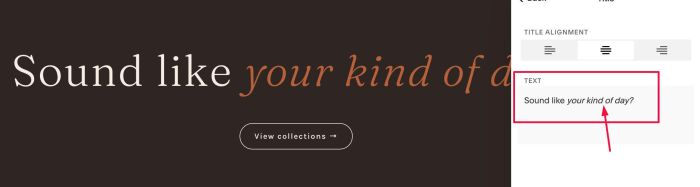
#1.4. Enter your desired text/button. Note: To change text color, you can make it italic first
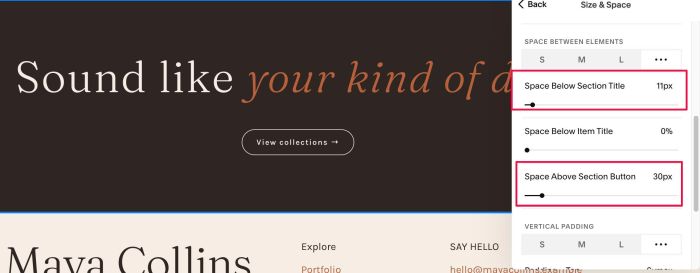
#1.5. at Design > Size & Space > Adjust these options to reduce space between Section Title – Button
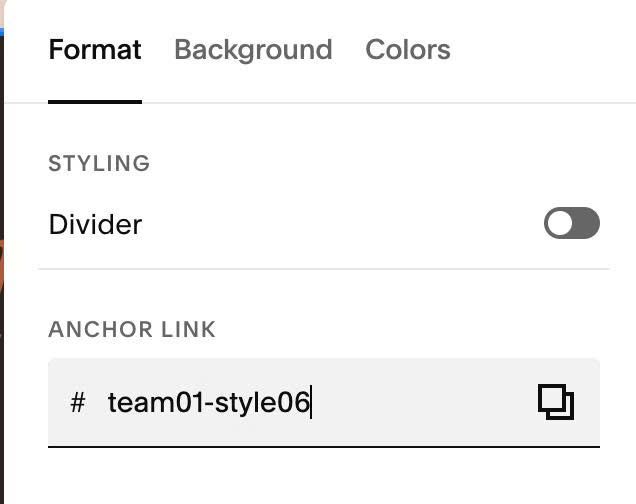
#1.6. Hover on top right of section > Click EDIT SECTION > at Format > Anchor Link > enter word: team01-style06
#1.7. Next, use this code to Custom CSS
#team01-style06 {
  .list-section-title em {
    color: var(--sqsp-palette-accent-color);
}
a.list-section-button {
  transition: all 0.3s ease !important;
}
a.list-section-button:hover {
    background: var(--sqsp-palette-accent-color) !important;
    border-color: var(--sqsp-palette-accent-color) !important;
    transform: translateY(-3px) !important;
     transition: all 0.3s ease !important;
  color: #fff !important;
  }}
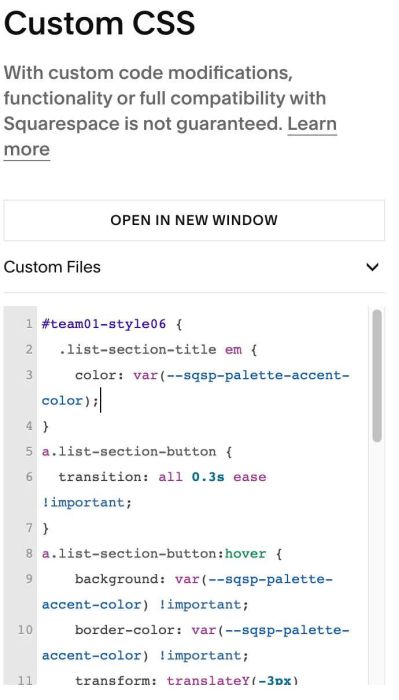
#1.8. Explain
Line 03
- color: var(–sqsp-palette-accent-color)
- change italic text color
- you can use hex color, ex: color: #f1f;
Line 09 + Line 10
- background: var(–sqsp-palette-accent-color) !important;
border-color: var(–sqsp-palette-accent-color) !important; - change section button background color + button border color on hover
- you can use hex color, ex:
- background: #f1f !important;
border-color: #f1f !important;