Description
- List Section always puts the title above the description, which feels backwards for testimonials. This CSS swaps them, so the quote comes first and the name sits underneath, inside a clean bordered card
- buy me a coffee
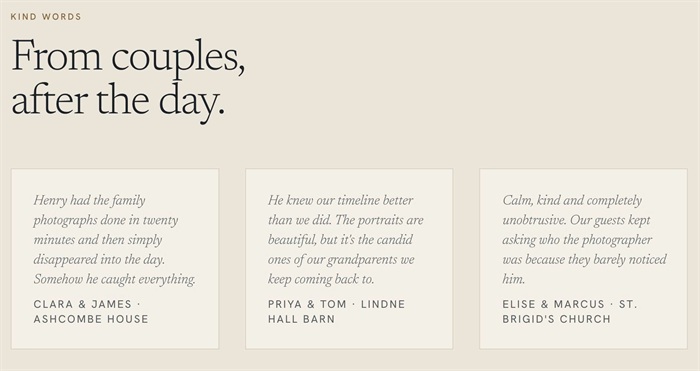
#1. Install Code
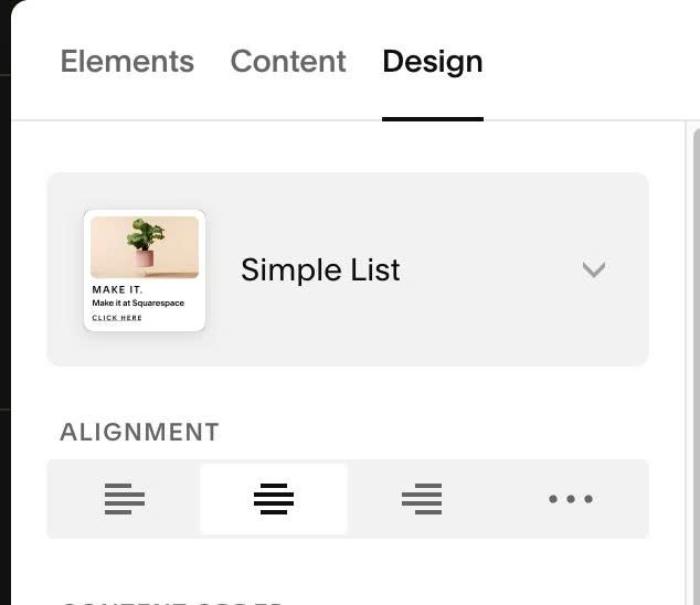
#1.1. Make sure you use List Simple
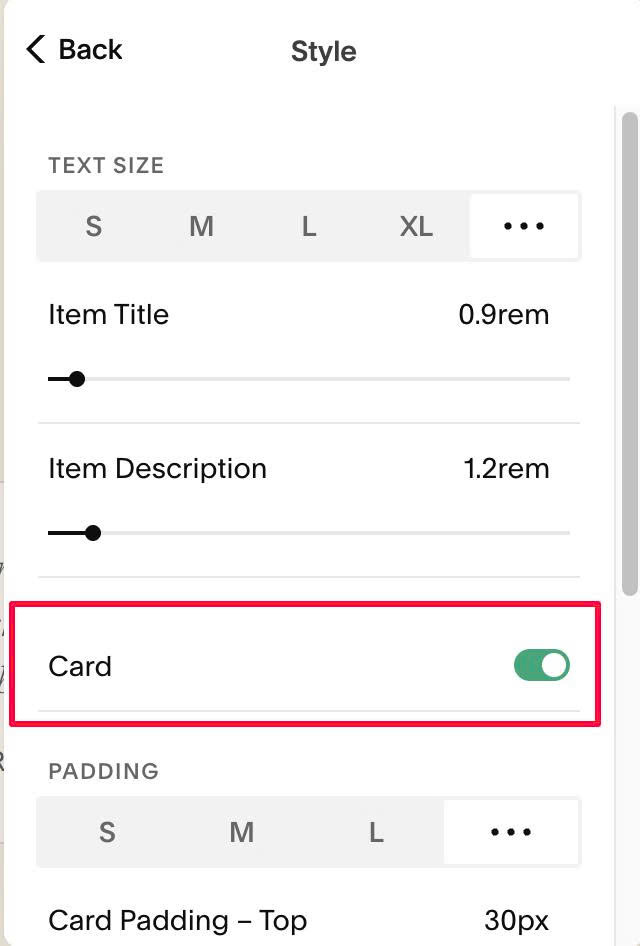
#1.2. Enable this option in Design > Style > Card
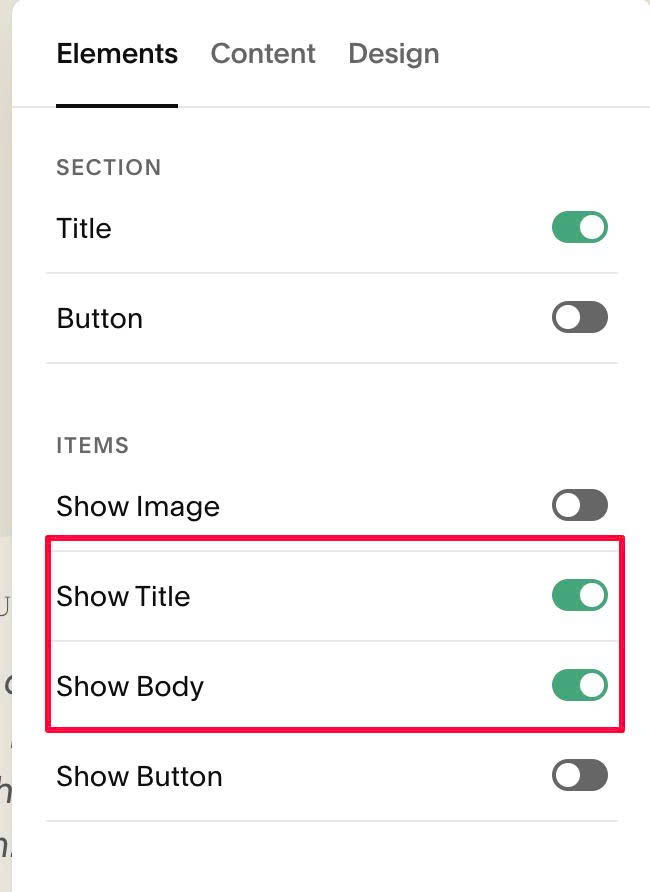
#1.3. Enable these options
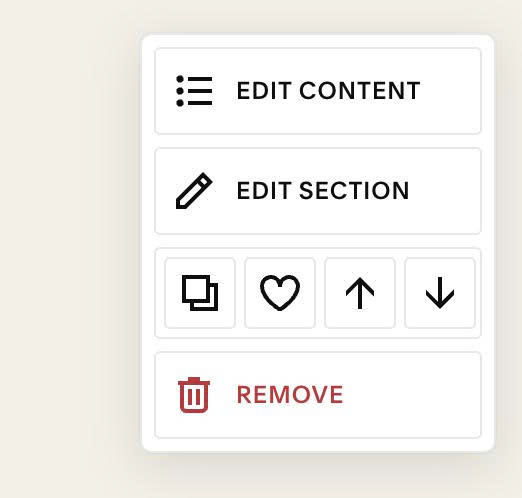
#1.4. Next, hover on top right of section > Click EDIT SECTION
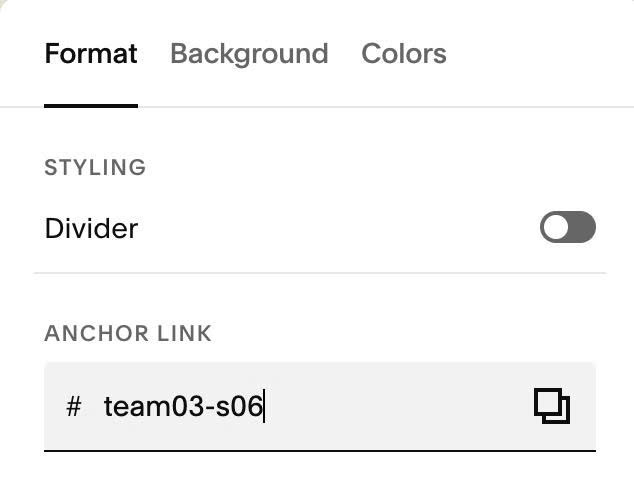
#1.5. at Format > Anchor Link > enter word: team03-s06
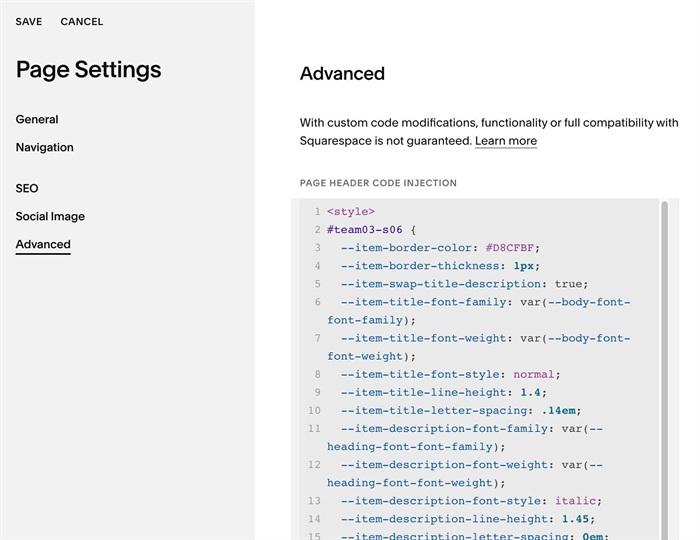
#1.6. Next, use this code to Page Header Injection
<style>
#team03-s06 {
  --item-border-color: #D8CFBF;
  --item-border-thickness: 1px;
  --item-swap-title-description: true;
  --item-title-font-family: var(--body-font-font-family);
  --item-title-font-weight: var(--body-font-font-weight);
  --item-title-font-style: normal;
  --item-title-line-height: 1.4;
  --item-title-letter-spacing: .14em;
  --item-description-font-family: var(--heading-font-font-family);
  --item-description-font-weight: var(--heading-font-font-weight);
  --item-description-font-style: italic;
  --item-description-line-height: 1.45;
  --item-description-letter-spacing: 0em;

  .list-item {
    border: var(--item-border-thickness) solid var(--item-border-color);
  }
  .list-item-content,
  .list-item-content__text-wrapper {
    display: flex;
    flex-direction: column;
    flex: 1;
  }
  .list-item-content__title {
    margin: 0 !important;
    font-family: var(--item-title-font-family) !important;
    font-weight: var(--item-title-font-weight) !important;
    font-style: var(--item-title-font-style) !important;
    line-height: var(--item-title-line-height) !important;
    letter-spacing: var(--item-title-letter-spacing) !important;
    text-transform: uppercase !important;
  }
  .list-item-content__description {
    font-family: var(--item-description-font-family) !important;
    font-weight: var(--item-description-font-weight) !important;
    font-style: var(--item-description-font-style) !important;
    line-height: var(--item-description-line-height) !important;
    letter-spacing: var(--item-description-letter-spacing) !important;
  }
  .list-item-content__description p,
  .list-item-content__description em {
    margin: 0 !important;
    font: inherit !important;
    letter-spacing: inherit !important;
  }

  @container style(--item-swap-title-description: true) {
    .list-item-content__text-wrapper {
      justify-content: space-between;
      transform: scaleY(-1);
    }
    .list-item-content__text-wrapper > * {
      transform: scaleY(-1);
    }
  }
}
</style>
#1.7. Customize
To change line border style (around each item), change these lines
--item-border-color: #D8CFBF;
 --item-border-thickness: 1px;
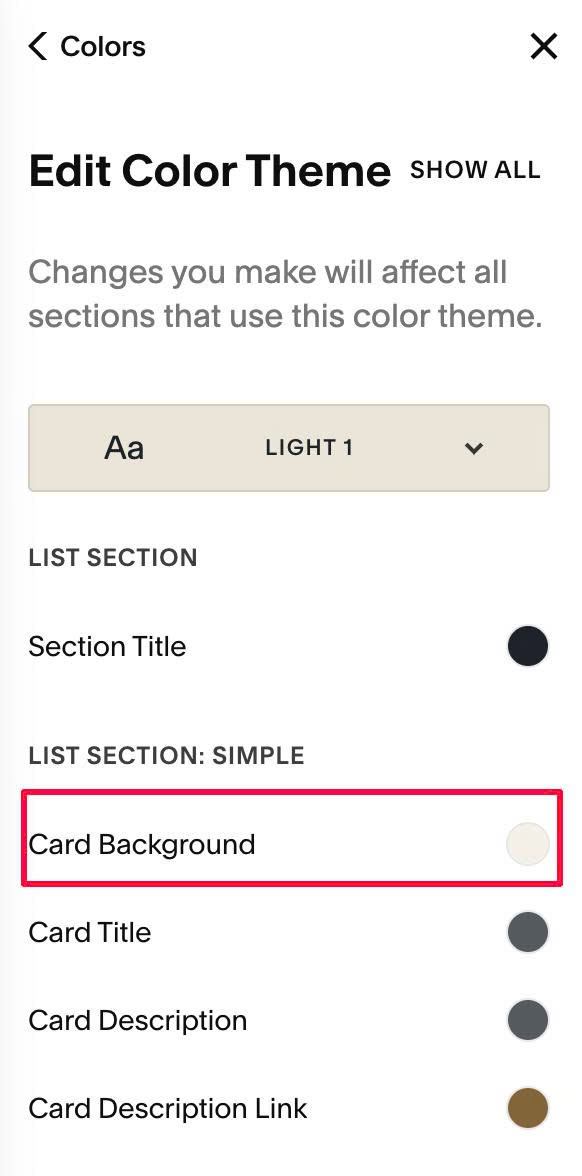
To change Item background color, change this option
If you want to bring back order of title – description, change this option to false
--item-swap-title-description: true;
You can change item title, item description in Site Styles, but here I offer some options
--item-title-font-family: var(--body-font-font-family);
  --item-title-font-weight: var(--body-font-font-weight);
  --item-title-font-style: normal;
  --item-title-line-height: 1.4;
  --item-title-letter-spacing: .14em;
  --item-description-font-family: var(--heading-font-font-family);
  --item-description-font-weight: var(--heading-font-font-weight);
  --item-description-font-style: italic;
  --item-description-line-height: 1.45;
  --item-description-letter-spacing: 0em;