Description
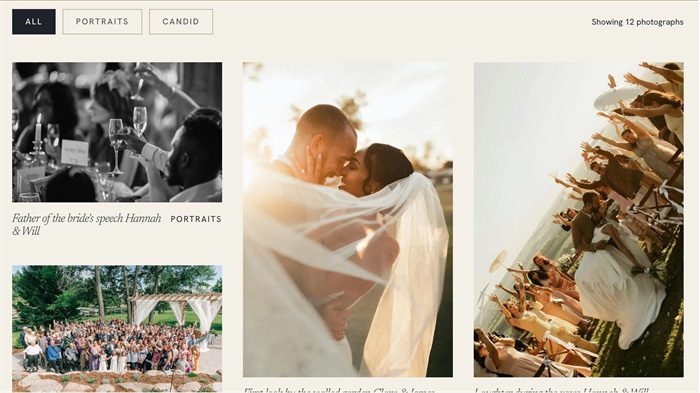
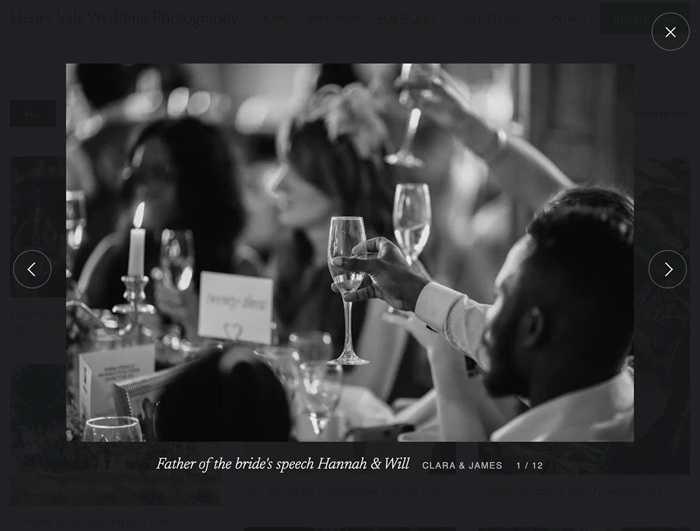
- Portfolio pages don’t support categories or a lightbox. This code adds both, plus a masonry layout and a “Showing X photographs” counter, all controlled from one options block.
- buy me a coffee
#1. Install Code
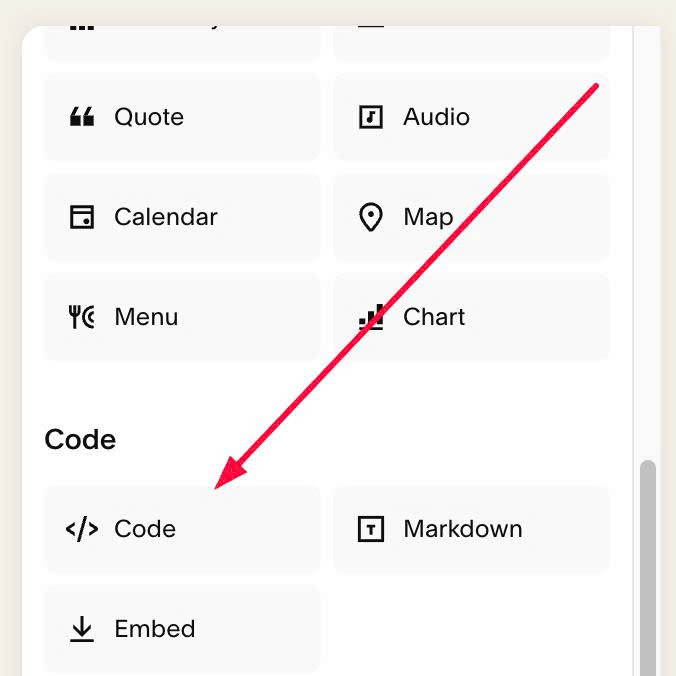
#1.1. First, edit each Portfolio Item > Add a Code Block
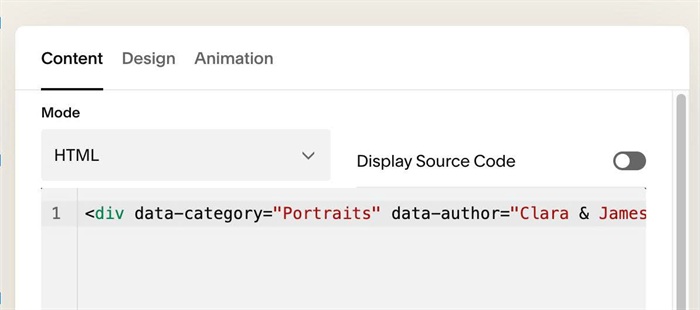
#1.2. Adding syntax like this into Code Block. Repeat similar with other items
<div data-category="Portraits" data-author="Clara & James"></div>
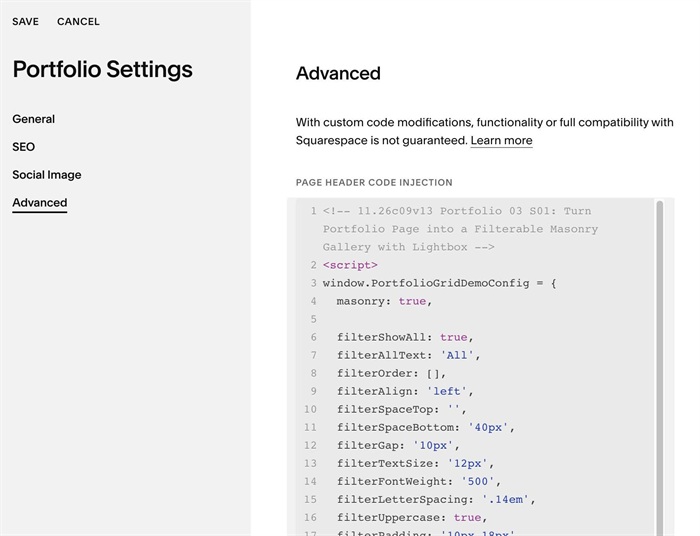
#1.3. Next, use this code to Portfolio Page Header Injection
<!-- 11.26c09v13 Portfolio 03 S01: Turn Portfolio Page into a Filterable Masonry Gallery with Lightbox -->
<script>
window.PortfolioGridDemoConfig = {
  masonry: true,

  filterShowAll: true,
  filterAllText: 'All',
  filterOrder: [],
  filterAlign: 'left',
  filterSpaceTop: '',
  filterSpaceBottom: '40px',
  filterGap: '10px',
  filterTextSize: '12px',
  filterFontWeight: '500',
  filterLetterSpacing: '.14em',
  filterUppercase: true,
  filterPadding: '10px 18px',
  filterRadius: '0px',
  filterBackground: 'transparent',
  filterColor: 'var(--sqsp-palette-dark-color)',
  filterBorder: '1px solid #B9AD98',
  filterHoverBackground: 'transparent',
  filterHoverColor: 'var(--sqsp-palette-darkest-color)',
  filterHoverBorder: '1px solid var(--sqsp-palette-darkest-color)',
  filterActiveBackground: 'var(--sqsp-palette-darkest-color)',
  filterActiveColor: 'var(--sqsp-palette-lightest-color)',
  filterActiveBorder: '1px solid var(--sqsp-palette-darkest-color)',

  counterPosition: 'right',
  counterText: 'Showing {n} photographs',
  counterTextSingle: 'Showing {n} photograph',
  counterSize: '',
  counterColor: '',
  counterSpaceTop: '14px',

  itemTitleSize: '17px',
  itemTitleStyle: 'italic',
  itemCategorySize: '',
  itemCategoryColor: '',
  itemCategoryUppercase: true,
  itemCategoryLetterSpacing: '.12em',

  lightbox: true,
  lightboxImageSize: '1500w',
  lightboxPreloadNearby: 2,
  lightboxPreloadAll: false,
  lightboxOverlayColor: 'rgba(20, 22, 25, .95)',
  lightboxImageMaxHeight: '72vh',
  lightboxTitleSize: '21px',
  lightboxTitleColor: '#F4F0E8',
  lightboxAuthorSize: '',
  lightboxAuthorColor: 'rgba(244, 240, 232, .7)',
  lightboxAuthorUppercase: true,
  lightboxCounterSize: '',
  lightboxCounterColor: 'rgba(244, 240, 232, .7)',

  arrowSize: '52px',
  arrowIconSize: '12px',
  arrowIconThickness: '1.5px',
  arrowColor: '#F4F0E8',
  arrowBackground: 'transparent',
  arrowHoverBackground: 'rgba(244, 240, 232, .12)',
  arrowBorder: '1px solid rgba(244, 240, 232, .3)',
  arrowRadius: '50%',

  closeSize: '52px',
  closeIconSize: '18px',
  closeIconThickness: '1.5px',
  closeColor: '#F4F0E8',
  closeBackground: 'transparent',
  closeHoverBackground: 'rgba(244, 240, 232, .12)',
  closeBorder: '1px solid rgba(244, 240, 232, .3)',
  closeRadius: '50%',

  mobileBreakpoint: 767
};
</script>
<script src="https://code.beaverhero.com/portfolio/1126c09v13portfolio03s01filtercounterlightbox.js"></script>
#2. Customize
#2.1. To change text “All”, edit this line
filterAllText: 'All',
#2.2. To set custom filter category order, change this line
filterOrder: [],
#2.3. To set alignment, space above/below, gap between filter category, change these
filterAlign: 'left',
  filterSpaceTop: '',
  filterSpaceBottom: '40px',
  filterGap: '10px',
#2.4. To change filter text, color, edit these
filterTextSize: '12px',
  filterFontWeight: '500',
  filterLetterSpacing: '.14em',
  filterUppercase: true,
  filterPadding: '10px 18px',
  filterRadius: '0px',
  filterBackground: 'transparent',
  filterColor: 'var(--sqsp-palette-dark-color)',
  filterBorder: '1px solid #B9AD98',
  filterHoverBackground: 'transparent',
  filterHoverColor: 'var(--sqsp-palette-darkest-color)',
  filterHoverBorder: '1px solid var(--sqsp-palette-darkest-color)',
  filterActiveBackground: 'var(--sqsp-palette-darkest-color)',
  filterActiveColor: 'var(--sqsp-palette-lightest-color)',
  filterActiveBorder: '1px solid var(--sqsp-palette-darkest-color)',
#2.5. To change Counter text style, edit
counterPosition: 'right',
  counterText: 'Showing {n} photographs',
  counterTextSingle: 'Showing {n} photograph',
  counterSize: '',
  counterColor: '',
  counterSpaceTop: '14px',
#2.6. To change Portfolio item title, category text style, change these
itemTitleSize: '17px',
 itemTitleStyle: 'italic',
 itemCategorySize: '',
 itemCategoryColor: '',
 itemCategoryUppercase: true,
 itemCategoryLetterSpacing: '.12em',
#2.7. To change title, author, counter number text style inside lightbox, change these
lightboxTitleSize: '21px',
  lightboxTitleColor: '#F4F0E8',
  lightboxAuthorSize: '',
  lightboxAuthorColor: 'rgba(244, 240, 232, .7)',
  lightboxAuthorUppercase: true,
  lightboxCounterSize: '',
  lightboxCounterColor: 'rgba(244, 240, 232, .7)',
#2.8. To change arrow, close x icon style, edit these
arrowSize: '52px',
  arrowIconSize: '12px',
  arrowIconThickness: '1.5px',
  arrowColor: '#F4F0E8',
  arrowBackground: 'transparent',
  arrowHoverBackground: 'rgba(244, 240, 232, .12)',
  arrowBorder: '1px solid rgba(244, 240, 232, .3)',
  arrowRadius: '50%',

  closeSize: '52px',
  closeIconSize: '18px',
  closeIconThickness: '1.5px',
  closeColor: '#F4F0E8',
  closeBackground: 'transparent',
  closeHoverBackground: 'rgba(244, 240, 232, .12)',
  closeBorder: '1px solid rgba(244, 240, 232, .3)',
  closeRadius: '50%',