Description
- adding two tabs to portfolio page, click each will open gallery images or biography
- view demo – password: abc
- buy me a coffee

#1. Install Code
#1.1. First, adding two sections
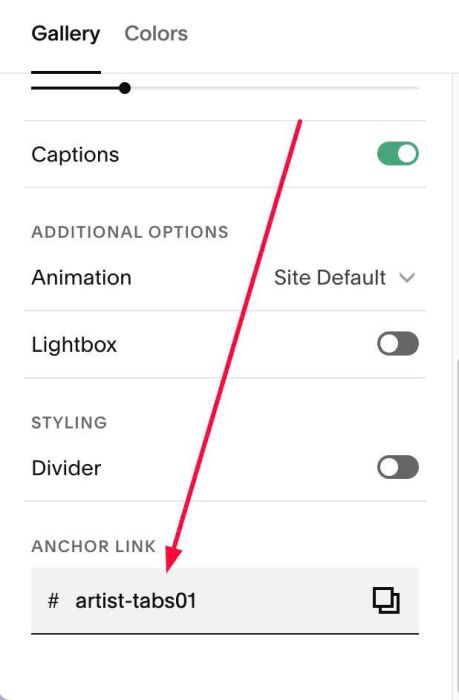
#1.2. Hover on top right of first section > Click EDIT SECTION

#1.3. at Gallery > Anchor Link > enter word: artist-tabs01
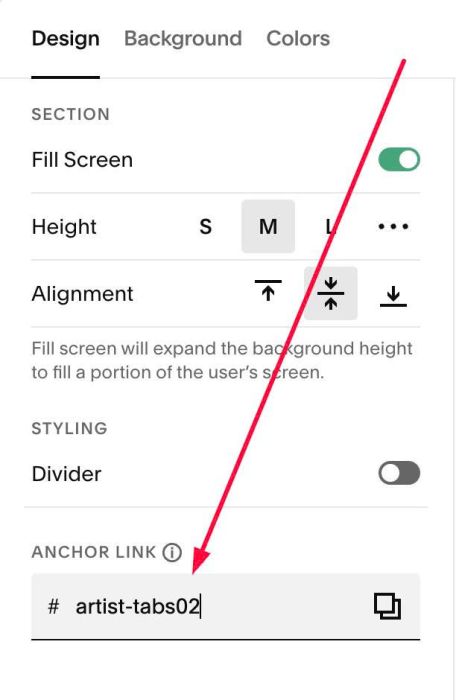
#1.4. Hover on top right of second section > Click EDIT SECTION
#1.5. at Design > Anchor Link > Enter word: artist-tabs02
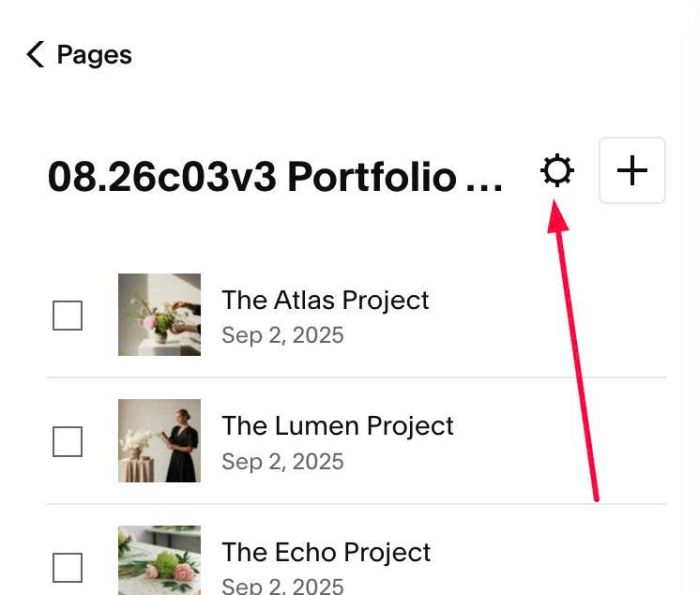
#1.6. Click Gear icon on Portfolio Page
#1.7. Click Advanced > Paste this code
- If you use Personal/Basic Plan and your plan doesn’t support Injection, see #3.1
<!-- 08.26c12v1 Portfolio Artist Tabs -->
<script>
window.PortfolioArtistTabsConfig = {
  initialSection: "artist-tabs01",
  tabs: [
    { text: "Artworks", section: "artist-tabs01" },
    { text: "Biography", section: "artist-tabs02" }
  ],
  divider: "|",
  fontSize: {
    desktop: "16px",
    mobile: "14px"
  },
  activeColor: "#1a1a1a",
  inactiveColor: "#b3b3b3"
};
</script>
<script src="https://code.beaverhero.com/portfolio/0826c12v1portfolioartisttabs.js"></script>
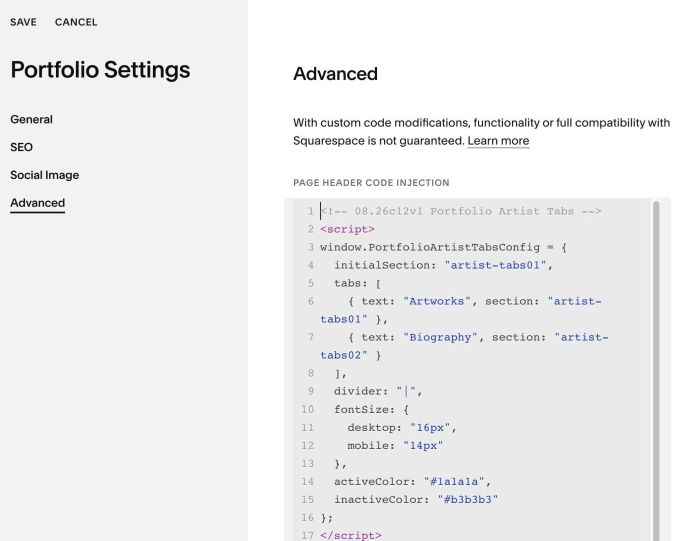
#2. Customize
#2.1. To change tab title text, change line 06, 07
{ text: "Artworks", section: "artist-tabs01" },
{ text: "Biography", section: "artist-tabs02" }
#2.2. To change tab title size, change line 10 – 13
fontSize: {
  desktop: "16px",
  mobile: "14px"
},
#3. Other
#3.1. If you use Personal/Basic Plan and your plan doesn’t support Injection, you can edit Site Footer
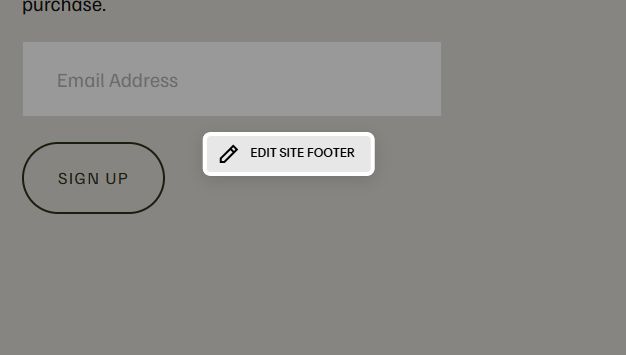
Add a Markdown Block

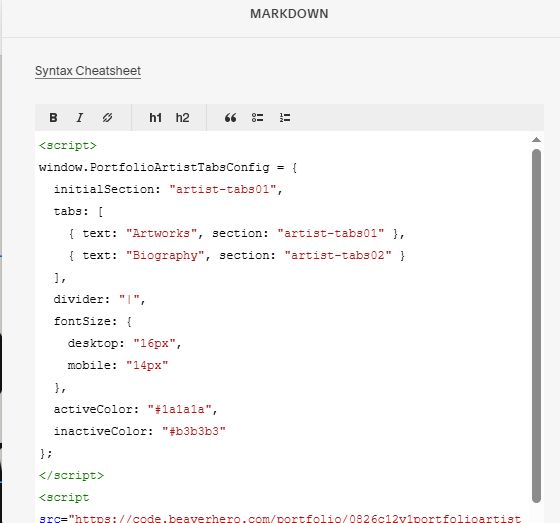
Add this code into Markdown
<script>
window.PortfolioArtistTabsConfig = {
  initialSection: "artist-tabs01",
  tabs: [
    { text: "Artworks", section: "artist-tabs01" },
    { text: "Biography", section: "artist-tabs02" }
  ],
  divider: "|",
  fontSize: {
    desktop: "16px",
    mobile: "14px"
  },
  activeColor: "#1a1a1a",
  inactiveColor: "#b3b3b3"
};
</script>
<script src="https://code.beaverhero.com/portfolio/0826c12v1portfolioartisttabs.js"></script>