Description
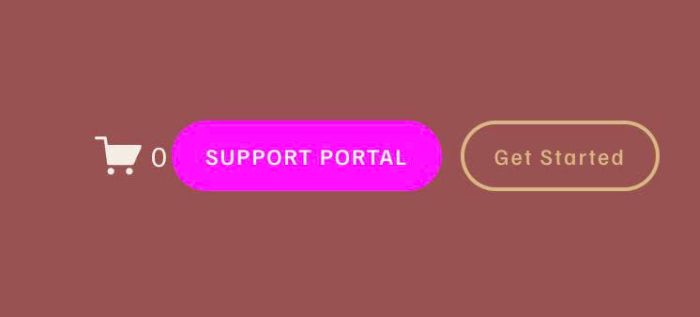
- adding second button to header, you can change style, position of second button
- view demo – password: abc
- buy me a coffee
#1. Install Code
#1.1. You can use this code to Code Injection > Footer
- If you use Personal/Basic Plan and your plan doesn’t support Injection, you can see #3.1
<!-- 08.26c18v2 Header Second Button -->
<script>
window.SupportButtonConfig = {
  buttonText: 'SUPPORT PORTAL',
  buttonUrl: 'https://google.com',
  insertSelector: 'a.btn',
  insertPosition: 'before',
  backgroundColor: '#f1f',
  textColor: '#fff',
  borderColor: '#f1f',
  hoverBackgroundColor: '',
  hoverTextColor: '',
  hoverBorderColor: '',
  marginRightDesktop: '10px',
  marginRightMobile: '10px',
  marginBottomDesktop: '0px',
  marginBottomMobile: '0px'
};
</script>
<script src="https://code.beaverhero.com/header/0826c18v2headersecondbutton.js"></script>
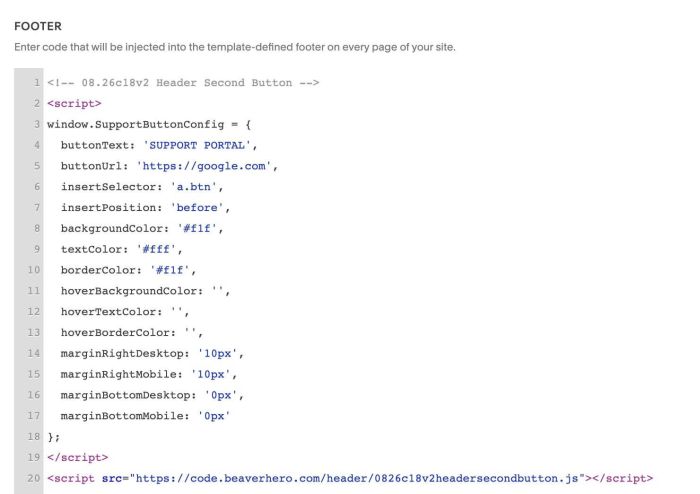
#1.2. You can change button text/button url in Line 04, Line 05
buttonText: 'SUPPORT PORTAL',
buttonUrl: 'https://google.com',
#1.3. You can change button color in Line 08 – Line 13
backgroundColor: '#f1f',
  textColor: '#fff',
  borderColor: '#f1f',
  hoverBackgroundColor: '',
  hoverTextColor: '',
  hoverBorderColor: '',
#1.4. To hide button on Desktop only, use this under main code
<style>
div.header-actions-action a.btn {
    display: none !important;
}
</style>
#1.5. If you need to tweak more you can use this AI Assistant (designed for Squarespace sites)
#2. Customize
nothing now
#3. Other
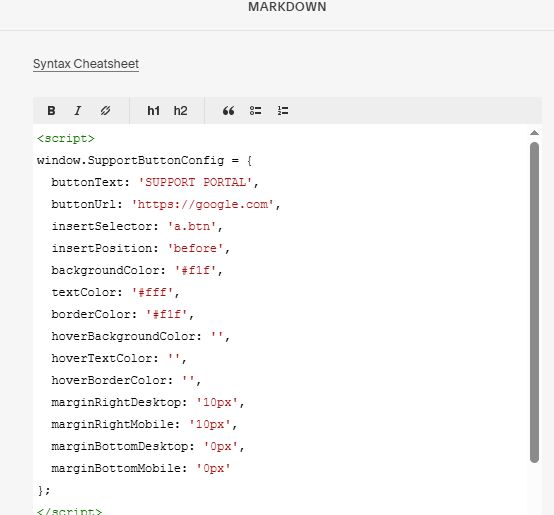
#3.1. If you use Personal/Basic Plan and your plan doesn’t support Injection, you can edit Site Footer > Add a Markdown Block

Add this code into Markdown
<script>
window.SupportButtonConfig = {
  buttonText: 'SUPPORT PORTAL',
  buttonUrl: 'https://google.com',
  insertSelector: 'a.btn',
  insertPosition: 'before',
  backgroundColor: '#f1f',
  textColor: '#fff',
  borderColor: '#f1f',
  hoverBackgroundColor: '',
  hoverTextColor: '',
  hoverBorderColor: '',
  marginRightDesktop: '10px',
  marginRightMobile: '10px',
  marginBottomDesktop: '0px',
  marginBottomMobile: '0px'
};
</script>
<script src="https://code.beaverhero.com/header/0826c18v2headersecondbutton.js"></script>