Description
- navigation dropdown custom style, dropdown width = navigation width, dropdown with 2 columns with counter…
- buy me a coffee

#A. Install Code
#1. To achieve this navigation style

use this code to Custom CSS
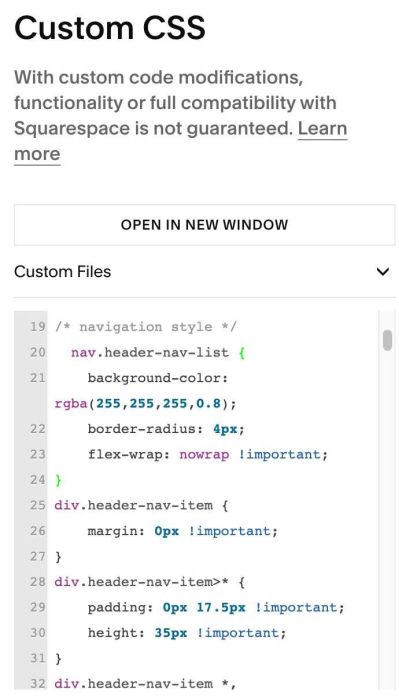
/* navigation style */
  nav.header-nav-list {
    background-color: rgba(255,255,255,0.8);
    border-radius: 4px;
    flex-wrap: nowrap !important;
}
div.header-nav-item {
    margin: 0px !important;
}
div.header-nav-item>* {
    padding: 0px 17.5px !important;
    height: 35px !important;
}
div.header-nav-item *, div.container.header-menu-nav-item * {
  font-size: 11px !important;
}
Explain
- background-color: rgba(255,255,255,0.8) = set navigation background color
- border-radius: 4px = round corners of navigation menu to 4px
- height: 35px !important = set height of navigation menu
- font-size: 11px !important = set navigation links to 11px
#2. To achieve Dropdown like this
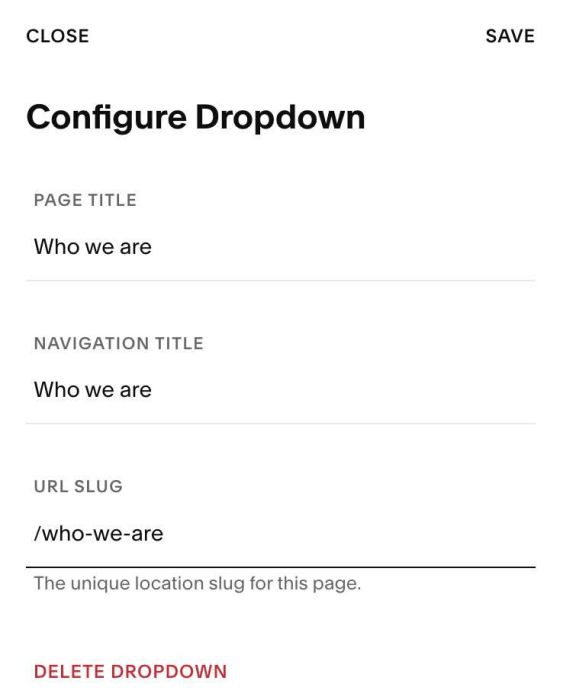
#2.1. First, find Dropdown Title URL
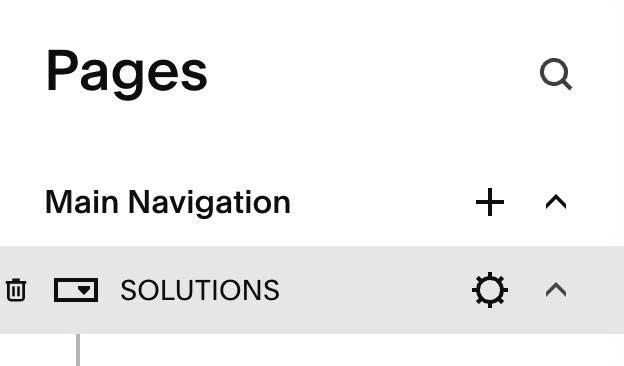
Hover on Dropdown Title > Click Gear icon
See Title & URL Slug
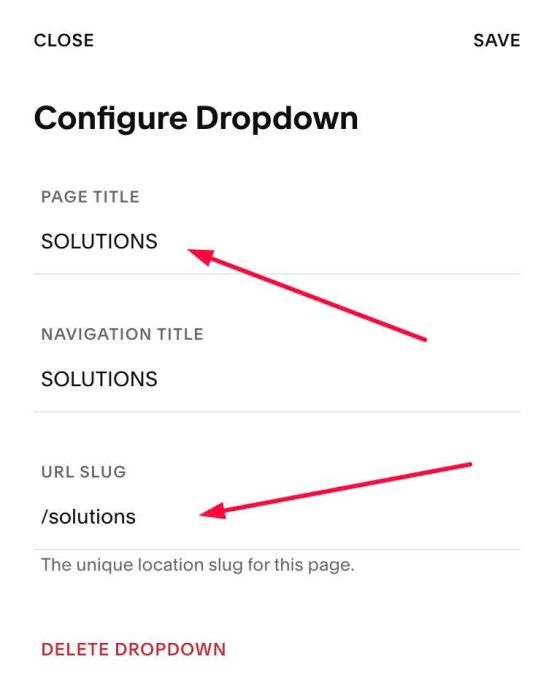
In my example, we will have
Dropdown: Solutions
- /solutions
Dropdown: Who we are
- /who-we-are
#2.2. Use this code to Custom CSS
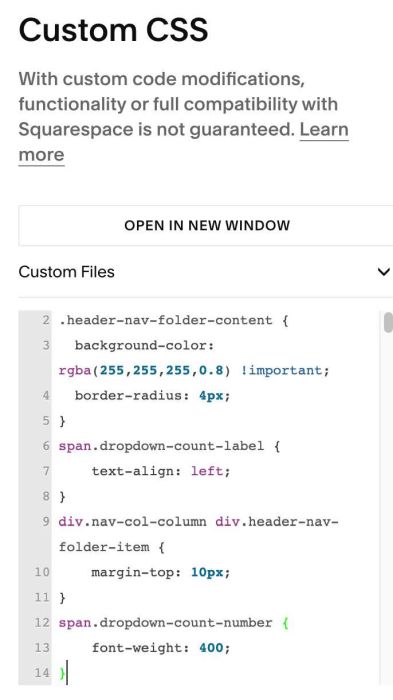
/* dropdown style */
.header-nav-folder-content {
  background-color: rgba(255,255,255,0.8) !important;
  border-radius: 4px;
}
span.dropdown-count-label {
    text-align: left;
}
div.nav-col-column div.header-nav-folder-item {
    margin-top: 10px;
}
span.dropdown-count-number {
    font-weight: 400;
}
Explain
- background-color: rgba(255,255,255,0.8) !important = dropdown background color
- border-radius: 4px = round corners of dropdown to 4px
- text-align: left = align dropdown item text to left
- margin-top: 10px = adding top padding to dropdown items
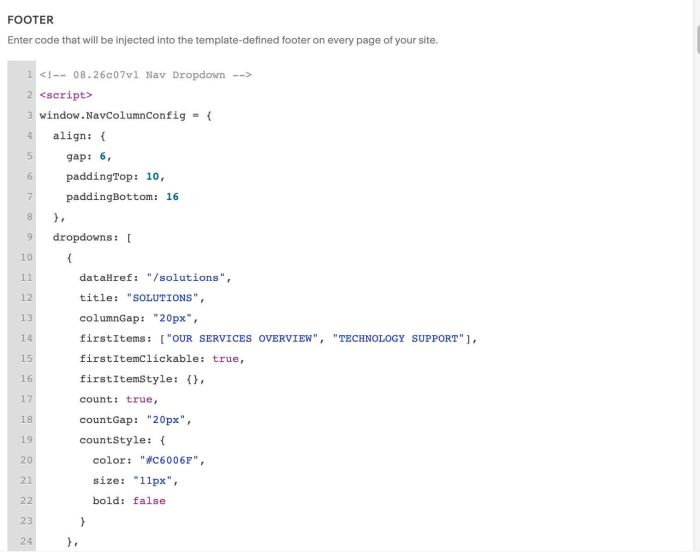
#2.3. Use this code to Code Injection > Footer
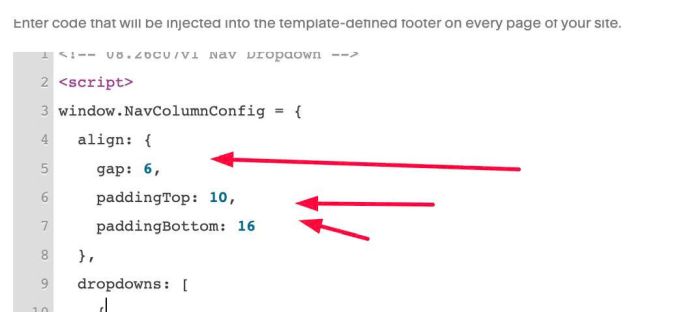
<!-- 08.26c07v1 Nav Dropdown -->
<script>
window.NavColumnConfig = {
  align: {
    gap: 6,
    paddingTop: 10,
    paddingBottom: 16
  },
  dropdowns: [
    {
      dataHref: "/solutions",
      title: "SOLUTIONS",
      columnGap: "20px",
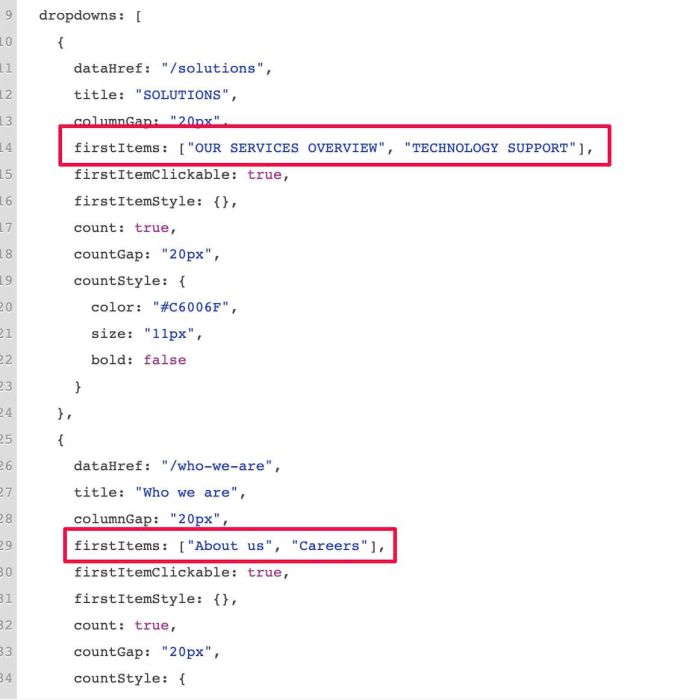
      firstItems: ["OUR SERVICES OVERVIEW", "TECHNOLOGY SUPPORT"],
      firstItemClickable: true,
      firstItemStyle: {},
      count: true,
      countGap: "20px",
      countStyle: {
        color: "#C6006F",
        size: "11px",
        bold: false
      }
    },
    {
      dataHref: "/who-we-are",
      title: "Who we are",
      columnGap: "20px",
      firstItems: ["About us", "Careers"],
      firstItemClickable: true,
      firstItemStyle: {},
      count: true,
      countGap: "20px",
      countStyle: {
        color: "#C6006F",
        size: "11px",
        bold: false
      }
    }
  ]
};

</script>
<script src="https://code.beaverhero.com/header/0826c07v1navdropdown.js"></script>
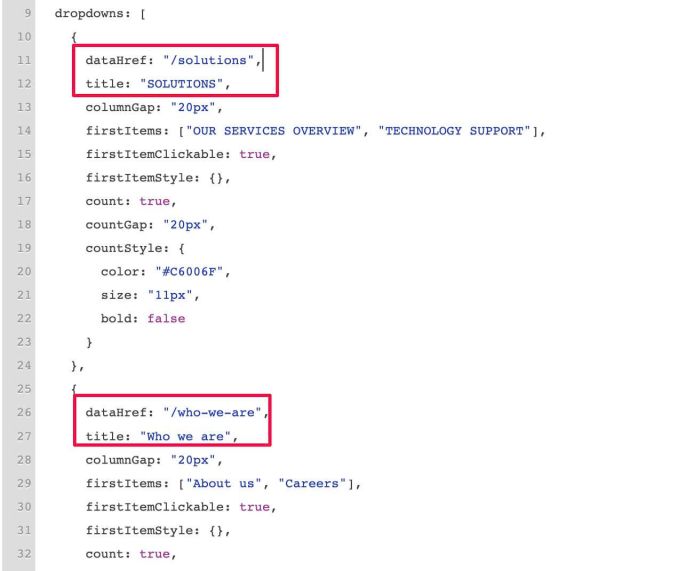
#2.4. You need to update these.
#2.4.1. First, these are Title/URL of Dropdown you got in #2.1
#2.4.2. Next, this is the item that will appear first in each column
See dropdown

and this

and this is in Edit mode

#2.4.3. This is space between Count Number – Dropdown Items
countGap: "20px",
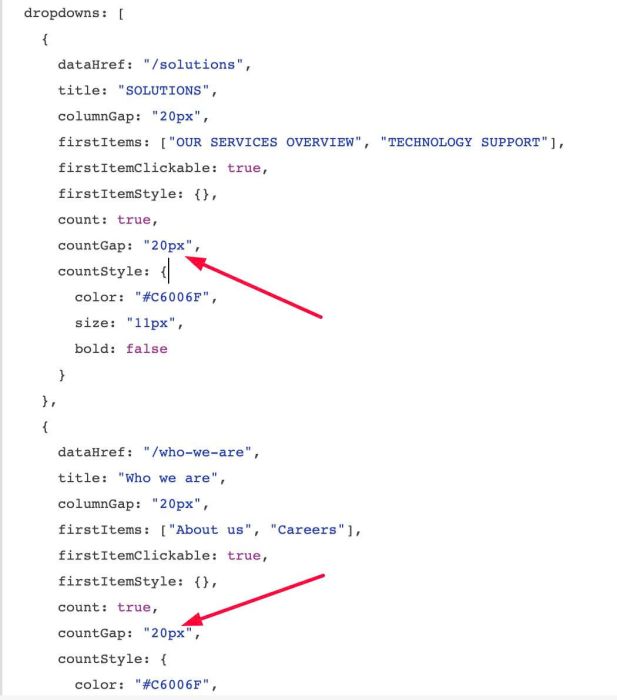
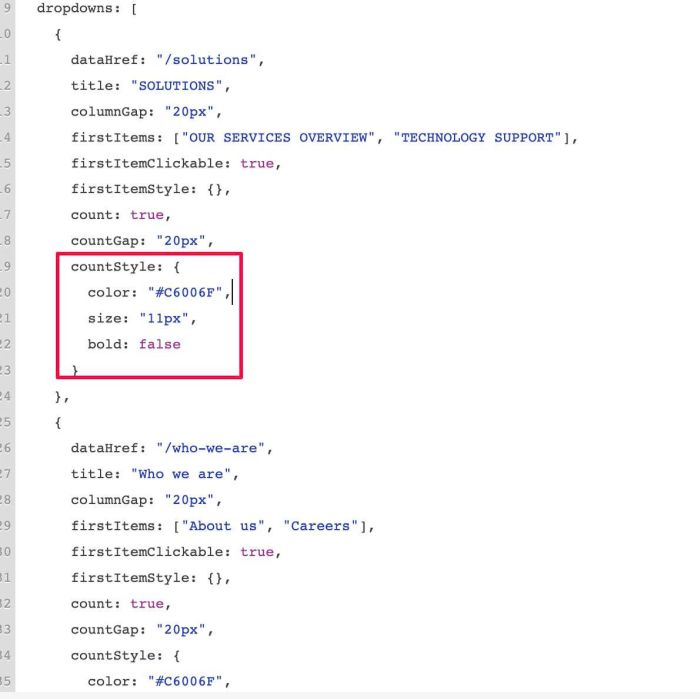
#2.4.4. This is code to change count number style
countStyle: {
        color: "#C6006F",
        size: "11px",
        bold: false
      }
#2.4.5. This is gap between Dropdown Columns
columnGap: "20px",
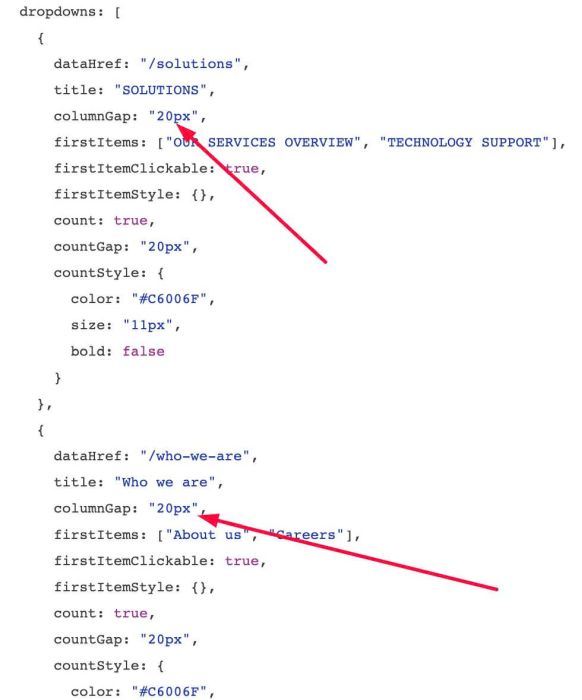
See this gap

#2.4.6. This is gap between Navigation – Dropdown and Dropdown Top/Bottom Padding
align: {
  gap: 6,
  paddingTop: 10,
  paddingBottom: 16
},