Description
- adding countdown timer, you can set show custom text or redirect new page when timer is finish
- view demo – password: abc
- buy me a coffee

#1. Install Code
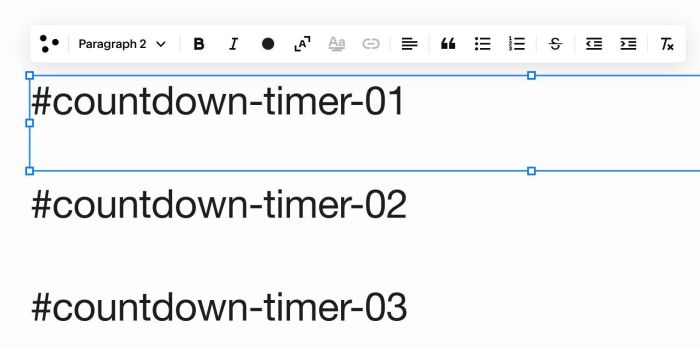
#1.1. First you can add a Text Block with text like this:
#countdown-timer-01
or
#countdown-timer-02
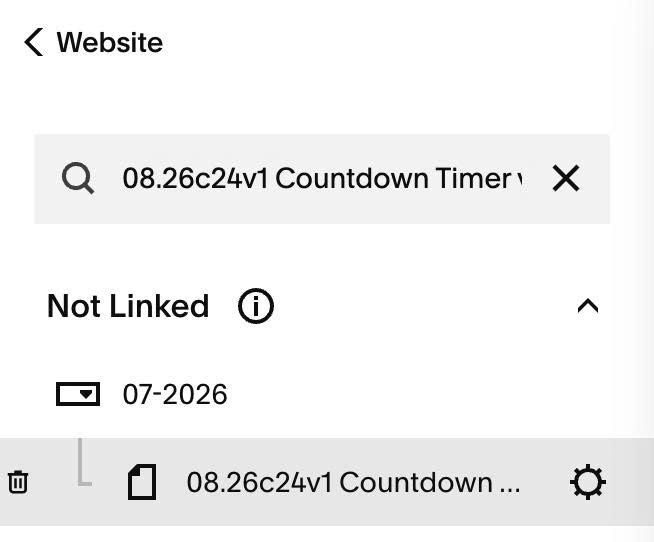
#1.2. Hover on Page where you use Text Block > Click Gear icon
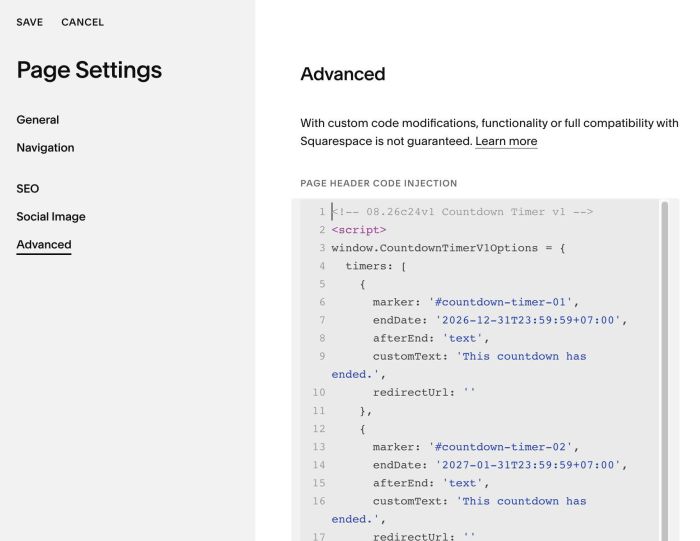
#1.3. Click Advanced > Paste this code
- If you use Personal/Basic Plan and your plan doesn’t support Injection, see #3.1
<!-- 08.26c24v1 Countdown Timer v1 -->
<script>
window.CountdownTimerV1Options = {
  timers: [
    {
      marker: '#countdown-timer-01',
      endDate: '2026-12-31T23:59:59+07:00',
      afterEnd: 'text',
      customText: 'This countdown has ended.',
      redirectUrl: ''
    },
    {
      marker: '#countdown-timer-02',
      endDate: '2027-01-31T23:59:59+07:00',
      afterEnd: 'text',
      customText: 'This countdown has ended.',
      redirectUrl: ''
    },
    {
      marker: '#countdown-timer-03',
      endDate: '2027-02-28T23:59:59+07:00',
      afterEnd: 'text',
      customText: 'This countdown has ended.',
      redirectUrl: ''
    }
  ],
  labels: {
    days: 'Days',
    hours: 'Hours',
    minutes: 'Minutes',
    seconds: 'Seconds'
  },
  border: '1px solid currentColor',
  number: {
    sizeDesktop: 80,
    sizeMobile: 36,
    color: 'currentColor'
  },
  textUnderNumber: {
    sizeDesktop: 14,
    sizeMobile: 11,
    color: 'currentColor'
  },
  spaceBetweenNumberAndText: 1,
  spaceBetweenItems: 28,
  verticalOffsetDesktop: 0,
  verticalOffsetMobile: 0,
  invalidDateText: 'Invalid countdown date.'
};
</script>
<script src="https://code.beaverhero.com/textblock/0826c24v1countdowntimerv1.js"></script>
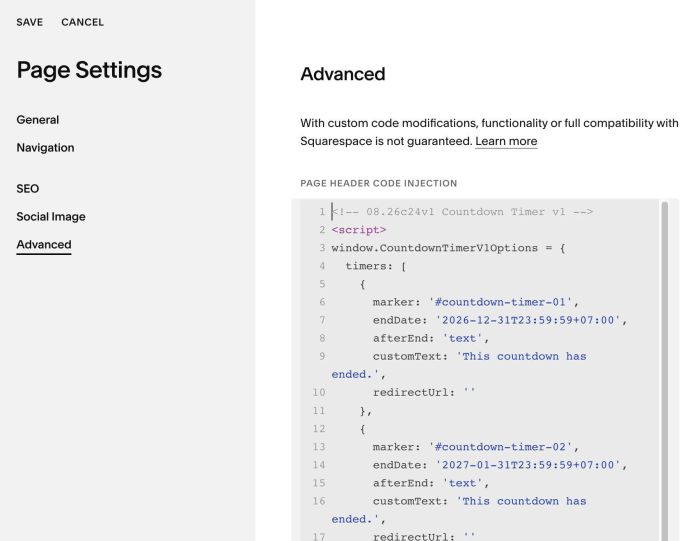
#1.4. You can update Time, Custom Text, Redirect URL here
{
     marker: '#countdown-timer-01',
     endDate: '2026-12-31T23:59:59+07:00',
     afterEnd: 'text',
     customText: 'This countdown has ended.',
     redirectUrl: ''
   },
   {
     marker: '#countdown-timer-02',
     endDate: '2027-01-31T23:59:59+07:00',
     afterEnd: 'text',
     customText: 'This countdown has ended.',
     redirectUrl: ''
   },
#1.5. You can also update Label text here
labels: {
  days: 'Days',
  hours: 'Hours',
  minutes: 'Minutes',
  seconds: 'Seconds'
},
#2. Customize
#2.1. To update size, color, border style, you can update these lines
border: '1px solid currentColor',
  number: {
    sizeDesktop: 80,
    sizeMobile: 36,
    color: 'currentColor'
  },
  textUnderNumber: {
    sizeDesktop: 14,
    sizeMobile: 11,
    color: 'currentColor'
  },
#2.2. If you need to tweak more you can use this AI Assistant (designed for Squarespace sites)
#3. Other
#3.1. If you use Personal/Basic Plan and your plan doesn’t support Injection, you can add a Markdown Block under Text Block

Then add this code into Markdown Block
<script>
window.CountdownTimerV1Options = {
  timers: [
    {
      marker: '#countdown-timer-01',
      endDate: '2026-12-31T23:59:59+07:00',
      afterEnd: 'text',
      customText: 'This countdown has ended.',
      redirectUrl: ''
    },
    {
      marker: '#countdown-timer-02',
      endDate: '2027-01-31T23:59:59+07:00',
      afterEnd: 'text',
      customText: 'This countdown has ended.',
      redirectUrl: ''
    },
    {
      marker: '#countdown-timer-03',
      endDate: '2027-02-28T23:59:59+07:00',
      afterEnd: 'text',
      customText: 'This countdown has ended.',
      redirectUrl: ''
    }
  ],
  labels: {
    days: 'Days',
    hours: 'Hours',
    minutes: 'Minutes',
    seconds: 'Seconds'
  },
  border: '1px solid currentColor',
  number: {
    sizeDesktop: 80,
    sizeMobile: 36,
    color: 'currentColor'
  },
  textUnderNumber: {
    sizeDesktop: 14,
    sizeMobile: 11,
    color: 'currentColor'
  },
  spaceBetweenNumberAndText: 1,
  spaceBetweenItems: 28,
  verticalOffsetDesktop: 0,
  verticalOffsetMobile: 0,
  invalidDateText: 'Invalid countdown date.'
};
</script>
<script src="https://code.beaverhero.com/textblock/0826c24v1countdowntimerv1.js"></script>