Description
- Gallery Block with left image right text background, you can click arrows to slide to other items
- view demo – password: abc
- buy me a coffee

#1. Install Code
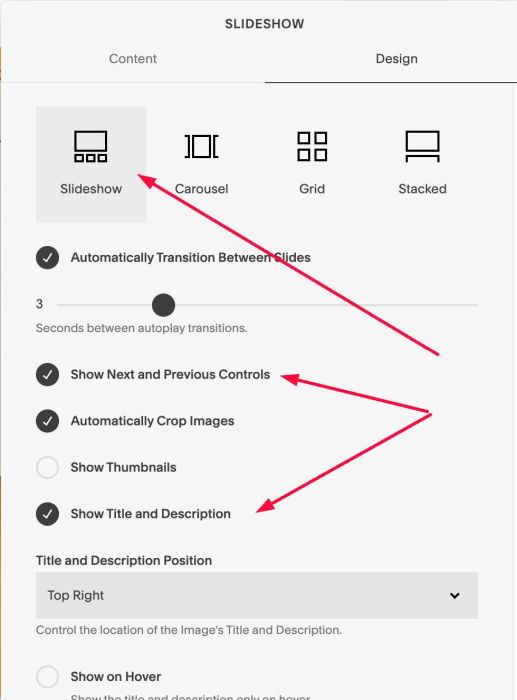
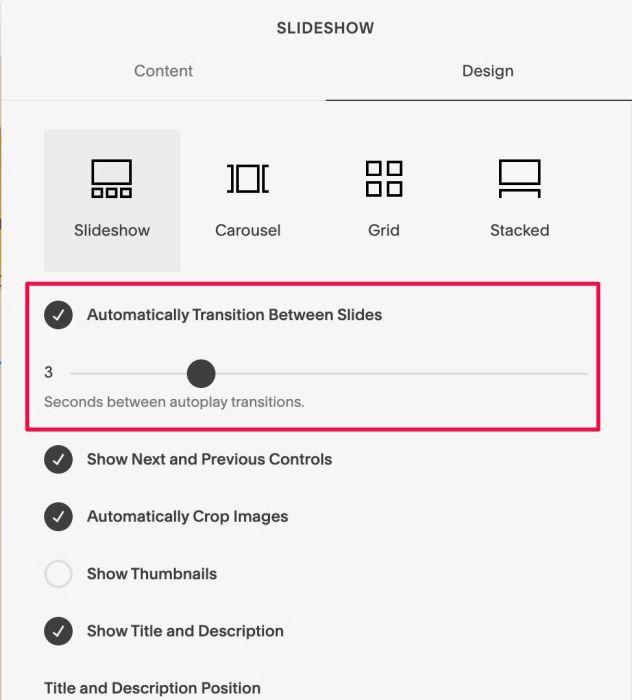
#1.1. First, add a Gallery Block Slideshow + enable these options
#1.2. at tab Content > Hover on each image > Click Gear icon
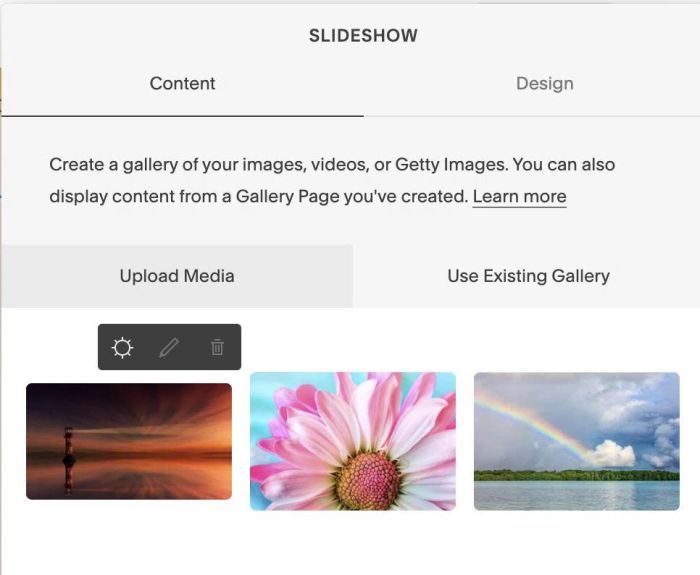
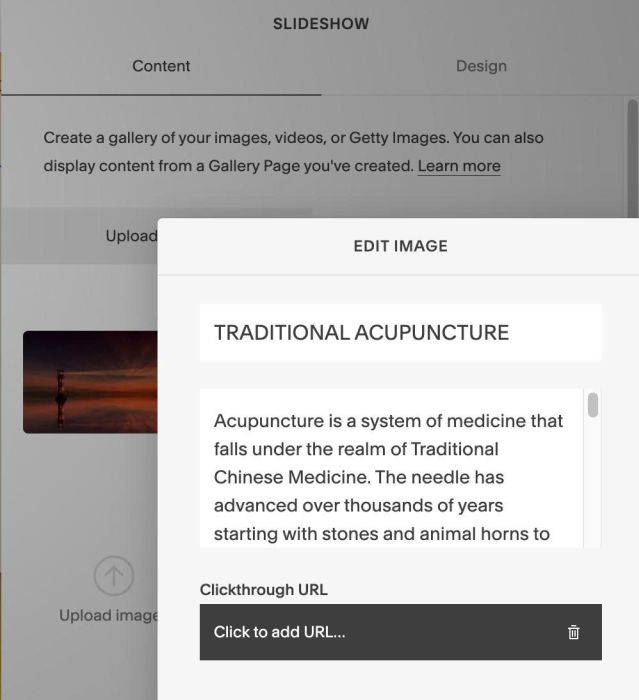
and add your desired title/description
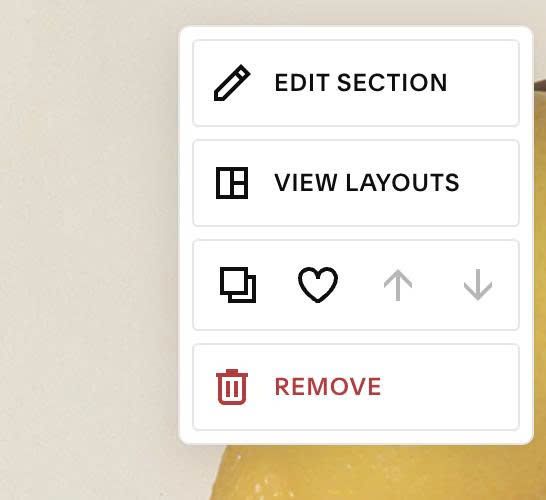
#1.3. Hover on top right of section > Click EDIT SECTION
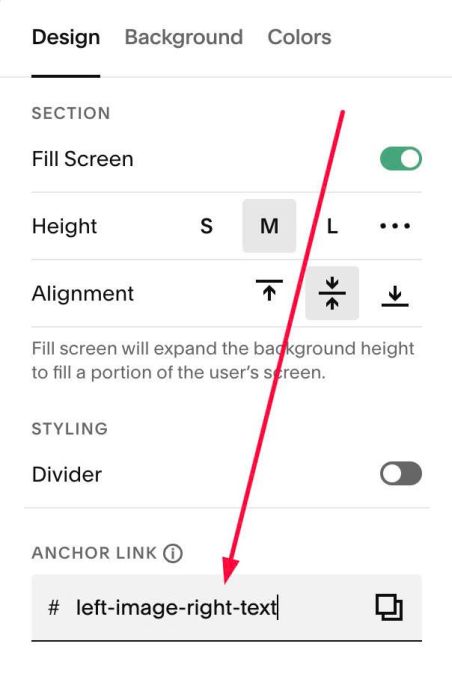
#1.4. at Design > Anchor Link > enter word: left-image-right-text
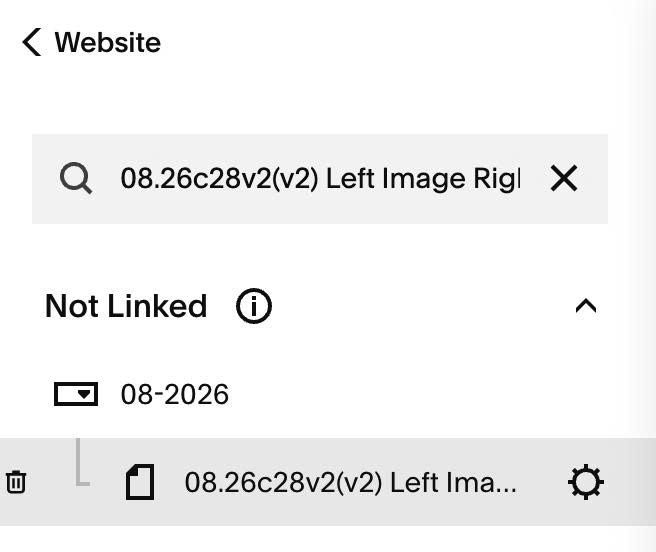
#1.5. Hover on page where you use Gallery Block > Click Gear icon
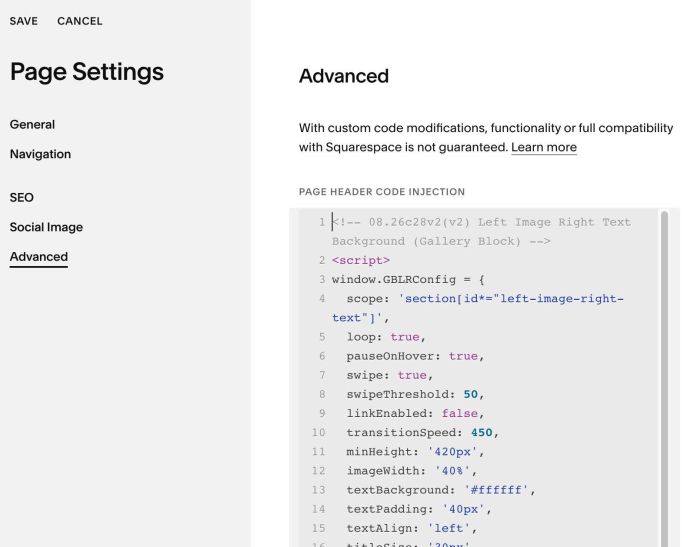
#1.6. Click Advanced > Paste this code
- If you use Personal/Basic Plan and your plan doesn’t support Injection, see #3.1
<!-- 08.26c28v2(v2) Left Image Right Text Background (Gallery Block) -->
<script>
window.GBLRConfig = {
  scope: 'section[id*="left-image-right-text"]',
  loop: true,
  pauseOnHover: true,
  swipe: true,
  swipeThreshold: 50,
  linkEnabled: false,
  transitionSpeed: 450,
  minHeight: '420px',
  imageWidth: '40%',
  textBackground: '#ffffff',
  textPadding: '40px',
  textAlign: 'left',
  titleSize: '30px',
  titleColor: '#111111',
  titleSpaceBelow: '18px',
  excerptSize: '15px',
  excerptColor: '#333333',
  excerptLineHeight: 1.6,
  excerptMaxLines: 0,
  arrowSpace: '56px',
  arrowOffset: '0px',
  arrowSize: '34px',
  arrowColor: '#111111',
  mobileBreakpoint: 767,
  mobileImageRatio: '4/3',
  mobileMinHeight: 'auto',
  mobileTextPadding: '24px',
  mobileArrowSpace: '30px',
  mobileArrowOffset: '0px',
  mobileTitleSize: '22px'
};
</script>
<script src="https://code.beaverhero.com/galleryblockslideshow/0826c28v2v2leftimgrighttextcarousel.js"></script>
#2. Customize
#2.1. To enable/disable autoscroll, change this option
#2.2. To change image width, change line 12
imageWidth: '40%',
#2.3. To change text style, change line 13 – 22
textBackground: '#ffffff',
  textPadding: '40px',
  textAlign: 'left',
  titleSize: '30px',
  titleColor: '#111111',
  titleSpaceBelow: '18px',
  excerptSize: '15px',
  excerptColor: '#333333',
  excerptLineHeight: 1.6,
  excerptMaxLines: 0,
#2.4. To change arrow style, change line 23 – 26
arrowSpace: '56px',
arrowOffset: '0px',
arrowSize: '34px',
arrowColor: '#111111',
and line 31 – 32
mobileArrowSpace: '30px',
 mobileArrowOffset: '0px',
#2.5. If you need to tweak more you can use this AI Assistant (designed for Squarespace sites)
#3. Other
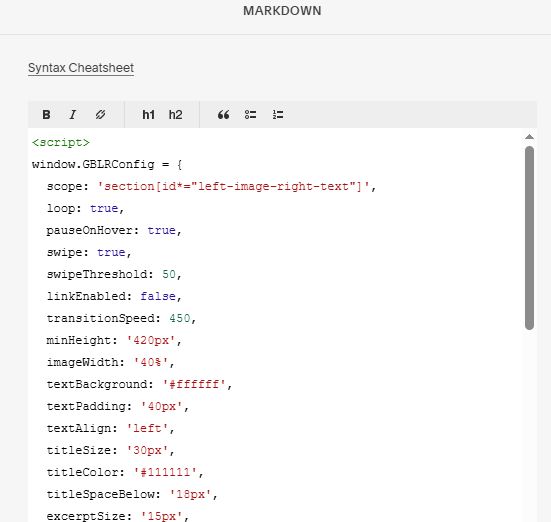
#3.1. If you use Personal/Basic Plan and your plan doesn’t support Injection, you can add a Markdown Block under Gallery Block.

Add this code into Markdown
<script>
window.GBLRConfig = {
  scope: 'section[id*="left-image-right-text"]',
  loop: true,
  pauseOnHover: true,
  swipe: true,
  swipeThreshold: 50,
  linkEnabled: false,
  transitionSpeed: 450,
  minHeight: '420px',
  imageWidth: '40%',
  textBackground: '#ffffff',
  textPadding: '40px',
  textAlign: 'left',
  titleSize: '30px',
  titleColor: '#111111',
  titleSpaceBelow: '18px',
  excerptSize: '15px',
  excerptColor: '#333333',
  excerptLineHeight: 1.6,
  excerptMaxLines: 0,
  arrowSpace: '56px',
  arrowOffset: '0px',
  arrowSize: '34px',
  arrowColor: '#111111',
  mobileBreakpoint: 767,
  mobileImageRatio: '4/3',
  mobileMinHeight: 'auto',
  mobileTextPadding: '24px',
  mobileArrowSpace: '30px',
  mobileArrowOffset: '0px',
  mobileTitleSize: '22px'
};
</script>
<script src="https://code.beaverhero.com/galleryblockslideshow/0826c28v2v2leftimgrighttextcarousel.js"></script>