Description
- adding category/category filter bar to Gallery Grid Masonry
- this is update version of Gallery Masonry Category code
- view demo – password: abc
- buy me a coffee

#1. Install Code
#1.1. Make sure you use Gallery Grid: Masonry
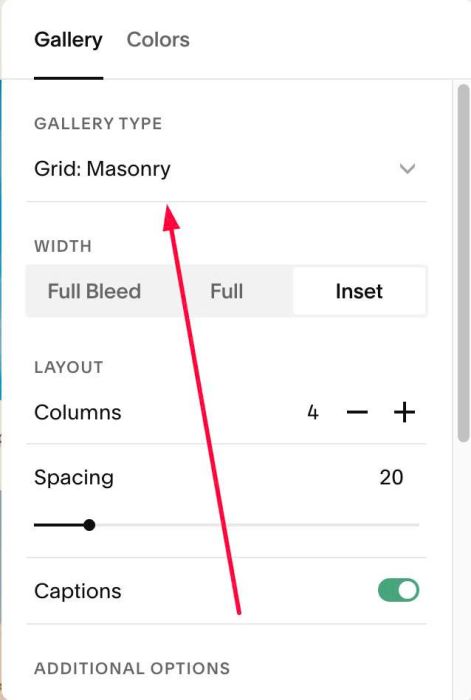
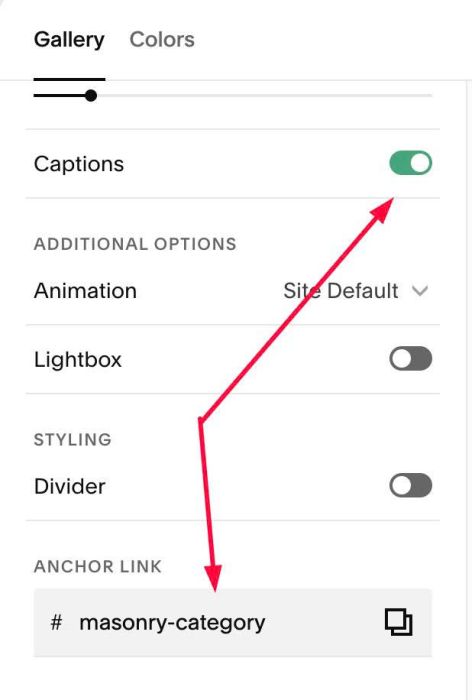
#1.2. Make sure you enabled Caption + enter text: masonry-category in Anchor Link
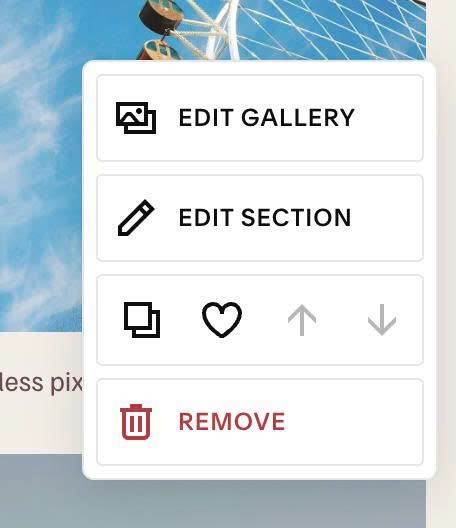
#1.3. Hover on top right of gallery > Click EDIT GALLERY
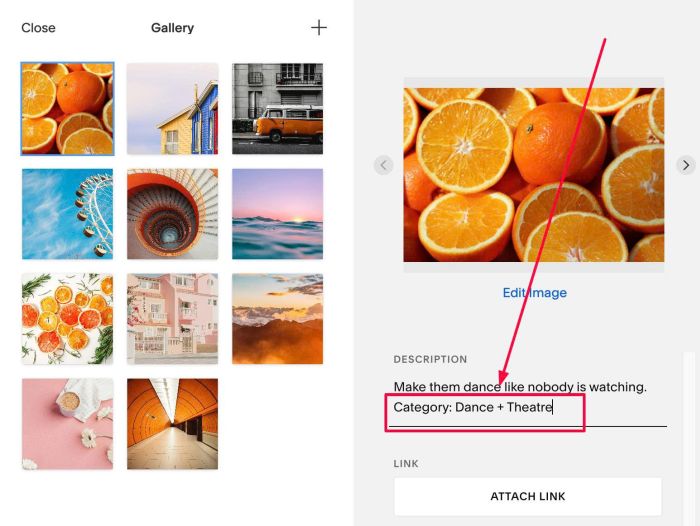
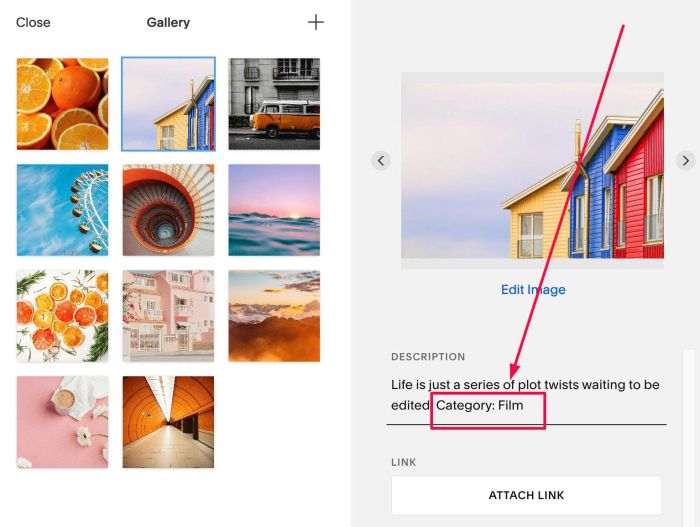
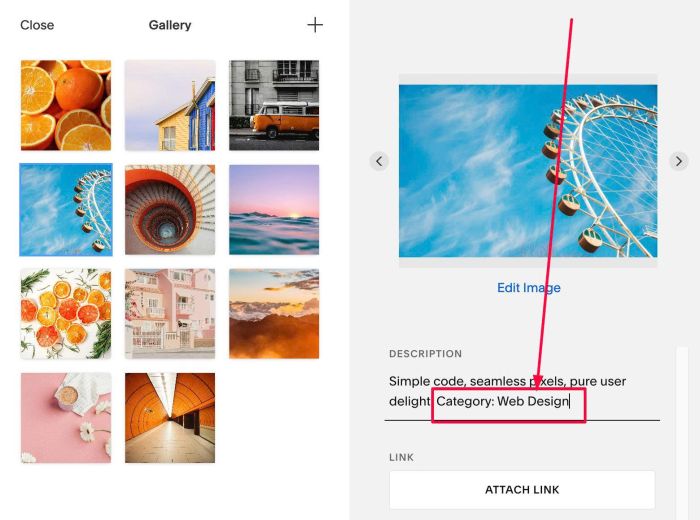
#1.4. Enter category text, use this format: Category: category1, category2…
ex: Category: Dance + Theatre
or: Category: Film
or: Category: Web Design
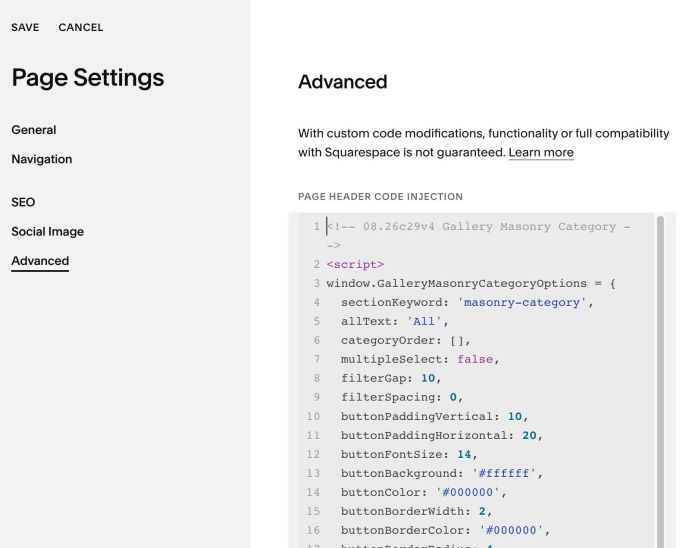
#1.5. Hover on Page where you use Gallery Masonry > Click Gear icon
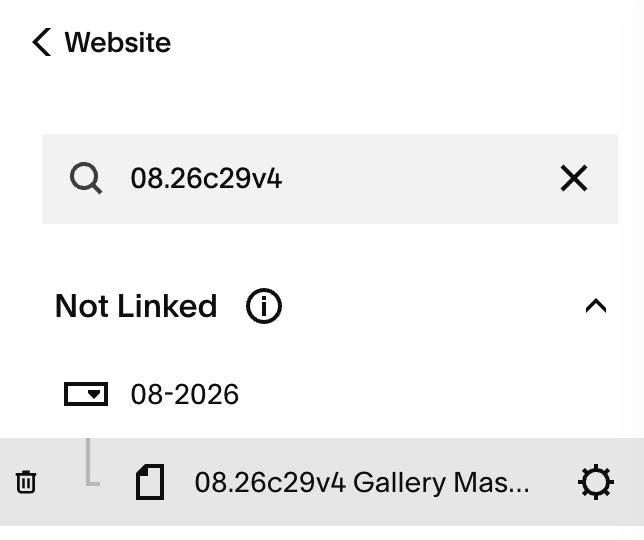
#1.6. Click Advanced > Paste this code
- If you use Personal/Basic Plan and your plan doesn’t support Injection, see #3.1
<!-- 08.26c29v4 Gallery Masonry Category -->
<script>
window.GalleryMasonryCategoryOptions = {
  sectionKeyword: 'masonry-category',
  allText: 'All',
  categoryOrder: [],
  multipleSelect: false,
  filterGap: 10,
  filterSpacing: 0,
  buttonPaddingVertical: 10,
  buttonPaddingHorizontal: 20,
  buttonFontSize: 14,
  buttonBackground: '#ffffff',
  buttonColor: '#000000',
  buttonBorderWidth: 2,
  buttonBorderColor: '#000000',
  buttonBorderRadius: 4,
  hoverBackground: '#f0f0f0',
  hoverColor: '',
  hoverBorderColor: '',
  activeBackground: '#000000',
  activeColor: '#ffffff',
  activeBorderColor: '',
  rowGap: 10,
  fadeDuration: 300
};
</script>
<script src="https://code.beaverhero.com/gallerysmasonry/0826c29v4gallerymasonrycategory.js"></script>
#2. Customize
#2.1. To remove or rename text “All”, you can change line 05
allText: 'All',
to remove it, just change it to this
allText: '',
#2.2. To change category filter button style, change line 10 – 23
buttonPaddingVertical: 10,
buttonPaddingHorizontal: 20,
buttonFontSize: 14,
buttonBackground: '#ffffff',
buttonColor: '#000000',
buttonBorderWidth: 2,
buttonBorderColor: '#000000',
buttonBorderRadius: 4,
hoverBackground: '#f0f0f0',
hoverColor: '',
hoverBorderColor: '',
activeBackground: '#000000',
activeColor: '#ffffff',
activeBorderColor: '',
#2.3. To change gap between filter category buttons

change line 08
filterGap: 10,
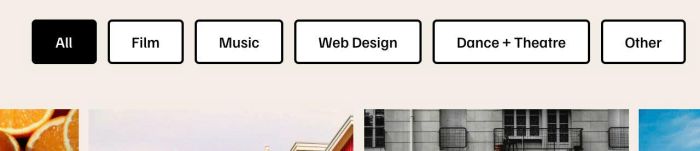
#2.4. To change order of category filter buttons, change line 06
categoryOrder: [],
for example
categoryOrder: ['Film', 'Music', 'Web Design', 'Dance + Theatre', 'Other'],
result
#2.5. If you need to tweak more you can use this AI Assistant (designed for Squarespace sites)
#3. Other
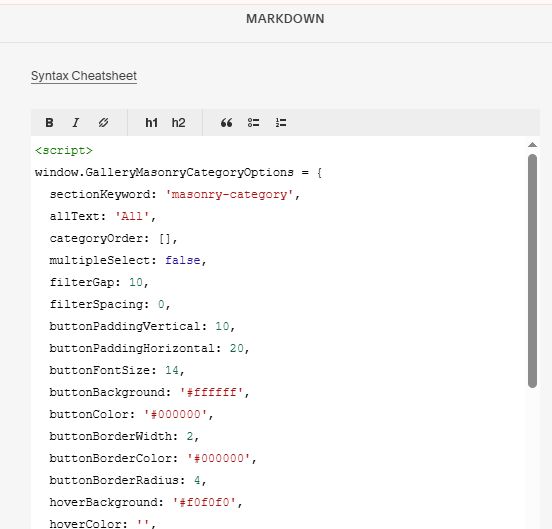
#3.1. If you use Personal/Basic Plan and your plan doesn’t support Injection, you can edit current page (page where you use Gallery Grid Masonry) > Add a Block > Choose Markdown

Add this code into Markdown
<script>
window.GalleryMasonryCategoryOptions = {
  sectionKeyword: 'masonry-category',
  allText: 'All',
  categoryOrder: [],
  multipleSelect: false,
  filterGap: 10,
  filterSpacing: 0,
  buttonPaddingVertical: 10,
  buttonPaddingHorizontal: 20,
  buttonFontSize: 14,
  buttonBackground: '#ffffff',
  buttonColor: '#000000',
  buttonBorderWidth: 2,
  buttonBorderColor: '#000000',
  buttonBorderRadius: 4,
  hoverBackground: '#f0f0f0',
  hoverColor: '',
  hoverBorderColor: '',
  activeBackground: '#000000',
  activeColor: '#ffffff',
  activeBorderColor: '',
  rowGap: 10,
  fadeDuration: 300
};
</script>
<script src="https://code.beaverhero.com/gallerysmasonry/0826c29v4gallerymasonrycategory.js"></script>