Description
- hover section video background will show custom PLAY text, click on video will open video background in lightbox popup, works with Uploaded video (MP4), Youtube, Vimeo
- view demo – password: abc
- buy me a coffee
#1. Install Code
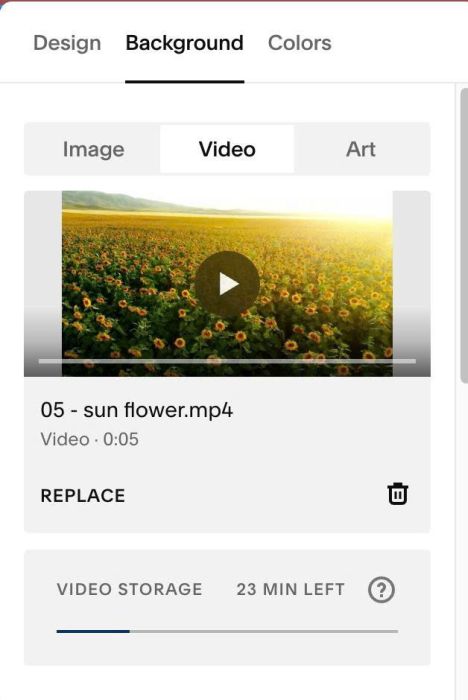
#1.1. Make sure you added Video Background
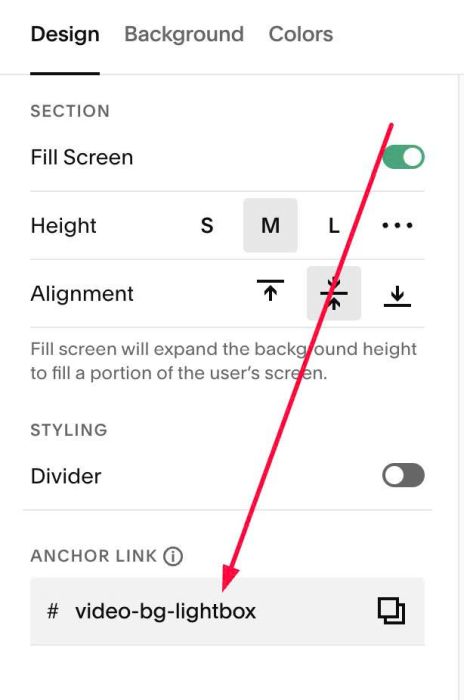
#1.2. at Design > Anchor Link > enter word: video-bg-lightbox
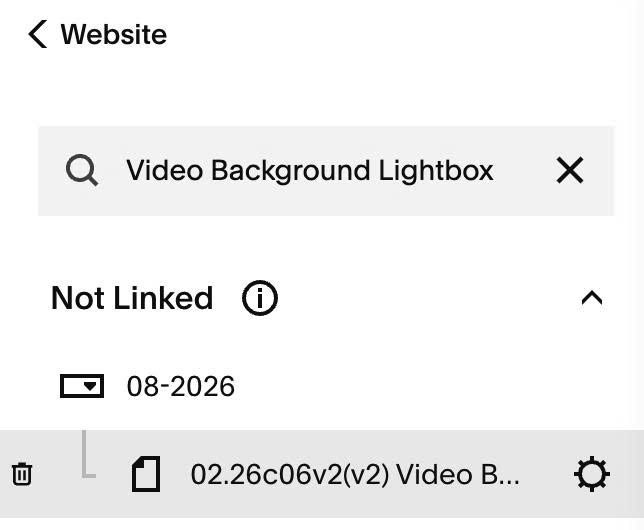
#1.3. Hover on Page where you use Video > Click Gear icon
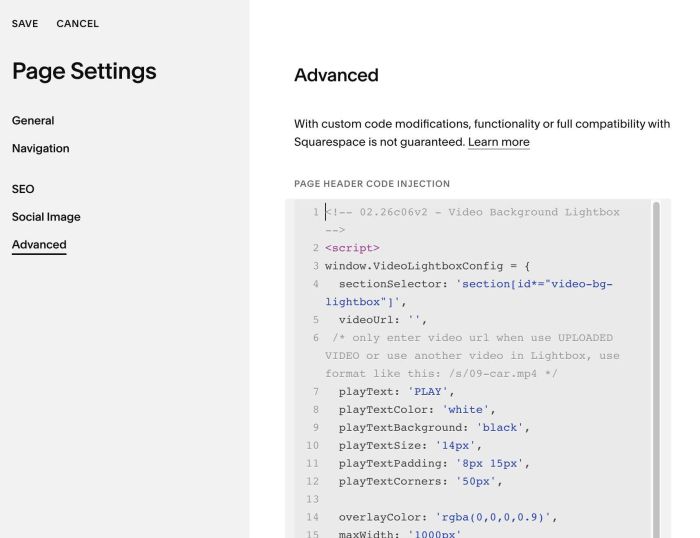
#1.4. Click Advanced > Paste this code
<!-- 02.26c06v2 - Video Background Lightbox -->
<script>
window.VideoLightboxConfig = {
  sectionSelector: 'section[id*="video-bg-lightbox"]',
  videoUrl: '',
 /* only enter video url when use UPLOADED VIDEO or use another video in Lightbox, use format like this: /s/09-car.mp4 */
  playText: 'PLAY',
  playTextColor: 'white',
  playTextBackground: 'black',
  playTextSize: '14px',
  playTextPadding: '8px 15px',
  playTextCorners: '50px',

  overlayColor: 'rgba(0,0,0,0.9)',
  maxWidth: '1000px'
};
</script>
<script src="https://code.beaverhero.com/other/0226c06v2v2videobglightbox.js"></script>
#2. Customize
#2.1. To change PLAY to another text & change its style, change line 07 – 12
playText: 'PLAY',
playTextColor: 'white',
playTextBackground: 'black',
playTextSize: '14px',
playTextPadding: '8px 15px',
playTextCorners: '50px',
#2.2. To change lightbox overlay color, change line 14
overlayColor: 'rgba(0,0,0,0.9)',