Description
- click text link open product in lightbox popup
- view demo – password: abc
- buy me a coffee
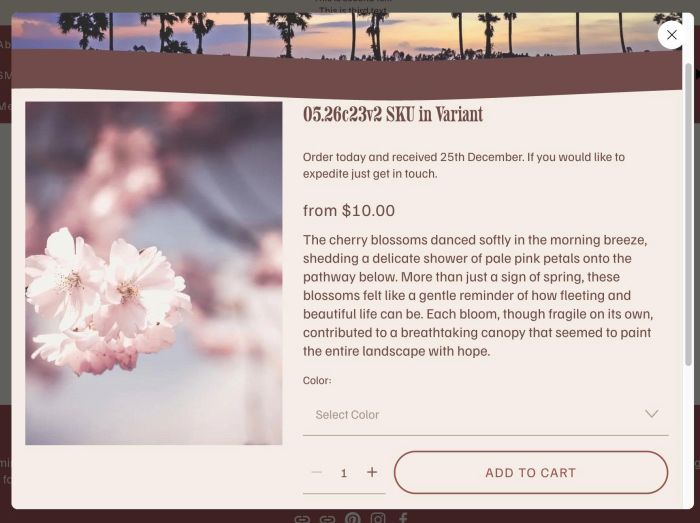
#1. Install Code
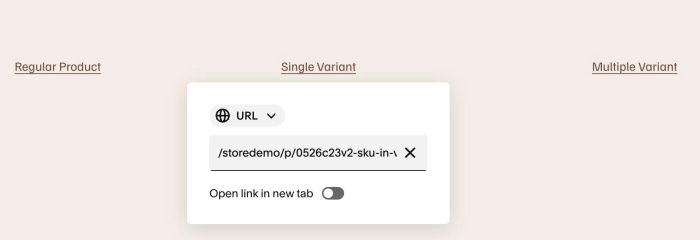
#1.1. First, make sure you added Product URL to Text (Text Block). Something like this
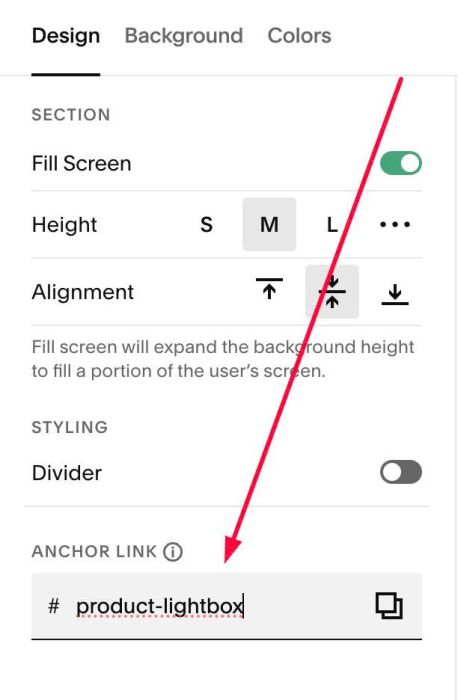
#1.2. Hover on top right of section > Click EDIT SECTION > at Design > Anchor Link > enter word: product-lightbox
- If you need to add it to Blog Post or Event and can’t find this option, you can see #3.1
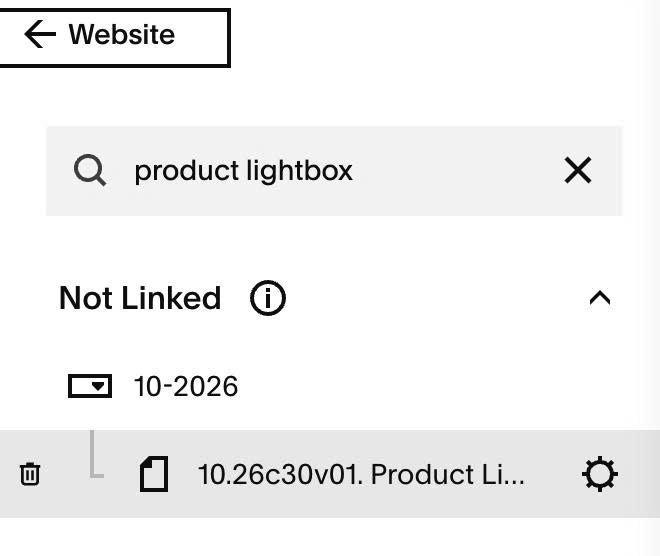
#1.3. Next, hover on Page where you added Text > Click Gear icon
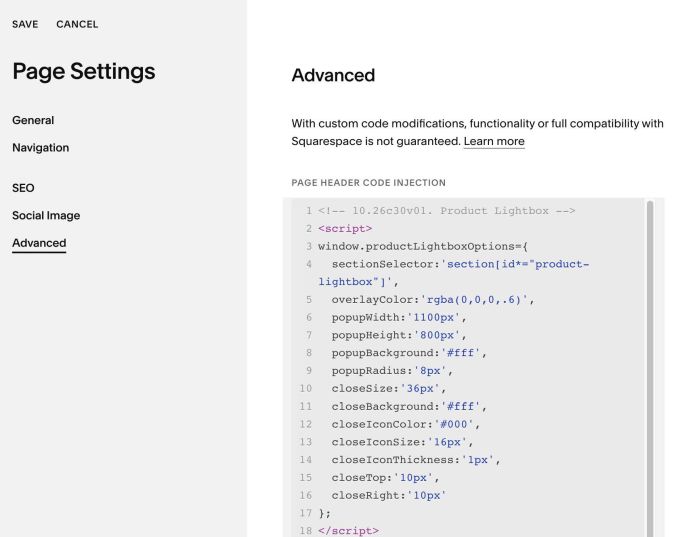
#1.4. Click Advanced > Paste this code
<!-- 10.26c30v01. Product Lightbox -->
<script>
window.productLightboxOptions={
  sectionSelector:'section[id*="product-lightbox"]',
  overlayColor:'rgba(0,0,0,.6)',
  popupWidth:'1100px',
  popupHeight:'800px',
  popupBackground:'#fff',
  popupRadius:'8px',
  closeSize:'36px',
  closeBackground:'#fff',
  closeIconColor:'#000',
  closeIconSize:'16px',
  closeIconThickness:'1px',
  closeTop:'10px',
  closeRight:'10px'
};
</script>
<script src="https://code.beaverhero.com/textblock/1026c30v01productlightbox.js"></script>
#2. Customize
#2.1. To change Close icon style, change these
closeSize:'36px',
  closeBackground:'#fff',
  closeIconColor:'#000',
  closeIconSize:'16px',
  closeIconThickness:'1px',
  closeTop:'10px',
  closeRight:'10px'
#2.2. To change overlay color behind lightbox, change this
overlayColor:'rgba(0,0,0,.6)',
#3. Other
#3.1. To apply code to Blog Post or Event, you can do step #1.1. Then use this new code instead to Blog Page Header Injection or Event Page Header Injection
<!-- 10.26c30v01. Product Lightbox -->
<script>
window.productLightboxOptions={
  sectionSelector:'.html-block',
  overlayColor:'rgba(0,0,0,.6)',
  popupWidth:'1100px',
  popupHeight:'800px',
  popupBackground:'#fff',
  popupRadius:'8px',
  closeSize:'36px',
  closeBackground:'#fff',
  closeIconColor:'#000',
  closeIconSize:'16px',
  closeIconThickness:'1px',
  closeTop:'10px',
  closeRight:'10px'
};
</script>
<script src="https://code.beaverhero.com/textblock/1026c30v01productlightbox.js"></script>