Description
- portfolio with filter category, counter text, use Code Block
- view demo – password: abc
- buy me a coffee

#1. Install Code
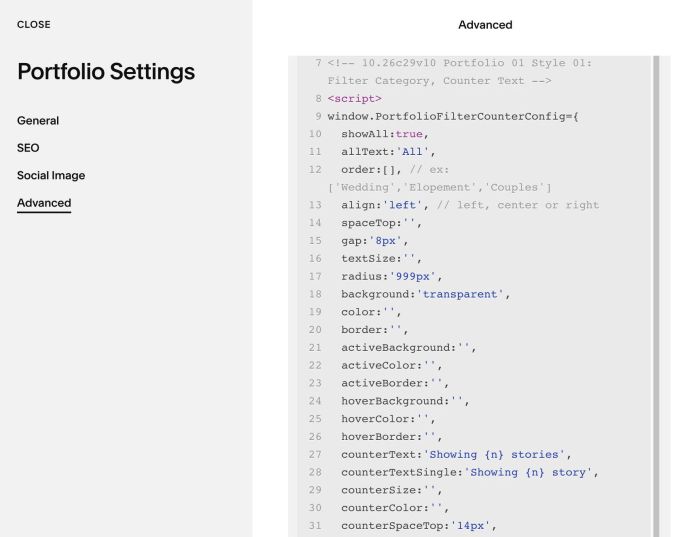
#1.1. First, use this code to Portfolio Page Header Injection
<!-- 10.26c29v10 Portfolio 01 Style 01: Filter Category, Counter Text -->
<script>
window.PortfolioFilterCounterConfig={
  showAll:true,
  allText:'All',
  order:[], // ex: ['Wedding','Elopement','Couples']
  align:'left', // left, center or right
  spaceTop:'',
  gap:'8px',
  textSize:'',
  radius:'999px',
  background:'transparent',
  color:'',
  border:'',
  activeBackground:'',
  activeColor:'',
  activeBorder:'',
  hoverBackground:'',
  hoverColor:'',
  hoverBorder:'',
  counterText:'Showing {n} stories',
  counterTextSingle:'Showing {n} story',
  counterSize:'',
  counterColor:'',
  counterSpaceTop:'14px',
  counterSpaceBottom:'36px'
};
</script>
<script src="https://code.beaverhero.com/portfolio/1026c29v10portfolio01style01filtercounter.js"></script>
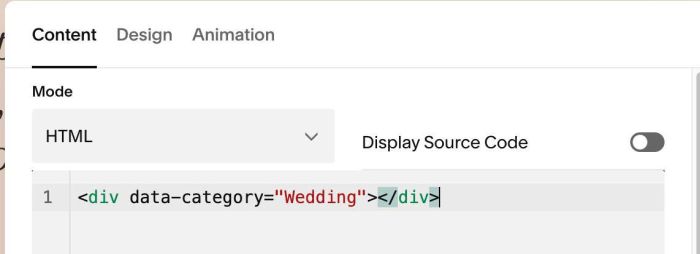
#1.2. Next, edit each Portfolio Item > Add a Blank Section > Add a Code Block with syntax like this
<div data-category="Wedding"></div>
If you need to assign multiple categories, you can use syntax like this
<div data-category="Wedding, Photography, Brand"></div>
#2. Customize
#2.1. To change counter text, change these
counterText:'Showing {n} stories',
 counterTextSingle:'Showing {n} story',
#2.2. To change Filter Button Style, Gap between Filter, change these
gap:'8px',
textSize:'',
radius:'999px',
background:'transparent',
color:'',
border:'',
activeBackground:'',
activeColor:'',
activeBorder:'',
hoverBackground:'',
hoverColor:'',
hoverBorder:'',
#2.3. To set custom order, change this
order:[], // ex: ['Wedding','Elopement','Couples']