Description
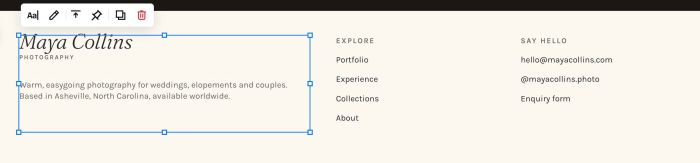
- section with 3 columns of text block: first column has logo/tagline, text – second/third column has small text with links
- view demo (first section in footer) – password: abc
- buy me a coffee

#1. Install Code
#1.1. First, you can add 3 Text Blocks in 3 Columns, like this
#1.2. Edit First Text Block
#1.2-1. We will use Heading 3, use Shift Enter to add line break break text PHOTOGRAPHY
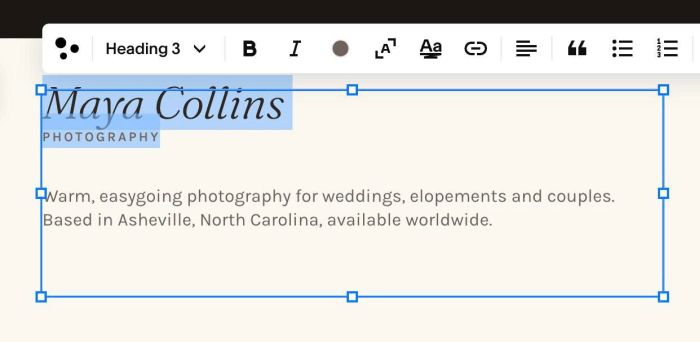
Next, change color of text PHOTOGRAPHY with this option
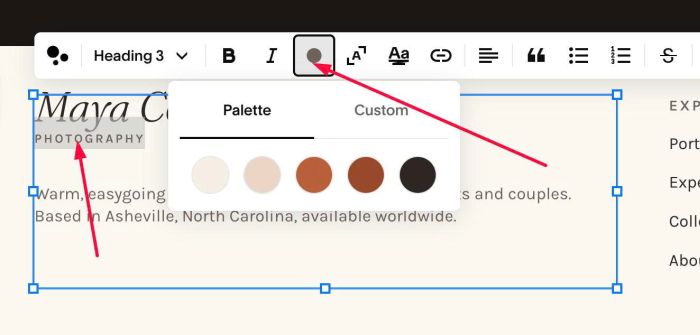
#1.2-2. You can also change color or Paragraph 2 if you want
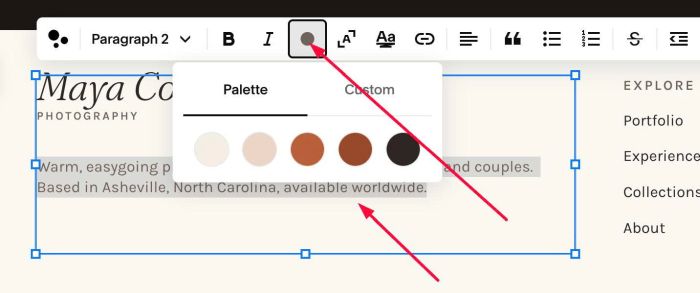
#1.3. Next, edit Second – Third Text Blocks
#1.3-1. We will use Paragraph 3 for First Line
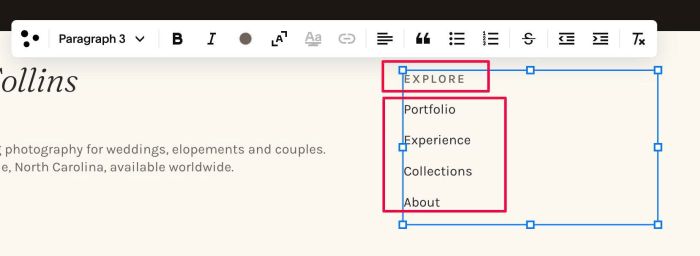
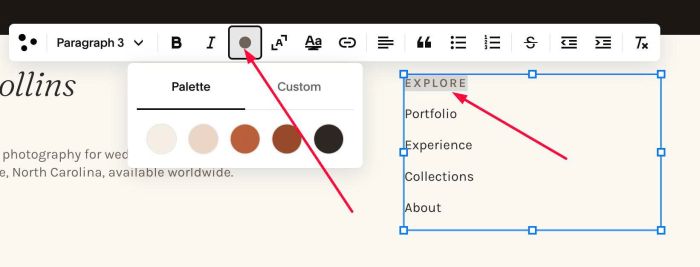
Then change its color
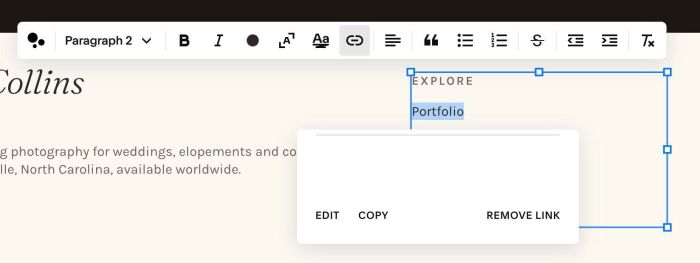
#1.3-2. and Paragraph 2 for Next Lines. Then enter your desired links
Next, repeat similar with Third Text Block
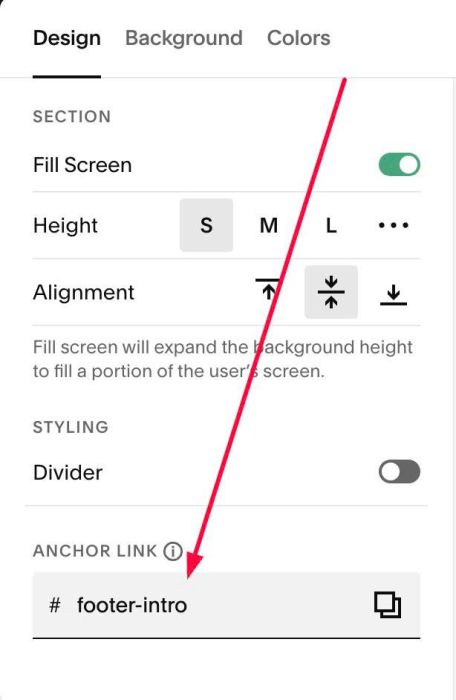
#1.4. Next, hover on top right of section > Click EDIT SECTION > at Design > Anchor Link > enter word: footer-intro
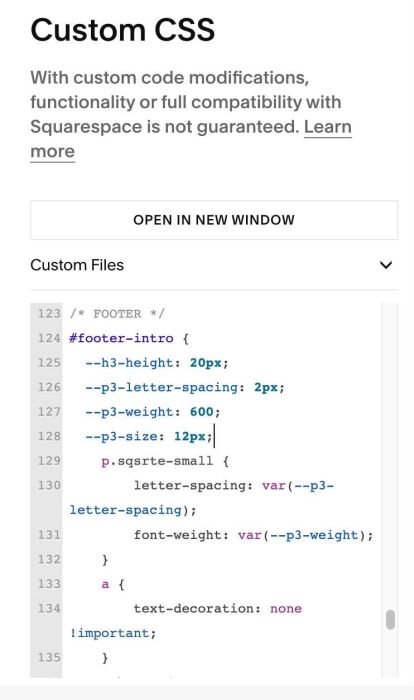
#1.5. Next, use this code to Custom CSS
#footer-intro {
  --h3-height: 20px;
  --p3-letter-spacing: 2px;
  --p3-weight: 600;
  --p3-size: 12px;
    p.sqsrte-small {
        letter-spacing: var(--p3-letter-spacing);
        font-weight: var(--p3-weight);
    }
    a {
        text-decoration: none !important;
    }
    a:hover {
        color: var(--sqsp-palette-accent-color) !important;
    }
    h3 {
      line-height: var(--h3-height);
  }
    h3 span {
        font-size: var(--p3-size) !important;
      	letter-spacing: var(--p3-letter-spacing);
      	font-weight: var(--p3-weight);
      	font-family: var(--body-font-font-family);
    }
}
#1.6. Explain
- –h3-height: change line height of heading 3 text, so it will reduce space between 2 lines of text
- –p3-letter-spacing: change letter spacing of P3 text + second line text in Heading 3
- –p3-weight: change font weight of second line text in Heading 3
- –p3-size: change text size of second line text in Heading 3