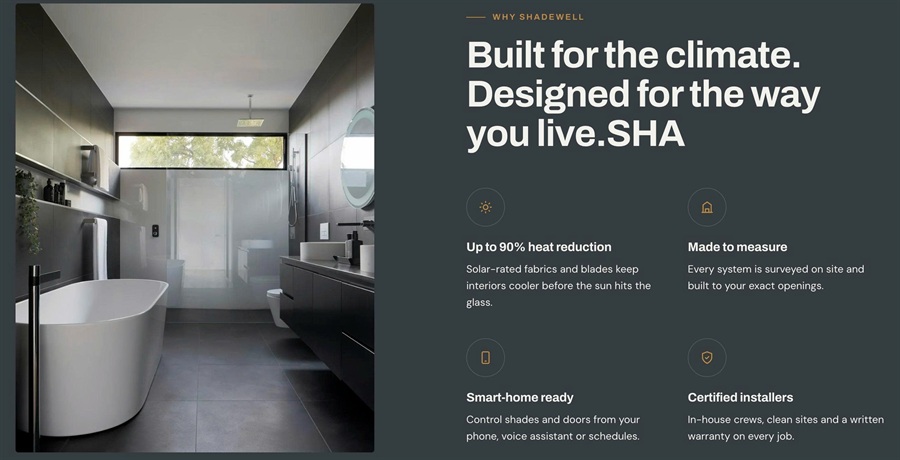
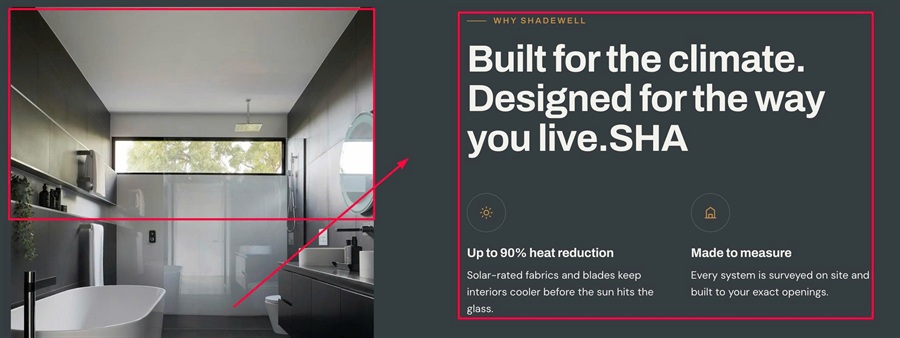
List Section can’t place an image beside the list, and items can’t have icons. This code takes the section background image and turns it into a side image on the left, with the title, feature items (each with its own icon) and button on the right.
#1. Install Code
#1.1. First, you need to add List Simple
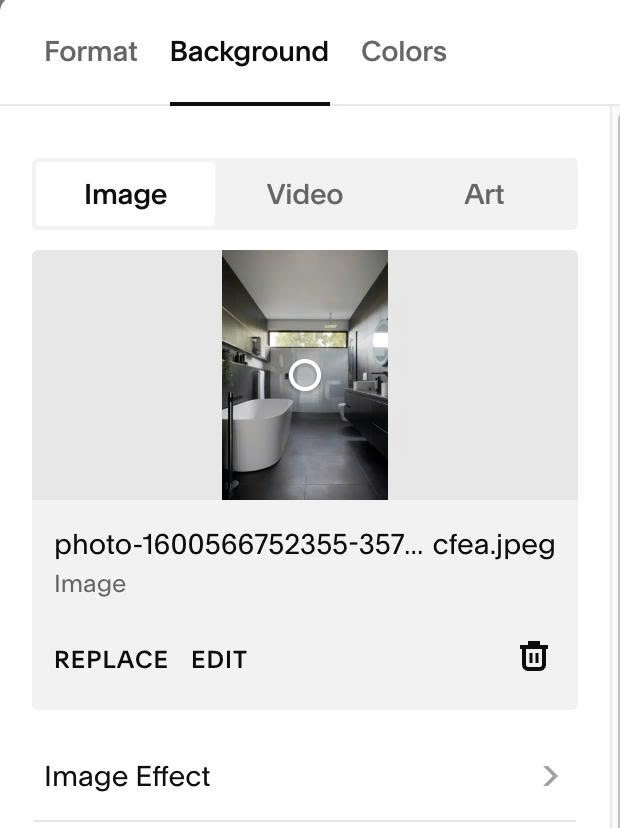
#1.2. Upload a section background image
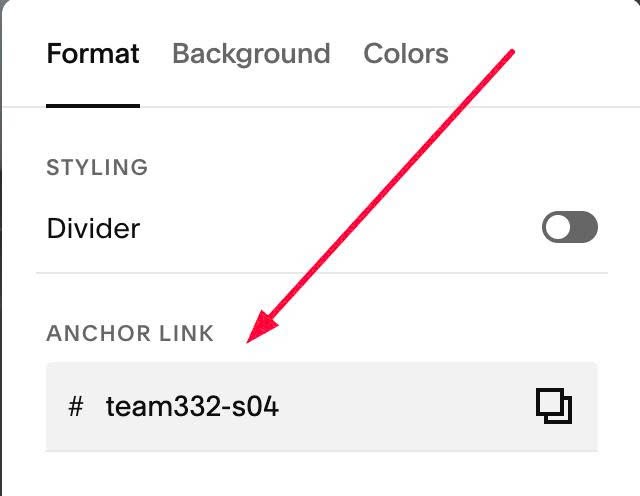
#1.3. at Anchor Link > enter word: team332-s04
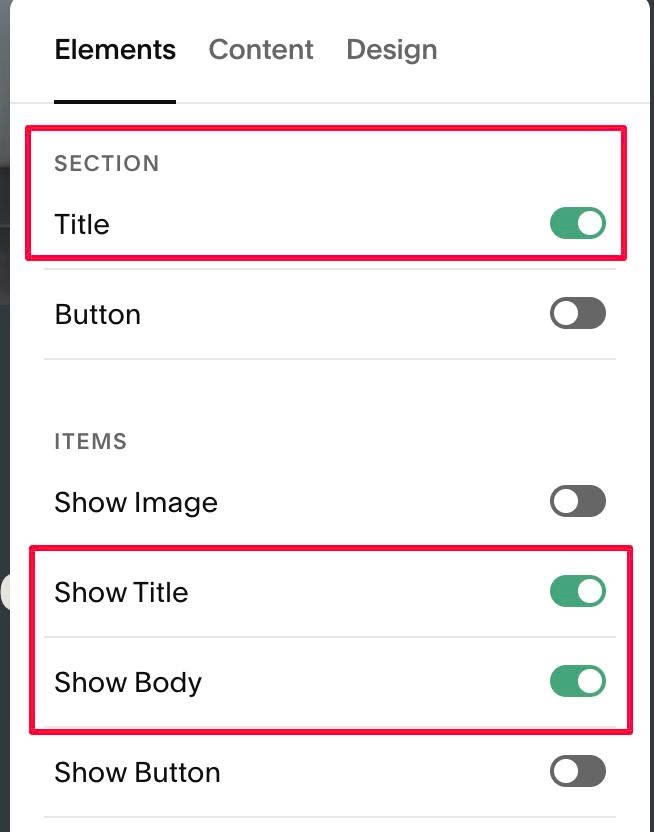
#1.4. Enable these
#1.5. Edit Section Title > Enter these info. Note: in second paragraph, use Shift Enter or Shift Return to add line break

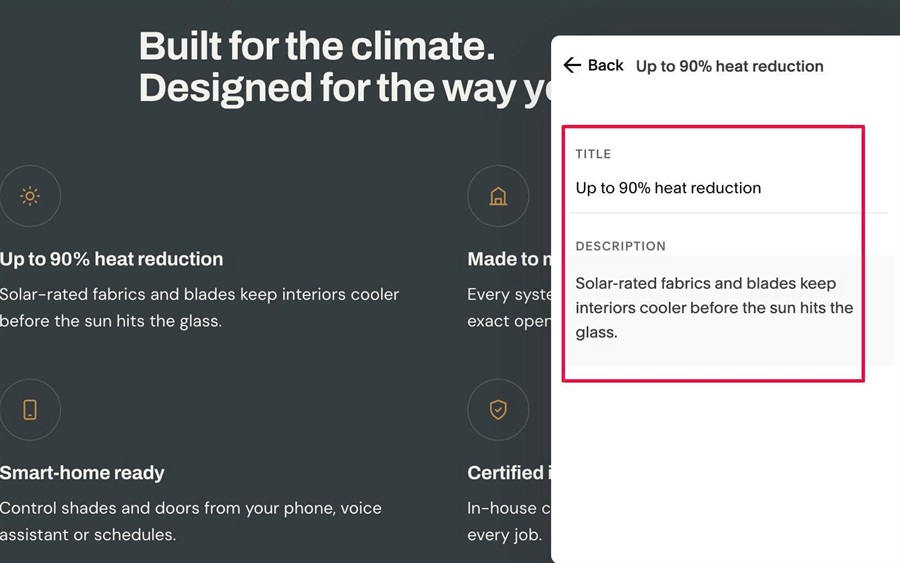
#1.6. Next, enter desired title/description
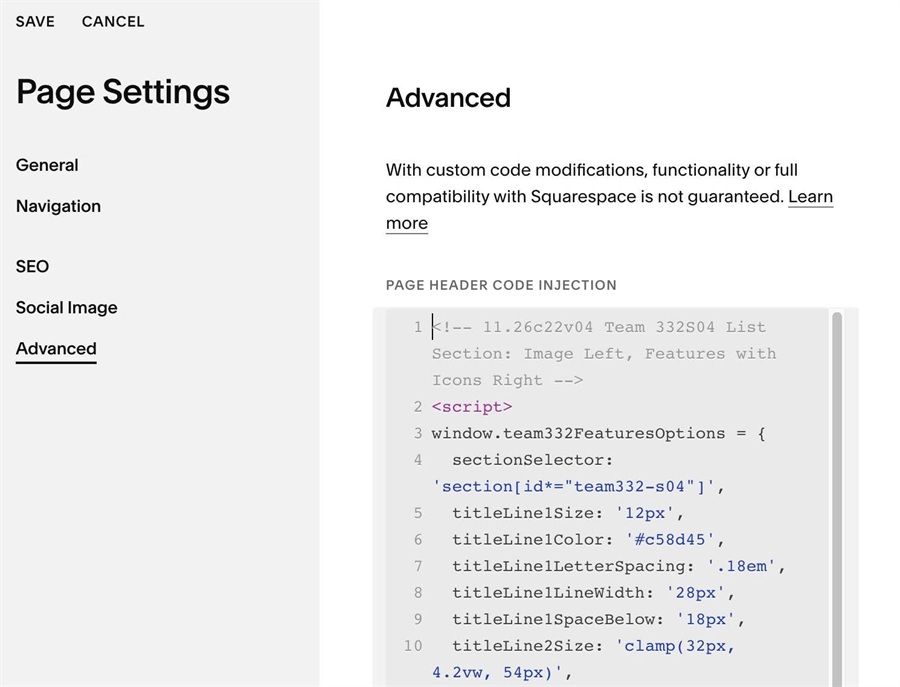
#1.7. Use this code to Page Header Injection
<!-- 11.26c22v04 Team 332S04 List Section: Image Left, Features with Icons Right -->
<script>
window.team332FeaturesOptions = {
  sectionSelector: 'section[id*="team332-s04"]',
  titleLine1Size: '12px',
  titleLine1Color: '#c58d45',
  titleLine1LetterSpacing: '.18em',
  titleLine1LineWidth: '28px',
  titleLine1SpaceBelow: '18px',
  titleLine2Size: 'clamp(32px, 4.2vw, 54px)',
  imageColumnWidth: '1fr',
  textColumnWidth: '1.15fr',
  columnGap: '80px',
  imageRatio: '4/5',
  imageRatioStacked: '16/10',
  imageRadius: '4px',
  stackBelowWidth: '1100px',
  stackedGap: '50px',
  iconBoxSize: '54px',
  iconSize: '20px',
  iconColor: '#c58d45',
  iconBorderColor: 'rgba(255,255,255,.14)',
  iconSpaceBelow: '18px',
  icons: [
    '<circle cx="12" cy="12" r="4"/><path d="M12 2v2M12 20v2M4.9 4.9l1.4 1.4M17.7 17.7l1.4 1.4M2 12h2M20 12h2M4.9 19.1l1.4-1.4M17.7 6.3l1.4-1.4"/>',
    '<path d="M3 21h18M5 21V8l7-5 7 5v13"/><path d="M9 21v-6h6v6"/>',
    '<rect x="6" y="2" width="12" height="20" rx="2"/><path d="M11 18h2"/>',
    '<path d="M12 22s8-4 8-10V5l-8-3-8 3v7c0 6 8 10 8 10z"/><path d="m9 12 2 2 4-4"/>'
  ]
};
</script>
<script src="https://code.beaverhero.com/listsimple/1126c22v04team332s04.js"></script>
#1.8. Customize
Any styles not mentioned here can be adjusted under Design > Style, Size & Space, or Site Styles.
To change style of Line 01, Line 02 in Section Title, edit this
titleLine1Size: '12px',
  titleLine1Color: '#c58d45',
  titleLine1LetterSpacing: '.18em',
  titleLine1LineWidth: '28px',
  titleLine1SpaceBelow: '18px',
  titleLine2Size: 'clamp(32px, 4.2vw, 54px)',
To change Image, Text Column Width + Gap between both, edit this
imageColumnWidth: '1fr',
  textColumnWidth: '1.15fr',
  columnGap: '80px',
To change Icon style, edit this
iconBoxSize: '54px',
  iconSize: '20px',
  iconColor: '#c58d45',
  iconBorderColor: 'rgba(255,255,255,.14)',
  iconSpaceBelow: '18px',
To use other icons, edit this
icons: [
   '<circle cx="12" cy="12" r="4"/><path d="M12 2v2M12 20v2M4.9 4.9l1.4 1.4M17.7 17.7l1.4 1.4M2 12h2M20 12h2M4.9 19.1l1.4-1.4M17.7 6.3l1.4-1.4"/>',
   '<path d="M3 21h18M5 21V8l7-5 7 5v13"/><path d="M9 21v-6h6v6"/>',
   '<rect x="6" y="2" width="12" height="20" rx="2"/><path d="M11 18h2"/>',
   '<path d="M12 22s8-4 8-10V5l-8-3-8 3v7c0 6 8 10 8 10z"/><path d="m9 12 2 2 4-4"/>'
 ]