List Sections only support images, so adding a small icon to each item usually means uploading icon files one by one. This code adds line icons (SVG) to each item and turns the list into a bordered grid, like a features section.
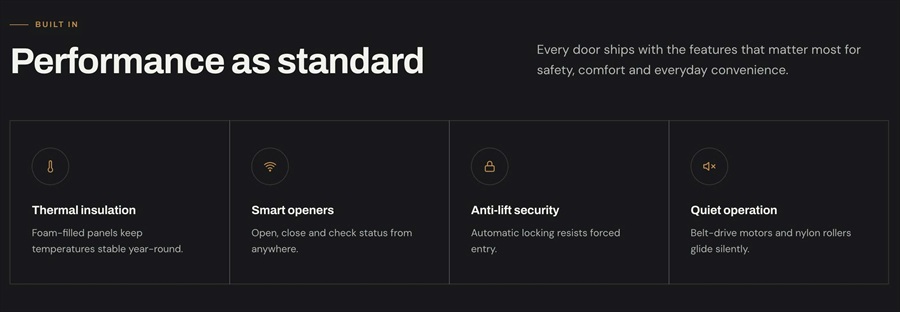
#1. Install Code
#1.1. First, use List Simple
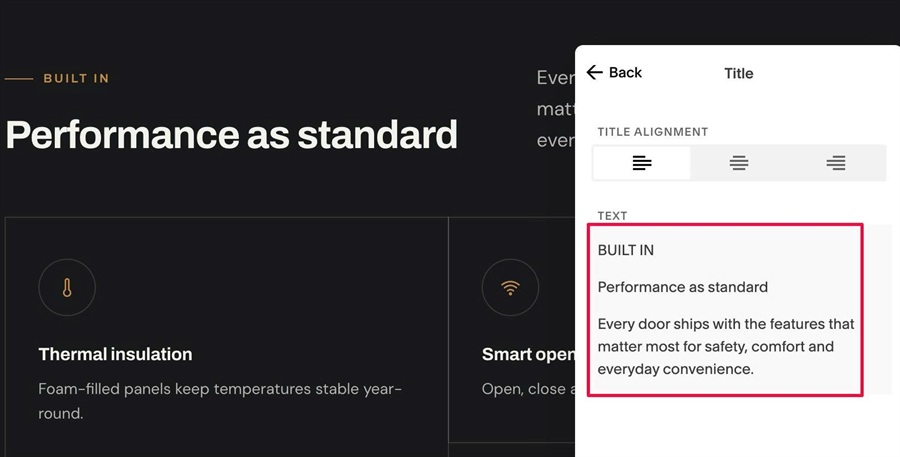
#1.2. Edit Section Title > Add 3 Paragraphs with your desired text
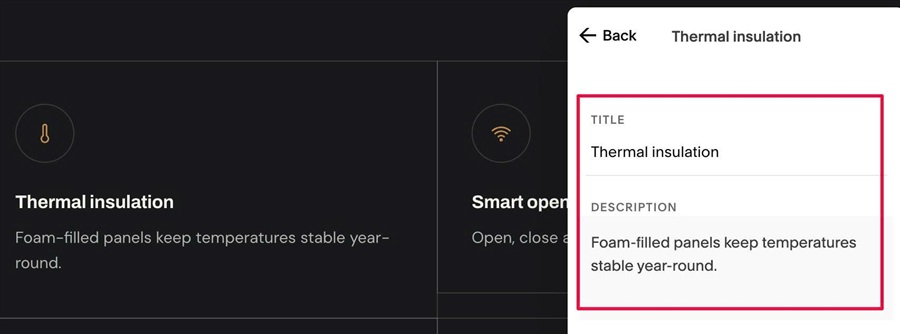
#1.3. Edit each item > Enter desired title, description
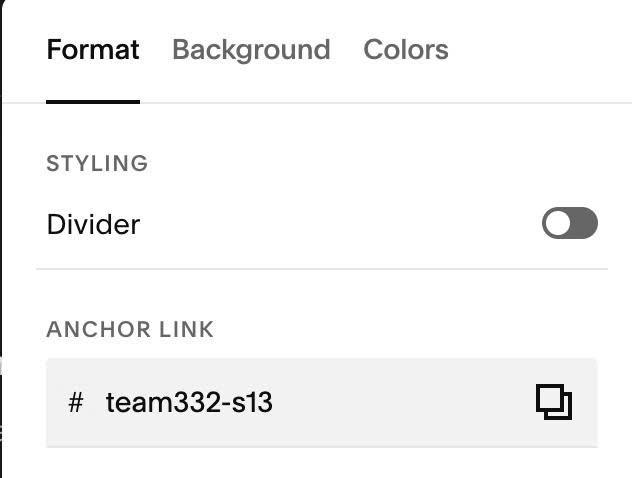
#1.4. Hover on top right of section > Click EDIT SECTION > at Format > Anchor Link > enter word: team332-s13
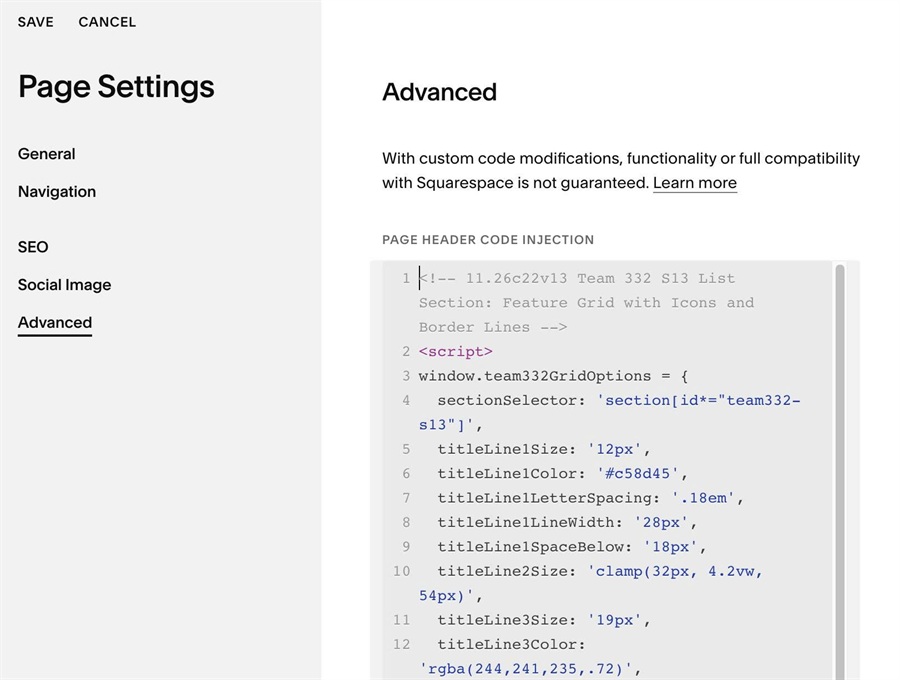
#1.5. Use this code to Page Header Injection
<!-- 11.26c22v13 Team 332 S13 List Section: Feature Grid with Icons and Border Lines -->
<script>
window.team332GridOptions = {
  sectionSelector: 'section[id*="team332-s13"]',
  titleLine1Size: '12px',
  titleLine1Color: '#c58d45',
  titleLine1LetterSpacing: '.18em',
  titleLine1LineWidth: '28px',
  titleLine1SpaceBelow: '18px',
  titleLine2Size: 'clamp(32px, 4.2vw, 54px)',
  titleLine3Size: '19px',
  titleLine3Color: 'rgba(244,241,235,.72)',
  titleLine3MaxWidth: '580px',
  gridLineWidth: '1px',
  gridLineColor: 'rgba(255,255,255,.14)',
  cellBackgroundColor: '',
  cellPadding: '40px 32px',
  columnsTablet: 2,
  tabletWidth: '1100px',
  itemTitleColor: '#f4f1eb',
  itemDescriptionColor: 'rgba(244,241,235,.7)',
  iconBoxSize: '54px',
  iconSize: '20px',
  iconLineWidth: '1.75',
  iconColor: '#c58d45',
  iconBorderColor: 'rgba(255,255,255,.14)',
  iconSpaceBelow: '26px',
  icons: [
    '<path d="M14 14.8V4a2 2 0 0 0-4 0v10.8a4 4 0 1 0 4 0z"/>',
    '<path d="M5 12.5a10 10 0 0 1 14 0M8.5 16a5 5 0 0 1 7 0M2 9a15 15 0 0 1 20 0"/><circle cx="12" cy="19.5" r="1"/>',
    '<rect x="4" y="11" width="16" height="10" rx="2"/><path d="M8 11V7a4 4 0 0 1 8 0v4"/>',
    '<path d="M11 5 6 9H2v6h4l5 4V5z"/><path d="M22 9l-6 6M16 9l6 6"/>'
  ]
};
</script>
<script src="https://code.beaverhero.com/listsimple/1126c22v13team332s13.js"></script>
#1.6. Customize
To change style of 3 Lines in Section Title, edit these
titleLine1Size: '12px',
  titleLine1Color: '#c58d45',
  titleLine1LetterSpacing: '.18em',
  titleLine1LineWidth: '28px',
  titleLine1SpaceBelow: '18px',
  titleLine2Size: 'clamp(32px, 4.2vw, 54px)',
  titleLine3Size: '19px',
  titleLine3Color: 'rgba(244,241,235,.72)',
  titleLine3MaxWidth: '580px',
To change Line style, edit this
gridLineWidth: '1px',
  gridLineColor: 'rgba(255,255,255,.14)',
To change Item Title, Item description color (by default, you can change it in Site Styles, but here I use code to override it)
itemTitleColor: '#f4f1eb',
  itemDescriptionColor: 'rgba(244,241,235,.7)',
To change icon style, edit
iconBoxSize: '54px',
  iconSize: '20px',
  iconLineWidth: '1.75',
  iconColor: '#c58d45',
  iconBorderColor: 'rgba(255,255,255,.14)',
  iconSpaceBelow: '26px',
To replace with other icons, change these syntaxs
icons: [
    '<path d="M14 14.8V4a2 2 0 0 0-4 0v10.8a4 4 0 1 0 4 0z"/>',
    '<path d="M5 12.5a10 10 0 0 1 14 0M8.5 16a5 5 0 0 1 7 0M2 9a15 15 0 0 1 20 0"/><circle cx="12" cy="19.5" r="1"/>',
    '<rect x="4" y="11" width="16" height="10" rx="2"/><path d="M8 11V7a4 4 0 0 1 8 0v4"/>',
    '<path d="M11 5 6 9H2v6h4l5 4V5z"/><path d="M22 9l-6 6M16 9l6 6"/>'
  ]