- Support: [email protected]
- Free install (1 site/license)
- View Demo – Password: abc
Description
- Gallery Filter with category tag on top
- Hover each image will show overlay + text
- Note: Use People List Section

#1. Install code
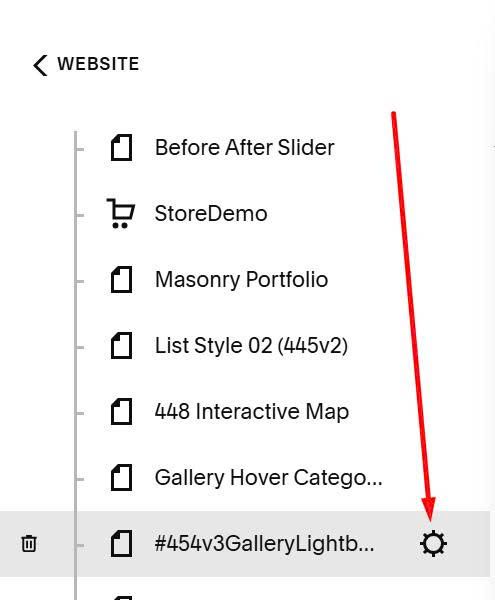
Click Gear icon on page where you want to apply this effect.
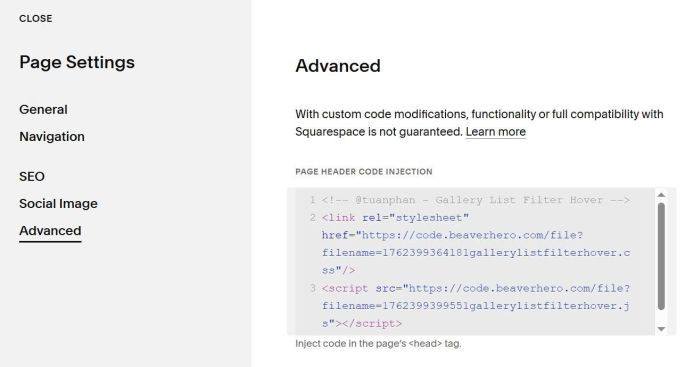
Next, click Advanced > Paste this code
<!-- @tuanphan - Gallery List Filter Hover -->
<link rel="stylesheet" href="https://code.beaverhero.com/file?filename=1762399364181gallerylistfilterhover.css"/>
<script src="https://code.beaverhero.com/file?filename=1762399399551gallerylistfilterhover.js"></script>
#2. Usage
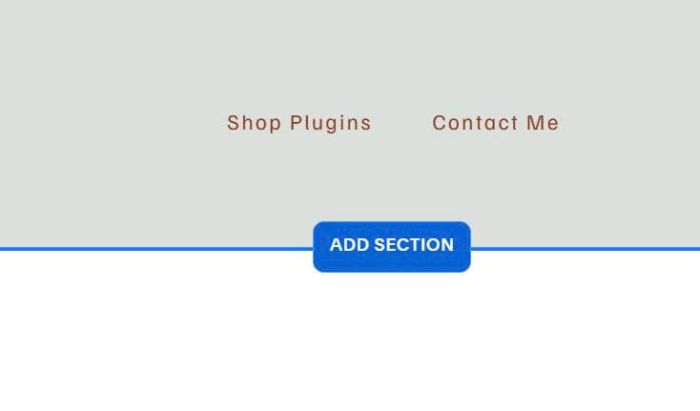
First, click Add Section
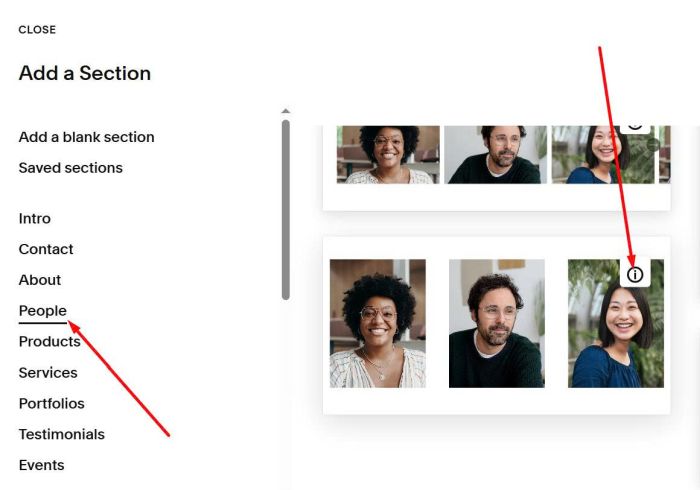
Choose People > Choose section with (i) icon
Next, hover on right of section > Click EDIT CONTENT

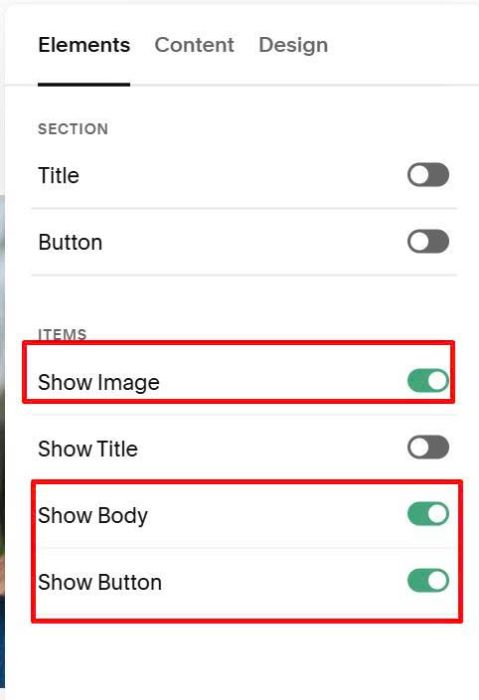
Enable these options: Image, Body, Button
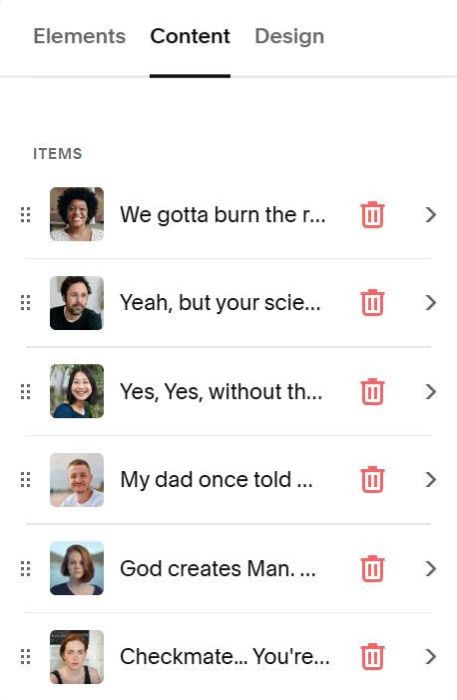
Next, on tab Content, edit each item
Add text with #### symbol. For example: ####London
####London
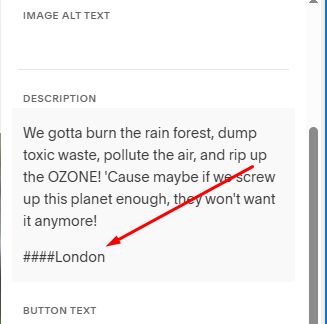
Code will turn these into Filter Options. NO NEED to enter ####All

#3. Customize
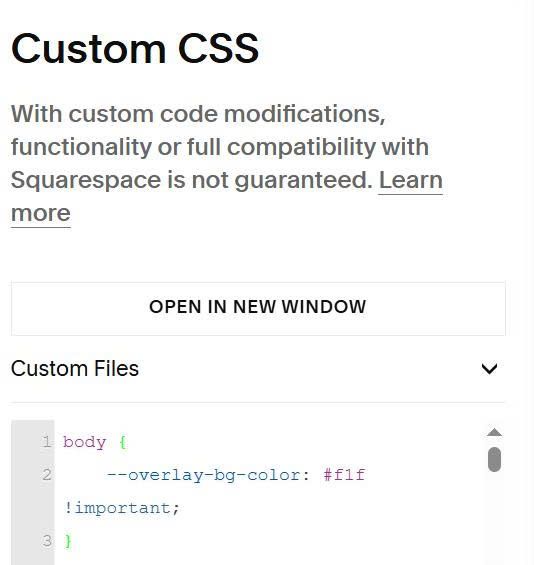
#3.1. To change overlay color, use this to Custom CSS
body {
    --overlay-bg-color: #f1f !important;
}
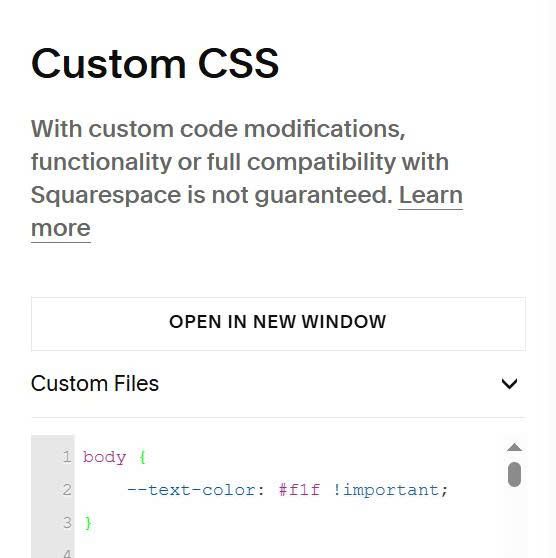
#3.2. To change text color, use this to Custom CSS
body {
    --text-color: #f1f !important;
}
If you have any other questions, you can email or message me.